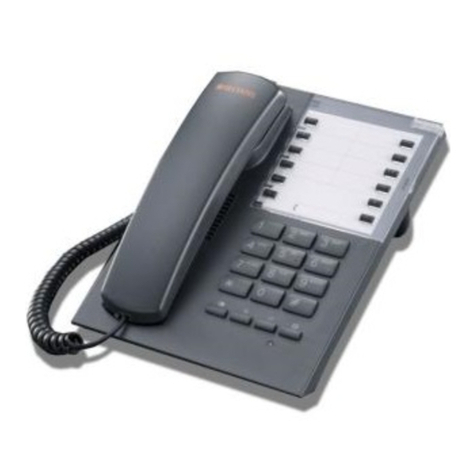
CaptionCall 57Tx User manual

setup guide

2CaptionCall
Meet Your New CaptionCall Phone
We’d like to introduce you to CaptionCall. Your new CaptionCall phone
looks and works pretty much like an ordinary telephone, but with one big
difference — CaptionCall’s large 7-inch display screen. If you have
difficulty hearing on a regular telephone, the big display screen can make
using the telephone easy and enjoyable for you again.
Spoken Words into Captions
Your CaptionCall phone works a lot like the closed-captioning (CC)
service on television. When you make a call, you just speak normally and
listen with what hearing you have. You then read the caller’s responses as
text on the display screen. No more struggling — or failing — to hear
what’s being said to you. In addition to the captioning service, the
CaptionCall phone can amplify the sound received by the phone.
Free Service Means “No Cost to You”
CaptionCall is a completely free service. You’ll have no new bills and no
monthly charges. The CaptionCall service is funded by the Federal
Communications Commission (FCC), so it’s absolutely free to you.
Life Is Calling

setup guide 3
Some Not-So-Technical Details
Here’s what happens when you make a telephone call using CaptionCall:
1. The phone connects to the CaptionCall service using the Internet.
2. The CaptionCall service quickly converts the words spoken by the other
person into text (captions).
3. The text is then displayed on the phone’s display screen.
Because it takes a brief moment for words to be converted into captions,
you’ll see a slight delay before text appears on the screen. The text on the
screen shows only what the other person is saying, not what you say.
Some Calling Etiquette
You can choose to be discreet about your use of the CaptionCall service,
or explain simply to your callers how CaptionCall works. It’s your choice.
You might find it helpful to tell your callers to expect a slight delay for
your responses if you need time to read the captions before responding.
Discovering Hidden Talents
The first time you use your CaptionCall phone, you might be a little
nervous. But, after you get the hang of the captioning service you’ll see
just how easy CaptionCall is to use. We know you’ll have fun discovering
the many hidden talents of your CaptionCall phone, such as its Call
History and Contacts features.
How It Works

4CaptionCall
Check For These Things First
Before you can set up and start using your new CaptionCall phone, you
will need to have the following things ready and available:
Telephone Service
Naturally, you need to have standard voice telephone line service. You can
use any type of telephone service except for cellular service, whether it be
analog, VOIP, or something else. The phone service must provide a
standard analog telephone plug (RJ-11) to connect to the phone.
Broadband Internet Service
Your phone requires a Broadband Internet connection. The word “High-
Speed” is often used to refer to Broadband service. “Hotspot” or hotel
wireless services that require you to log in will not work with CaptionCall.
Ethernet or Wireless Network
CaptionCall can use an Ethernet cable to connect to your Broadband
modem or router. Or, if you have a wireless (i.e., 802.11b/g) connection to
the Internet, your CaptionCall phone can use that service instead.
Electrical Outlet
You’ll need an electrical outlet located near your CaptionCall phone.
Get Ready...

setup guide 5
Set Up Your CaptionCall Phone
When you’re ready to set up your CaptionCall phone, here’s what to do:
Step 1: Find a good place to put the phone.
Look around for a good place to set up your phone. You’ll need a stable
table, counter, or wall mount that’s located near a power outlet, phone
line, and your Broadband modem. If you’re planning on using wireless,
you won’t need to worry about having the Broadband modem close by.
Step 2: Unpack the phone and cables from the box.
If your CaptionCall phone is still packed in its original box, you can now
take everything out of the box. Here’s what you’ll find packed inside:
• CaptionCall phone base unit
•Handset
• Handset cord (black, coiled, 12-ft length)
• Phone line cord (gray, 14-foot length)
• Phone line cord (gray, 6-inch length)
• Ethernet cable with attached Ferrite filter (black, 6-foot length)
• Power adapter with power cord (in small white box)
• CaptionCall Setup Guide and User Guide documentation
Get Going...
Phone Mounting Option
You can mount your CaptionCall phone to
a standard wall telephone mounting plate.
The phone’s Base Platform will fit a
standard wall mounting plate.
Remember that you will need to be able to
connect the power cord and the Ethernet
cable to the phone mounted on the wall. If
you are using the wireless feature, you
won’t need to use the Ethernet cable.
See the note on Page 11 for more
information on using the wireless feature.

6CaptionCall
Step 3: Connect the handset cord to the phone.
You can connect the handset to the phone base with the coiled cable now,
but please wait to connect the other cables until you’ve read a bit further.
The figure below shows the handset cord connected correctly.
Connect the coiled handset cord
here at the phone base...
...and here at the handset

setup guide 7
Step 4: Identify the parts of the phone (Part 1).
Look at the back side of the phone. Pull out the Platform Stand and Base
Platform to hold the phone at the desired angle when set up on a desk.
Platform Stand and Release Latch
Push latch to release stand, then pull down to desired position
2.5mm Audio jack
Position phone at the desired angle, and then hold
the phone securely using the Platform Stand
Base Platform
Used for neckloop with microphone to connect to hearing aids
Look It Over...

8CaptionCall
Step 5: Identify the parts of the phone (Part 2).
Now look at the front side of the phone. Notice the CaptionCall light, the
touch screen display, and the Menu button. The cradle area contains the
switch hook, volume control, and warning light above the keypad.
CaptionCall light
Telephone keypad
Menu button
Touch screen display
Shows if the captioning service is on or off
Shows captions and interface to phone features
Press to access the phone’s features
Works just like a regular telephone
Handset volume controls and light
Press + for higher volume or — for less volume
Display lights up to warn if volume is set too high
Switch hook button
Press to hang up a call

setup guide 9
Make Your Wiring Connections (Part 1)
The picture below shows a close-up view of the phone’s back panel. The
numbered steps next to the picture show where to connect the cables.
Find the provided cables, then make the connections. Notice that a small
black ferrite filter is attached to one end of the Ethernet cable. Connect
that end of the cable to the Internet port on the back panel of the phone.
Step 1 — Plug in the phone line
Step 2 — Plug in the power cord
Step 3 — Plug in the Ethernet cable
Note: If you plan to use wireless, you will
not need to attach the Ethernet cable.
Ferrite filter attached to Ethernet cable
Note: The actual power connector may
look slightly different than shown here.
Connect It...

10 CaptionCall
Make Your Wiring Connections (Part 2)
After you connect the cables to the back of the phone, follow the
numbered steps below to plug in the other ends of the cables. Plug in
the power adapter cord last. Be careful to not to touch the display screen
immediately after plugging in the power cord because the phone calibrates
the touch screen as it starts up.
Step 6 — Plug the power adapter cord into a wall outlet
Step 4 — Plug the phone line into a wall jack
Step 5 — Plug the Ethernet cable into a modem or router
Note: Make sure the ferrite filter is on the end of the cable
that is attached to the phone, not at the modem/router end.
Note: Connect the phone to power last. Do
not touch the display screen immediately
after connecting the phone to the wall outlet.
Note: If your DSL modem provides a phone port,
you can plug the phone line right into the modem.
Note: If you plan to use wireless, you will not
need to use the Ethernet cable.
Plug It In...
Table of contents
Other CaptionCall Telephone manuals