
Cambridge Audio DacMagic 200M User manual

1
DacMagic 200M
Manual Generated: 14/05/2022 - 10:20

2
Table of Contents
DacMagic 200M 3 .................................................................................................................................................................................................................
Introduction 4 .......................................................................................................................................................................................................................
What's Included With The DacMagic 200M 5 ...................................................................................................................................................................
Front Panel Controls 6 .........................................................................................................................................................................................................
Rear Panel Connections 7 ...................................................................................................................................................................................................
Getting Connected 8 ............................................................................................................................................................................................................
Master Quality Authenticated (MQA) 15 ..........................................................................................................................................................................
Filters 17 ................................................................................................................................................................................................................................
Advanced Settings 20 ..........................................................................................................................................................................................................
Auto Power Down (APD) 22 ................................................................................................................................................................................................
TV Mode 23 ............................................................................................................................................................................................................................
Frequently Asked Questions 25 .........................................................................................................................................................................................
Technical Specifications 27 .................................................................................................................................................................................................
3
DacMagic 200M
Last updated: May 10, 2022 04:42. Revision #4034
User's Manual

4
Introduction
Last updated: May 5, 2022 12:07. Revision #3937
This guide is designed to make installing and using this product as easy as possible. Information in this document has been carefully checked for
accuracy at the time of printing; however, Cambridge Audio’s policy is one of continuous improvement, therefore design and specifications are subject to
change without prior notice.
This document contains proprietary information protected by copyright. All rights are reserved. No part of this manual may be reproduced by any
mechanical, electronic or other means, in any form, without prior written permission of the manufacturer. All trademarks and registered trademarks are
the property of their respective owners.
The Bluetooth® word mark and logos are registered trademarks owned by the Bluetooth SIG, Inc. and any use of such marks by Audio Partnership Plc is
under license. Other trademarks and trade names are those of their respective owners.
MQA and the Sound Wave Device are registered trademarks of MQA Limited © 2016.
© Copyright Cambridge Audio Ltd
For upcoming news on future products, software updates and exclusive offers, make sure you register your product at
http://www.cambridgeaudio.com/register
5
What's Included With The DacMagic 200M
Last updated: May 6, 2022 08:42. Revision #3967
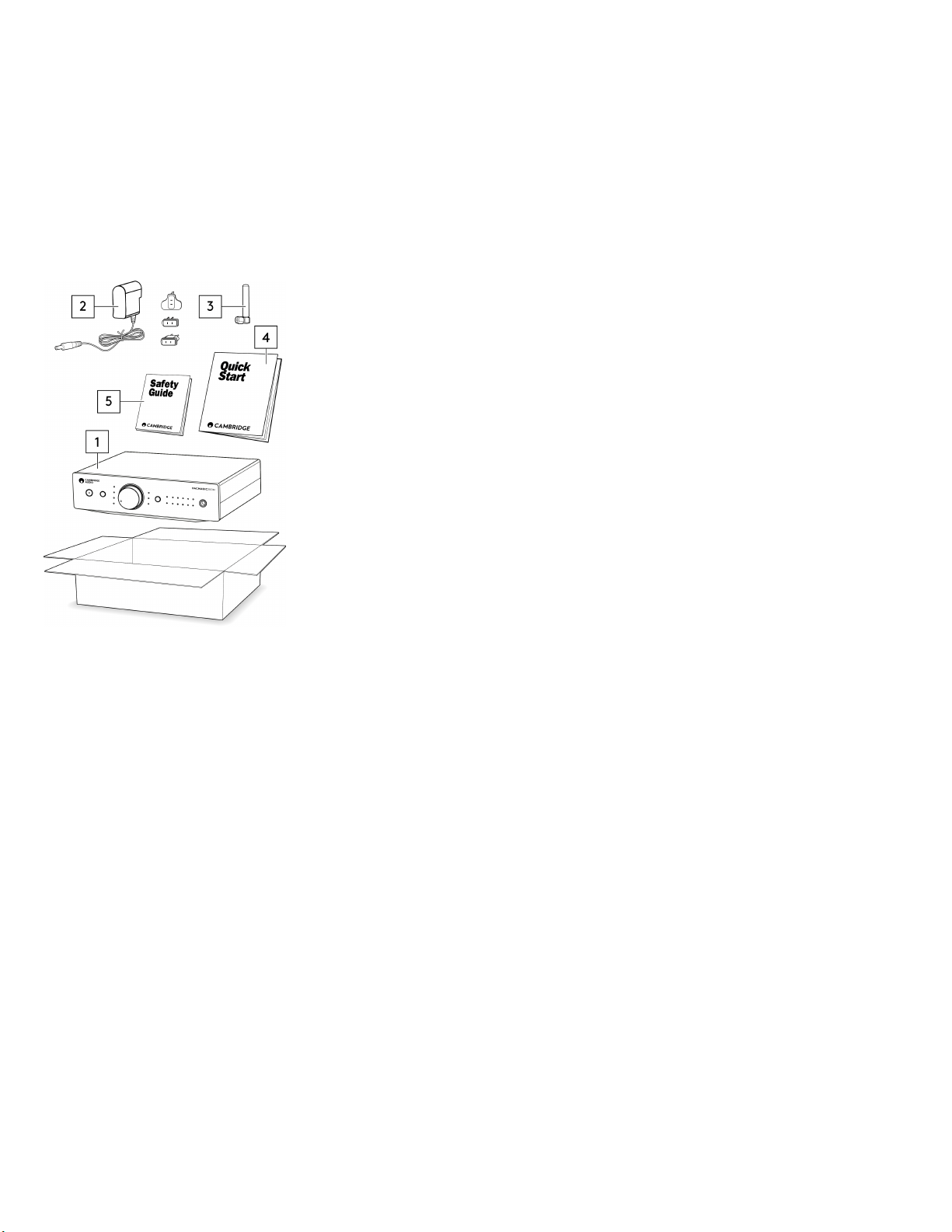
Inside the box of your DacMagic 200M you will receive:
DacMagic 200M Digital to Analogue Converter.1.
12V Power Supply.2.
Bluetooth antenna.3.
Quick Start Guide.4.
Safety Instructions.5.
6
Front Panel Controls
Last updated: May 10, 2022 04:42. Revision #4033
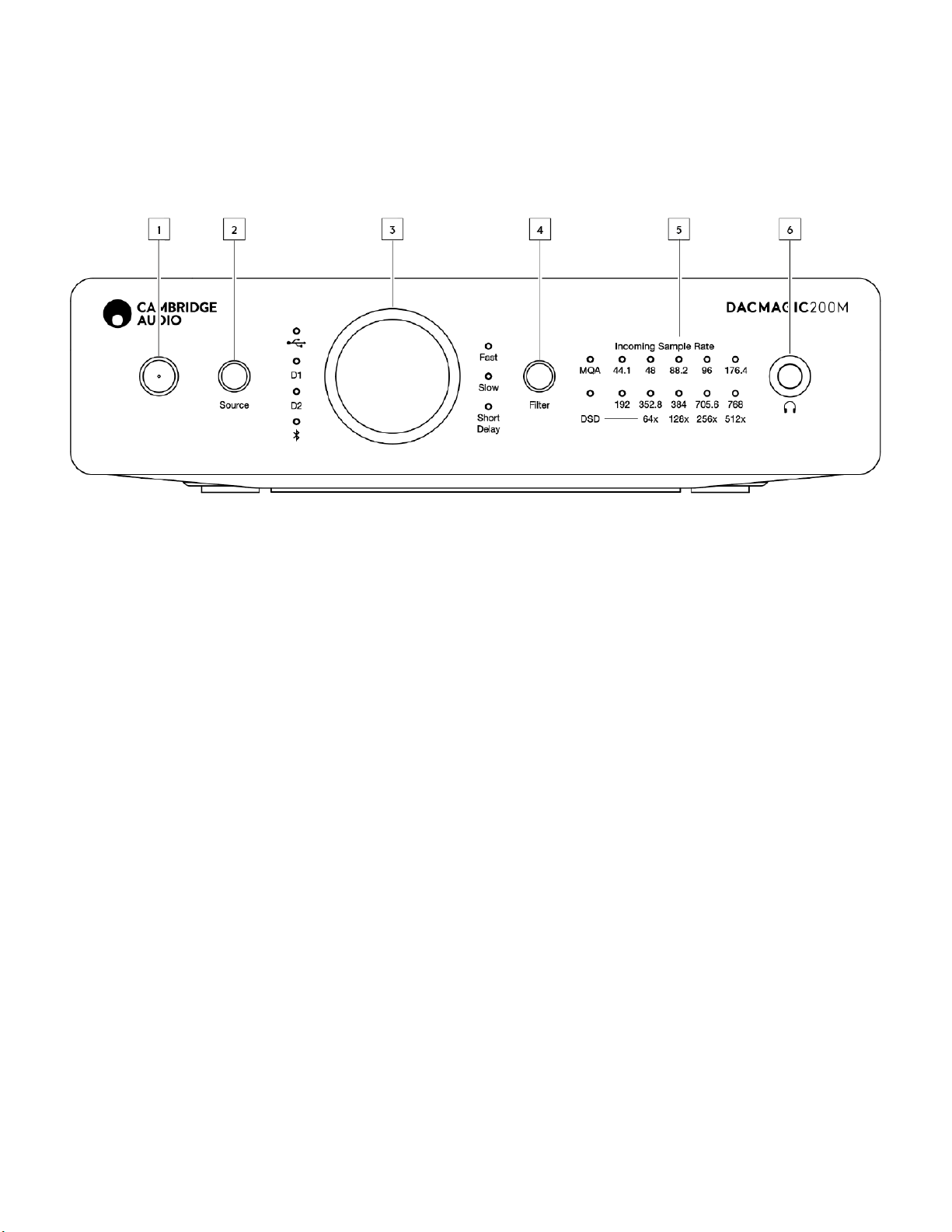
1. Standby/On – Switches the unit between on and low power standby.
2. Source – Select incoming audio source. Toggle between USB, Digital Inputs 1, and 2, and Bluetooth. The selected input will be indicated by the
corresponding LED.
3. Digital Volume Control – Adjust the volume when Digital Preamp (variable) mode is enabled. Pressing this knob will result in a mute toggle.
4. Filter – Press to select between three different filter modes: Fast, Slow, and Short Delay. This selected filter mode will be indicated by the
corresponding LED.
5. Incoming Sample Rate – When the DacMagic 200M is receiving an incoming digital stream, the relevant LED will light up to indicate the incoming
digital sampling frequency. For MQA the LED will light up green for MQA, or blue for MQA Studio. If the LED is magenta, then the unit is rendering an
MQA stream or file, completing the processing, and allowing playback at the highest possible audio quality. DSD will light up when native DSD or DoP
streams are detected.
Note: The sample rate LEDs reflects the incoming sample rate, and not that of the original source.
6. Headphone Connection – Allows the connection of headphones for a direct listening experience.
7
Rear Panel Connections
Last updated: May 10, 2022 10:22. Revision #4020
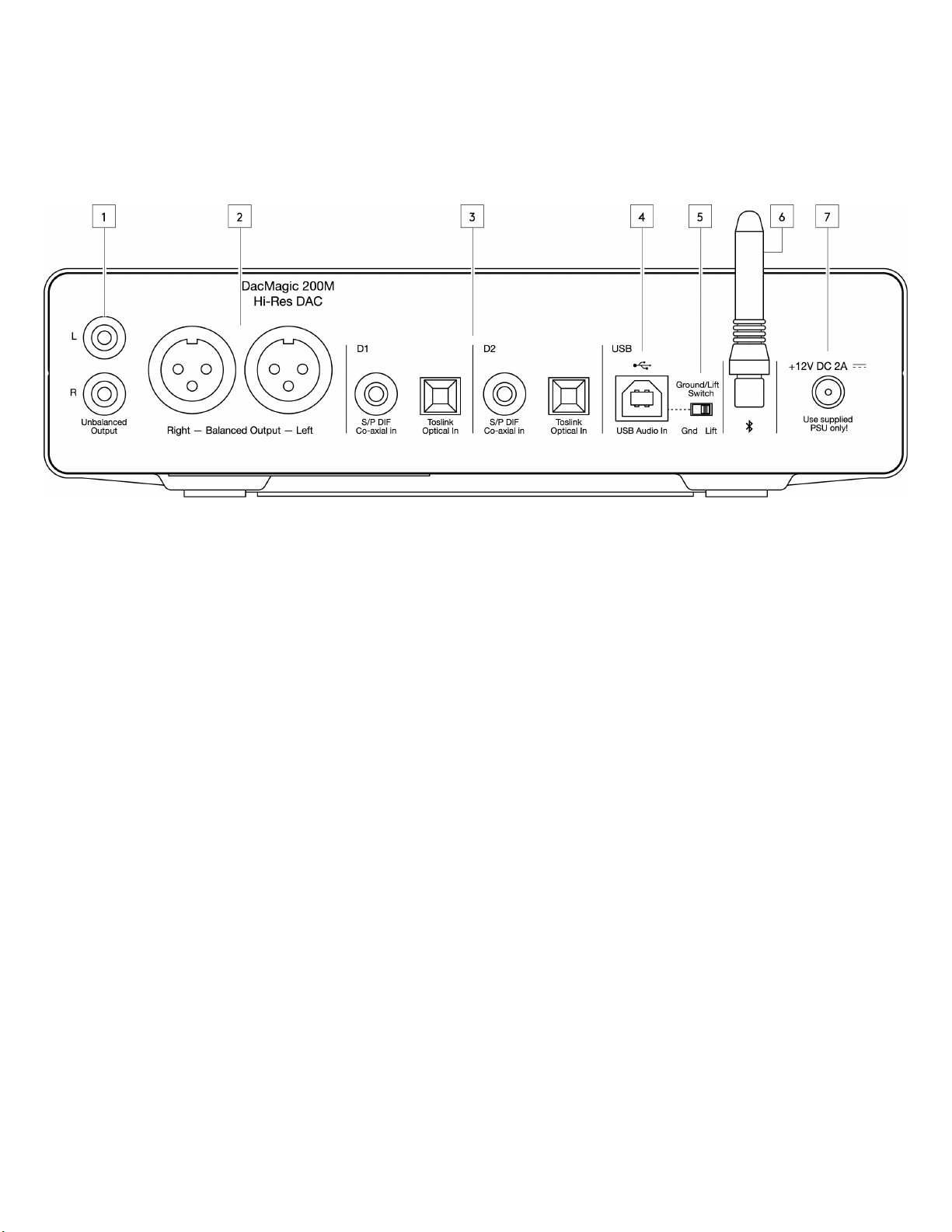
1. Unbalanced Audio Outputs – Outputs for use with unbalanced RCA cables.
2. Balanced Audio Outputs – Outputs for use with balanced XLR cables. Suitable for when a longer connection is needed between the DacMagic 200M,
and an amplifier.
3. Digital Inputs 1 and 2 – The DacMagic 200M offers two digital inputs allowing a wide range of sources to be connected via the use of S/P DIF co-
axial, or TOSLINK optical.
4. USB Audio In – For connecting to PC/Mac computers for USB Class 2.0 Audio playback. Please note that for Windows devices the Cambridge Audio
USB Audio driver must be installed.
5. Ground/Lift Switch – When connected to a PC via USB, and with the switch set to ‘ground’, the DacMagic 200M will ground itself via the USB
connection. Setting the switch to ‘lift’ will ground the device via an internal network to reduce hum in case of ground loops.
6. Bluetooth Antenna – Used for the wireless streaming of Bluetooth audio from most phones, tablets, and laptops.
7. DC 12V 2.0A Power Adaptor Socket – Note: Only use the power supply included with the DacMagic 200M.

8
Getting Connected
Last updated: May 6, 2022 11:07. Revision #4025
Initial Setup
Connect your chosen digital audio source(s) to the input(s) on the DacMagic 200M via:1.
TOSLINK optical - which offers high quality transfer over shorter distances
OR
S/P DIF coaxial - which can be used for longer connections
OR
USB audio to connect to a PC, or Mac.
Connect the audio outputs to the line-input of your amplifier using the unbalanced RCA connections for shorter distances, or the balanced XLR2.
connections for longer distances.
Using the appropriate plug for your region, connect the supplied power adaptor to the DacMagic 200M.3.
Power on the unit and select the input source that you wish to listen to using the source button located on the front panel.4.
Note: For Bluetooth connections, please follow the instructions from the Bluetooth section of the manual.
If there is no power to the unit, please see the following steps
Check that the supplied 12V PSU is securely connected to the power adaptor socket on the rear of the DacMagic 200M.1.
Confirm that the PSU is securely connected to the mains socket, and that the socket is switched on.2.
If a hum or buzzing sound can be heard after setup, please see the following steps
Check that all connections between Source(s) > DacMagic 200M > Amplifier are secure. 1.
Move the unit away from any nearby lighting, or mains cables that could cause interference.2.
If connected to a PC or Mac via USB, switch ‘Ground Lift’ switch to ‘lift’.3.
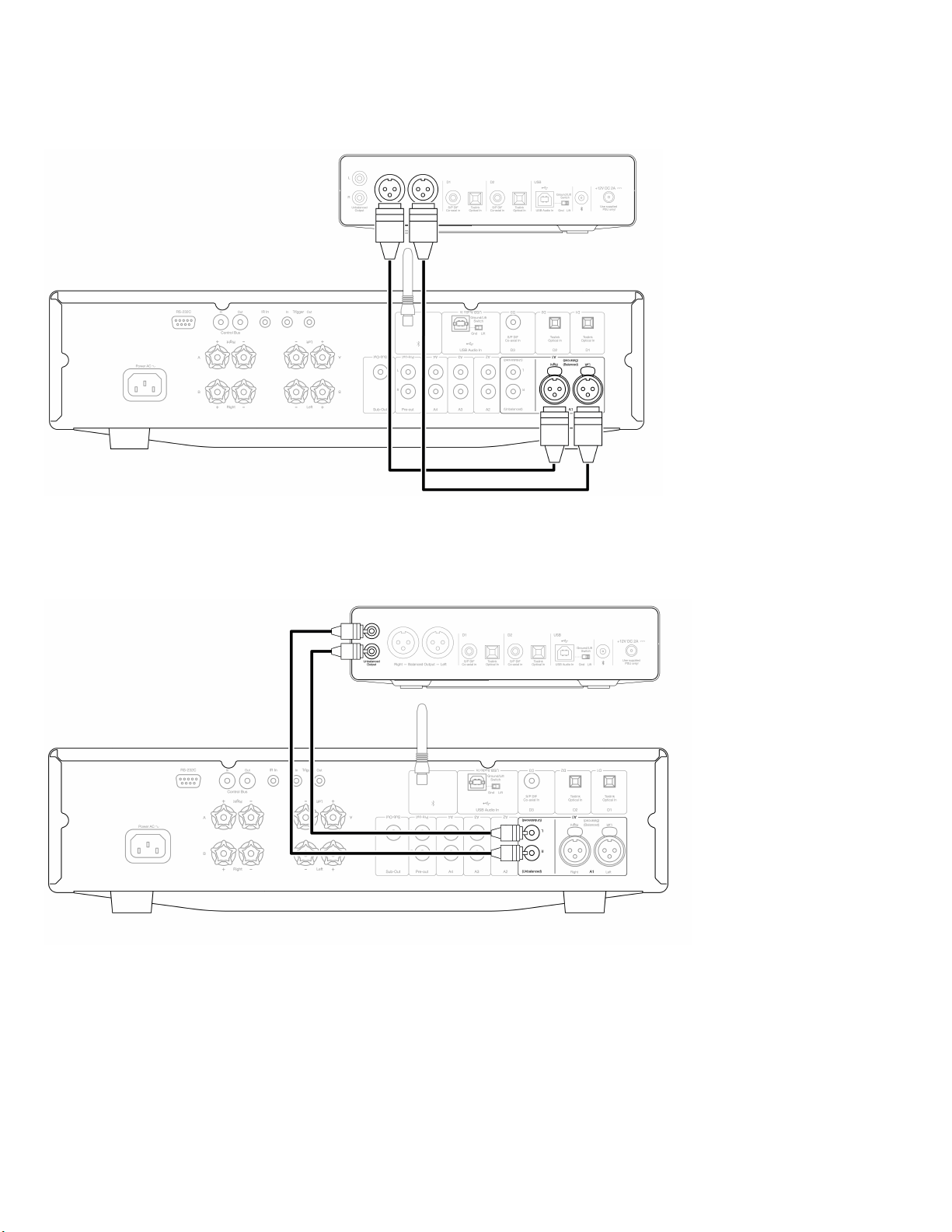
Audio Output Connections
Balanced connection to a CXA81
9
Unbalanced connection to a CXA81
Note: Do not turn the unit on until all necessary connections have been made.
The DacMagic 200M offers both balanced (XLR), and unbalanced (RCA) audio output connections.
In the case of longer connections between the DacMagic 200M and your amplifier we would recommend the use of a balanced connection via XLR as this
can help to reject noise, and interference in the cable.
10
It is possible to use both balanced, and unbalanced connections at the same time, for example: when connecting to multiple amplifiers, or a multi-room
setup.
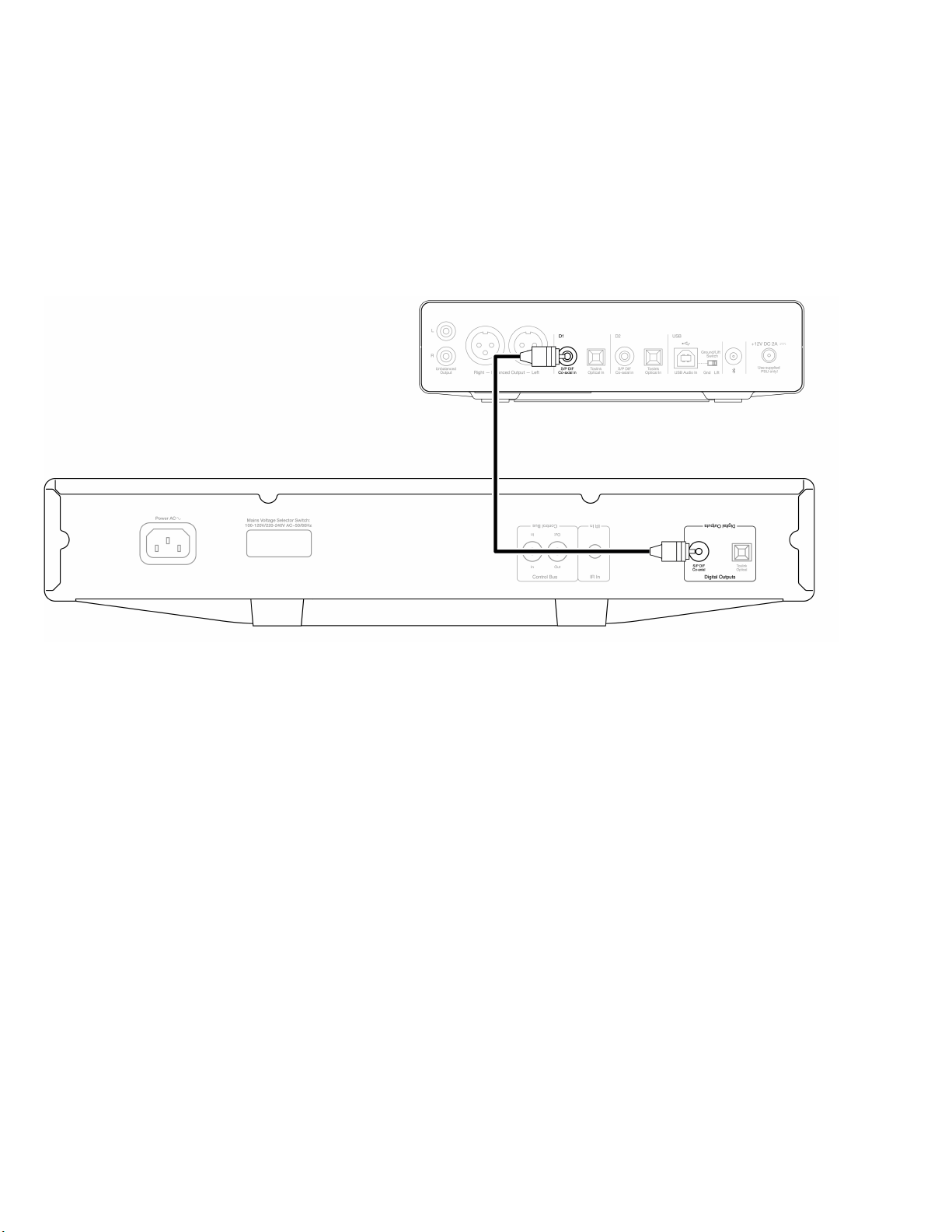
Digital Audio Input Connections
Connection to a CXC using S/P DIF coaxial
Other manuals for DacMagic 200M
3
Table of contents
Other Cambridge Audio Media Converter manuals

Cambridge Audio
Cambridge Audio DacMagic 200M User manual

Cambridge Audio
Cambridge Audio AZUR DacMagic Plus User manual

Cambridge Audio
Cambridge Audio Upsampling Digital to Analog Converter azur... User manual

Cambridge Audio
Cambridge Audio Minx Air100 User manual

Cambridge Audio
Cambridge Audio Minx Xi User manual

Cambridge Audio
Cambridge Audio AZUR DacMagic 100 User manual

Cambridge Audio
Cambridge Audio DacMagic XS User manual

Cambridge Audio
Cambridge Audio AZUR DacMagic 100 User manual

Cambridge Audio
Cambridge Audio AZUR DacMagic 100 User manual

Cambridge Audio
Cambridge Audio AZUR DacMagic Plus User manual


