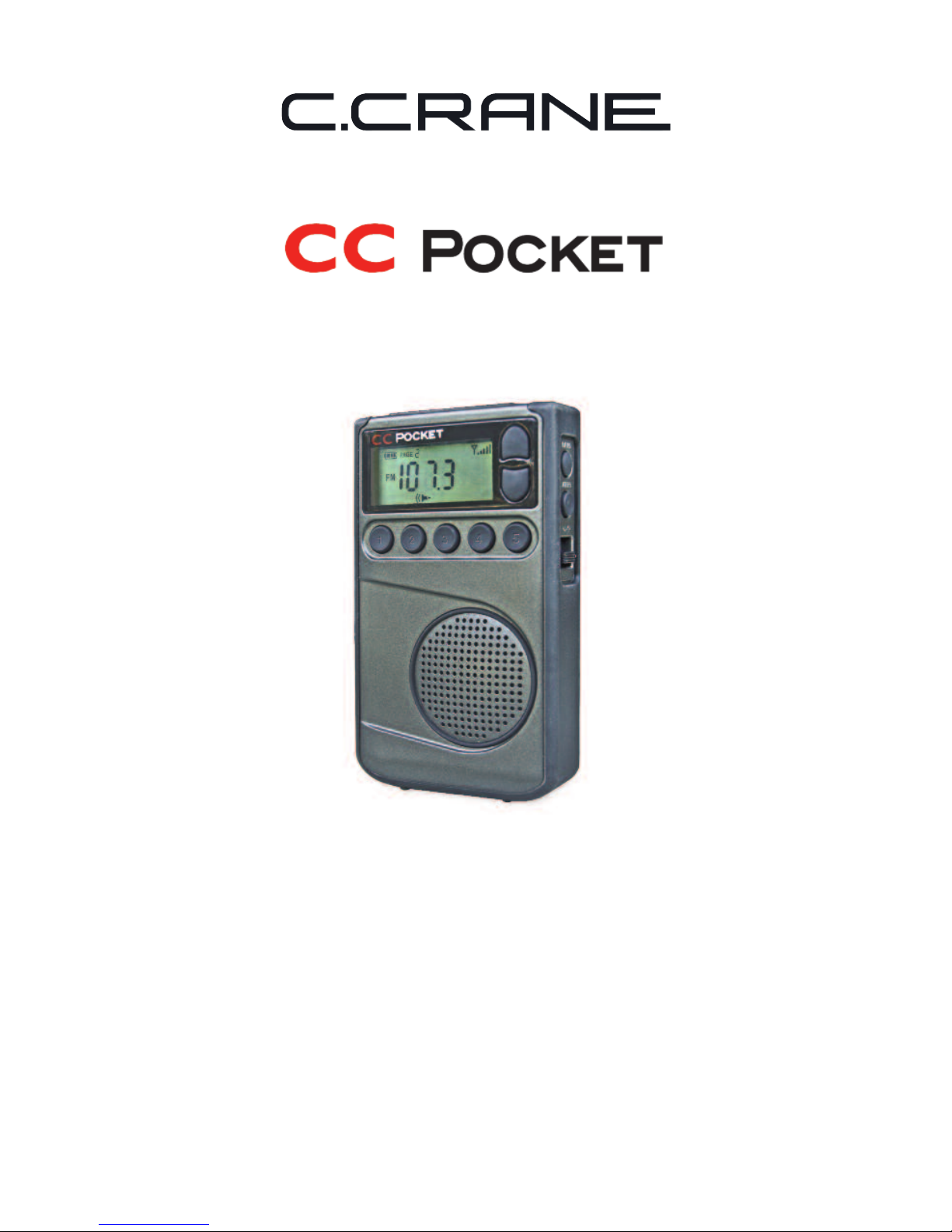
C. Crane CC Pocket User manual
INSTRUCTION MANUAL
LEASE READ ALL THE INSTRUCTIONS COM LETELY BEFORE USE
AND SAVE THIS MANUAL FOR FUTURE REFERENCE
Revision 2 - 3/25/13

READ BEFORE O ERATING EQUI MENT
SAVE THESE INSTRUCTIONS
1) Read and understand all safety and operating instructions before the radio is
operated.
2) Heat: Never put the radio in direct sunlight in an unventilated area or behind glass
like a car’s interior. The appliance should be away from heat sources such as
radiators, heat registers, stoves, or other appliances that produce heat.
3) If the radio is left unattended and unused for long periods of time, remove the
batteries. The batteries may leak and damage furniture or your radio.
4) The user should not attempt to service the appliance beyond that described in the
operating instructions. All other servicing should be referred to qualified service
personnel.
Introduction/ Safety Instructions
For your future reference:
Serial No. (Found inside battery compartment)
Date of purchase
Name & address of dealer
The box should contain the CCPocket, FM wire antenna, earbuds, and this
manual. If anything is missing or damaged, please contact your dealer
immediately. We recommend you keep the packaging in the unlikely event your
radio will need servicing.
Unpacking
Introduction
The CC Pocket radio uses the latest in digital chip technology along with our
own techniques developed at C. Crane. It is able to bring in a weak FM station
better than perhaps any other pocket radio. The button layout is easy to
understand for basic use. It is different than other radios because some of the
features can be changed by reading the manual and using multiple button
presses to change them.
On AM, overload from a strong local station has been a problem since the dawn
of radio. The CC Pocket may be able to shut out the offending station perhaps
like no other radio you have owned.
If you have any question about your radio, please give us a call or check out
ccrane.com/radios
CCPocket Page 2

Installing the Batteries..................................................................4
Display Screen Identification.......................................................5
owering the Radio......................................................................6
Setting the Sleeptimer..................................................................6
Listening with Earphones.............................................................6
Earphones as FM Antenna...........................................................6
Included FM Antenna....................................................................6
Setting the Volume........................................................................6
Tuning a Station.............................................................................6
Saving a Station to Memory.........................................................6
Listening with Speaker.................................................................6
Changing Bands............................................................................7
Changing ages............................................................................7
Setting Weather Alert....................................................................7
Changing Display Views...............................................................7
Lock Switch...................................................................................7
Headphone/ Speaker Switch.......................................................8
Removing the Belt Clip.................................................................8
Setting the Clock...........................................................................9
Setting the Alarm..........................................................................9
Disable Beep Sound…………......………………...…...................10
Designate Frequency or Clock While Listening.......................10
Activate 9 or 10 kHz AM Tuning…….....….…..................….......11
Activate 1 kHz AM Tuning Steps................................................11
Activate Narrow AM Filters…….............……..................….......11
Reset All Settings....................................………….....................11
Disable the Display for Better Reception.................................11
Troubleshooting Guide...............................................................12
Specifications........................................................................13
Table of Contents
Page 3 CCPocket
CCPocket Page 4
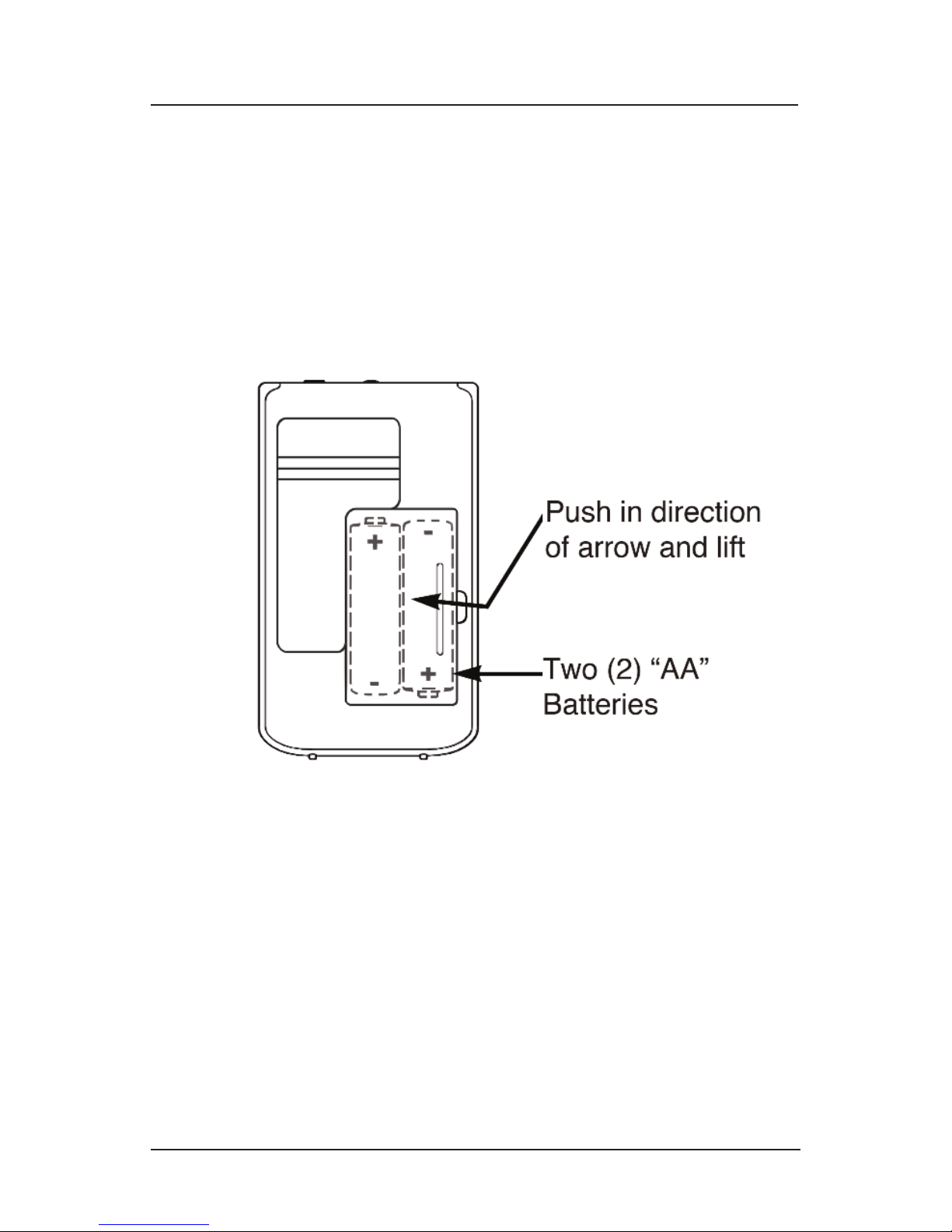
1) Position the radio face down on a soft surface to protect it.
2) Remove the battery cover using your fingernail or small tool. Press
and lift the area indicated below.
3) Insert the two (2) “AA” cell batteries into the compartment as
indicated. Be sure the negative (-) end of each battery is against the
spring.
4) Replace the battery cover. You are now ready to operate your radio.
Getting Started
INSTALLING THE BATTERIES
Page 5 CCPocket
Radio Identification
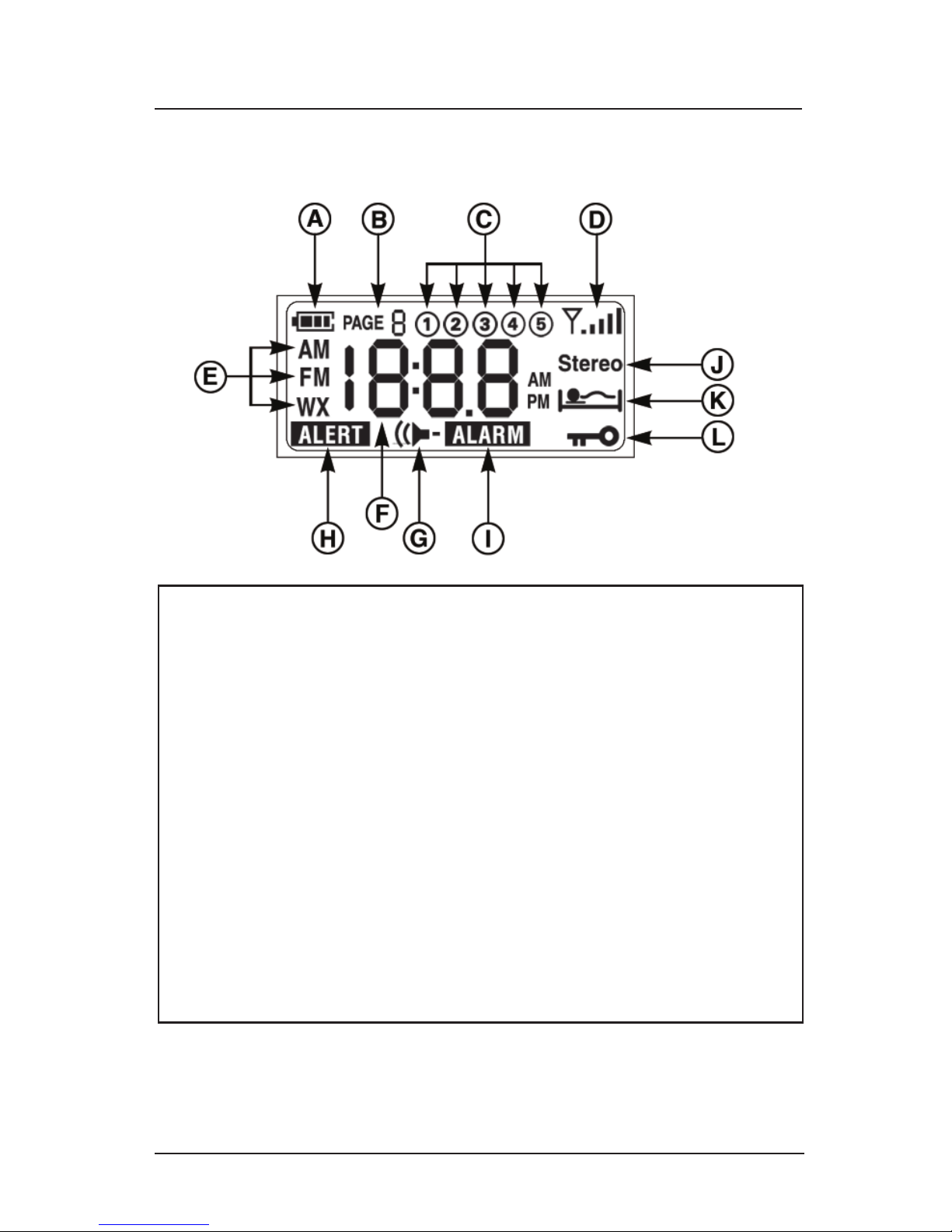
DIS LAY SCREEN
A. Battery Icon
B. Page number ( or station memories)
C. Station Memories 1-5
D. Reception Signal Strength
E. Band Indicator (AM, FM, Weather)
F. Frequency / Time
G. Speaker is Activated
H. Alert is Activated
I. Alarm is Activated
J. Stereo FM Reception
K. Sleep Timer is Activated
L. Lock Switch is Activated (buttons are disabled)
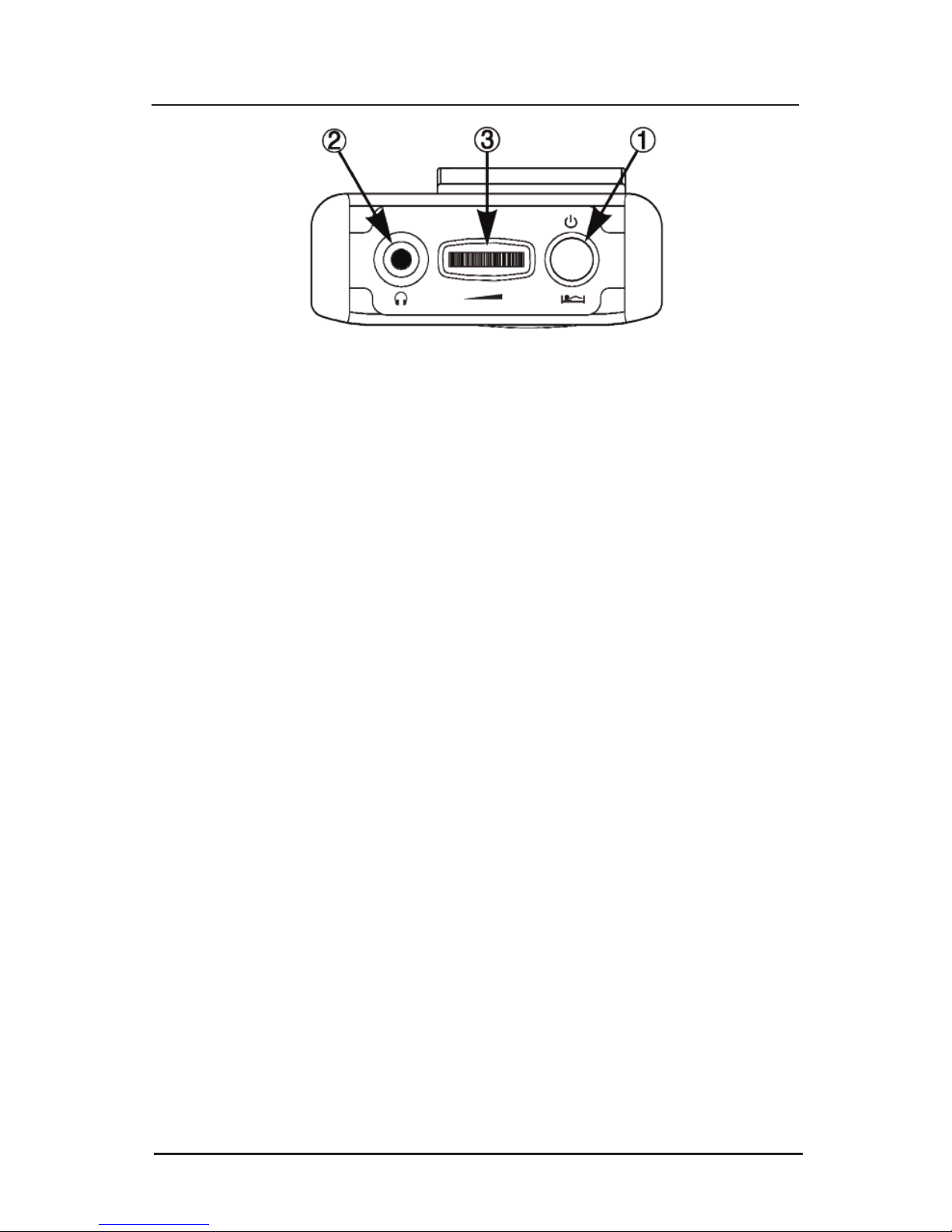
1. ower button / Sleep Timer
To turn the radio “ON” just press the red button. To use the Sleep
Timer, press and hold the red button. The Sleep Timer will
automatically shut off the radio after the set amount of time expires.
The display will cycle through minutes 90, 60, 30, 15, 120, and OFF.
Release the power button to activate the sleep setting you desire.
The radio will remember your last Sleep Timer setting the next time
you use it.
2. Earphone Jack / External FM Antenna Jack (Included)
To listen using earphones, adjust the switch on the left side of the
radio to “Stereo” or “Mono” position. When earphones are plugged in,
they become an external antenna for FM, even when the side
switch is in speaker mode. The included external FM wire antenna
will also connect to this jack for even better reception in speaker
mode.
3. Volume Control
Rotate to adjust volume.
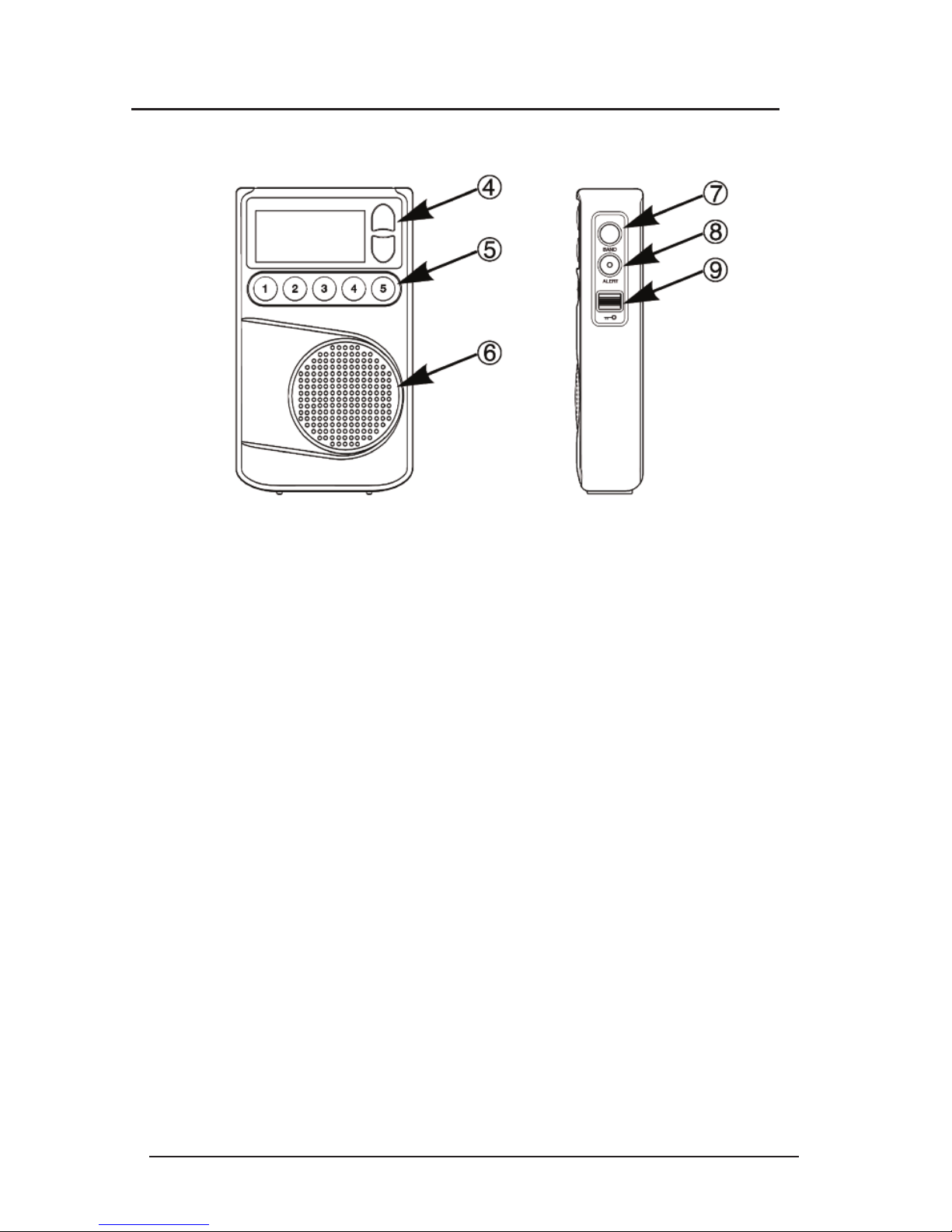
4. Tuning Buttons
Press once quickly to tune to the next frequency increment. Press and
hold for 1-second to automatically tune to the next strong station. Hold
continuously to cycle through the whole band.
5. Station Memory Buttons 1-5
Save your favorite stations to memory buttons. To save a station,
press and hold any memory button for 2-seconds while the station is
playing. To play a saved station, press the same button once quickly.
See page 9 for secondary functions
6. Speaker
To enable speaker, adjust the switch on the left side of the radio to
the “Speaker” position. The Speaker icon will show on the display.
CCPocket Page 6
Radio Identification
Radio Identification
Page 7 CCPocket
7. Change Bands and Memory ages
Press and release the BAND button to cycle between FM, AM, and
Weather. The BAND button can also be used to access station
memory pages. This gives you 20 additional presets for AM and
FM. Press and hold the BAND button for 2 seconds to change page
numbers, press any memory button 1-5 to select the Page number
that you desire. Each page can hold five additional station
memories.
8. Change display / Weather Alert Button
While listening to the radio, press the A ERT button once to view
the frequency or time. To activate the NOAA Weather Alert, press
and hold this button for more than 3 seconds. Continue holding to
select how long the alert will be activated for. (4hr, 8hr, and 16hr.)
Release the button to make your selection. While weather alert is
activated, AM and FM will be disabled because of chip limitations.
The display light will flash once every few seconds to remind you
that the NOAA Weather Alert is “ON”. To turn the alert “OFF”, hold
the A ERT button for three seconds until “OFF” is displayed and
beep is heard, then release the button.
9. Lock Switch
Press the switch up to disable all buttons. Press the switch down to
enable all buttons.
CCPocket Page 8
Radio Identification
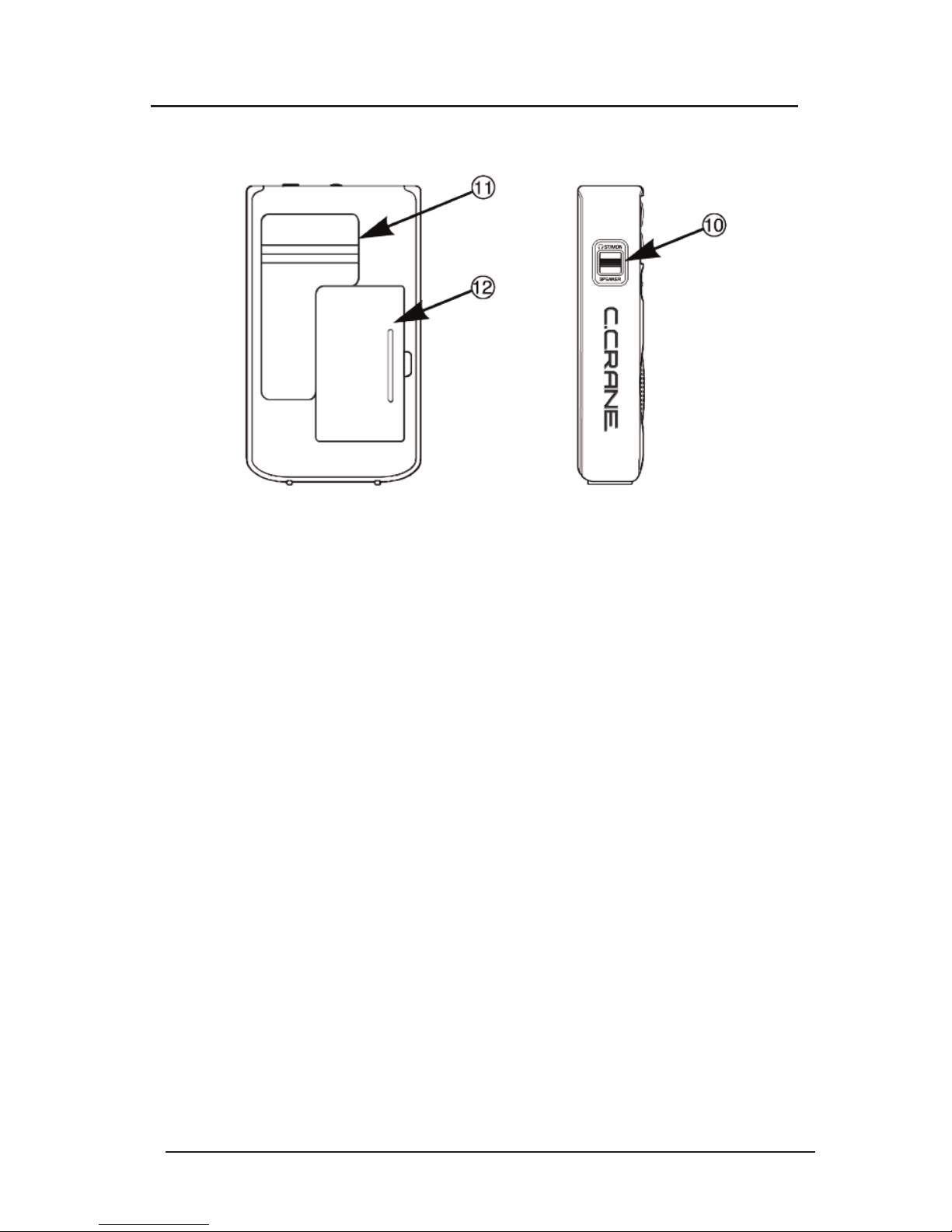
10. Earphone / Speaker Switch
Stereo (Top Position) – This position is for listening to FM Stereo
radio using headphones. While in this position, the speaker will be
disabled. AM and WX bands will play normally.
Mono (Middle Position) – This position is for listening to FM Mono
radio using headphones. Typically, FM Mono will have better
reception than FM Stereo.
Speaker (Bottom Position) – This position is for listening to AM, FM,
or WX using the speaker. While in this position, the headphone jack
will be disabled.
11. Belt Clip
To remove the belt clip unscrew the two screws on the back on the
clip.
12. Battery Compartment
Requires two AA alkaline batteries.
Page 9 CCPocket
Radio Setup
Setting the Clock
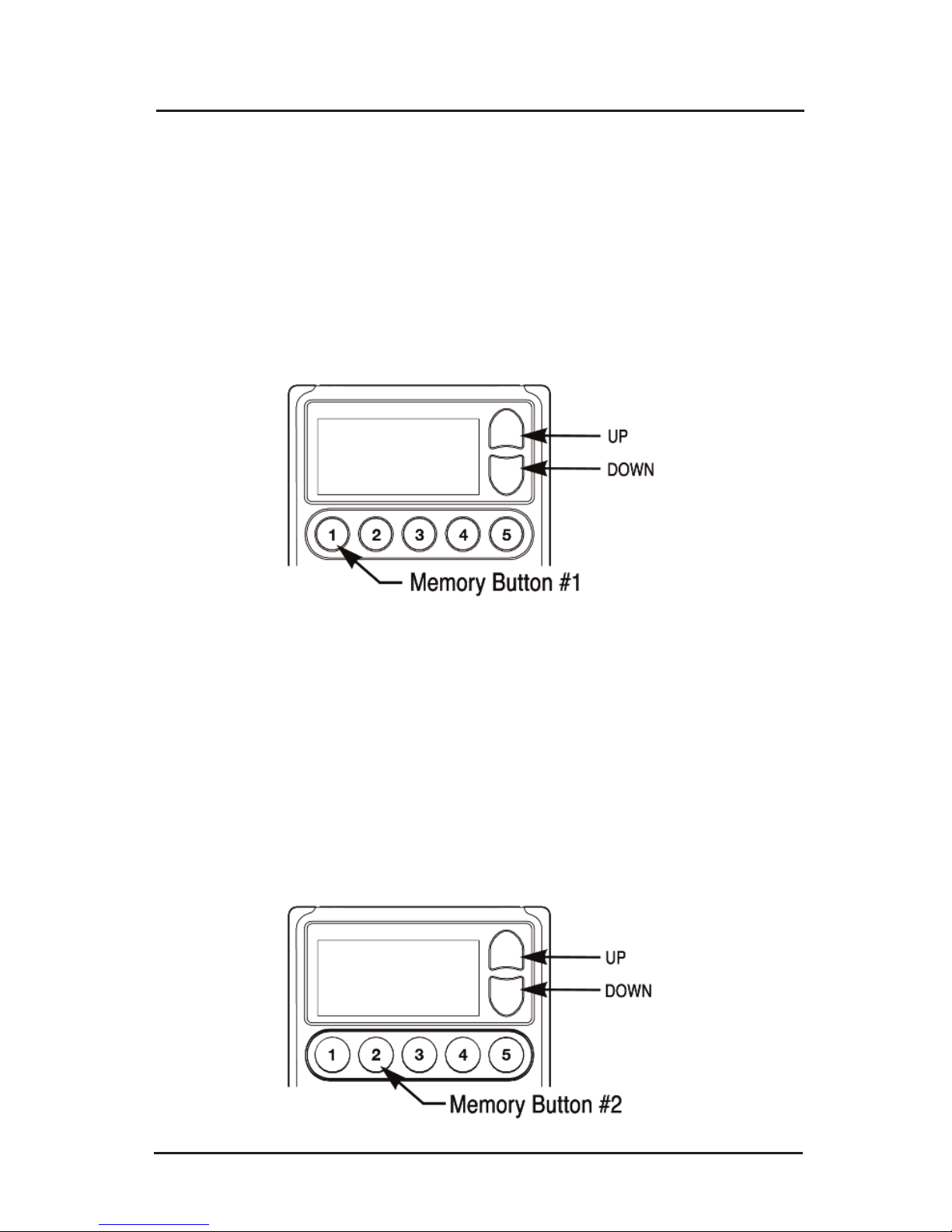
1. With the power OFF, press and hold memory button #1 for two
seconds.
2. While the Hour is flashing, press the Up or Down Tuning buttons
until the hour and AM/PM time is correct.
3. Press memory button #1 again to adjust the minutes. Cycle
minutes using the Up or Down tuning buttons.
4. Press memory button #1 again after time is set correctly.
Setting the Alarm
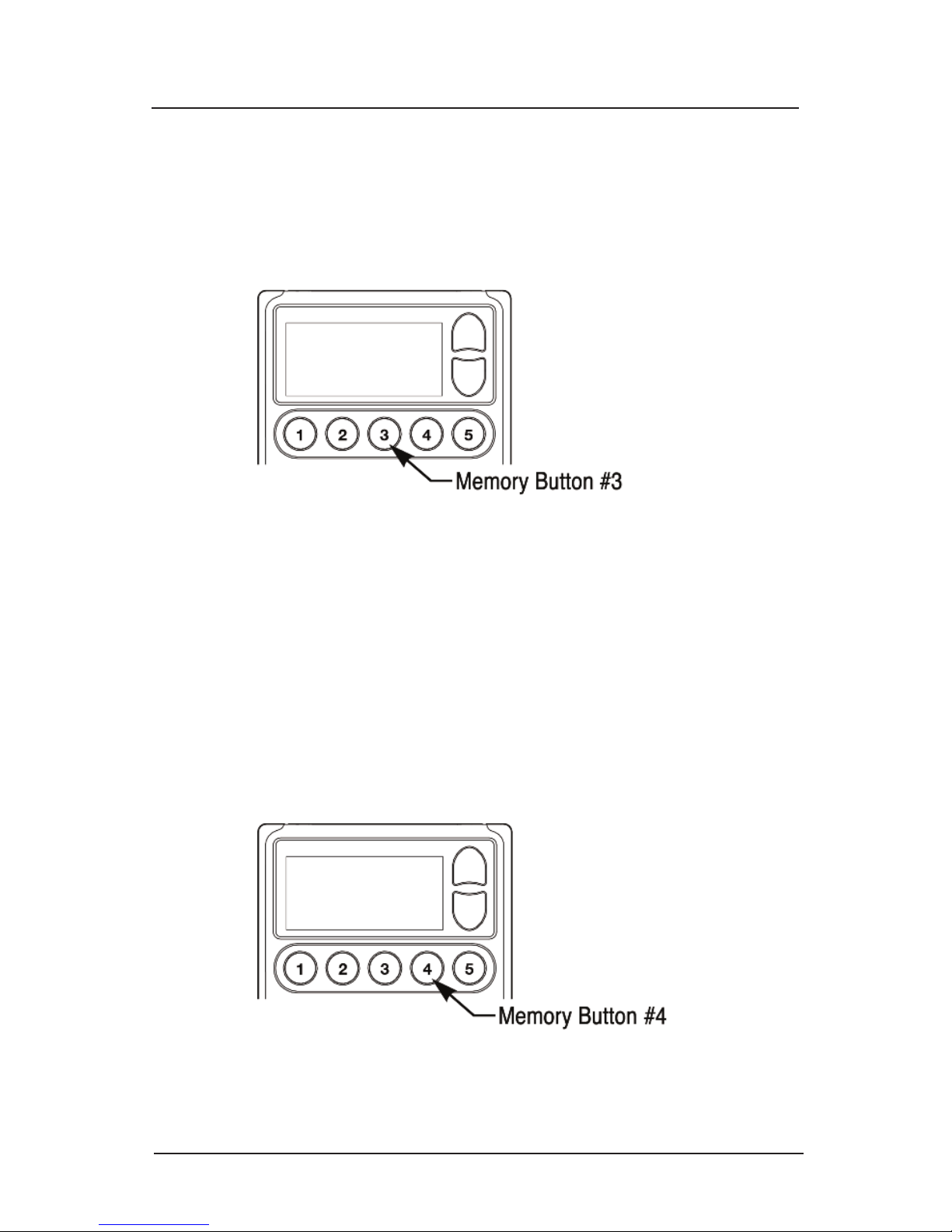
1. With the power OFF, press and hold memory button #2 for two
seconds.
2. While the Hour is flashing, press the Up or Down Tuning buttons
until the hour and AM/PM time is correct.
3. Press memory button #2 again to adjust the minutes. Cycle
minutes using the Up or Down tuning buttons.
4. Press memory button #2 again after alarm time is set correctly.
To disable alarm, repeat step 1 above.
Disable Beep Sound
1. With the power OFF, press and hold memory button #3 for two
seconds. All beeps are disabled except A ARM and WX A ERT.
2. Repeat sequence to enable beep again.
Designate Frequency or Clock while Listening to the Radio
1. With the power OFF, press and hold memory button #4 for two
seconds. “C” will appear on the screen to indicating that the Clock
will show while listening to radio.
2. Repeat sequence to display Frequency instead. “F” will appear on
the screen to indicate that the Frequency will show when listening to
the radio.
CCPocket Page 10
Radio Setup
Other manuals for CC Pocket
1
Table of contents
Other C. Crane Portable Radio manuals

C. Crane
C. Crane WERK Pocket Radio Chest Harness User manual

C. Crane
C. Crane CC Pocket User manual

C. Crane
C. Crane CC SW Pocket User manual

C. Crane
C. Crane CCRadio SW User manual

C. Crane
C. Crane CC Skywave User manual

C. Crane
C. Crane CCRadio-SWP User manual

C. Crane
C. Crane CCRadio plus User manual

C. Crane
C. Crane CCRadio-EP User manual

C. Crane
C. Crane CCRadio User manual

C. Crane
C. Crane Radio User manual