
Burgtec STRATA 360 User manual
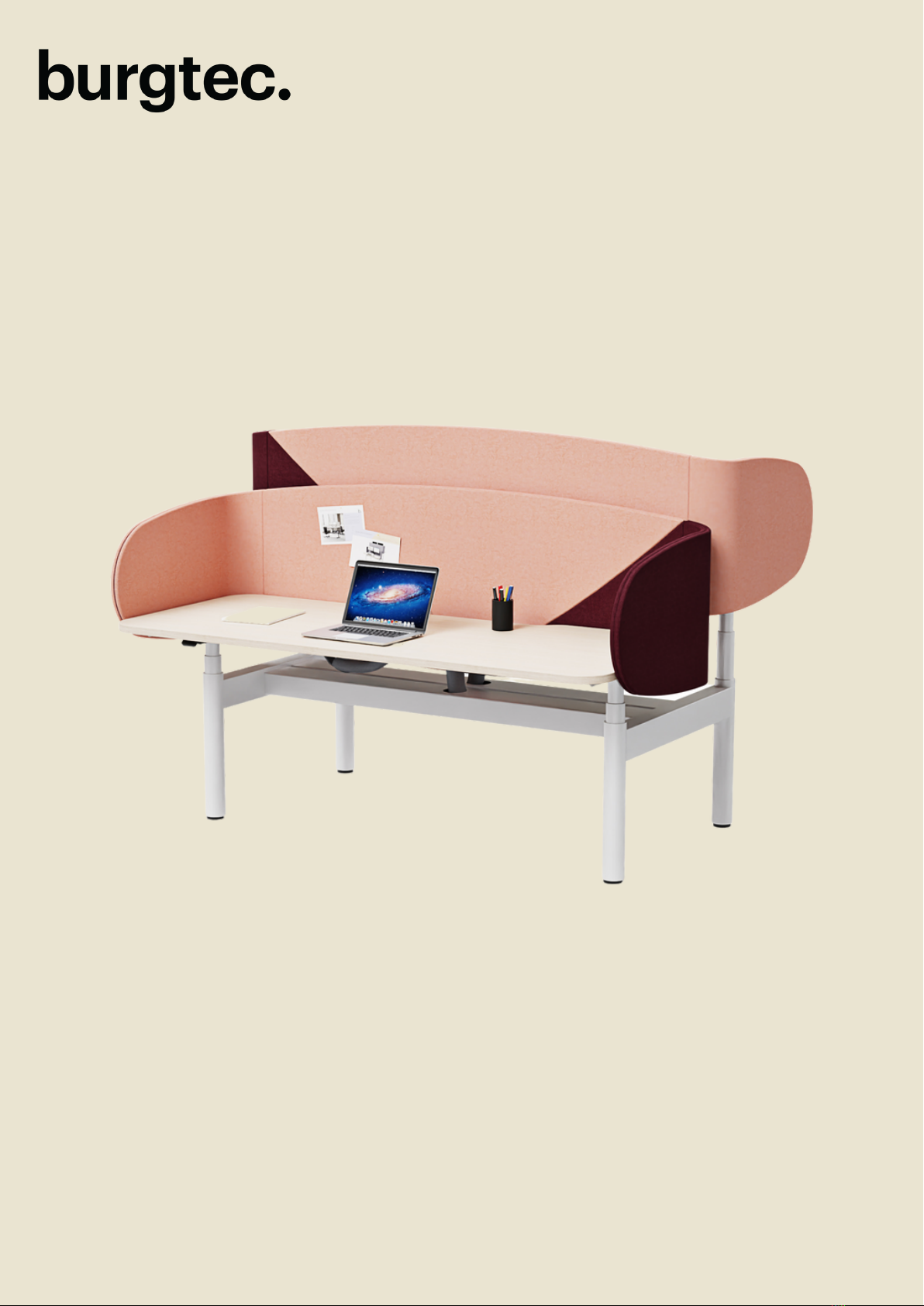
Strata 360
User Manual
Glossary of Common Terms
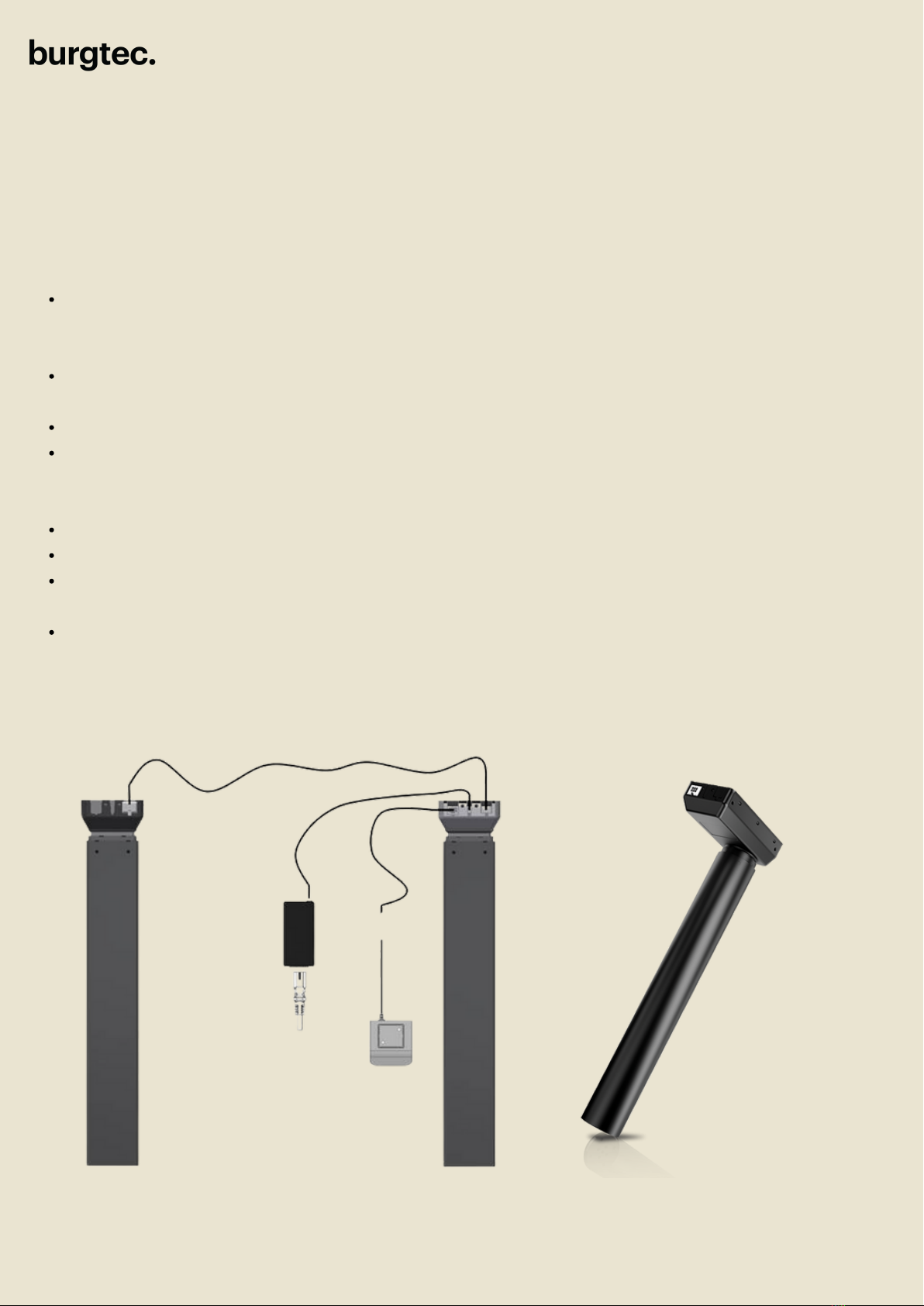
Desk leg (DL) – Master - Lifting column, typically with powder coated steel profiles, responsible for
lifting the working load of the application. Includes motor and PCB to enable configuration of the
system.
Desk leg (DL) – Follower - Lifting column, typically with powder coated steel profiles responsible
for lifting the working load of the application. Includes motor.
Power Supply (SMPS) – Interface between mains power, input, low voltage, output.
Desk panel (DP) – The user interface. Depending on the model, it is used to activate the
application, set memory positions, display the height, display error codes, connect to mobile
apps, and give reminders to the user.
Motor cable – Transmits low voltage power from the Master Column to the Follower column.
Mains cable – Transmits high voltage power to the control box.
Initialise – Procedure to reset all desk legs to the fully retracted position so that the control box
knows where they are.
Reference – Any group of desk legs that run in parallel when an Up or Down command is sent to
the control box.
IC System Example
DL11
Strata 360
Troubleshooting Manual
Initialisation
Strata 360
Troubleshooting Manual
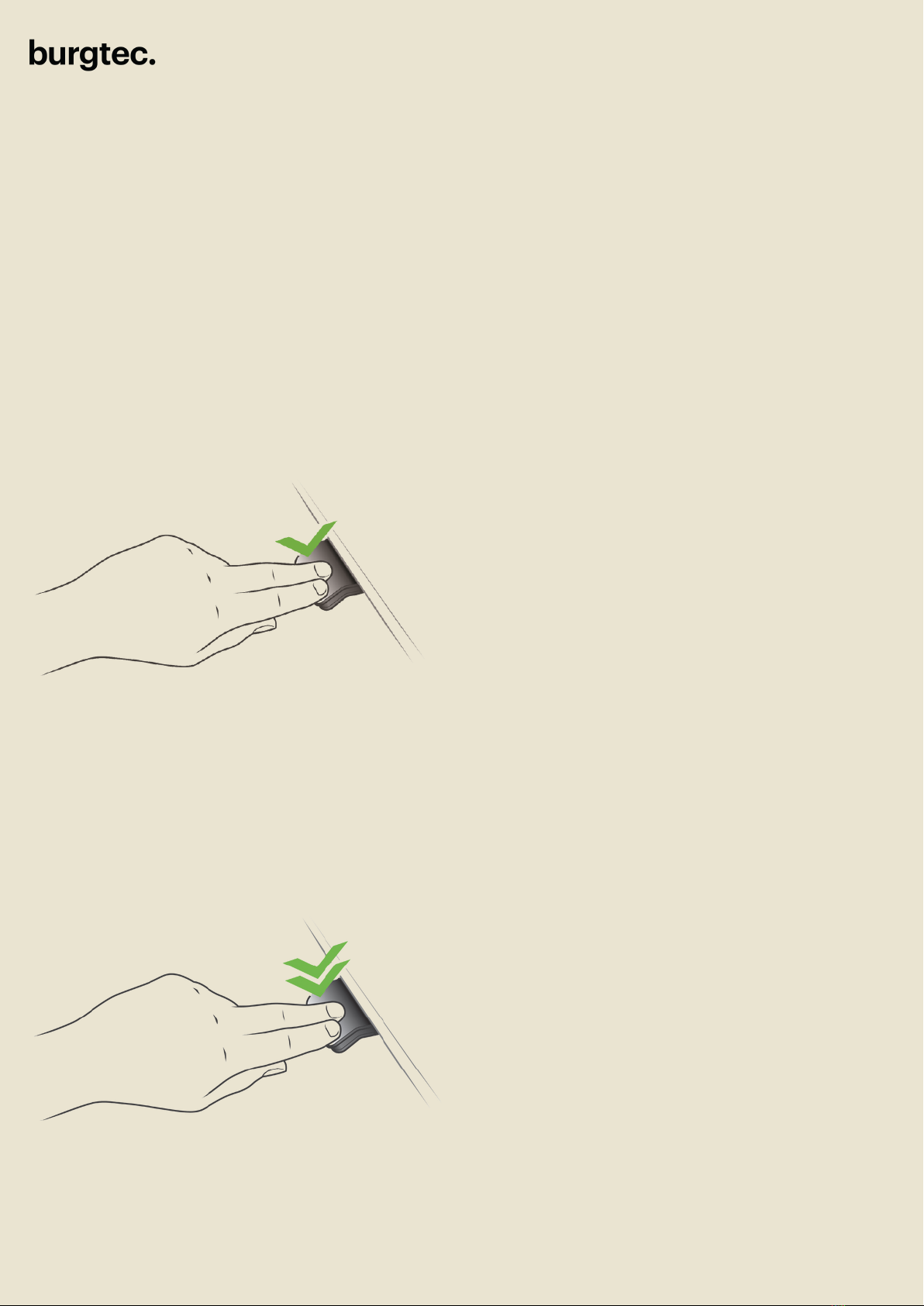
Press & hold the switch until the legs are fully retracted - this is the END STOP position. Release
the switch
Immediately press and hold the switch for approx. 6 seconds. The legs will travel out 5mm and
then retract back to the END STOP position.
It may be necessary to perform the intialisation process twice as the system can be in different
modes at start up.
The legs are now initialised.
Initialisation may be required after a power interruption or relocation of the desk.
1.
2.
3.
4.
5.
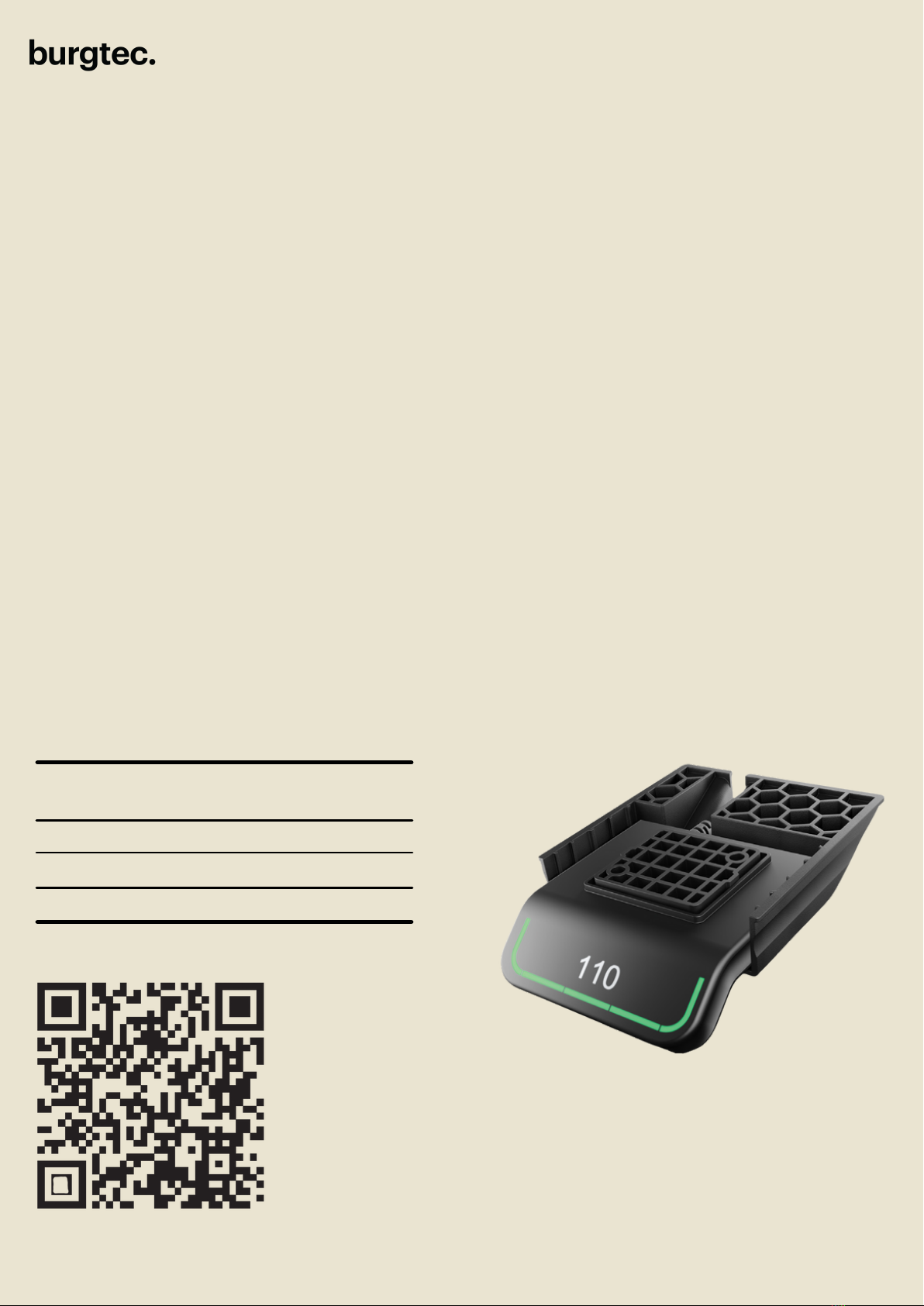
Setting memory positions - DPG1C
- The DPG features 4 memory positions.
- To set a memory position adjust the desk to a preferred position and press the “Star” button for
2 seconds.
- The light strip will now flash white two times to indicate that saving the position is in progress.
- When the light strip becomes static white, the position is saved.
- The display will indicate this saved position with a star and a number of the position.
Error codes in
CBD6s Cause
E53-E64
E41-E52
E01
COLLISION
OVERLOAD
INITIALISATION
Scan QR Code
for More Information
Driving to favourite positions
Strata 360
Troubleshooting Manual
After Saving the favourite positions, the user can reach the positions simply by tilting/pressing the
DPG1M
1. Tilt/press and hold - when a saved position has been reached the desk stops.
2. Release DPG1C within one second
This way the user can easily change between sitting and standing height without looking at the
DPG1M in the meantime.
Automatic driving to favourite positions
(only possible for “Full version” with “Automatic drive” enabled in the app)
1. Double-tap DPG1C to let desk adjust automatically to first position in direction of double-tap.
2. Simply tap DPG1C once to stop driving of desk between two favourite positions.
When the desk stops at a favourite position the user can:
• continue to tilt/press the DPG1C for one second.
OR
• release the DPG1C and immediately tilt/press it again.
The desk will move past the favourite position and continue its movement.
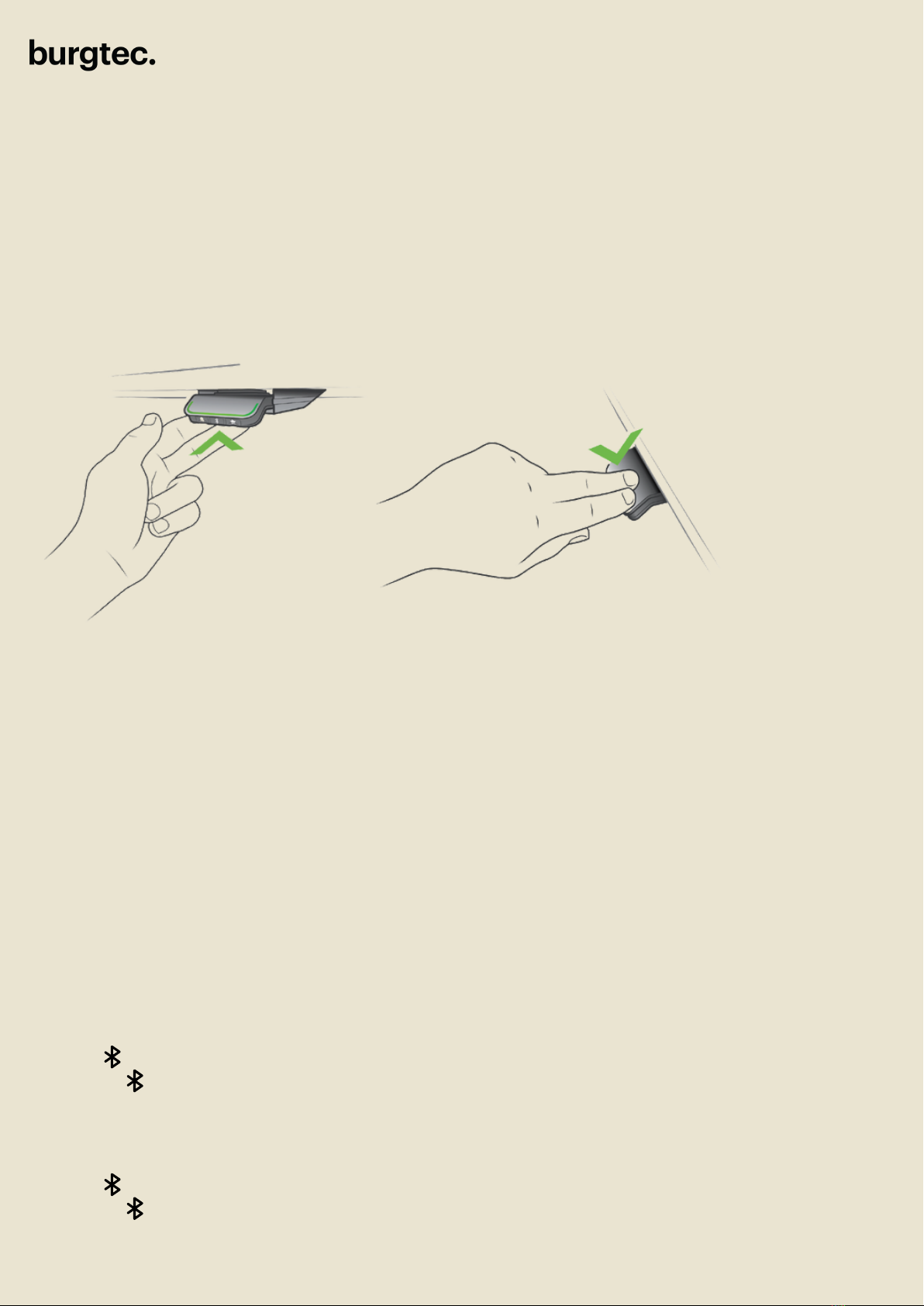
In case the desk cannot be operated in its entire span (e.g. a shelf is blocking the upwards
movement or filing cabinet is place under the desk and blocking the downwards movement),
it is possible to set an upper limit and a lower limit for the desk height.
Note:
It must always be possible to drive the desk to its mimimum height in case initialisation is
required. During initialisation items place under the desk must be removed.
Setting upper limit
1. Adjust the desk to maximum allowable height.
2. Press and tilt DPG1C up at the same time for 8 seconds until light flashes.
3. Release and DPG1C.
Setting lower limit
1. Adjust desk to minimum allowable height.
2. Press and press DPG1C down at the same time for 8 seconds until light flashes.
3. Release and DPG1C.
Operate the desk panel by tilting it
Strata 360
Troubleshooting Manual
1. Tilt and hold up DPG to drive desk up, press and hold down DPG to drive desk down
2. Release DPG when you have reached your requested position.
Height settings and lower limits can now be
adjusted via the switch with ease

Troubleshooting for service agent
Strata 360
Troubleshooting Manual
Note: Refer to Error Code list for specific description before following the steps below
Symptom Possble Reason(s) What to do
The desk does not run at
all. No movement is
observed
• Malfunctioning desk panel or
control box.
• Poor Connection
• Mains Cable fallen out
• No voltage on mains cable
• Check all connections.
• Check that there is voltage in the mains
plug.
• Connect a desk panel that you know is OK.
• If it can run, the desk panel is
malfunctioning. If this does not help, the
control box is malfunctioning
Not all legs operate when
you run the desk
downwards
• The leg(s) that do not run are
malfunctioning or the cable
connection for the leg(s) is not
OK
• Change leg/cable starting with the cable
The desk is in the lower
position and will not run
upwards. You cannot see
whether all legs are
moving.
• The desk is overloaded
• One or more of the legs has
malfunctioned or the cable
connection between leg(s) and
control box is not OK
• Remove some of the load on the desk
• Remove all motor cables from the control box.
• Mount one leg at a time in channel
1, perform initialisation and test a small run
upwards.
• If a leg will not run upwards after initialisation it is
malfunctioning
• Try exchanging the motor cable before
exchanging the leg
Calibrating the controller
Drive the desk to the lowest possible position.
Measure the accurate distance between the floor and the desk-top in centimetres.
Hold the 'Bell' & buttons for 5 seconds, when the display begins to blink it is ready to be reset.
Tilt the DPG upwards or downwards to increase or decrease the displayed height.
In case the controller displays the incorrect height, calibrate the controller using the below steps:
1.
2.
3.
4.
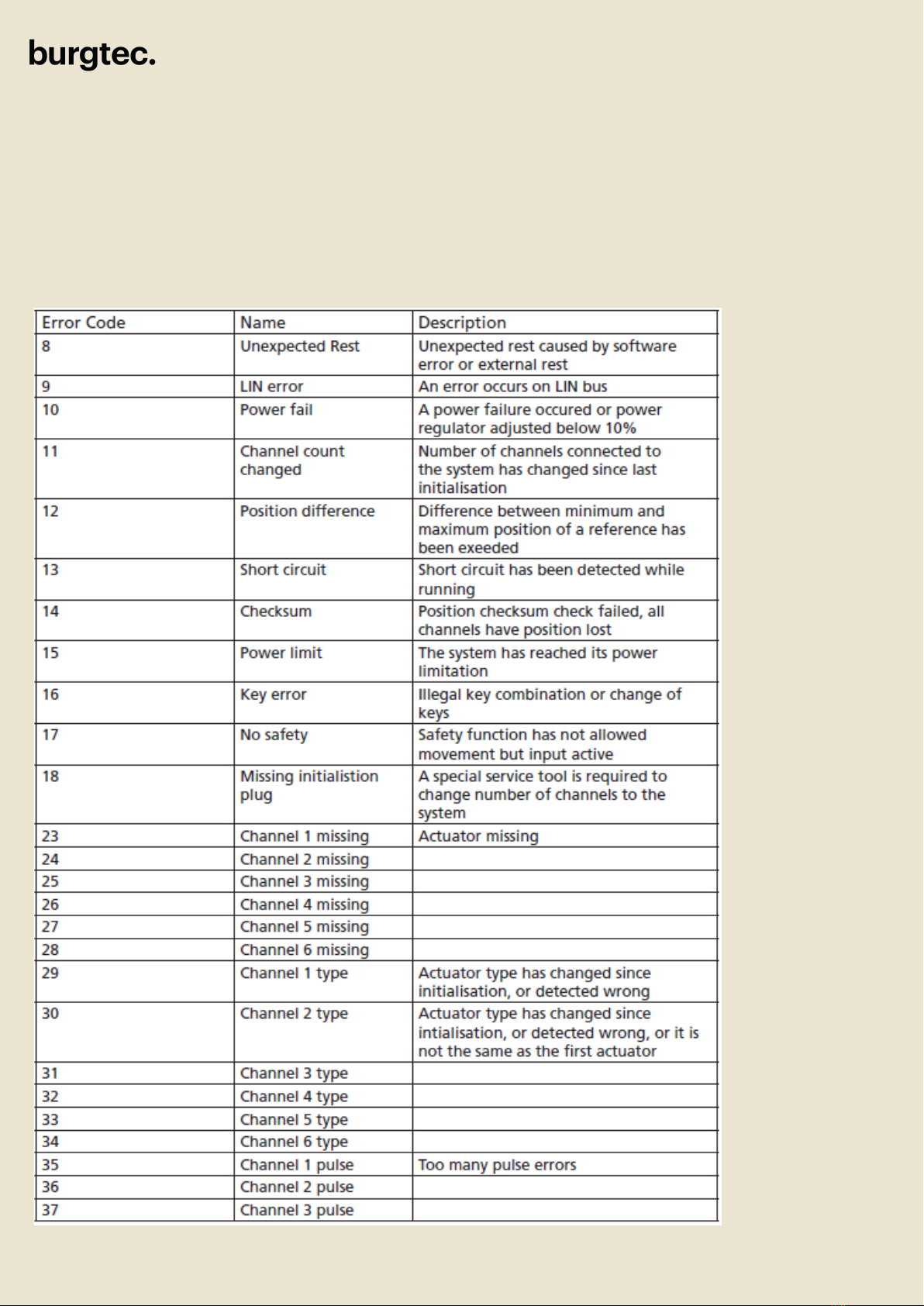
Error codes for CBD6S troubleshooting:
Strata 360
Troubleshooting Manual
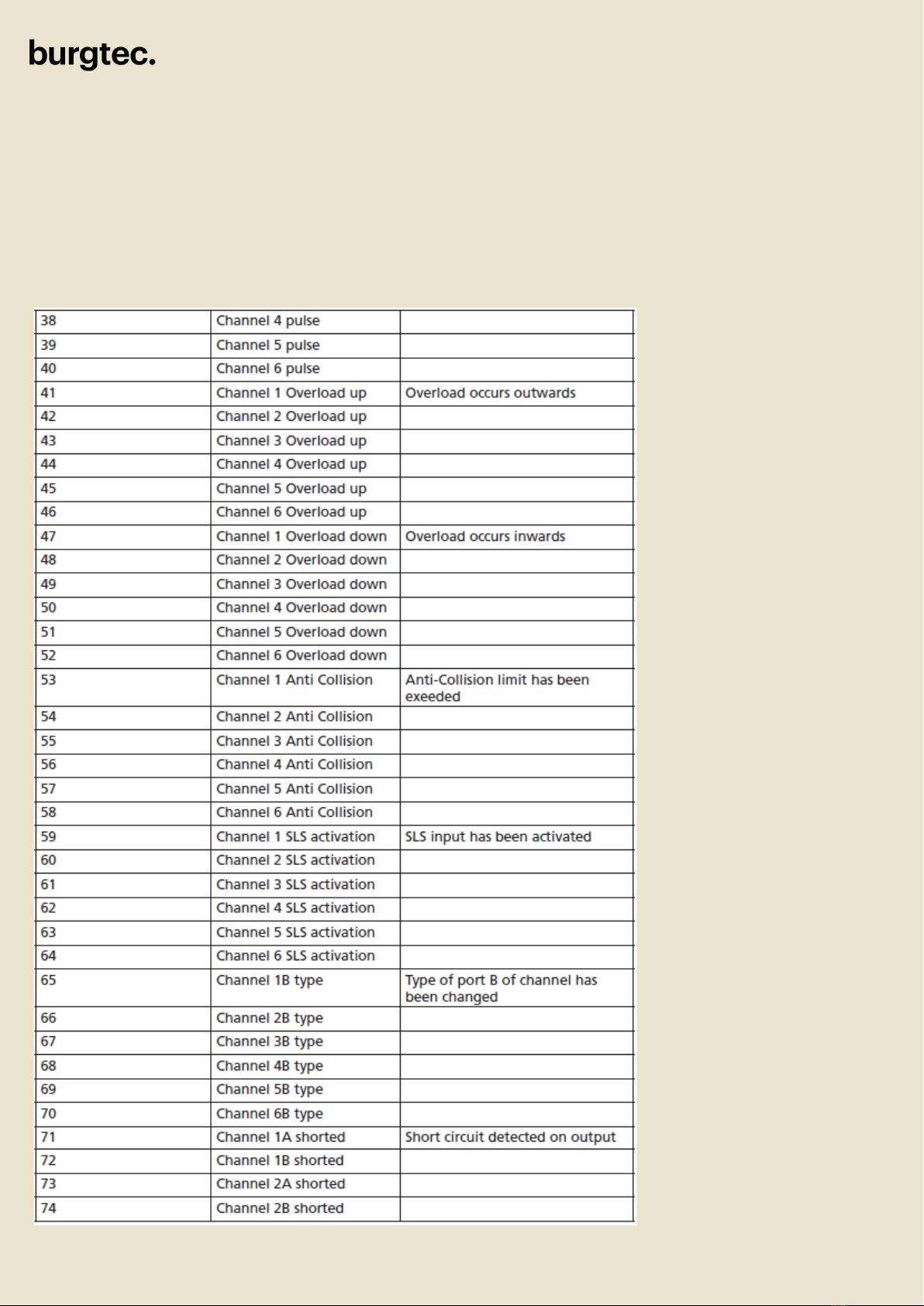
Error codes for CBD6S troubleshooting:
Strata 360
Troubleshooting Manual
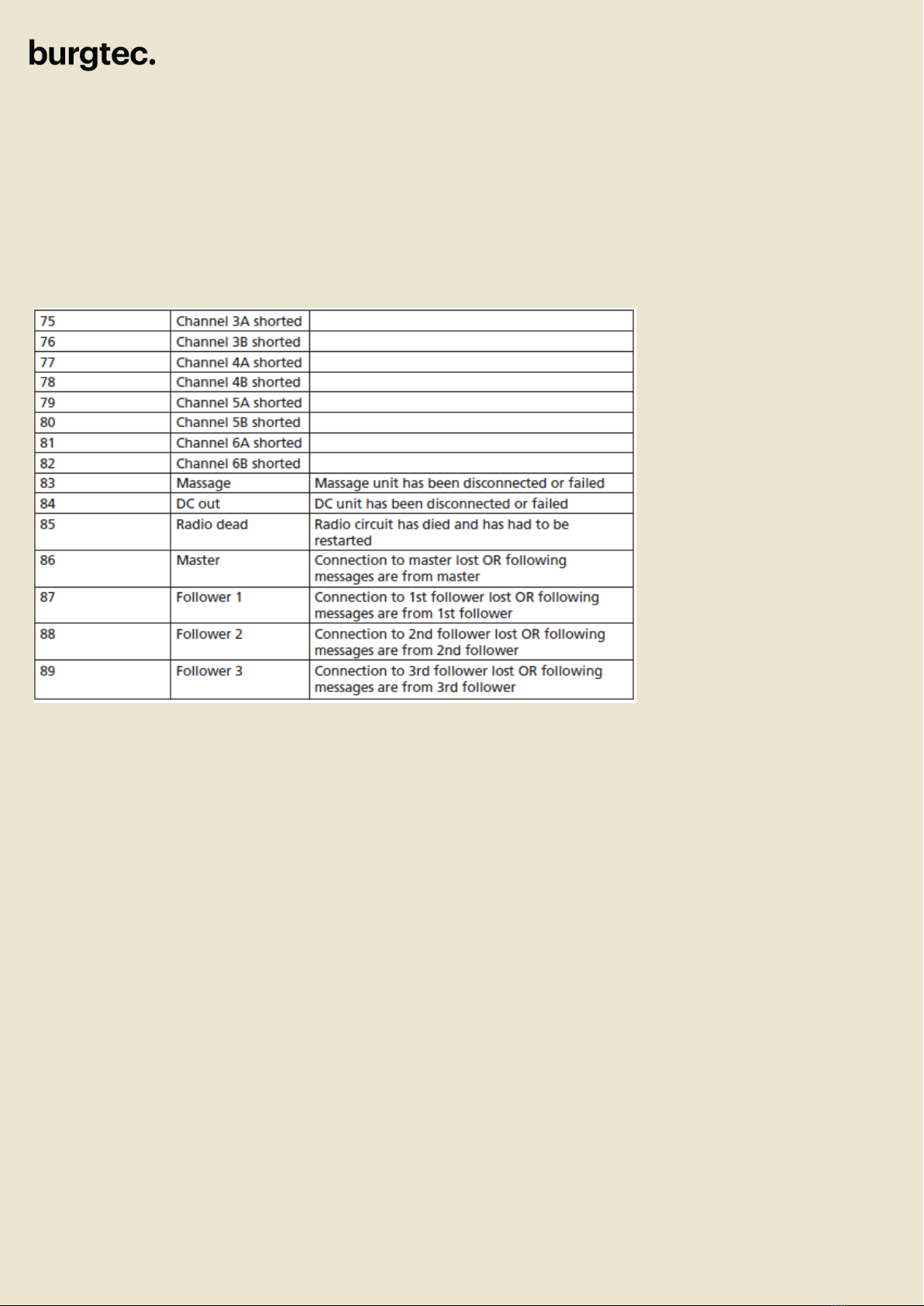
Error codes for CBD6S troubleshooting:
Strata 360
Troubleshooting Manual
Strata 360
Troubleshooting Manual
More information:
Find all product data sheets at LINAK.COM.AU/DESKLINE
YouTube videos can also be viewed by following the below QR Codes on the DESKSTART page:
How to initilise your
desk
Restart Set the correct desk
height
Burgtec accepts no responsibility for possible errors or inaccuracies in catalogues, brochures, and
other material. Burgtec reserves the right to change its products without prior notice. Burgtec cannot
guarantee product availability and reserve the right to discontinue the sale of any product. User is
responsible for determining the suitability of Burgtec products for a specific application.
Other manuals for STRATA 360
2
Table of contents


