Broadata Link Bridge LB-H2/DE User manual
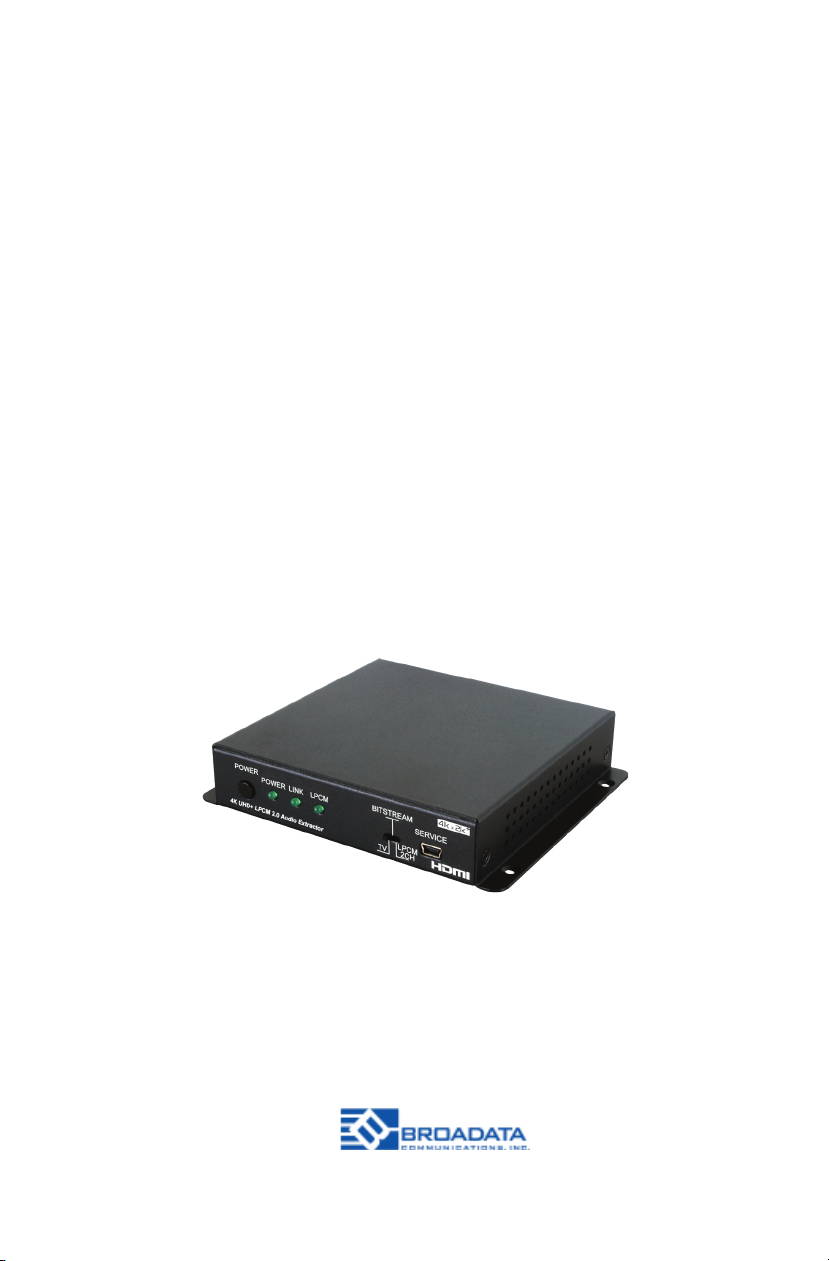
LB-H2/DE
BCI reserves the right to make changes to the products described herein without
prior notice or consent. No liability is assumed as a result of their use or
application. All rights reserved.
©2017 Broadata Communications, Inc.
Link Bridge 4K UHD+ LPCM2.0
Audio Extractor
TM


SAFETY INSTRUCTIONS AND
COMPLIANCE DECLARATIONS
PLEASE OBSERVE THE FOLLOWING SAFETY
PRECAUTIONS
SURGE PROTECTION DEVICE RECOMMENDED
This product contains sensitive electrical components that may
be damaged by electrical spikes, surges, electric shock, lightning
strikes, etc. Use of surge protection systems is highly recommended
in order to protect and extend the life of your equipment.
LB-H2/DE User’s Manual
Link Bridge 4K UHD+ LPCM2.0 Audio Extractor
TM

TABLE OF CONTENTS
1.0 PRODUCT DESCRIPTION............................................................... 5
2.0 OPERATION CONTROLS AND FUNCTIONS................................... 6
2.1 FRONT PANEL.................................................................................. 6
2.2 REAR PANEL .......................................................................... 8
3.0 EDID MANAGER................................................................................ 9
4.0 EDID CONTROLLER TAB ................................................................. 9
5.0 EDID CREATOR TAB ...................................................................... 10
6.0 MAINTENANCE AND TROUBLESHOOTING ............................... 12
7.0 SPECIFICATIONS ...........................................................................13
8.0 SERVICE PROCEDURE....................................................................14
8.1 REPLACEMENT POLICY ................................................................14
8.2 RETURN & REPAIR SERVICE............................................................14
9.0 LIMITED WARRANTY.......................................................................15
LB-H2/DE User’s Manual
Link Bridge 4K UHD+ LPCM2.0 Audio Extractor
TM

FEATURES
• HDMI input and output with 18Gbps (600MHz) 4K
UHD support
• DVI 1.0 compliant with the use of an HDMI-DVI
adaptor
• HDCP 1.4 and 2.2 compliant
• Supports HD resolutions up to 3840x2160@60 Hz
(YUV 4:4:4, 8-bit) & 4096x2160@60 Hz (YUV 4:4:4,8-bit)
• Supports 48-bit Deep Color up to 1080p60
• Supports pass-through of LPCM 7.1, bitstream and
HD bitstream audio formats over HDMI
• Analog audio extraction supports LPCM 2.0 sources
• Optical S/PDIF audio extraction supports LPCM 2.0
& bitstream formats
• Supports HDMI and S/PDIF audio sampling rates up
to 192 kHz
• Provides EDID management with EDID bypass and
2 user modiable EDIDs
• PC based EDID management tool support
• Supports RS-232 style control via a Virtual COM
port over USB
1.0 PRODUCT DESCRIPTION
LB-H2/DE User’s Manual
Link Bridge 4K UHD+ LPCM2.0 Audio Extractor
TM
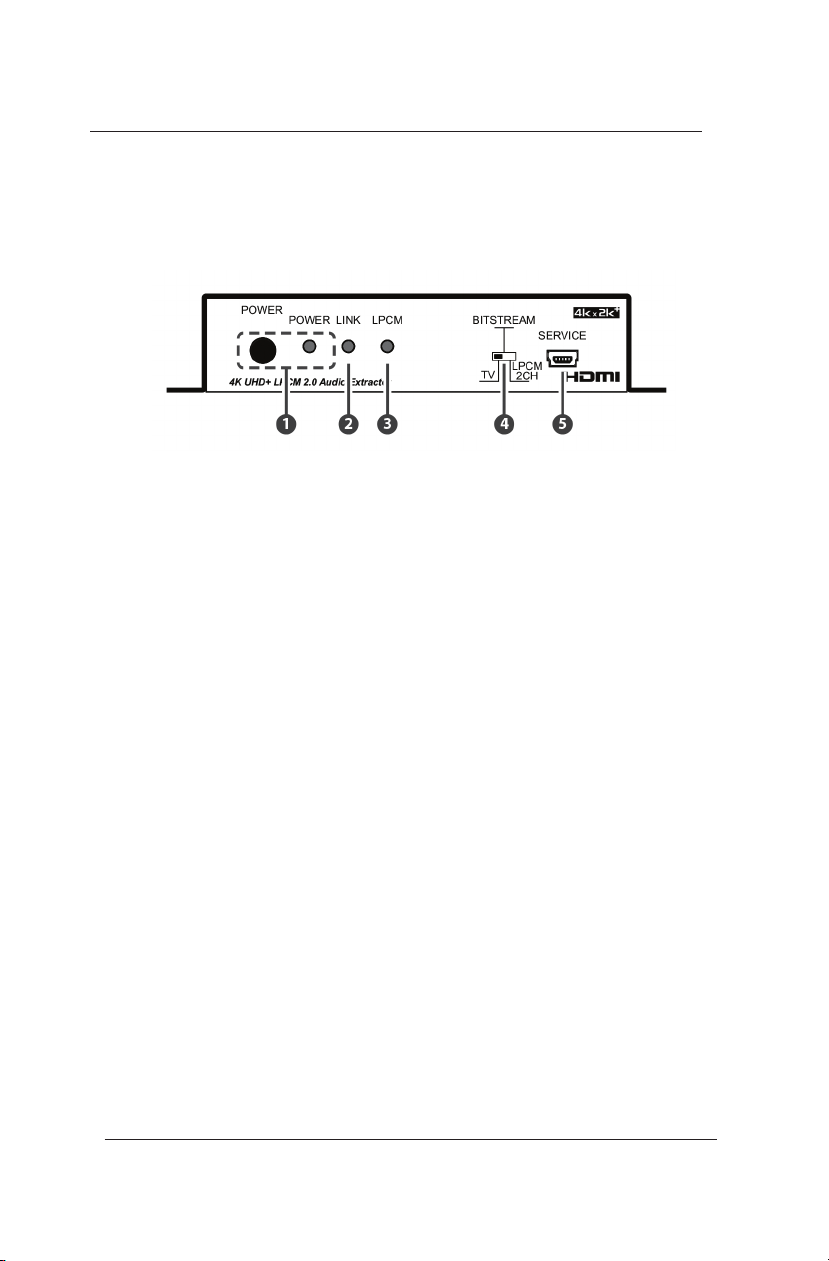
1. POWER/ POWER LED: Press this button to power the unit on
or o. The LED will be lit when the unit is receiving power.
Note: Press and hold the Power button for 3 seconds to per
form a factory reset. Release the button once the LEDs begin
ashing.
2. LINK: This LED will illuminate to indicate that a live source has
been detected on the input port. When no source is detected
the LED will remain o.
3. LPCM: This LED will illuminate when LPCM audio has been
detected on the HDMI input.
4. TV/BITSTREAM/LPCM 2CH: This switch selects the EDID that
is provided to the input. The “TV” setting passes the EDID
from the connected display without modication. “Bitstream”
is the User 1 EDID and by default has a native resolution of
1080p60 with support for LPCM 2.0 and bitstream formats.
“LPCM 2CH” is the User 2 EDID and by default has a native
resolution of 1080p60 and limits the audio support to LCPM
2CH. The two User EDIDs can be modied using the PC
software.
5. SERVICE: This slot is for EDID management, control and rmware
update use. Connect directly to your PC/laptop using a standard
Mini-USB cable to connect using the PC software or to send
commands (via virtual COM port).
2.0 OPERATION CONTROLS AND FUNCTIONS
2.1 Front Panel
LB-H2/DE User’s Manual
Link Bridge 4K UHD+ LPCM2.0 Audio Extractor
TM
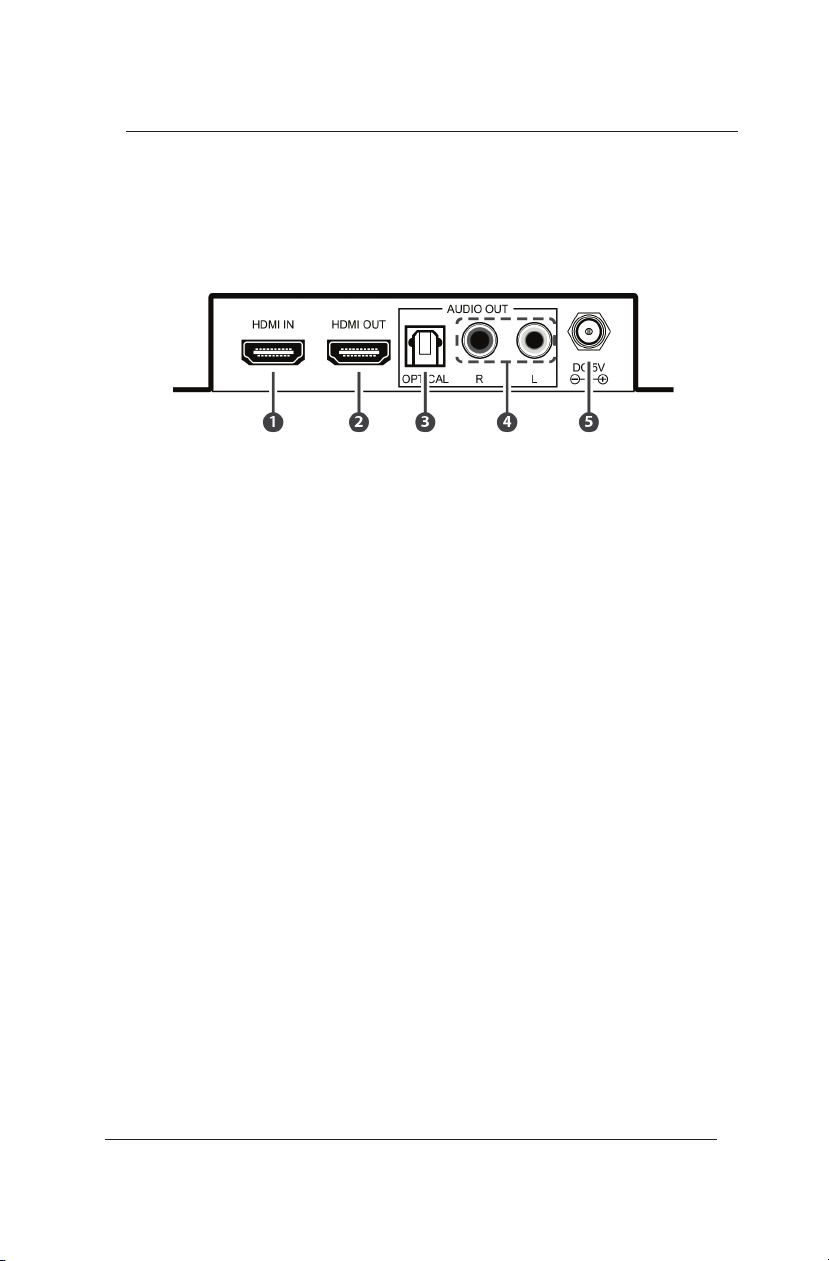
1. HDMI IN: Connect to HDMI source equipment such as a media
player, game console or set-top box.
2. HDMI OUT: Connect to an HDMI TV, monitor or amplier for
digital video and audio output. (LPCM up to 7.1, bitstream, HD
bitstream)
3. OPTICAL AUDIO OUT: Connect to powered speakers or an
amplier for digital audio output using an appropriate optical
cable. (LPCM 2.0 and bitstream only)
4. ANALOG AUDIO OUT: Connect to powered speakers or an
amplier for stereo analog audio output. (LPCM 2.0 only)
5 DC 5V: Plug the 5V DC power adapter into the unit and connect
it to an AC wall outlet for power.
2.1 Rear Panel
LB-H2/DE User’s Manual
Link Bridge 4K UHD+ LPCM2.0 Audio Extractor
TM

Note: Commands will not be executed unless followed by a
carriage return. Commands are not case-sensitive.
Commands:
LB-H2/DE User’s Manual
Link Bridge 4K UHD+ LPCM2.0 Audio Extractor
TM

3.0 EDID MANAGER
This unit uses an EDID Management application which allows
the user to copy the EDID from an attached display, edit an
existing EDID le stored on the PC or create a basic EDID
from scratch. The EDID can then be uploaded to the unit for
use. Please obtain the EDID Management software from your
authorized dealer and save it in a directory where you can
easily nd it.
Before connecting the unit to your PC, please install the ap-
propriate Virtual COM Port Driver depending on your Windows
version. Next, install the EDID Management software. After
the installation has successfully completed, an icon for it will
appear on the windows desktop. Launch the software by
double-clicking on the icon and the EDID Management device
detection window will open up on your screen.
After launching the software, power the unit on and then
connect it to the PC/laptop using a USB cable. Click on the
“Search” button and any detected units will be displayed in
the list. Clicking on a detected unit will open the EDID Com-
mander window.
LB-H2/DE User’s Manual
Link Bridge 4K UHD+ LPCM2.0 Audio Extractor
TM
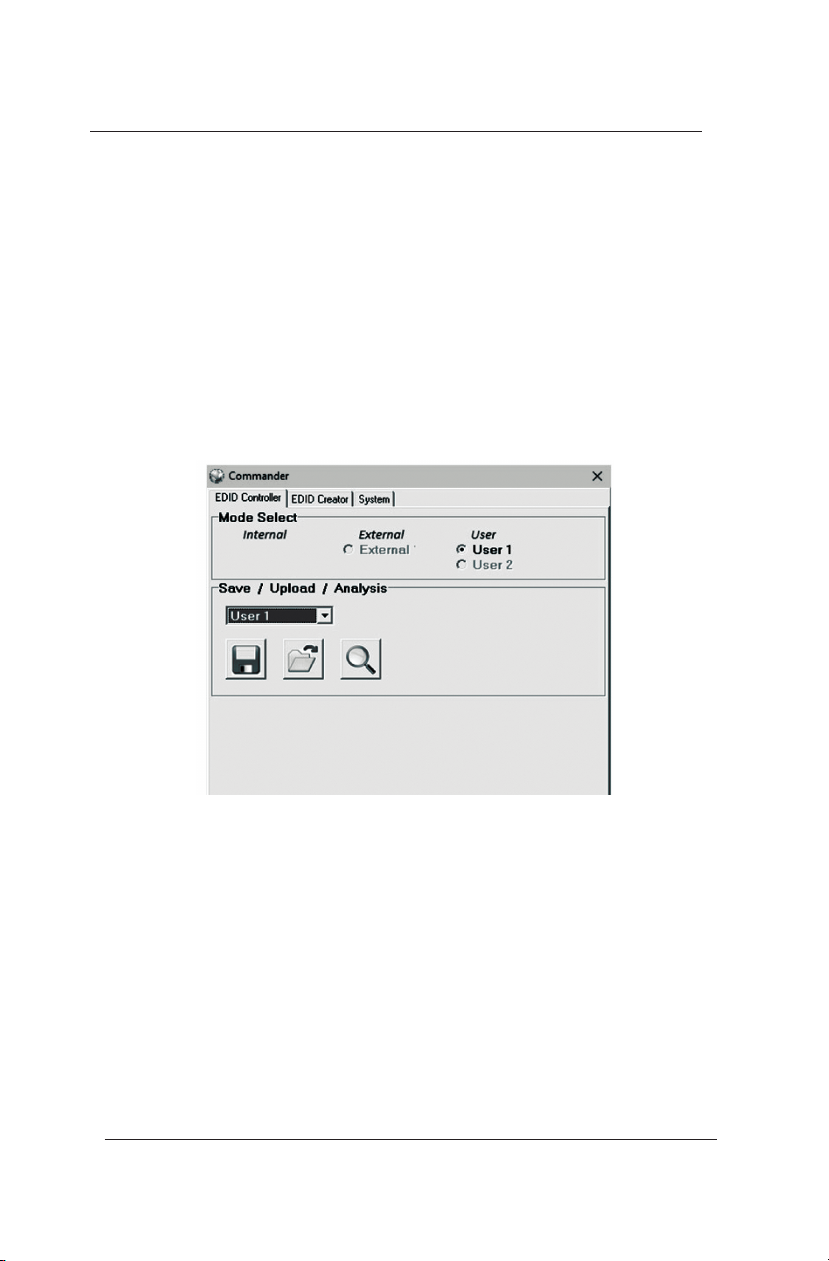
4.0 EDID CONTROLLER TAB
Mode Select: The currently selected EDID is displayed here.
The “User 1” EDID corresponds to the “Bitstream” setting
on the front of the unit. The “User 2” EDID corresponds to
the “LPCM 2.0” setting on the front of the unit. Both of these
EDIDs are user-replaceable. To return them to their original
values, please perform a factory reset on the unit.
Save/Upload/Analysis: EDIDs may be saved to a PC,
uploaded from a PC or analyzed.
5.0 EDID CREATOR TAB
• Any EDID from the unit or the connected HDMI display
can be saved to your PC as a *.bin le by selecting the
EDID source from the drop down menu and then clicking
the “Save” icon.
• Previously saved EDID les (*.bin format) can be re-up
loaded into the unit by selecting the User EDID to replace
from the dropdown and then clicking the “Upload” icon.
Before accepting the upload, the software will check and
verify that the EDID’s header and checksum values are
acceptable.
• To analyze any EDID stored within the unit, select the EDID
to view from the dropdown and click on the “Analysis” icon.
Click on the EDID Creator tab to begin designing a new EDID
from scratch (select the “New” icon), to modify an existing EDID
stored on the PC as a .bin le (select the “Load” icon) or to edit
an EDID copied from the unit via the EDID Analyzer’s edit option.
Selecting “New” will automatically populate the various EDID
elds with basic information that can be easily edited to match
the user’s preferences. Clicking on the “Load” icon will open a
le load window and after the *.bin le
has been selected and loaded the EDID elds will be populated with
the information from that le. The same will happen when the
EDID is copied from the EDID Analyzer window.
LB-H2/DE User’s Manual
Link Bridge 4K UHD+ LPCM2.0 Audio Extractor
TM
Table of contents