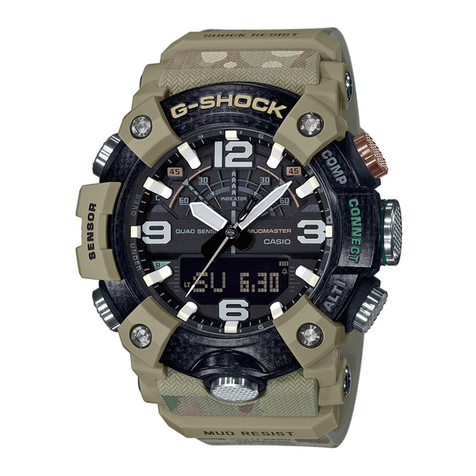
Bodykey InBodyBAND User manual

InBodyBAND and BodyKey App
User Guide

•Charge your InBodyBAND
•Download the BodyKey App on your Mobile Phone
•Pair the InBodyBAND with your Mobile Phone
•Get to Know the InBodyBAND
•Get to Know the BodyKey App
Getting Started
•Guidelines in Getting Accurate Test Results
•Proper Test Posture
•Take the InBody Test
Measuring Body Composition
•Take the Personalised Assessment
•Save/Print the Assessment
Personalised Assessment
•Set your Target Weight Goal
Target Weight Goal
•View your Exercise Advice
•Track your Steps
•Track your Exercise Activity
•Measure your Heart Rate
Tracking your Physical Activities
•View your Food Advice
•Record your Food Journal
•Set a Reminder to Record your Food
Tracking your Food and Calories
•Guidelines in Monitoring Sleep
Tracking your Sleep
•See your Progress Report
•Set Time Alarm
•Set Call/SMS Alarm
•Set InBodyBAND Alarm
•Change Language or Food Database
Other Features
Frequently Asked Questions
What’s in this guide
2
3
15
21
27
30
39
46
49
55

Getting Started
3
Congratulations on signing up for the BodyKey program! You
are on your way to unlock a new you. Let’s get you started on
using the InBodyBAND and BodyKey app.
To set up your InBodyBAND, you will need these items.
InBodyBAND Mobile phoneMicro USB Cable USB Wall Charger
or Computer
Mobile Phone Compatibility
The InBodyBAND is compatible with mobile phones that support
the latest Bluetooth smart technology. This includes iPhone 4S
or newer models, as well as smartphones with Android BLE
(Android 4.3 or newer), for example, Samsung Galaxy S3 and
S4, Sony Xperia Series, and XiaoMi mi3.
iPhone 4S or newer
Smartphones with Android
BLE (Android 4.3 or newer)
If you are unsure about your phone compatibility,
please call +65 6550 9911 (press 3) for assistance.

Connect your band to the USB cable.
Attach the smaller port into the band.
Attach the larger port into a USB charger device,
such as to a USB wall charger or your computer.
It takes about one hour to completely charge the battery.
4
2
Charge your InBodyBAND
On the left side of the band,
gently open the tiny flap.
1
3
Getting Started

Download the BodyKey App on your Mobile Phone
5
While your InBodyBAND is charging, you may proceed to
download the BodyKey app on your mobile phone.
Download the BodyKey App on your iPhone
If you have an iPhone, follow these steps.
Getting Started
Open the App Store on your iPhone.
Search for BodyKey.
Select GET for the BodyKey app.
Select INSTALL.
1
2
3
4
A prompt appears requesting for
your Apple ID password. Enter
your password.
5
Wait for the BodyKey app to finish downloading to your
iphone.
6

6
Open the Play Store on your Android phone.
Search for BodyKey.
Select BodyKey from the list.
Select INSTALL.
1
2
3
4
Download the BodyKey App on your Android Phone
If you have an Android phone, follow these steps.
Getting Started
Select ACCEPT.
5
Wait for the BodyKey app to finish downloading to your
Android phone.
6

7
Select the BodyKey app on your mobile phone.
Pair the InBodyBAND with your Mobile Phone
Register your BodyKey App
If a pop-up message appears,
requesting for permission to send
you notifications, select OK.
Make sure the InBodyBAND has been fully charged.
To check, turn on your InBodyBAND by holding the
side button down for 3 seconds. Then repeatedly
press the side button on the band until the battery
mode appears and shows 100%.
1
2
Enter your mobile number and
select Confirm.
Example: 0123456789
3
Getting Started
What should you do if the BodyKey app
claims that your phone number is
already in use?
Contact +65 6550 9911/9950 or email
sghelpdesk@amway.com.

8
In the Registration screen, complete
your details: Gender, Height (cm),
Age, and Password.
Note: The password you enter here
will be your BodyKey App password.
When you have completed all your
details, select Done.
4
Getting Started
Pair the InBodyBAND with your Mobile Phone
After registration, you will automatically be diverted to pair your
InBodyBAND to the BodyKey app on your mobile phone.
In the InBodyBAND screen,
select Set.
!
12
Select Confirm.
5
In the Devices screen,
select InBodyBAND.

9
You will be prompted to turn the
power on for your InBodyBAND.
Note: Don’t select Confirm yet at
this point of time.
Turn on your InBodyBAND
by holding the side button
down for 3 seconds. The
time will appear on the
InBodyBAND screen.
3
4
Getting Started
Enter your Weight (kg) and
select Confirm.
Once you’re sure it’s
powered on, place the
InBodyBAND next to
your mobile phone.
5
Now select Confirm in the
BodyKey app.
7
6

10
Allow the setup to run.
If the setup failed, check that your
InBodyBAND is turned on and
make sure the InBodyBAND is
placed next to your phone. Then
select Try Again.
When the setup is completed,
select Done.
8
10
Getting Started
Select Confirm.
9
When the prompt appears,
select Confirm.
11
Once the connection is established, the time on your InBodyBAND
will automatically sync with your mobile phone.
Table of contents