BMW G30 2018 Installation guide

Technical�training.
Product�information.
BMW�Service
Displays�and�Controls�2018

General�information
Symbols�used
The�following�symbol�is�used�in�this�document�to�facilitate�better�comprehension�or�to�draw�attention
to�very�important�information:
Contains�important�safety�information�and�information�that�needs�to�be�observed�strictly�in�order�to
guarantee�the�smooth�operation�of�the�system.
Information�status:�June�2018
BMW�Group�vehicles�meet�the�requirements�of�the�highest�safety�and�quality�standards.�Changes
in�requirements�for�environmental�protection,�customer�benefits�and�design�render�necessary
continuous�development�of�systems�and�components.�Consequently,�there�may�be�discrepancies
between�the�contents�of�this�document�and�the�vehicles�available�in�the�training�course.
The�information�contained�in�the�training�course�materials�is�solely�intended�for�participants�in�this
training�course�conducted�by�BMW�Group�Technical�Training�Centers,�or�BMW�Group�Contract
Training�Facilities.
This�training�manual�or�any�attached�publication�is�not�intended�to�be�a�complete�and�all�inclusive
source�for�repair�and�maintenance�data.�It�is�only�part�of�a�training�information�system�designed�to
assure�that�uniform�procedures�and�information�are�presented�to�all�participants.
For�changes/additions�to�the�technical�data,�repair�procedures,�please�refer�to�the�current�information
issued�by�BMW�of�North�America,�LLC,�Technical�Service�Department.
This�information�is�available�by�accessing�TIS�at�www.bmwcenternet.com.
Additional�sources�of�information
Further�information�on�the�individual�topics�can�be�found�in�the�following:
• Owner's�Handbook
• Integrated�Service�Technical�Application
• Aftersales�Information�Research�(AIR)
The�information�contained�in�this�manual�is�not�to�be�resold,�bartered,�copied,�or�transferred
without�the�express�written�consent�of�BMW�of�North�America,�LLC�(“BMW�NA”).
©2018�BMW�of�North�America,�LLC
The�BMW�name�and�logo�are�registered�trademarks.�All�rights�reserved.

Displays�and�Controls�2018
Contents
1. Introduction.............................................................................................................................................................................................................................................1
1.1. Further�information............................................................................................................................................................................................. 1
1.2. Overview...............................................................................................................................................................................................................................1
2. Operating�Elements................................................................................................................................................................................................................. 3
2.1. Overview...............................................................................................................................................................................................................................3
2.2. Central�Information�Display�with�touch�function.................................................................................................. 3
2.3. Multifunction�steering�wheel............................................................................................................................................................... 4
2.4. Steering�column�switches....................................................................................................................................................................... 6
2.5. Gesture�control..........................................................................................................................................................................................................7
2.5.1. Gesture�overview.................................................................................................................................................................. 7
2.5.2. New�gestures..............................................................................................................................................................................9
2.5.3. Individual�gestures......................................................................................................................................................... 10
2.6. Voice�control..............................................................................................................................................................................................................10
2.7. Controller........................................................................................................................................................................................................................ 11
3. 7th�Generation�of�iDrive�(ID7)...........................................................................................................................................................................13
3.1. Overview.......................................................................................................................................................................................................................... 13
3.1.1. Main�menu�bar..................................................................................................................................................................... 13
3.1.2. Display�bar.................................................................................................................................................................................. 15
3.1.3. Media................................................................................................................................................................................................... 16
3.1.4. Communication...................................................................................................................................................................17
3.1.5. Navigation.................................................................................................................................................................................... 17
3.1.6. My�Vehicle...................................................................................................................................................................................18
3.1.7. Apps...................................................................................................................................................................................................... 20
3.2. Main�menu....................................................................................................................................................................................................................21
3.3. Service................................................................................................................................................................................................................................ 24
4. Display�Elements......................................................................................................................................................................................................................25
4.1. Instrument�cluster.............................................................................................................................................................................................25
4.1.1. Overview.........................................................................................................................................................................................25
4.1.2. Warning�and�indicator�lights...........................................................................................................................25
4.1.3. Modes.................................................................................................................................................................................................26
4.1.4. Configure�displays..........................................................................................................................................................28
4.1.5. Entertainment�list.............................................................................................................................................................29
4.1.6. Navigation�displays....................................................................................................................................................... 30
4.1.7. Driver�Camera�System.............................................................................................................................................30
4.1.8. Test�functions........................................................................................................................................................................ 31
4.2. Head‐Up�Display.................................................................................................................................................................................................32

4.2.1. Overview.........................................................................................................................................................................................32
4.2.2. Settings............................................................................................................................................................................................32

Displays�and�Controls�2018
Contents
4.3. Central�Information�Display............................................................................................................................................................... 34
5. Showroom�Mode....................................................................................................................................................................................................................... 35
5.1. Activation........................................................................................................................................................................................................................ 35
5.2. Presentation............................................................................................................................................................................................................... 35
5.2.1. Demo�mode�navigation.......................................................................................................................................... 36

Displays�and�Controls�2018
1.�Introduction
1
1.1.�Further�information
This�product�information�introduces�the�new�features�of�and�adaptations�to�the�display�and�controls.
The�focus�is�particularly�on�system-specific�features.�The�vehicle-specific�descriptions�of�the
display�and�operating�elements�can�be�found�in�the�product�information�G05�Displays�and�Controls
and�G15�Displays�and�Controls.
1.2.�Overview
With�the�introduction�of�the�new�Head�Unit�High�3�(HU-H3),�a�new�display�and�operating�concept�(ID7)
is�used�at�BMW.�The�head�unit�functions�of�the�new�user�interface�are�displayed�in�the�12.3"�Central
Information�Display.
In�the�G12�the�user�interface�ID5�was�introduced.�This�was�designed�especially�for�touch�operation.
In�the�G30,�ID6�with�tiles,�which�can�show�the�content�in�real�time,�was�introduced�shortly�thereafter.
ID7�is�also�designed�for�touch�operation.�The�most�obvious�difference�is�the�display�of�the�tiles.�With
ID7�they�are�described�as�widgets�and�can�be�individually�arranged.
Comparison�of�division�of�menus�for�ID6�and�ID7
The�multi-functional�instrument�panel�receives�a�completely�new�design�and�extended�display
options.�The�Central�Information�Display�and�the�multi-functional�instrument�panel�continue�to�form�a
single�unit�for�ID7.
Besides�the�controller�and�the�touch�operation,�new�gestures�enable�an�even�better�way�of
performing�certain�functions.
The�voice�control�system�is�based�on�that�of�the�G12.�The�hardware�in�the�head�unit�is�prepared�for�a
functional�enhancement�in�the�near�future.

Displays�and�Controls�2018
1.�Introduction
2
The�BMW�Head-Up�Display�is�also�still�one�of�the�most�important�display�instruments�in�the�vehicle
thanks�to�newly�designed�displays�and�a�larger�display�field,�as�the�customer�can�keep�his�eyes�on�the
road�whilst�receiving�important�information.
Showroom�mode�presents�the�customer�a�living�vehicle�with�new�animations�in�the�showroom.
Animations�run�in�a�continuous�loop�in�the�Central�Information�Display�in�order�to�arouse�the
customer's�interest�and�to�give�an�initial�impression�of�the�functions�in�the�infotainment�area.

Displays�and�Controls�2018
2.�Operating�Elements
3
2.1.�Overview
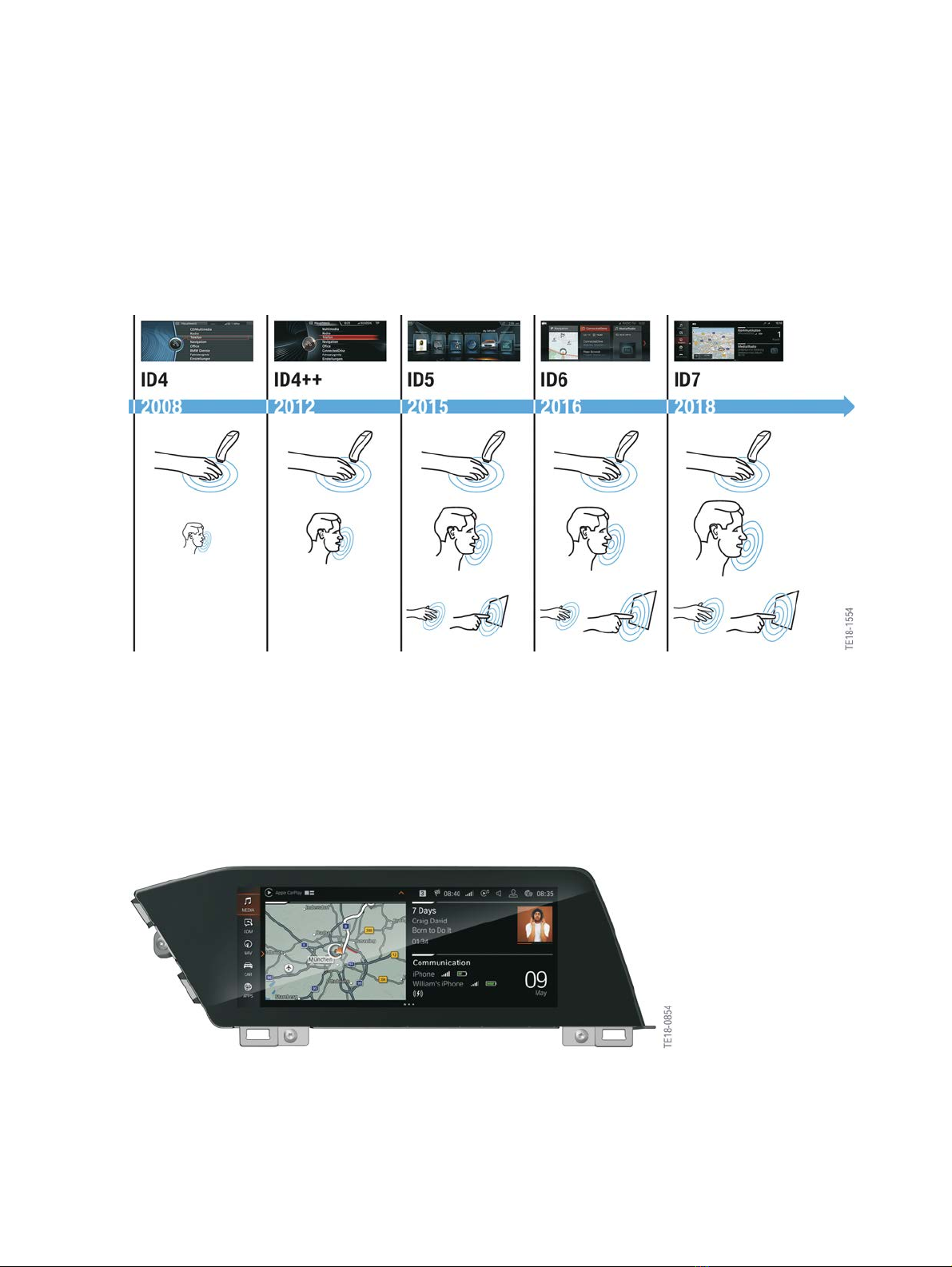
The�latest�generations�of�the�operating�elements�are�increasingly�designed�around�several�operating
options.�Some�of�the�key�operating�options�with�ID7�(7th�generation�iDrive)�include�the�touch
operation�of�the�Central�Information�Display�(CID),�the�option�of�natural�voice�input�and�gesture�control.
The�controller�with�touch�operation�is�also�the�central�operating�element�in�vehicles�with�ID7.
Overview�of�operation�of�the�previous�generations
2.2.�Central�Information�Display�with�touch�function
In�conjunction�with�the�BMW�Live�Cockpit�Professional�(SA�6U3),�a�Central�Information�Display�with
a�maximum�screen�diagonal�of�12.3"�or�10.25"�is�installed�depending�on�the�vehicle.�The�display
resolution�is�1920�x�720�pixels.
ID7�is�designed�for�optimal�touch�operation.
Central�Information�Display

Displays�and�Controls�2018
2.�Operating�Elements
4
2.3.�Multifunction�steering�wheel
For�years�the�multifunction�steering�wheel�has�been�offering�a�comfortable�way�of�operating�some
systems.�New,�additional�buttons�and�simplified�operator�prompting�were�added�to�the�function�keys
on�both�sides.
Multimedia�buttons�on�multifunction�steering�wheel
Index Explanation
1 Reduce�volume
2 Knurled�wheel,�list�selection
3 LED�display�for�assistance�systems
4 Increase�volume
5 Change�station/track,�long�press:�Fast�forward�the�music�track
6 Voice�control�system
7 Open�entertainment�lists
8 Telephone
9 Change�station/track,�long�press:�Fast�reverse�the�music�track
More�information�about�the�operation�of�the�multimedia�systems�via�the�multifunction�steering
wheel�can�be�found�in�the�product�information�G05�Displays�and�Controls�and�G15�Displays�and
Controls.

Displays�and�Controls�2018
2.�Operating�Elements
5
Buttons�for�assistance�systems�on�multifunction�steering�wheel
Index Explanation
1 Rocker�switch�for�changing�the�set�speed
2 LED�display
3 Speed�limit�ON/OFF
4 Increase�distance�to�the�vehicle�ahead
5 Button�for�selecting�the�assistance�system
Possible�selection:�Only�ACC�Stop&Go�or�ACC�Stop&Go
with�Steering�Assistant
6 Button�for�activating�or�deactivating�the�assistance�system
selected�via�the�mode�button�(Assist�button)
7 Cruise�Control:�Save�speed
8 Reduce�distance�to�vehicle�ahead
9 Button�for�calling�up�a�saved�set�speed/temporarily
switching�off�the�cruise�control
Information�about�the�operation�of�the�assistance�systems�via�the�multifunction�steering�wheel�can
be�found�in�the�product�information�G05�Driver�Assistance�Systems�and�G15�Driver�Assistance
Systems.

Displays�and�Controls�2018
2.�Operating�Elements
6
2.4.�Steering�column�switches
Both�steering�column�switches�(turn�signal/high�beam�switch�and�the�wash/wipe�switch)�lock�when
actuated.
The�right�instrument�cluster�display�(combo�widget)�including�the�on-board�computer�data�is�operated
using�a�button�on�the�turn�signal/high�beam�switch.�As�the�reset�button�is�deleted�in�the�instrument
cluster,�the�functions�of�the�reset�button�are�also�operated�via�the�on-board�computer�button,�such�as
resetting�the�trip�distance.
Steering�column�switch�at�the�steering�column�switch�cluster
Index Explanation
1 On-board�computer
2 High-beam�assistant
3 Turn�signal/high�beam�switch
4 Wash/wipe�switch
5 Steering�column�switch�cluster�(SZL)
If�the�on-board�computer�button�is�pressed�for�between�5�s�and�10�s,�the�CBS�menu�is�opened�in�the
instrument�cluster.�The�next�CBS�range�is�displayed�with�a�short�keystroke�(<�2�s).�The�CBS�data�is
reset�with�a�long�keystroke�(2-4�s).
The�operation�of�the�wash/wipe�switch�is�already�known�from�other�vehicles�(G30,�G01,�etc.)
Display�of�service�data
This manual suits for next models
4
Table of contents
Other BMW Automobile manuals

BMW
BMW 325i User manual

BMW
BMW 2009 X5 User manual

BMW
BMW X5 M User manual

BMW
BMW 2008 X3 User manual

BMW
BMW M5 User manual

BMW
BMW Z4 M Roadster 2008 Instruction Manual

BMW
BMW Touring plug-in hybrid 3 Series User guide

BMW
BMW X5 xDrive45e PLUG-IN HYBRID 2022 User manual

BMW
BMW M5 2014 Instruction Manual

BMW
BMW SERIE 7 2005 User manual

BMW
BMW X5 2023 User manual

BMW
BMW SERIE 3 CONVERTIBLE 2000 User manual

BMW
BMW M6 Convertible User manual

BMW
BMW I01 User manual

BMW
BMW 2008 X6 User manual

BMW
BMW E31 850i User manual

BMW
BMW F97 Installation guide

BMW
BMW 535I User manual

BMW
BMW 3 SERIES SEDAN - PRODUCT CATALOGUE User manual

BMW
BMW F90 LCI User manual