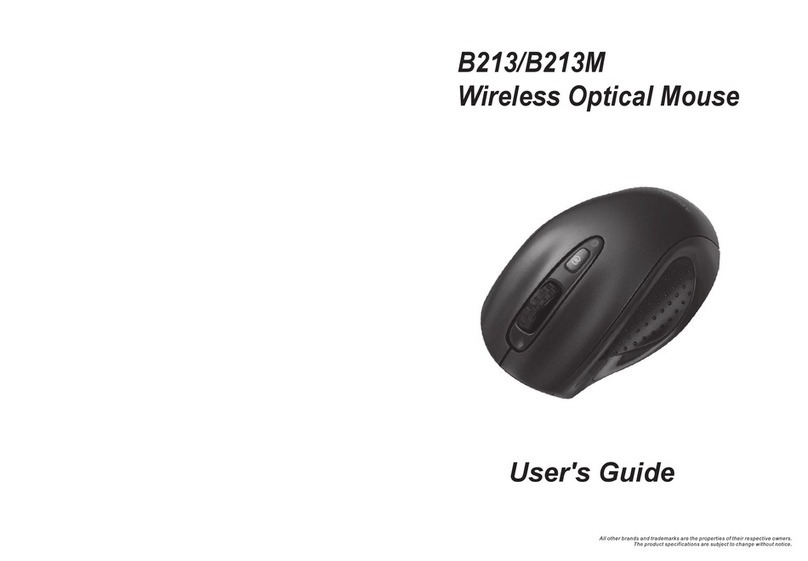
BlueBuilt Imperium User manual

FLYING START.
Whoooo.
Imperium Ergonomic Mouse
Imperium Ergonomische Muis
Imperium Souris Ergonomique
Imperium Ergonomische Maus
920302- BBIMP23

TABLE OF CONTENTS
HOW TO CONNECT YOUR MOUSE (USB) 3
HOW TO CONNECT YOUR MOUSE (BLUETOOTH) 4
HOW TO CHARGE YOUR MOUSE 5
HOW TO ADJUST THE DPI
6
HOW TO USE YOUR MOUSE 7
DECLARATION OF CONFORMITY
8
INHOUDSOPGAVE
JE MUIS AANSLUITEN (USB) 10
JE MUIS AANSLUITEN (BLUETOOTH) 11
JE MUIS OPLADEN 12
DE DPI AANPASSEN
13
HOE JE JOUW MUIS MOET GEBRUIKEN 14
VERKLARING VAN OVEREENSTEMMING
15
TABLE DES MATIÈRES
CONNECTER VOTRE SOURIS (USB) 17
CONNECTER VOTRE SOURIS (BLUETOOTH) 18
CHARGER VOTRE SOURIS 19
RÉGLER LES PPP
20
COMMENT UTILISER VOTRE SOURIS 21
DÉCLARATION DE CONFORMITÉ
22
INHALTSVERZEICHNIS
IHRE MAUS ANSCHLIEßEN (USB) 24
IHRE MAUS ANSCHLIEßEN (BLUETOOTH) 25
IHRE MAUS AUFLADEN 26
DPI EINSTELLEN
27
WIE SIE IHRE MAUS BENUTZEN 28
KONFORMITÄTSERKLÄRUNG 29

3
ON
OFF
ON
OFF
Remove the foil and turn on the mouse. Next,
remove the usb receiver from the mouse and plug it
into the usb-A input of your device. e connection
will be established within a few seconds.
1
HOW TO CONNECT YOUR MOUSE (USB)

4
1
2
3
Press the connect button for 5 seconds to activate the
Bluetooth connection. Next, open the Bluetooth
settings on your computer, laptop or other device
and select the mouse. e connection will be
established within a few seconds. If you want to use
your mouse on multiple devices simply repeat this
step. Press the connect button to switch source.
Press for 5s to connect
2
HOW TO CONNECT YOUR MOUSE
(BLUETOOTH)

5
You charge your mouse by plugging in the included
usb-C cable into the input connector of your mouse.
If the light on top of the mouse turns red, it’s battery
is low.
3
HOW TO CHARGE YOUR MOUSE

6
By changing the DPI you adjust the pointer speed
of your mouse. Pressing the button on top of the
mouse adjusts the DPI in 4 modes: slow, medium,
fast and fastest.
4
HOW TO ADJUST THE DPI

7
1
2
3
e mouse contains two additional buttons on the
left side. e forward and backward buttons. e
forward and backward buttons allow you to quickly
navigate between different pages in your web
browser.
5
Note: if you don’t use the mouse for 30 minutes, it
will switch to stand-by modus. Press any button
to reactivate the mouse.
HOW TO USE YOUR MOUSE

8
Declaration of conformity
Product specifications
Rating: 3.7V ⎓10mA
Input: 5V ⎓250mA
Working current: ≤ 5mA
Frequency: 2.4GHz
Safety instructions
1. Always follow these instructions and note the warnings, save this document for
future use as long as you own or use the device, and give it to the next users of the
device.
2. Make sure you read and understand the entire manual before you use the device.
3. Use the device only in the application for which it is intended, namely as a pointing
device that is connected to a laptop or computer to control the cursor on the screen
with a hand movement.
4. Before you connect a device, check if the output power of the charger provides
enough power for the connected device.
5. Don’t expose the device to extreme heat, like sunlight or fire. Avoid sudden
temperature shifts.
6. Don’t use or use the device in moist or wet conditions.
7. Don’t use the device close to explosive gasses or flammable materials.
8. Don’t burn the device.
9. Avoid contact with the chemicals of the battery. When the chemicals of the battery
come into contact with skin or the eyes, stop using the device right away, use plenty
of water to rinse off the chemicals, and contact a doctor.
10. Don’t throw, shake, vibrate, drop, or mechanically misuse the device and don’t
expose it to impacts.
11. Don’t cover the device with objects that affect the heat dispersal.
12. Only use the device with the included cables or with cables that came with the
device. Don’t use the device when the included cables are damaged or have gotten
damaged over time.
13. Disconnect the device when it’s not in use. Don’t charge or discharge the device
unsupervised.
14. Keep the device away from children.
15. Don’t disassemble, open, or repair the device.
16. Only clean the device with a damp cloth with water. Don’t use (aggressive)
cleaning agents.

9
is symbol on the product indicates that it can’t be treated as
regular waste, but that it’s supposed to be collected separately.
Hand the product in at a collection point for the recycling of
electronic devices if you live in the EU or in a different European
country that has a separate collection system for electronic
devices. If you correctly dispose of the product, you help to avoid
risks for the environment and public health which might arise
by the mishandling of disposed devices. Recycling materials
contributes to the maintenance of our natural resources.
17. is device can be used by people with reduced physical, sensory, or mental
capacity, or by people without experience and knowledge, given that they’re
supervised or have gotten instructions about safe use of the product and understand
any dangers.
Warranty and liability
is device comes with a warranty period of five (5) years after the date of purchase.
For more information about the warranty terms and conditions, go to https://www.
coolblue.nl/en/customer-service. Coolblue B.V. can in no way be held liable for
material and immaterial damage suffered by you, others, the device, other property,
or the property of others due to non-compliance with the instructions in this manual.
Hereby, Coolblue B.V. declares that this product is in compliance with
RoHS Directive 2011/65/EU and Radio Equipment Directive 2014/53/
EU. e full text of the EU Declaration of Conformity is available at
www.coolblue.nl/en/product/920302.

10
ON
OFF
ON
OFF
Verwijder de folie en zet de muis aan. Haal de usb
ontvanger uit de muis en steek deze in de usb-A
poort van het apparaat waarmee je de muis wil
besturen. De verbinding komt binnen enkele
seconden tot stand.
1
JE MUIS AANSLUITEN (USB)
Table of contents
Languages:
Other BlueBuilt Mouse manuals