Birmy Graphics PowerRIP Stylus Pro XL User manual

Version
3.1
Windows
3.11
Windows
95
Windows NT
3.51
(Intel)
for
EPSON Stylus Color
EPSON Stylus Pro
EPSON Stylus Pro XL
INSTALLATION
&
OPERATION
MANUAL

PowerRIp”
The Software Program That
Turns
Your Printer
Into
A
True
Adobe PostScript”
Level
2
lmager
Gila
Adobe
PostSaipt

Q
1995
Birmy
Graphics Corporation. All Rights Reserved
This manual may not, in whole, or in part, be copied, photocopied, reproduced, translated,
transmitted or converted to any electronic or machine
-
readable form without prior written
consent of
Birmy
Graphics Corporation.
Information
contained in this document is subject to change without notice and does not
represent a commitment on the part of
Birmy
Graphics Corporation.
Birmy
Graphics Corporation does not warrant, guarantee, or make any representation
regarding the use or the result of the use of any color system included in
Birmy
products.
Video simulations may not match printed color output.
PowerRIP@
is a registered trademark of
Birmy
Graphics Corp.
Adobe and PostScript are trademarks of Adobe Systems
Incorporated
which may be
registered in certain jurisdictions.
Windows, Windows
95,
Win32s,
and Windows NT are trademarks of Microsoft Corpora-
tion in the U.S.A. and other countries.
Intel
is a registered trademark of
Intel
Corporation.
EPSON and EPSON Stylus are registered trademarks of Seiko Epson Corporation.
This program was written for Windows based systems and makes no
warranties
whatsoever, either express or implied, regarding this product, including warranties with
respect to its merchantability or its fitness for any particular purpose.
All other trademark are the properties of their respective owners.

Table of Contents
Section 1
Section 2
Section 3
Section 4
Section
5
Section 6
Installation
System Requirements
Operational Overview
PANTONE
Birmy
Technical Support
Installing
the Software
Windows
3.11
Printer Driver
Windows
95
Printer Driver
Windows NT Printer Driver
Operating
PowerRIP
Printing from a Network
Registering your Software
1
2
3
3
5
9
12
17
21
22
24
Customizing
PowerRIP
Printer Menu
File Menu
26
30
Testing
PowerRlP
32
Tips and Obtaining
35
the Best Printing Quality
Troubleshooting
Glossary
40
43

Installation
SYSTEM REQUIREMENTS
HARDWARE
Intel
486
or higher processor
8
MB
Minimum of RAM for Windows and
Windows
95, 24
MB minimum of RAM for
Windows NT
(See section 4 for more on RAM.)
VGA or
SVGA
color monitor
Mouse
3.5”
floppy drive
Hard drive with at least
40
MB free for letter
size and
80
MB free for ledger size paper.
Keyboard
LPT
printer output port
SOFTWARE
Windows
3.1
or higher, Windows
95,
or
Windows NT
3.51
or higher (Intel version)
NOTE: Before installation
A. Ensure that printer port
(LPT)
is installed
and active.
B.
Ensure that
40
MB free space is avail-
able on your hard drive before starting the
installation of
PowerRIP.
C.
Set up the EPSON printer according to the
documentation that came with it.
Birmy
Graphics Corporation
1

Operational Overview
The following is an explanation of how a page is pro-
cessed by
PowerRIP.
The Windows Printer Drivers
supply the printer with codes that are needed to image a
page. PostScript is a coding method that is the standard
for high quality graphic output. When using the
PowerRlP
Windows printer drivers, PostScript code is
sent by Windows Applications, like PageMaker, to
PowerRlP
which processes it into a high resolution
image and sends that image to the printer.
PowerRlP
processes PostScript code and drives the
EPSON Stylus series printer. Text,
EPS,
tiffs and applica-
tions files must be sent to
PowerRIP
through applica-
tions, like
Pagemaker,
using the
PowerRlP
PostScript
Driver in Windows when printing.
How
PowerRIP
works
On Windows
3.11
and
95,
Windows prints a file to the
C:\BIRMY
directory.
PowerRlP
scans this directory for
files and processes the files into an image that is then
sent out the
LPT
port to the printer.
PowerRlP
must be minimized in order to scan.
On Windows NT,
PowerRIP
is set up so the Windows
Print Manager creates a file in
C:\BIRMY
instead of the
LPT
port.
PowerRlP
scans this directory
for files to process. After processing,
PowerRlP
sends
the bitmap image it created to the
LPT
port or
LPT
queue.
Note: If
PowerRlP
is not installed on the
C
drive then it
will scan the drive letter you installed it on.
2Birmy
Graphics Corporation

PANTONE
PANTONE
professional color palette files are included in
your
PowerRlP
package. These files can be read directly
into commonly used applications so the user can have
printer calibrated versions of all
PANTONE
Colors for the
EPSON Stylus Pro and Pro XL models.
The file is a self-extracting zip file. Just copy it to any
desired directory and type
Epalete
-d
from the DOS
prompt and it will extract itself and make its own
subdirectories. Remember to use the
-d
after
Epalete
or
the subdirectories will not extract correctly.
See the
readme
file on the
PANTONE
disk for use with
your application. This is also a self-extracting
3MB
file.
Copy this to your hard disk and type
Readme
from the
DOS prompt, then open the file it created called
PANTONE.WRI
with the Windows
Write
program.
PowerRIP
Technical Support
For technical assistance with the installation, configuration
and operation of
Birmy
PowerRIP,
please call
Birmy
Customer Support at
407-723-2893.
The hours of opera-
tion are
9am-8pm
EST
Please do not call the
Birmy
Fulfillment Center for techni-
cal information. There are no support personnel at that
location; the phone number is for the
PowerRlP
registra-
tion only.
Birmy
Graphics Corporation
3

When calling for technical assistance, be ready to identify
your system and its configuration, the serial number of your
copy of
PowerRIP,
and a description of the problems you are
encountering. Please refer to the Troubleshooting Section for
solutions before calling Technical Support.
Birmy
Graphics:
Voice
Fax
Email
407-723-2893
407-768-9669
PowerRIP-Support
8
Birmy.com
Mailing address
Birmy
Graphics Corporation
250
East Drive
Melbourne, Florida
32904
4Birmy
Graphics Corporation
Installing
the Software
Before installing
PowerRIP,
make backup copies of all
the installation disks. There is no copy protection on the
disks.
You will be required to register
PowerRlP
and
obtain the unlock code for your copy
PoweRlP
after
installation.
If your system does not meet the minimum hardware and
software requirements,
PowerRlP
will not work correctly.
PowerRIP
Installer
automatically loads the following
l
32
Bit
(WIN32S)
Windows libraries if not
already loaded
l
PowerRlP
software
User manually installs
l
PowerRIP
Windows Printer Drivers
To install
PowerRIP
1.
Turn on the computer and start Windows.
2.
Insert
the floppy disk labeled
PowerRlP
Disk 1 into the floppy drive (either A or
B).
3.
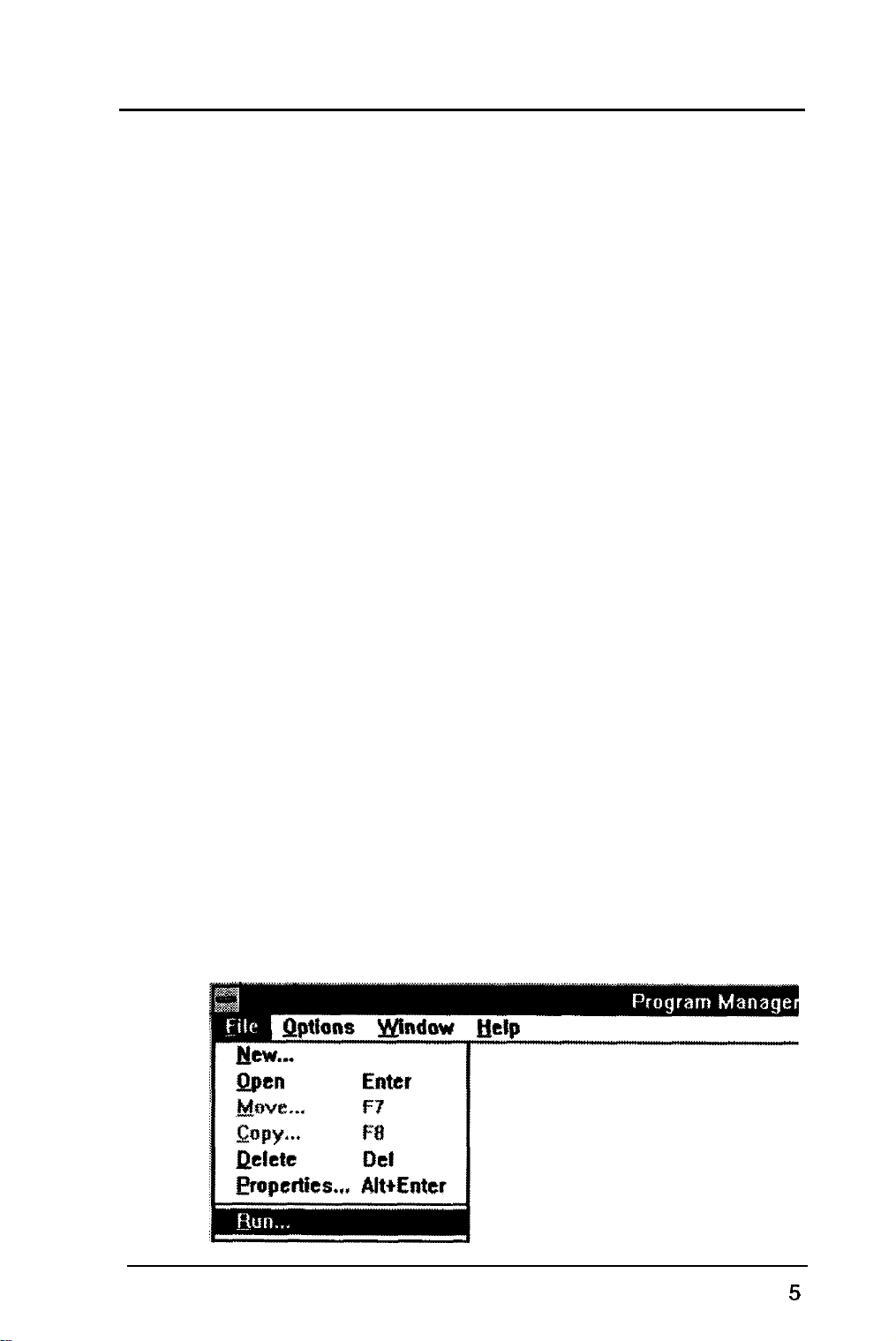
From the Windows
3.11
Program Manager, select
File,
then
Run.
(For Windows
95
instructions see
the note on the next page.)
Birmy
Graphics Corporation
4.
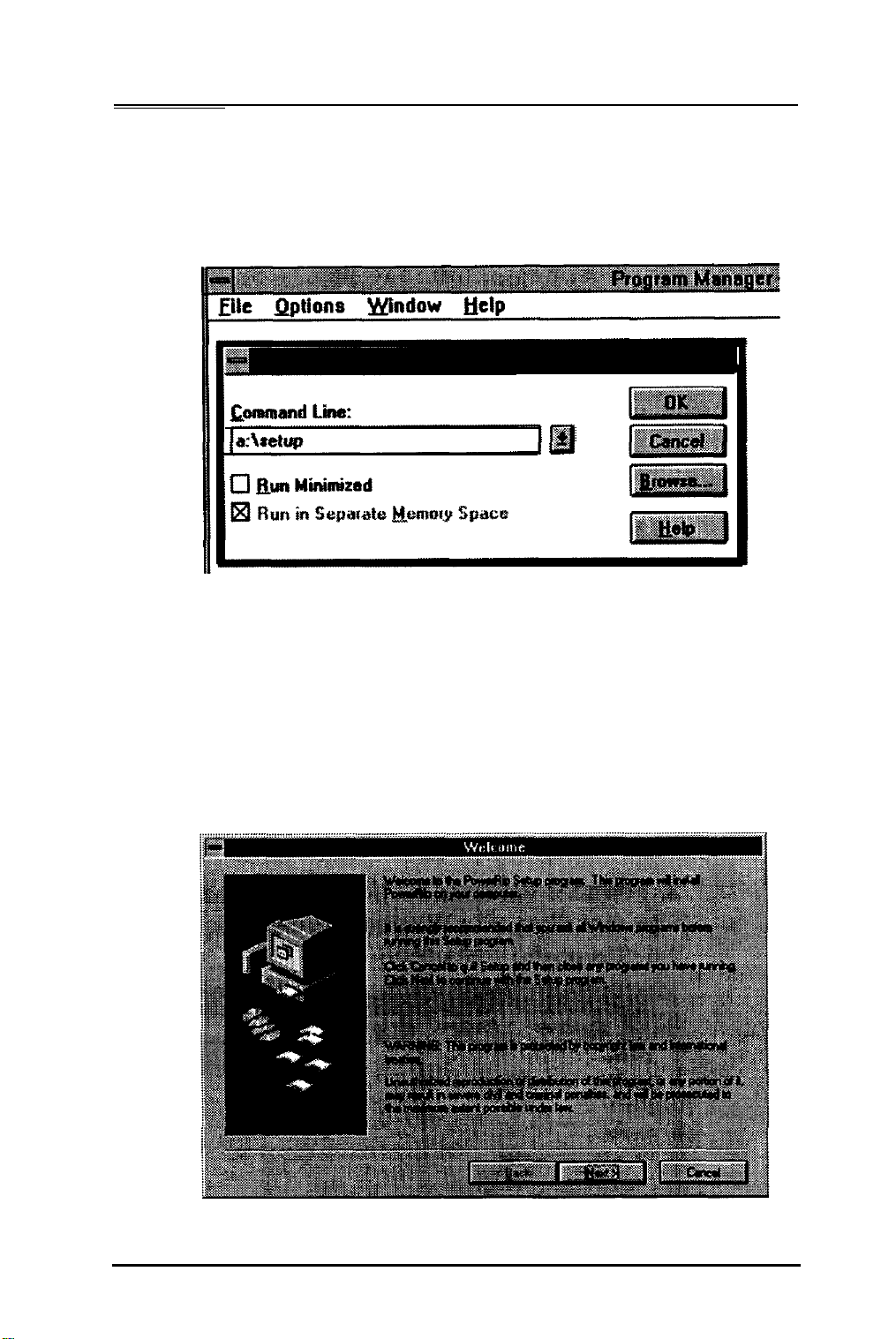
In the command line type
A:\SETUP
and click
OK.
(If you are loading from drive
B
type
B:\SETUP.)
NOTE:
If you are loading from Windows
95
click
on
Start,
select
Run,
then type
A:\SETUP
(or
B:\SETUP);
or use the Add software option
in Windows
95.
5.
The
PowerRlP
program will now start to load
and you see a Welcome screen. Click on
NEXT.
6Birmy
Graphics Corporation
This manual suits for next models
3
Table of contents