
Birch Carisma N2800 User manual

®Copyright 2011 April All Rights Reserved Version1.0
The information contained in this document is subject to change without notice. We make no
warranty of any kind with regard to this material, including, but not limited to, the
implied warranties of merchantability and fitness for a particular purpose. We shall not be
liable for errors contained herein or for incidental or consequential damages in connection
with the furnishing, performance, or use of this material.
This document contains proprietary information that is protected by copy right. All rights are
reserved. No part of this document may be photocopied, reproduced or translated to another
language without the prior written consent of the manufacturer.
TRADEMARK
Intel®, Pentium® and MMX are registered trademarks of Intel® Corporation. Microsoft®
and Windows® are registered trademarks of Microsoft Corporation.
Main Board
CPU
PP7000CQ-T15 Intel® Atom™ processor N2800 (1M Cache, 1.86 GHz)
Chipset Intel® NM10 Express Chipset
System Memory Socket-type RAM device, 204PIN SO-DIMM DDR3 RAM, up to 4GB
Graphic Memory Shared system memory up to 256MB
LCD Panel
PP7000CQ-T15
Panel Size 15”
Maximum Resolution 1024 x 768
Brightness 250 cd/m2
Contrast Ratio 600 : 1
Response Time 8 ms
View Angles (H/V) 160 / 160
Touch Panel Five Wires Resistive
Storage
HDD 2.5” SATA interface
Compact Flush Type Ⅰ&Ⅱ
Expansion
Mini-PCIE Socket One
Power
1

Power Adaptor Input AC 100-240V 2.5A 50/60Hz, Output DC 12V 6.66A
I / O
USB Six
Serial Four COM ports with RJ-45 Connector
Pin 9 with 5V / 12V power selectable
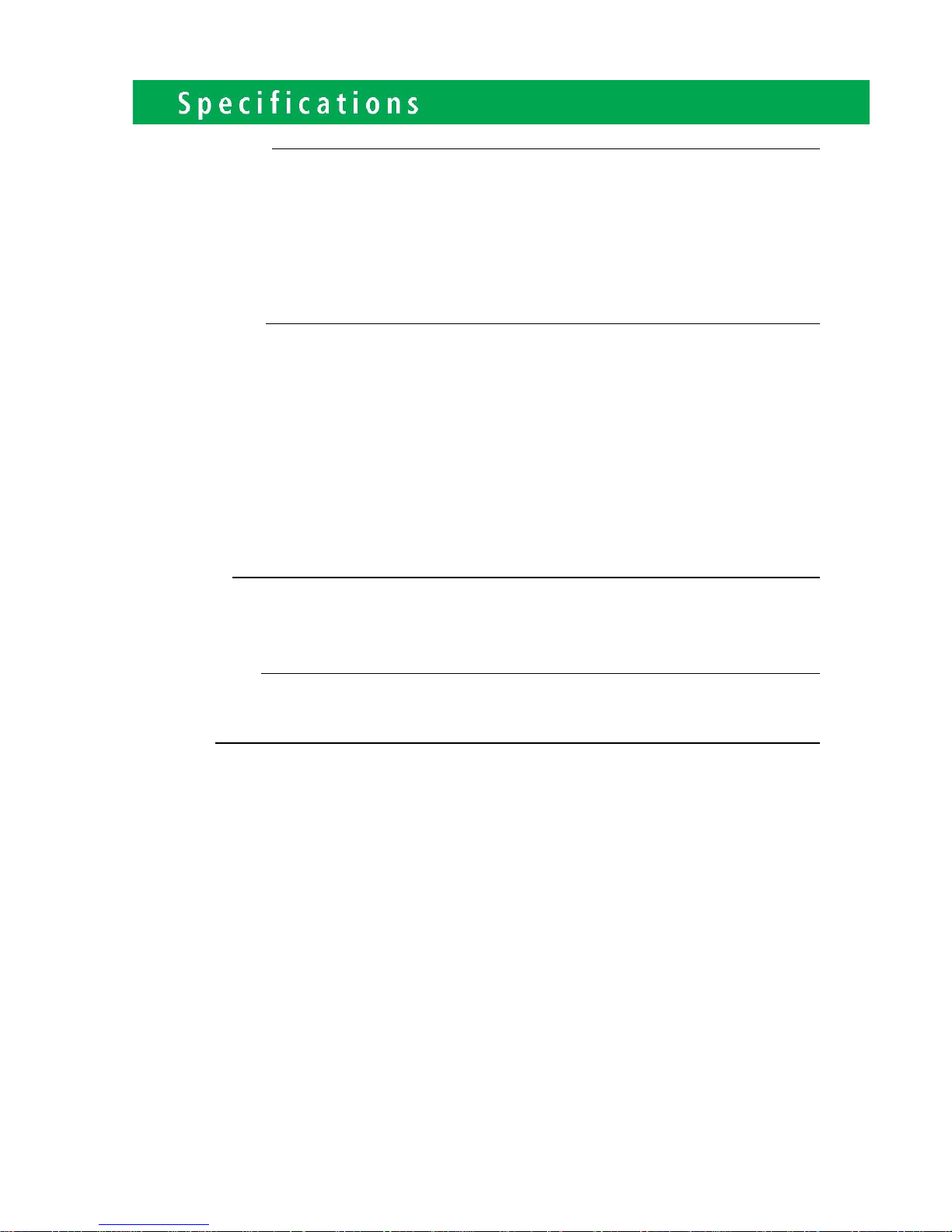
Parallel One LPT with adaptor cable
LAN One
2nd VGA Output One with optional adaptor cable
PS/2 One
Audio One Earphone & One Microphone
Control/Indicator
Power Button One
LED Indicators Power (Green), HDD (Red), LAN(Orange)
Optional Peripherals
Magnetic Card Reader ISO Track 1/2/3, USB interface
VFD customer display 20 x 2 characters, RS-232 interface
Dimensions
PP-7000CQ-T15 358(W) X 300(L) X 52(H) mm
Environment
Operating Temperature 0°C ~ 40°C ( 32°F ~ 104°F )
Storage Temperature - 20°C ~ 60°C ( - 4°F ~ 140°F )
Operating Humidity 10% - 80% RH non condensing
Storage Humidity 10% - 80% RH non condensing

Model Number
PP7000CQ – 15 15"TFT LCD Intel® Atom™ processor N2800 (1M Cache, 1.86 GHz)

If any item is missing, please contact your sale agent immediately.
Take the system unit out from the carton. Remove the unit by carefully holding the foam inserts
and remove slowly to protect the system. The following items should be found in the carton:
1. CD that including all
driver and manual
2. The System
2
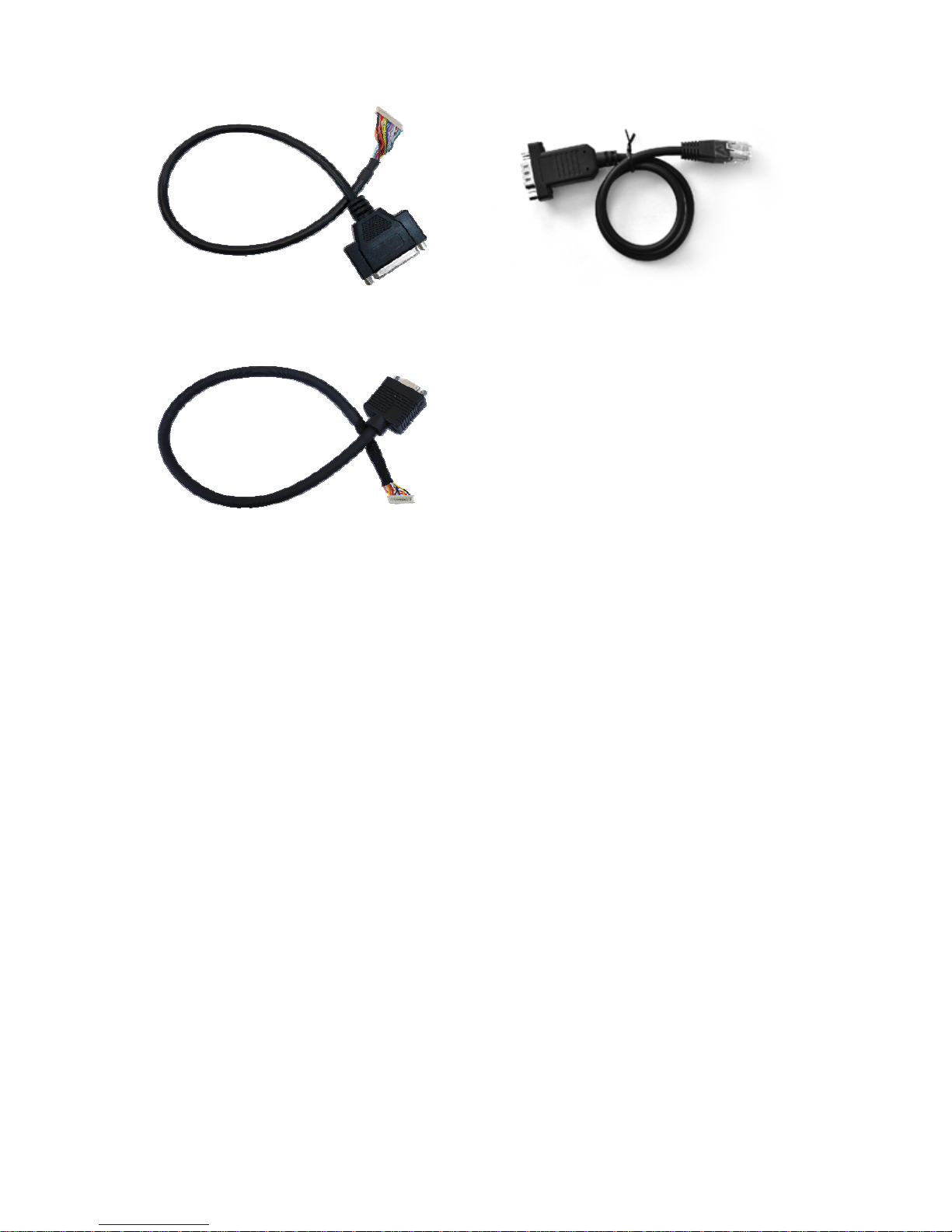
. Power Adaptor 4. AC Power Cord
5. Printer Port conversion cable 6. Two RS-232 port
conversion cables
7. Second Display cable (Optional)

Please unplug the AC power of the adapter before opening any part of the system.
Since the standby power is always on after the adapter is plugged in. It may cause
permanent damage to your system when you open any part of it.
3
MSR(Optional)
VFD(Optional)
USB5
USB6
Earphone
MIC
PowerSW

The connector panel
Please notice that all Four COM ports using RJ-45 connector and two RJ-45 to
DB-9 conversion cables are provided in the package.
Please notice that the Printer and VGA connectors in the second level, using JST PHD
pitch 1.25 type connectors. The package includes a Printer Port adapter cable to connect
to this connector and a centronic connector. The VGA, Audio adapter is optional
accessory.

Introducing BIOS
Notice! The BIOS options in this manual are for reference only.
Different configurations may lead to difference in BIOS
screen and BIOS screens in manuals are usually the first BIOS
version when the board is released and may be different from
your purchased motherboard. Users are welcome to download the
latest BIOS version form our official website.
The BIOS is a program located on a Flash Memory on the motherboard. This program
is a bridge between motherboard and operating system. When you start the computer,
the BIOS program will gain control. The BIOS first operates an
auto-diagnostic test called POST (power on self test) for all the necessary hardware, it
detects the entire hardware device and configures the parameters of the hardware
synchronization. Only when these tasks are completed done it gives up control of
the computer to operating system (OS). Since the BIOS is the only channel for
hardware and software to communicate, it is the key factor for system stability, and in
ensuring that your system performance as its best.
Entering Setup
Power on the computer and by pressing <Del> immediately allows you to enter Setup.
If the message disappears before your respond and you still wish to enter Setup,
restart the system to try again by turning it OFF then ON or pressing the “RESET”
button on the system case. You may also restart by simultaneously pressing <Ctrl>,
<Alt> and <Delete> keys. If you do not press the keys at the correct time and the
system does not boot, an error message will be displayed and you will again be
asked to Press <Del> to enter Setup
4

BIOS Menu Screen
The following diagram show a general BIOS menu screen:
Menu Bar
General Help Items
Menu Items Current Setting Value
Function Keys
3-3 Function Key BIOS Menu Screen
In the above BIOS Setup main menu of, you can see several options. We will explain
these options step by step in the following pages of this chapter, but let us first see a
short description of the function keys you may use here:
Press←→ (left, right) to select screen
Table of contents
Other Birch Touch Terminal manuals


