BenQ PB9200 - XGA LCD Projector Technical Document

Welcome
PB9200 Digital Projector
Installation Series
User’s Manual - Operating Guide
PB9200-e.book Page 1 Thursday, May 27, 2004 2:15 PM

Copyright
Copyright 2004 by BENQ Corporation. All rights reserved. No part of this publication may be repro-
duced, transmitted, transcribed, stored in a retrieval system or translated into any language or com-
puter language, in any form or by any means, electronic, mechanical, magnetic, optical, chemical,
manual or otherwise, without the prior written permission of this company.
Disclaimer
BENQ Corporation makes no representations or warranties, either expressed or implied, with respect
to the contents hereof and specifically disclaims any warranties, merchantability or fitness for any
particular purpose. Further, BENQ Corporation reserves the right to revise this publication and to
make changes from time to time in the contents hereof without obligation of this company to notify
any person of such revision or changes.
• VGA and XGA are registered trademarks of the International Business Machines Corporation.
• Apple and Mac are registered trademarks of Apple Computer, Inc.
• VESA and SVGA are trademarks of the Video Electronics Standard Association.
• Windows is a registered trademark of Microsoft Corporation.
• Internet Explorer is a trademark of Microsoft Corporation.
All other trademarks are the property of their respective owners.
PB9200-e.book Page 2 Thursday, May 27, 2004 2:15 PM

Table of Contents iii
Table of Contents
Projector Features ........................................................1
Preparation ...................................................................2
Part Names ...................................................................3
Projector ...................................................................................... 3
Control Buttons .......................................................................... 4
Remote Control .......................................................................... 4
Setting Up .....................................................................5
Arrangement ............................................................................... 5
Adjusting The Projector's Elevator ............................................ 6
Using The Lens Shift Buttons .................................................... 6
Connecting Your Devices .......................................................... 7
Examples of connection with a computer ................................................ 8
Examples of connection with a VCR/DVD Player .................................. 9
Connecting to a monitor ........................................................................... 10
Connecting to a speaker (with amplifier) ................................................ 10
Connecting The Power Supply .................................................. 10
Remote Control ............................................................11
About The Laser Pointer ............................................................ 11
Putting Batteries ......................................................................... 11
Operating The Remote Control ................................................. 12
Using The Remote ID Feature ................................................... 13
Using The Mouse/Keyboard Control Function ........................ 13
Power ON/OFF ............................................................14
Turning On The Power .............................................................. 14
Turning Off The Power .............................................................. 14
Operating ......................................................................15
Selecting An Input Signal ........................................................... 15
Selecting The Aspect Ratio ......................................................... 16
Using The Automatic Adjustment Feature ............................... 16
Adjusting The Picture Position .................................................. 17
PB9200-e.book Page iii Thursday, May 27, 2004 2:15 PM

Table of Contentsiv
Correcting The Keystone Distortion ..........................................17
Adjusting The Volume ................................................................18
Muting The Sound ......................................................................18
Temporarily Blanking The Screen .............................................18
Freezing The Screen ....................................................................19
Using The Magnify Feature ........................................................19
Displaying The Child Window ...................................................20
Selecting An Audio Input ...........................................................20
Multifunctional Settings ..............................................21
Using The Menu Functions ........................................................21
MAIN Menu ................................................................................22
PICTURE-1 Menu ......................................................................23
PICTURE-1 Menu (continued) .................................................24
PICTURE-2 Menu ......................................................................25
INPUT Menu ..............................................................................26
INPUT Menu (continued) .........................................................27
AUTO Menu ...............................................................................28
AUTO Menu (continued) ..........................................................29
SCREEN Menu ............................................................................30
SCREEN Menu (continued) .......................................................31
OPTION Menu ...........................................................................32
OPTION Menu (continued) ......................................................33
NETWORK Menu ......................................................................34
Network Setting Up .....................................................35
Lamp .............................................................................36
Replacing The Lamp ...................................................................37
Air Filter ........................................................................38
Caring For The Air Filter ............................................................38
Other Care ....................................................................39
Caring For The Inside Of The Projector ....................................39
Caring For The Lens ...................................................................39
Caring For The Cabinet And Remote Control ..........................39
PB9200-e.book Page iv Thursday, May 27, 2004 2:15 PM

Table of Contents v
Troubleshooting ...........................................................40
Related Messages ........................................................................ 40
Related Messages (continued) ................................................... 41
Regarding The Indicator Lamps ................................................ 42
Regarding The Indicator Lamps (continued) ........................... 43
Phenomena That May Easily Be Mistaken For Machine Defects
44
Phenomena That May Easily Be Mistaken For Machine Defects
(continued) ................................................................................. 45
Warranty And After-Service ........................................46
Specifications ................................................................47
PB9200-e.book Page v Thursday, May 27, 2004 2:15 PM

Table of Contentsvi
PB9200-e.book Page vi Thursday, May 27, 2004 2:15 PM

Projector Features 1
Projector Features
This multimedia projector is used to project various computer signals as well as NTSC/PAL/
SECAM video signals onto a screen. Little space is required for installation and large images
can easily be realized.
•UltraHighBrightness
Crisp, ultra-bright presentations is achieved by using a UHB (ultra high brightness) lamp
and a highlyefficient optical system.
•WhisperModeEquipped
Special mode is available for reducing projector noise to achieve quieter operation.
•UserMemoryFunction
This projector can memorize 4 settings by MY MEMORY function.
• Partial Magnification Function
Interesting parts of images can be magnified for closer viewing.
• Keystone Distortion Correction
Quick correction of distorted images electrically.
• Optical Lens Shift
The lens of this projector can be shifted vertically. When you want to finely adjust the pic-
ture position, use the LENS SHIFT buttons.
PB9200-e.book Page 1 Thursday, May 27, 2004 2:15 PM

Preparation2
Preparation
Please see the “Contents Of Package” of the “User’s Manual – Quick Guide”. Your projector
should come with the items shown there. Contact your dealer anything is missing.
Note: Keep the original packing material for future reshipment. For moving
the projector, be sure to use the original packing material. Use special cau-
tion for the lens part.
PB9200-e.book Page 2 Thursday, May 27, 2004 2:15 PM
Part Names 3
Part Names
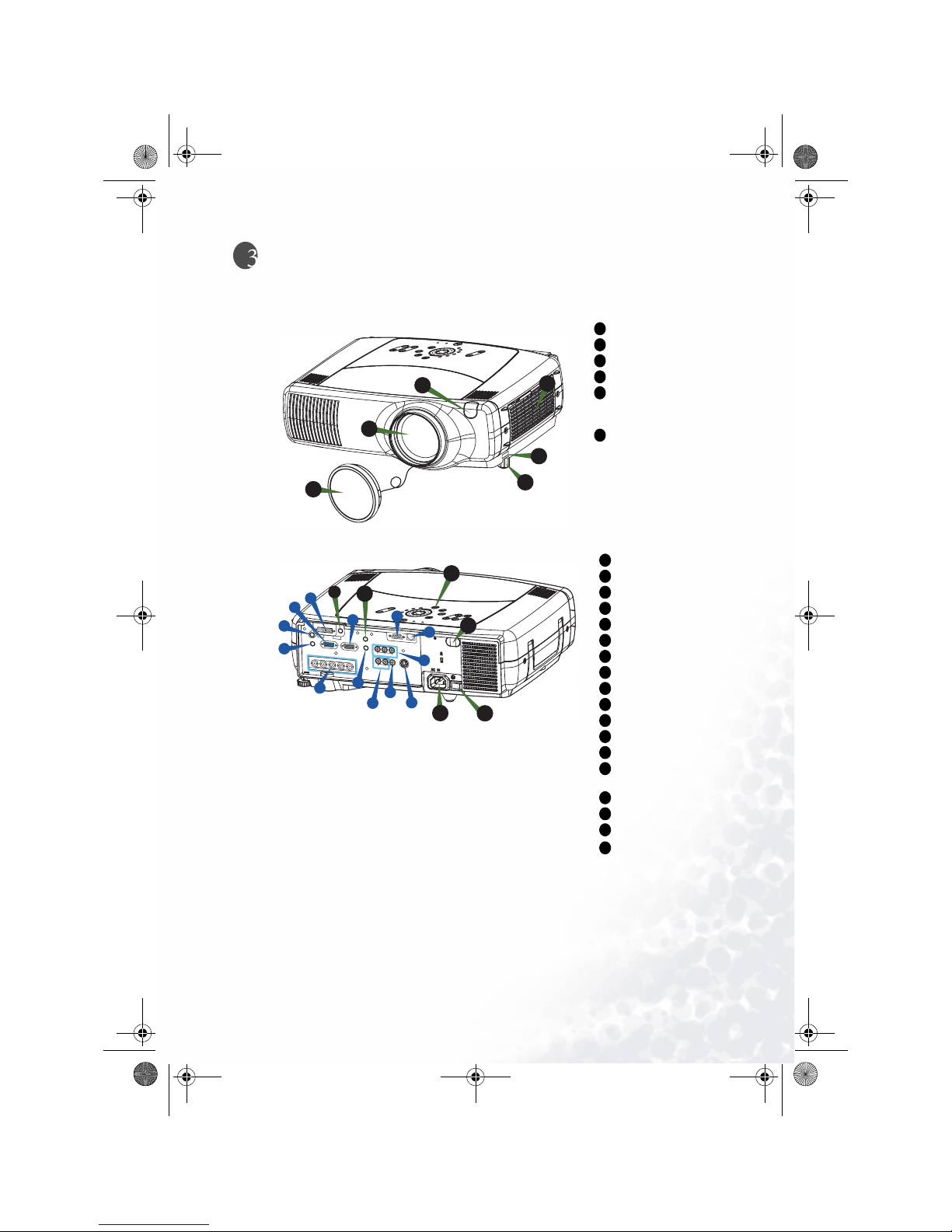
Projector
Elevator button
Elevator foot
Remote sensor
Lens cap
Lens
The picture is projected
from here.
Filter cover
An air filter is inside.
RGB port
M1-D port
BNC port
AUDIO IN 1 port
AUDIO IN 2 port
CONTROL port
NETWORK port
AUDIO IN R/L port
VIDEO IN port
S-VIDEO port
COMPONENT port
RGB OUT port
AUDIO OUT port
REMOTE CONTROL
port
DC OUT port
AC Inlet
Power switch
Control buttons
See the following page.
INTER
INPUT
M1-D
RGB
BNG
S-VIDEO
STANDBY/ON
TEMP
VIDEO
COMPONENT
LAMP
KEYSTONE
SEARCH
RESET
MENU
FOCUS
LENS SHIFTZOOM
1
2
6
3
5
4
Projector (Front/Right)
1
2
3
4
5
6
INTER
INPUT
M1-D
RGB
BNG
S-VIDEO
STANDBY/ON
TEMP
VIDEO
COMPONENT
LAMP
KEYSTONE
SEARCH
RESET
MENU
FOCUS
LENS SHIFTZOOM
VIDEO
R-AUDIO IN-L S-VIDEO
BNC
RGB
AUDIO IN1
AUDIO IN2 RGB OUT
AUDIO OUT
REMOTE CONTROL
R/C
R
/P
R
G/Y B/C
B
/P
B
HV
Y
CONTROL NETWORK
CR/PR Ca/Pa
11
10
3
3
9
G
K
F
8
B
L
A
D
E
J
I
H
M
C
Projector (Rear/Left)
A
B
C
D
E
F
G
H
I
J
K
L
M
7
8
9
10
11
PB9200-e.book Page 3 Thursday, May 27, 2004 2:15 PM

Part Names4
Control Buttons
STANDBY/ON button and
STANDBY/ON indicator
TEMP indicator
LAMP indicator
LENS SHIFT buttons
INPUT dial
SEARCH button
M1-D indicator
RGB indicator
BNC indicator
COMPONENT indicator
S-VIDEO indicator
VIDEO indicator
ZOOM buttons
FOCUS buttons
KEYSTONE button
MENU button
RESET button
ENTER button
Cursor buttons / / /
Remote Control
ENTER
INPUT
M1-D
RGB
BNC
S-VIDEO
STANDBY/ON
TEMP
VIDEO
COMPONENT
LAMP
KEYSTONE
SEARCH
RESET
MENU
FOCUS
LENS SHIFT ZOOM
3
2
17
13
14
16
6
7
8
9
1
4
5
18
19
15
10
11
12
INTER
INPUT
M1-D
RGB
BNG
S-VIDEO
STANDBY/ON
TEMP
VIDEO
COMPONENT
LAMP
KEYSTONE
SEARCH
RESET
MENU
FOCUS
LENSSHIFTZOOM
Control
Panel on the
Projector
1
2
3
4
5
6
7
8
9
10
11
12
13
14
15
16
17
18
19
STANDBY/ON button
LENS SHIFT buttons
SEARCH button
ZOOM buttons
FOCUS buttons
KEYSTONE button
MENU button
ENTER button
( Mouse left button)
Cursor buttons / / /
(Keyboard
A
rrow keys / / / )
LASER INDICATOR
VIDEO button
RGB button
BLANK button
ASPECT button
LASER button
Cursor buttons / /
/
(Mousemovepointer)
ESC button
(Keyboard key)
( Mouse right button)
POSITION button
AUTO button
PinP button
MAGNIFY buttons
FREEZE button
VOLUME button
MUTE button
ID CHANGE switch
1
4
6
13
14
15
16
18
18
19
STANDBY/ON
VIDEO
LASER INDICATOR
ESC MENU
POSITION
RESET AUTO
KEYSTONE
1 2 3
ID CHANGE
SEARCH
ON
OFF
FREEZE MUTE
MAGNFY
PinP
VOLUME
RGB
BLANK
PREVIOUS
NEXT
ASPECT
MOUSE
LASER
LENS SHIFT
+
–––
++
FOCUS ZOOM
21
22
23
25
24
26
28
30
34
35
36
33
32
31
29
27
20
1
13
4
14
19
16
15
6
17
20
21
22
23
24
25
26
27
ESC
28
29
30
31
32
33
34
35
36
Remote Control
PB9200-e.book Page 4 Thursday, May 27, 2004 2:15 PM
Other manuals for PB9200 - XGA LCD Projector
1
Table of contents
Other BenQ Projector manuals

BenQ
BenQ Mainstream MP510 User manual

BenQ
BenQ MW870UST Use and maintenance manual

BenQ
BenQ MU641 User manual

BenQ
BenQ PB6100 - SVGA DLP Projector User manual

BenQ
BenQ PX9600 User manual

BenQ
BenQ HT5550 User manual

BenQ
BenQ W750 User manual

BenQ
BenQ QSG-3 Series User manual

BenQ
BenQ MX812ST User manual

BenQ
BenQ MW621ST User manual