BenQ QCast User manual

QCast - QP01
Video Streaming Dongle
User Guide
Guia do usuário
Guía del usuario

iEnglish
Copyright
© 2015 BenQ Corporation.All rights reserved. No part of this
publication may be reproduced, transmitted, transcribed, stored in a
retrieval system or translated into any language or computer language,
in any form or by any means, electronic, mechanical, magnetic, optical,
chemical, manual or otherwise, without the prior written permission
of BenQ Corporation.
All other logos, products, or company names mentioned in this
document may be the registered trademarks or copyrights of their
respective companies,and are used for informational purposes only.
Disclaimer
BenQ Corporation makes no representations or warranties, either
expressed or implied, with respect to the contents hereof and
specically disclaims any warranties, merchantability or tness for any
particular purpose. Further, BenQ Corporation reserves the right to
revise this publication and to make changes from time to time in the
contents hereof without obligation of BenQ Corporation to notify
any person of such revision or changes.
Screen images and icons in this manual are simulated for illustrative
purposes only.Actual displays may vary.
BenQ is not responsible for the content of the websites or of similar
resources, which are maintained and controlled by third parties, that
may be linked from this product. Providing links to those websites or
to similar resources does not mean that BenQ makes any warranty
or representation to their content by expression or by implication.
Any third party content or service preinstalled in this product is
provided “as is”. BenQ does not, by expression or by implication,
make any warrant to the content or to the services provided by third
parties. BenQ does not warrant or guarantee that the content or
services provided by third parties are accurate, effective, most up-to-
date, legal, or complete. Under no circumstances shall BenQ be liable
for the content or services provided by third parties including their
negligence.
Services provided by third parties may be terminated temporarily or
permanently. BenQ does not warrant or guarantee that the content
or services provided by third parties are in good condition at any
time, and is not liable for the termination of the said content and
services.
In addition, BenQ is not involved in any transactions you conduct in
the websites or similar resources maintained by third parties.
You should contact the content or service providers for any ques-
tions, concerns, or disputes.

iiEnglish
Table of Contents
Copyright ...............................................................................i
Disclaimer..............................................................................i
Introduction ..........................................................................1
Package contents..................................................................2
Product overview.................................................................2
Installation tips......................................................................2
Connecting the dongle to your projector......................3
Connection via MHL port...........................................................3
Connection via HDMI port (for a display with a
USB type A port)...........................................................................4
Installing BenQ QCast on your mobile device/
computer ...............................................................................5
Installation on an Android device (with NFC function) .......5
Installation on an iOS or Android device
(without NFC function)...............................................................6
Installation on a Windows or Mac OS device ........................6
Working with BenQ QCast............................................7
Working with other DLNA software..............................7
Regulatory Statements........................................................8

1English
Introduction
Thank you for choosing BenQVideo Streaming dongle -
QCast, which works with the BenQ QCast software (in-
stalled on your mobile device or computer) and enhances
video and music playback, document review, web surng,
and live video streaming.You are provided with quick wire-
less connection and projection via NFC without any text in-
put.And then you can mirror the content from your mobile
device to a display wirelessly as it supports Miracast.
The dongle can be connected to any display such as projec-
tor, LCD monitor, or TV, as long as supported I/O ports are
available. In this document, connection with a projector is
used as an example.The installation and operation may vary
by the connected devices.
For more information, visit your local BenQ website from
www.BenQ.com, and search for QCast.

2English
Package contents
• QCast dongle x 1 • HDMI cable x 1
• USB cable x 1 • NFC chip sticker x 1
(Keep away from heat and
metal. Do not bend/fold.)
• User guide x 1
• NFC instruction card x
1
Product overview
LED indicator
USB port
(for power supply via
USB cable)
MHL / HDMI connector
Switcher
Installation tips
To get started, you need to install the dongle and the appro-
priate app rst.
1. Connect the dongle to your projector.
2. Install the BenQ QCast app/software to your device
(i.e, the media source), and connect the device with the
dongle wirelessly.
With the wireless connection between your device and the
dongle, you can mirror the content from your device to the
projector.
Depending on your device’s operating system, different
installation procedures and setup are required. Read this
document and on-screen instructions (if provided) carefully.

3English
Connecting the dongle to your
projector
The dongle can be activated via either the MHL or HDMI
port on your projector.
Make sure the projector is powered on before making the
connection.
Connection via MHL port
MHL
MHL USB
1
2
1. Slide the switcher on the dongle to MHL.
2. Connect the dongle to the MHL port of your projector.
The dongle is then activated and the LED indicator lights
up in solid blue.
To power up the dongle, the power supplied from the con-
nected MHL port must be no less than 900mA.

4English
Connection via HDMI port (for a display
with a USB type A port)
2
3
4
HDMI
MHL USB
1
1. Slide the switcher on the dongle to USB.
2. Connect the dongle to the HDMI port of your projector.
3. Connect one end of the supplied USB cable to the USB
port of the dongle.
4. Connect the other end of the USB cable to the USB type
A port of your projector.The dongle is then activated and
the LED indicator lights up in solid blue.
To power up the dongle, the DC power supplied from the
connected USB type A port must be no less than 5V/1A.
For more information on power supply, visit your local
BenQ website from www.BenQ.com, and search for QCast.

5English
Installing BenQ QCast on your
mobile device/computer
Once the dongle has been connected to your projector
successfully, you are requested to download and install an
app/software named BenQ QCast to your mobile device/
computer.The dongle needs to work with BenQ QCast
to perform wireless media streaming.
Installation on an Android device (with NFC
function)
NFC function is only available and supported for Android
4.2 / 4.3 / 4.4.2 / 5.0 / 5.1 / 6.0.
1. Make sure your device is connected to the Internet and is
NFC-enabled.
2. Make sure the dongle is connected to the projector.
3. Read the instruction card that came with the provided
NFC chip sticker.You are recommended to stick the
sticker on the instruction card.
4. Tap your mobile device to the NFC chip sticker to install
the BenQ QCast app from Google Play and establish
the wireless connection automatically.
5. Tap your mobile device to the NFC chip sticker again to
launch the app.
• Do not stick the NFC chip sticker on the dongle.
• Do not peel the NFC chip sticker off once it’s stuck.

6English
Installation on an iOS or Android device
(without NFC function)
Available for iOS 8 / 9 and Android 4.2 / 4.3 / 4.4.2 / 5.0 /
5.1 / 6.0.
1. Make sure your device is connected to the Internet.
2. Make sure the dongle is connected to the projector.
3. Search for BenQ QCast in the online application store
and install it.
4. Search for the dongle’s SSID (displayed as BenQ_
xxxxxxxx) and connect. If you are requested to enter
a password, check it on the upper-right corner of the
BenQ QCast screen.
5. Tap the app icon to launch it.
Installation on a Windows or Mac OS device
Available forWindows 7 / 8 / 8.1, and Mac OS 10.8 / 10.9 /
10.10.
1. Make sure your device is connected to the Internet.
2. Make sure the dongle is connected to the projector.
3. Download the BenQ QCast software from
QCast.BenQ.com.
4. Search for the dongle’s SSID (displayed as BenQ_
xxxxxxxx) and connect. If you are requested to enter
a password, check it on the upper-right corner of the
BenQ QCast screen.
5. Click the BenQ QCast icon on the desktop to launch it.
System requirements
OS Specications
Windows OS version Windows 7 / 8 / 8.1
CPU Dual Core 2 GHz or higher
ATOM is not supported.
Graphic card 64MBVRAM or above
WiFi 802.11n (2T2R recommended)

7English
OS Specications
Mac OS OS version Mac OS 10.8 / 10.9 / 10.10
CPU Dual Core Intel Core i 1.4 GHz
or higher
PowerPC is not supported.
Graphic card 64MBVRAM or above
Working with BenQ QCast
Once BenQ QCast has been installed and launched suc-
cessfully, you are ready to perform wireless media stream-
ing and enjoy the wireless projection. Simply tap Mirror or
EZMirror from BenQ QCast and follow the on-screen
instructions.
• If the device has been connected to a wireless AP, you can
screencast the web content and the les stored on your
mobile device.
• If the device is not connected to a wireless AP, you can
screencast the les stored on your mobile device only.
Functions that are not available will be grayed out.
Working with other DLNA software
The dongle can work with other DLNA-supported devices
and turn your display / projector a DLNA-compatible player.
To do so, you need to install an appropriate DLNA software
on your device rst.
Follow the on-screen instructions as the operation may
Other manuals for QCast
2
This manual suits for next models
1
Table of contents
Languages:
Other BenQ Computer Hardware manuals

BenQ
BenQ W10 User manual

BenQ
BenQ Wireless Dongle User manual

BenQ
BenQ QCast Mirror QP30 User manual

BenQ
BenQ QCast User manual

BenQ
BenQ AWL-100 User manual

BenQ
BenQ QPro User manual

BenQ
BenQ QCast Mirror QP20 User manual

BenQ
BenQ QCast Mirror QP20 User manual

BenQ
BenQ QS01 User manual

BenQ
BenQ W11 User manual
Popular Computer Hardware manuals by other brands

EMC2
EMC2 VNX Series Hardware Information Guide

Panasonic
Panasonic DV0PM20105 Operation manual

Mitsubishi Electric
Mitsubishi Electric Q81BD-J61BT11 user manual

Gigabyte
Gigabyte B660M DS3H AX DDR4 user manual

Raidon
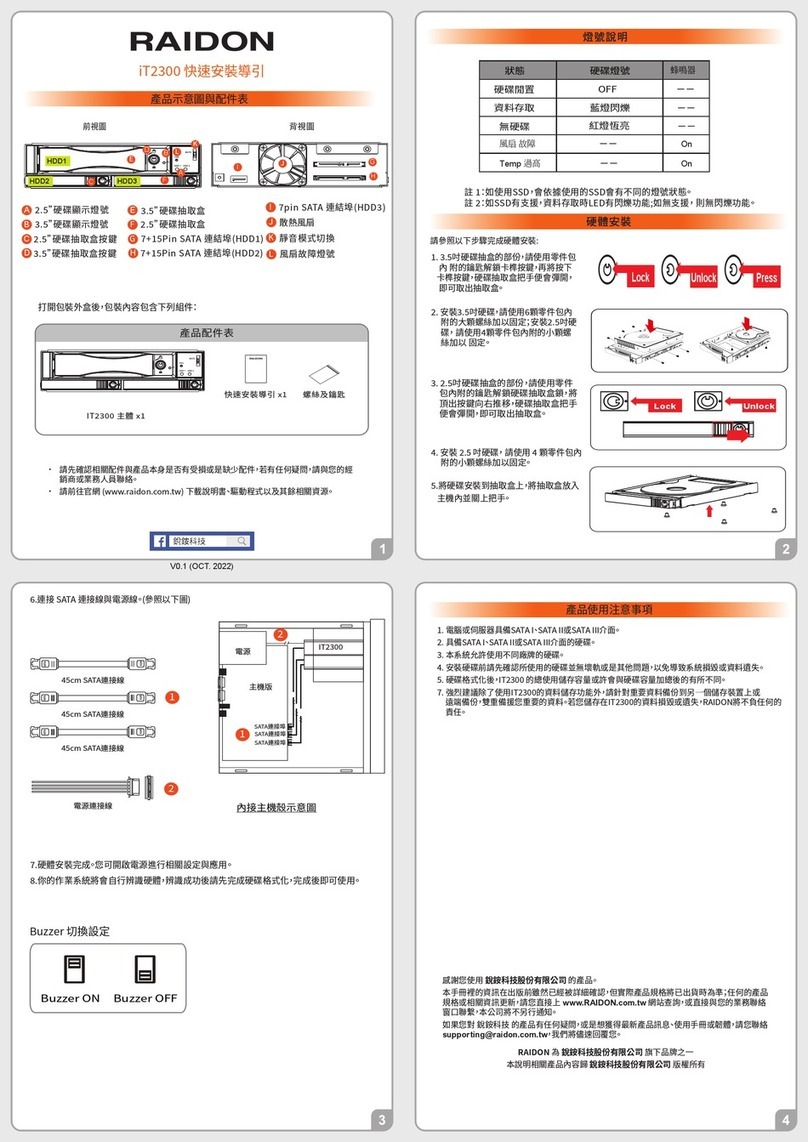
Raidon iT2300 Quick installation guide

National Instruments
National Instruments PXI-8186 user manual