BELLEDS QLight User manual

BELLEDS Technologies. ---- Q Station User Guide
- 1 -
QLight User Guide
For iOS
Q Station Firmware: r358 and above
(Support iOS Version: 6.1 and above)
2015-01-19
Belleds Technologies Co., Ltd., any modification of this product will not issue a separate notice.
All Rights Reserved.

BELLEDS Technologies. ---- Q Station User Guide
- 2 -
CONTENT
1INTRODUCTION..........................................................................................................3
1.1 VERIFY KIT CONTENTS ............................................................................................3
1.2 CONNECTION ..........................................................................................................4
2CONFIGURATION .......................................................................................................7
2.1 ENTER CONFIGURATION PAGE..................................................................................7
2.2 CONFIGURATION IN DETAIL.......................................................................................8
2.2.1 Music Service.................................................................................................8
2.2.2 Basic Settings..............................................................................................11
2.2.3 Internet Connection......................................................................................17
2.2.4 Upgrade Firmware.......................................................................................23
3QLIGHT IN IOS ..........................................................................................................31
3.1 CONNECT YOUR WI-FI TO QSTATION.....................................................................31
3.2 INSTALL QLIGHT ....................................................................................................31
3.3 LIGHT CONTROL....................................................................................................32
4PLAY MUSIC & LIGHT SHOW..................................................................................34

BELLEDS Technologies. ---- Q Station User Guide
- 3 -
1 Introduction
Q Station (MB8800) is a product that can make the Q Bulbs blinking synchronously with
the rhythm of your music which is in your mobile. Just install the application called
“QLight”in your mobile. Then you can control the music play, the color of the Q Bulbs by
your mobile.
1.1 Verify Kit Contents
Q Station kit includes the following components.(Figure 1-1)
1. Q Station
2. Three Q Bulbs
3. LAN cable
4. Audio Cable
5. Power Adapter
6. QIG (Quick Installation Guide)
Figure 1-1 Q Station Package Contents

BELLEDS Technologies. ---- Q Station User Guide
- 4 -
1.2 Connection
Make sure the device and the cables are connected correctly. (Figure 1-2)
1. Plug in Power Adapter to Q Station.
2. Connect the Q Station to the LAN of your Home Router with LAN cable (optional).
(If you want to connect internet wirelessly, please refer to 2.2.3 Internet Connection.)
3. Connect the Audio Cable from your Q Station to the AUX of your stereo or speaker.
4. Make sure the indicator light of Q Station is blinking with red (left) and blue (right).
There’re 2 indicator lights. (Figure 1-3)
a. The left indicator light shows the Q Station status.
If the left indicator light blinks with red color, it shows the Q Station is in good
status.
b. The right indicator light shows the network status.
If it blinks with blue color, it shows you have not connected to internet.
If it stays blue color, no blink, it shows you have connected to internet.
5. Screw-in the Q Bulbs.
6. Match the Q Bulbs with Q Station
a. Light up the 3 Q Bulbs.
b. Press the Match Hole shortly with a needle. (Figure 1-3)
After about 20 seconds, the 3 Q Bulbs will blink with green color one by one.
(The Q Bulbs blink with green color shows the Q Bulbs have been matched
with Q Station.)
Notice:
If any Q Bulb did not blink with green color (stay at white color), please turn off the
Q Bulb. And then turn on it, press the Match Hole again. Then you will see the Q
Bulb blink with green color.
7. Reset:
If you want to reset Q-station, just press the Reset Hole with a needle for about 10
seconds. (Figure 1-3)
Until you see the blue light turns red color. Then loose.
Then the Q station has been reset successfully.

BELLEDS Technologies. ---- Q Station User Guide
- 5 -
Figure 1-2 Power up Q Station

BELLEDS Technologies. ---- Q Station User Guide
- 6 -
Figure 1-3 Two indicator lights and Reset, Match holes

BELLEDS Technologies. ---- Q Station User Guide
- 7 -
2 Configuration
You can set the Q Station Wi-Fi related configuration in PC or mobile.
The details are as below.
2.1 Enter configuration page
1. Connect your computer’s Wi-Fi to Q Station SSID. (Figure 2-1)
Notice: By default, Q Station SSID is “bellnetXXXXXX”. No Encryption.
(XXXXXX is the last 6 digit of your MAC).
2. Open the web browser and enter “http://172.16.0.1” (by default).
Press Enter key, the Q station configuration home page will appear. (Figure 2-2)
Figure 2-1 Connect your computer’s Wi-Fi to Q Station SSID (e.g.bellnetA07AF2).
Figure 2-2 Q Station configuration home page (English)

BELLEDS Technologies. ---- Q Station User Guide
- 8 -
2.2 Configuration in detail
2.2.1 Music Service
This function controls the speaker name in BellQ.
(The BellQ is one application in mobile that can make the Q Bulb synchronize with the
music.)
Notice:
By default, Q Station Speaker Name is “bellmusicXXXXXX”.
(XXXXXX is the last 6 digit of your MAC)
Click “Music Service”, to enter the management page (Figure 2-3).
Click “Back”, to go back to Q Station configuration home page (Figure 2-2).
Figure 2-3 Music Service screen
You can change the Server Name:
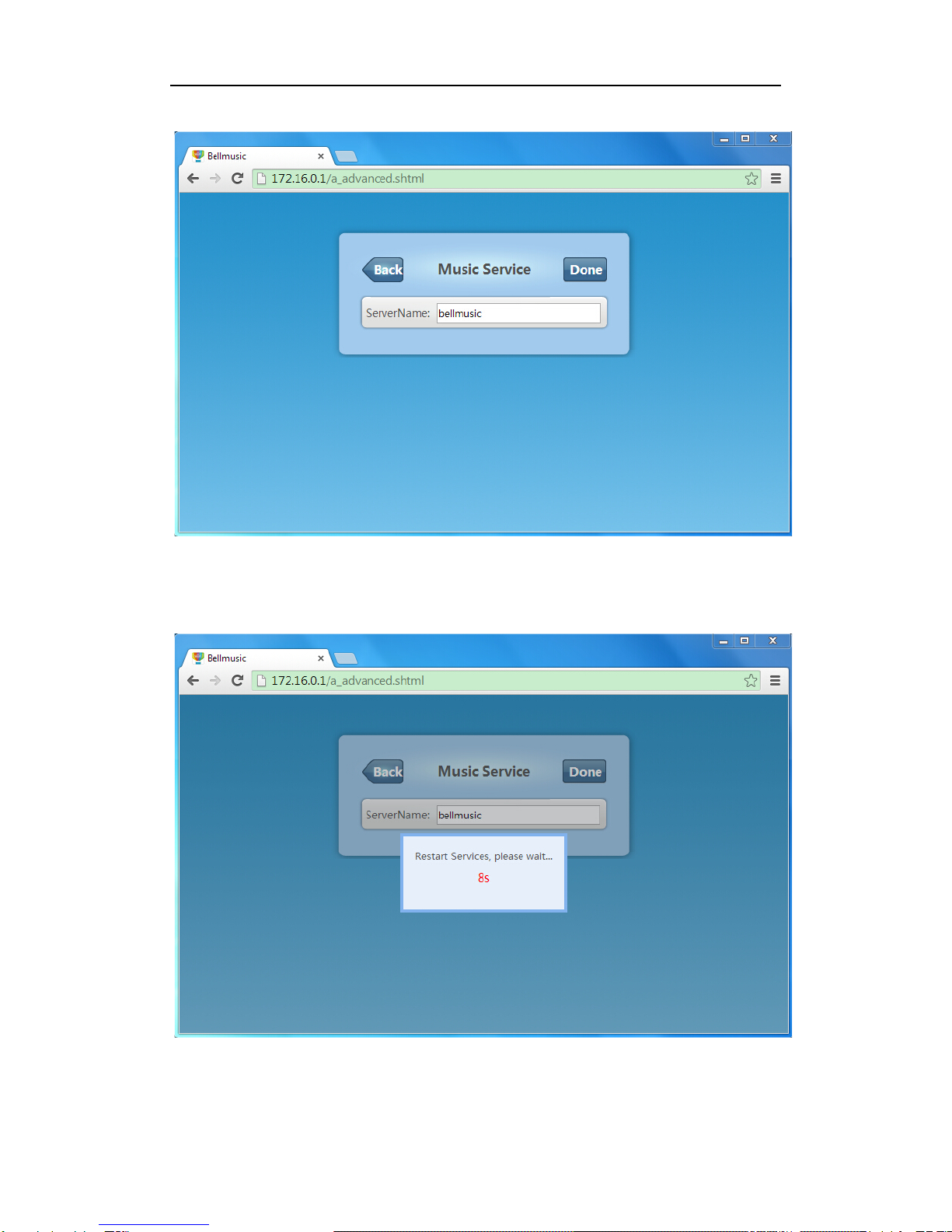
1. Input the Server Name which you want in the field. (Figure 2-4)
2. Click “Done”(Figure 2-5), after 10 seconds it will pop-up a window (Figure 2-6)
3. Click “OK”, and refresh the page. Then the Server Name has been changed
successfully. (Figure 2-7)

BELLEDS Technologies. ---- Q Station User Guide
- 9 -
Figure 2-4 Input the Server Name you want in field
Figure 2-5 Click “Done”

BELLEDS Technologies. ---- Q Station User Guide
- 10 -
Figure 2-6 After 10 seconds, it will pop-up a window.
Figure 2-7 Click OK and refresh the page. Then Server Name is changed successfully.
Table of contents
Popular Lighting Equipment manuals by other brands

Qazqa
Qazqa Suplux SL 3 Black 103062 instruction manual

Commercial Electric
Commercial Electric 54568141 Use and care guide

CREE LIGHTING
CREE LIGHTING 304 Series installation instructions

Goobay
Goobay 49867 user manual

ECOMAN ITALIA
ECOMAN ITALIA LED T8 instruction manual

Alkalite
Alkalite Krypton KT-81 user manual