Belkin BULLDOG PLUS User manual

Belkin Bulldog Plus
Shutdown Management Software
for Windows
User’s Manual

Belkin Components 2
Congratulations on your purchase of Bulldog Plus to manage your
Uninterruptible Power Supply (UPS). Bulldog Plus is designed to provide
end users the ability to take proactive steps to protect their equipment from
power related damages. Bulldog Plus allows for automatic shutdowns,
scheduled shutdowns anda variety of other features that help you manage
your system and its peripheral components.
Bulldog Plus provides detailed information about the UPS and its protected
equipment. It is easy to install and program, yet has the necessary features to
handle all of one’s power requirements. Included is the capability for network
management protocol (SNMP and DMI). Bulldog Plus will disseminate UPS
information into SNMP protocol and project it to the appropriate Network
Management Station (NMS), such as HP OpenView. To make use of
resources on the Internet, Bulldog Plus also supports HTTP protocol. This
enables end-users to monitor their UPS anywhere, anytime, by simply utilizing
their web browser.
Bulldog Plus runs in the background as a Windows service, and
communicates with the UPS in order to ensure that your computer and
attached components are protected from any power problems.
Bulldog Plus features:
1.Graceful operating system shutdown
2.Scheduled tests, shutdown/restarts of the UPS, turn on/off receptacles
3.Flexible events
4.Notification: Pager, e-mail and audible alarm, network broadcasting and
SNMP
5.Real-time values of voltage, current, frequency and loading...
6.Historical data & graph
7.Network monitoring
8.Multi-computer shutdown/restart
9.Support Simple Network Management Protocol (SNMP)
10.Support Desktop Management Interface (DMI)
11.Support HTTP, remote monitor and control using Internet browser
12.Support Universal Serial Bus (USB)
13.Multi-lingual menus
Introduction

Belkin Components 3
USB(Universal Serial Bus) Setup:
HID(Human Interface Device) setup procedure
1. When the USB cable is first connected to the USB port on your computer,
the Windows 98 dialog called “Add New Hardware Wizard” will appear
automatically. (To display this dialog manually, you can choose the Start
button and then Settings to access the Control Panel, and then double
click on Add New Hardware. The USB cable needs to be connected
first.)
2. The Add New Hardware Wizard dialog box guides you through the
installation process. Click on Next to move from step to step.
3. A dialog states "Windows will now search for any new Plug and Play
devices on your system". Click Next.
4. A subsequent dialog gives you these options:
Search for the best driver for your device (Recommended)
Display a list of all drivers in a specific location, so you can select the
driver you want.
Please accept the recommended choice by clicking on Next.
5. The Wizard will then search your hard drive for a file
called .....\INF\hiddev.inf. This file contains all the information that
Windows needs to install the correct device drivers.
6. At this point the Wizard might ask for the Windows CD-ROM, place the
CD in the CD-ROM drive and select OK.
7. The installation process will continue automatically until a dialog displays
indicating that the drivers have been installed. Select the Finish button
and your drivers are installed.
Bulldog Plus Setup:
1. Place the Bulldog CD in your CD-ROM device and execute the
setup.exe to run the setup program.
2. Check the communication type of your UPS. If you select the USB
option you must have connected the UPS to the computer and install the
HID driver.
3. During the installation, the following dialog gives you 5 options:
•Program File: Files contain Bulldog Service, Bulldog Monitor and this
on-line help.
•Audio Files: Some .wav files. These files will be played to notify you
when power event occurs.
Bulldog Plus Installation

Belkin Components 4
•HTTP Files: Bulldog Plus HTTP DLL file and web page files.
•SNMP Files: Bulldog Plus SNMP DLL file.
•DMI Files: Bulldog Plus DMI DLL file and MIF file.
4. After finishing the installation, the setup process will create a Bulldog
Plus association.
5. The Bulldog Plus software is comprised of two modules:
•An UPS Monitoring Module (Bulldog Service), which runs in the
background as a Windows NT Service and communicates to the UPS.
•An User Interface Module (Bulldog Monitor), which enables you to
control and configure Bulldog Plus through the drop down menus and
dialog boxes. It also allows you to monitor the UPS through the Main
Screen.
Setup: To modify, repair or remove Bulldog Plus from your hard disk.
Help: Bulldog Plus on-line help.
Bulldog Monitor: User interface, used to monitor and configure your UPS.
Bulldog Service: Bulldog Plus service program, used to communicate
with your UPS.
Belkin Components 5
Belkin Bulldog Service runs in the background as a Windows NT Service
when the system initiates. You can also run Bulldog Service manually by
selecting the Start Menu-Program Files -Belkin Bulldog-Bulldog Service.
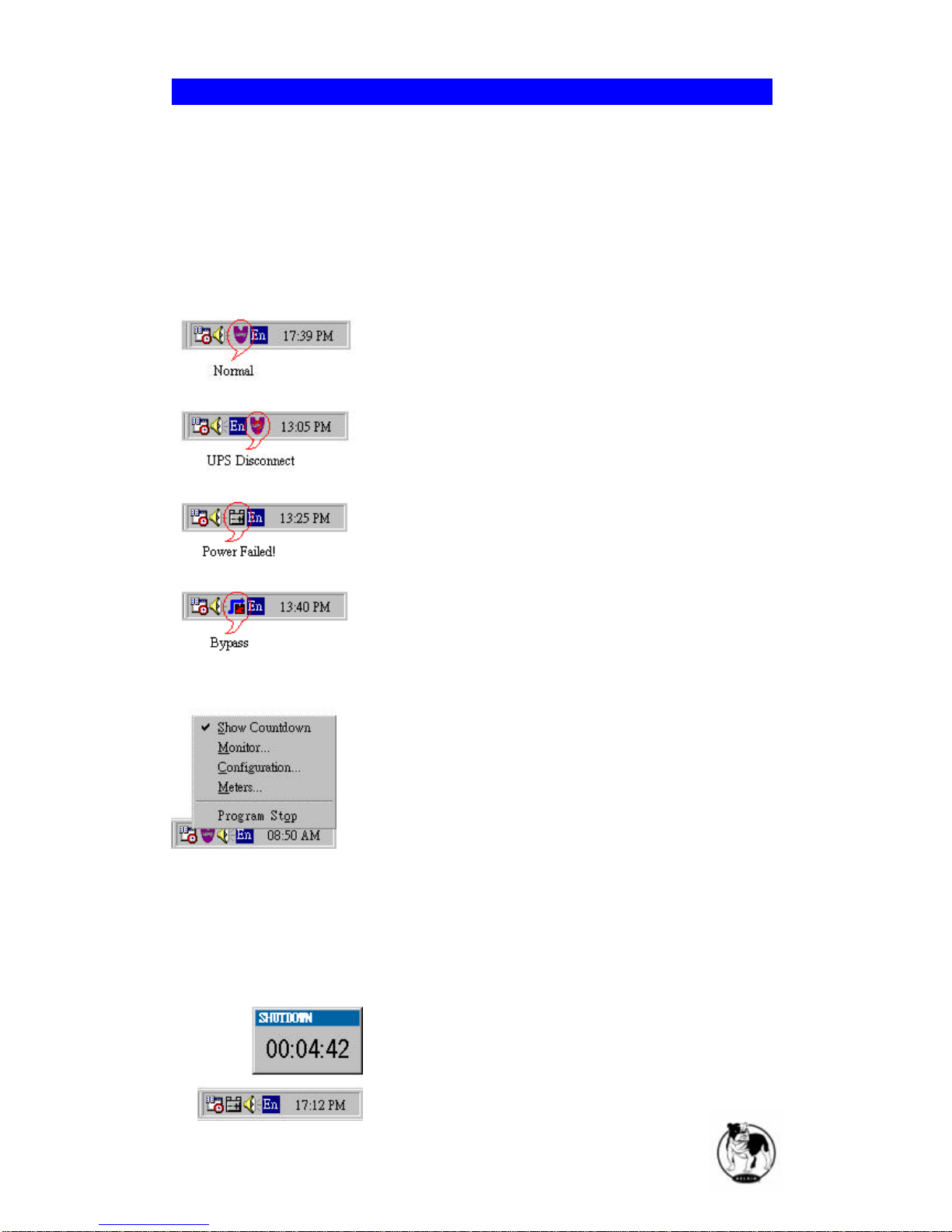
Once Bulldog Service starts there is aBulldog Service icon located on the
system tray to indicate UPS status.
1. Normal
2. UPS Disconnect, cannot get any information from UPS.
3. Power Failed! The UPS is operating on battery power.
4. UPS Bypass Active!
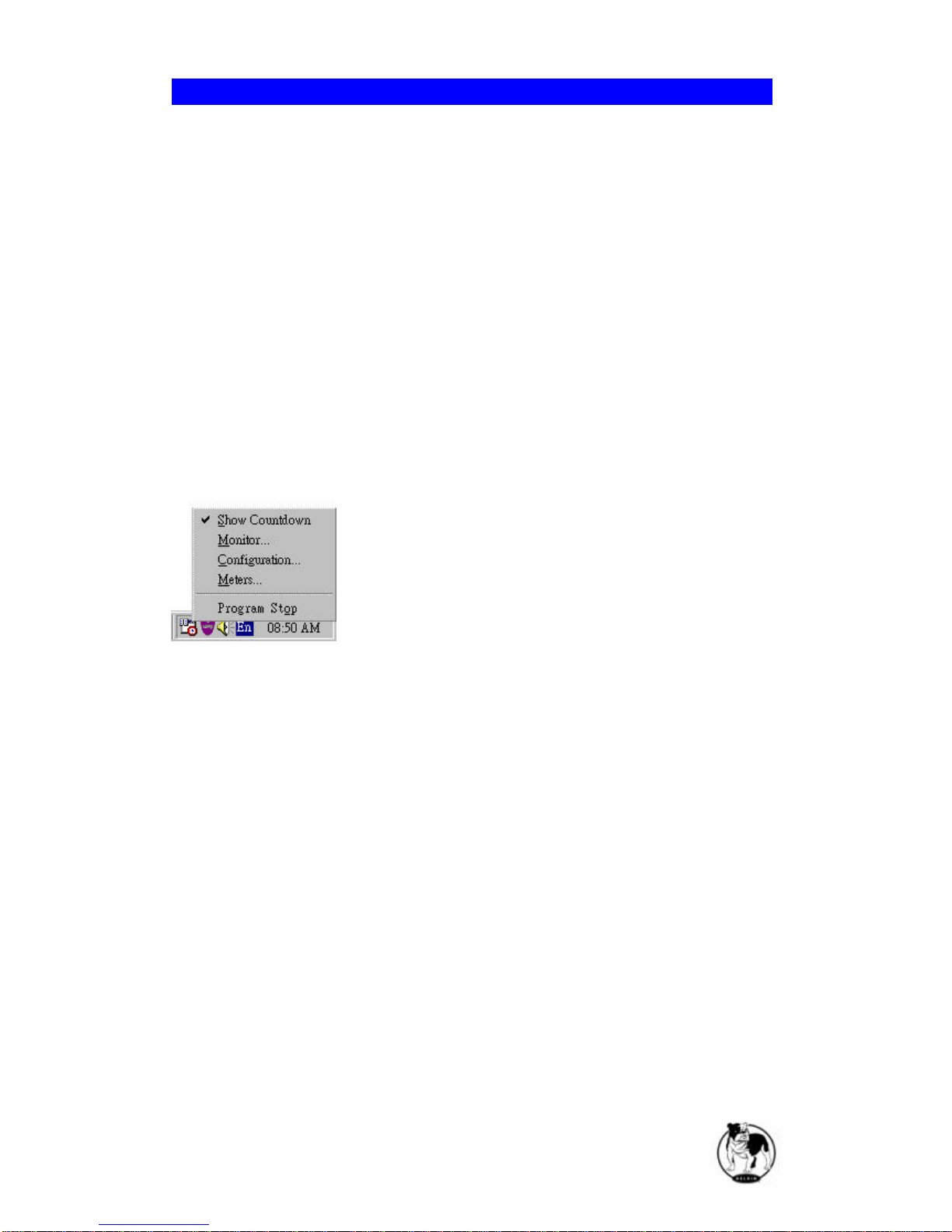
Moving your mouse over the Bulldog Plus icon in the system tray and click the
right button to pop up the following menu
•Show Countdown: Belkin Bulldog displays the countdown time (time to
shutdown/suspend the operating system) window to remind the user that
the operating system will shutdown or suspend in the displayed time. This
function lets the user know clearly how much time is left to
shutdown/suspend the computer when power fails. The operating system
shutdown time can be adjusted from the Action menu
Bulldog Plus Ser
vice
Belkin Components 6
•Monitor: Run the Bulldog Plus user interface.
•Configuration: Displays the configuration window, allows you to change
the UPS parameters.
•Meters: Shows UPS real-time meters.
•Program Stop: If this item marked Bulldog Plus stopped. Unmark it and the
program will resume.
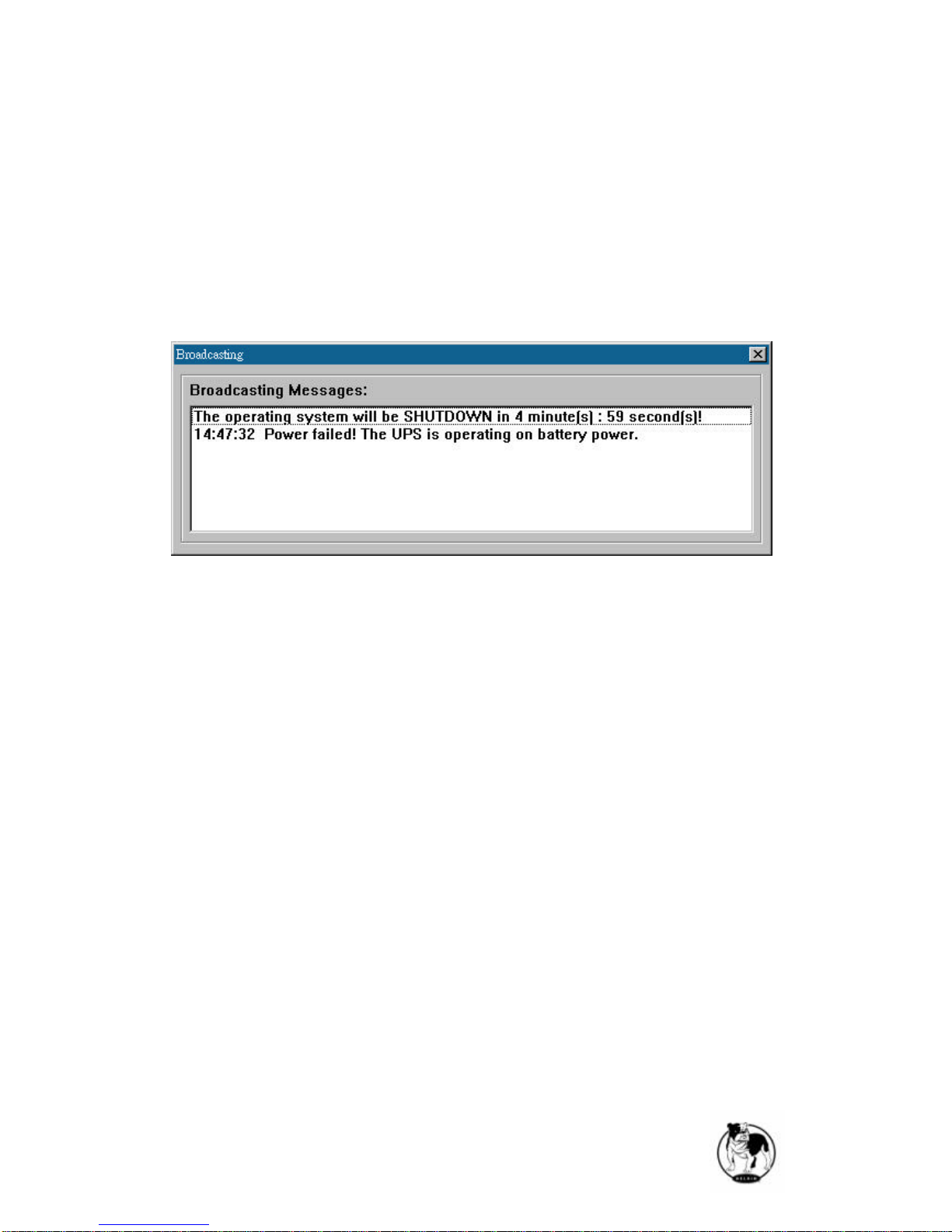
Once a power event has occurred, Bulldog Plus will pop up a broadcast dialog
box to inform user what happened to UPS.
Belkin Components 7
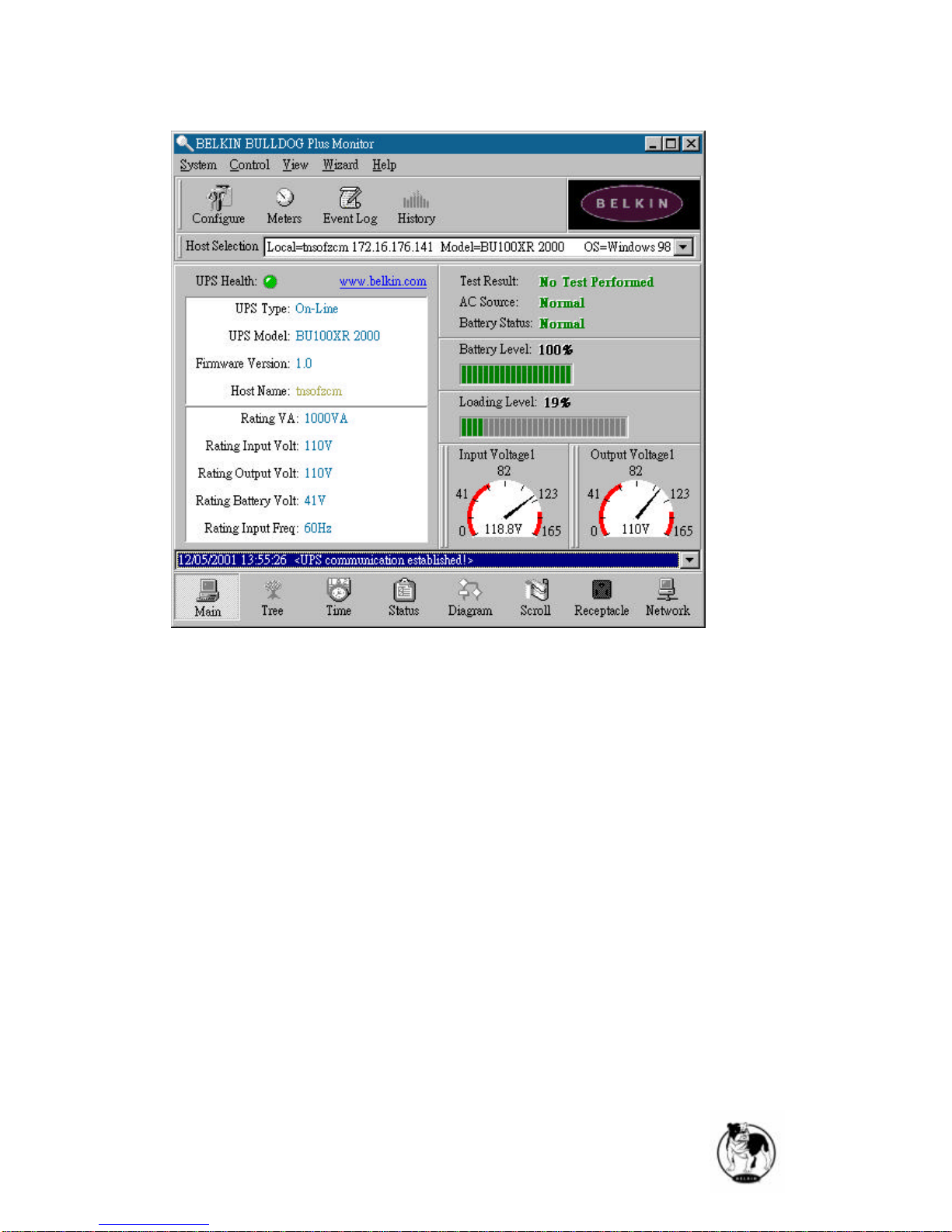
Bulldog Monitor enables you to control and configure Bulldog Plus through
drop down menus and dialog boxes. It also allows you to monitor the UPS
through the Main Screen. It is not necessary for Bulldog Monitor to reside in
your computer’s memory, the execution depends on the user's requirement.
This can save precious system resources.
After finishing the Bulldog Plus installation, Bulldog Service automatically
loads into memory and runs once the Windows operating system starts up.
There is a Bulldog Plus icon that lies in the system tray to indicate current
UPS status.
To run the Bulldog Monitor, moves the mouse cursor over the Bulldog Plus
icon and double-click to launch Bulldog Monitor, or click the right button to pop
up the menu:
Then select Monitor to run the program. You can also launch Bulldog Monitor
without running Bulldog Service, select Bulldog Monitor from Program Files -
Bulldog Plus menu.
Bulldog Plus Monitor
Belkin Components 8
Bulldog Monitor Main Screen:
Belkin Components 9
BULLDOG Plus software is comprised of two modules: BULLDOG Service
and BULLDOG Monitor. You may run both the programs in a computer to
monitor your localized UPS or run the programs in two different computers.
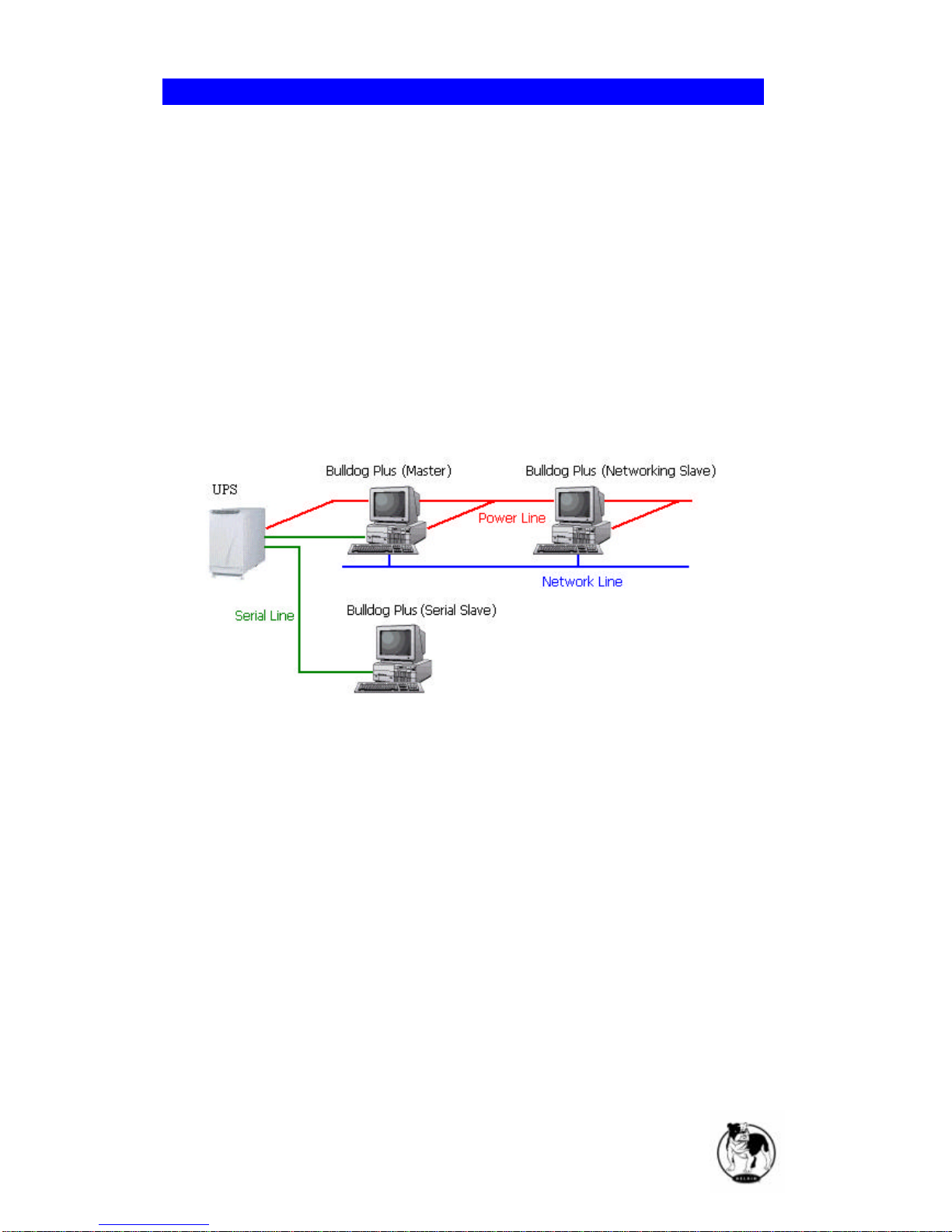
1. Operation Mode:
BULLDOG Service can operate in "Master" Mode (which allows
BULLDOG to send commands to its connected UPS) in "Serial Slave"
mode (which listens to its connected UPS) or in "Networking Slave" mode
(which obtains the UPS information from Master via the network). If two or
more computers are communicating with a single UPS, only one of these
computers should be in Master mode; the others should be in Slave mode
to prevent them from sending contradictory commands.
When a power event occurs, the Master gets the information then
transmits it to Salve(s). Each BULLDOG Service executes different
"Actions"(FlexEvent) so that the system manager can configure different
strategies into each different computer. For example: When a power
failure occurs, the file server and mail server won't shutdown until the UPS
battery is low, but other less important workstations execute shutdown
after 5 minutes, and the initial workstations shutdown after 10 minutes.
Shutting down workstations preserves more battery power for your mission
critical network servers.
2. Remote Monitoring and Control:
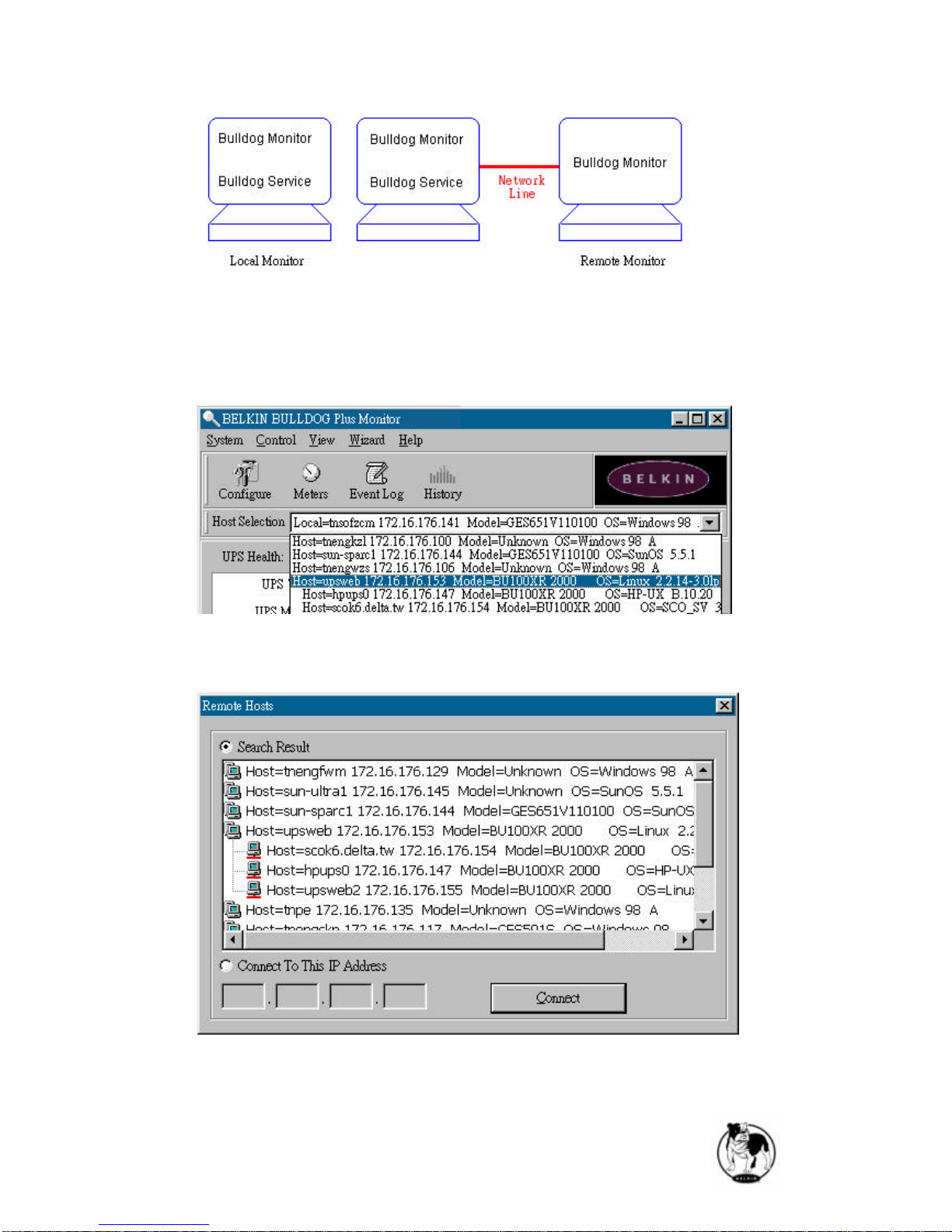
Bulldog Monitor has the ability to monitor Local hosts and Remote hosts.
Networking
Belkin Components 10
You can run only Bulldog Monitor without running Bulldog Service. Bulldog
Monitor will search hosts in the LAN(Local Area Network) which runs
Bulldog Service in the combo box. Click on the Host Selection combo box
to list the searched hosts in the LAN. Select one, then Bulldog Monitor will
connect to the selected host.
If the host is located on the Internet, you can also input the remote host IP
address from the View Menu-Remote Hosts menu shows the hosts you
can establish connections with.
3. Remote Monitoring and Control: Internet Browser.
Another way to remote monitor Bulldog Service is by using the Internet
Browser. Launch the Microsoft Internet Explorer or Netscape
Other Belkin Software manuals

Belkin
Belkin n52te - Nostromo SpeedPad Game Pad User manual

Belkin
Belkin WIRELESSINT User manual

Belkin
Belkin OmniGuard F6C110-RKM-2U User manual

Belkin
Belkin USB 2.0 RELEASE NOTES Instruction Manual

Belkin
Belkin F8GBPC002 Mounting instructions

Belkin
Belkin F8V7D007-SS User manual

Belkin
Belkin RESEAU EN MODE AD HOC WIFI-SANS INTERNET Assembly instructions

Belkin
Belkin F8V7D006-SS User manual

Belkin
Belkin SMROUTERUPDATINGFIRMWARE Quick start guide

Belkin
Belkin F8T001 User manual