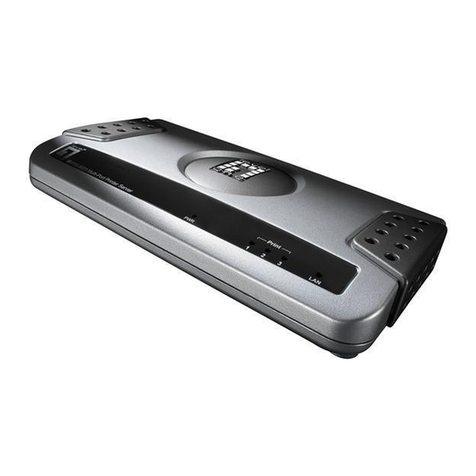
Belkin F1UP0301 User manual

F1UP0301
2.4GHz • Wireless
802.11b
Ethernet
E
Wired
Mbps
10/100
Ethernet
Gigabit
E
Wired
Mbps
10/100/1000
Gigabit Ethernet
2.4GHz • Wireless
High-
Speed
Mode
802.11g
Mbps
2.4GHz • Wireless802.11g
Mbps
Share your USB printers with your
networked computers
User Manual
2-Port
USB Print Server

1
2
1
3
4
5
6
7
section
8
9
10
1 Introduction . . . . . . . . . . . . . . . . . . . . . . . . . . . . . . . . . . . 1
Home Networking Overview . . . . . . . . . . . . . . . . . . . . . . . . . . . . . . 1
2 Overview . . . . . . . . . . . . . . . . . . . . . . . . . . . . . . . . . . . . . 6
Product Features . . . . . . . . . . . . . . . . . . . . . . . . . . . . . . . . . . . . . . 6
Applications and Advantages . . . . . . . . . . . . . . . . . . . . . . . . . . . . . 6
System Requirements . . . . . . . . . . . . . . . . . . . . . . . . . . . . . . . . . . 6
Package Contents . . . . . . . . . . . . . . . . . . . . . . . . . . . . . . . . . . . . . 6
Knowing your Print Server . . . . . . . . . . . . . . . . . . . . . . . . . . . . . . . 7
3 Connecting the Print Server Using the Setup Wizard . . . . . . 9
4 Setup for Advanced Users . . . . . . . . . . . . . . . . . . . . . . . . 11
5 Web Configuration . . . . . . . . . . . . . . . . . . . . . . . . . . . . . 15
Accessing Web Configuration Menus . . . . . . . . . . . . . . . . . . . . . 15
Home Page . . . . . . . . . . . . . . . . . . . . . . . . . . . . . . . . . . . . . . . . . . 16
Login Screen . . . . . . . . . . . . . . . . . . . . . . . . . . . . . . . . . . . . . . . . . 17
IP Address . . . . . . . . . . . . . . . . . . . . . . . . . . . . . . . . . . . . . . . . . . . 17
Print Server Configuration . . . . . . . . . . . . . . . . . . . . . . . . . . . . . . 18
Upgrade Firmware . . . . . . . . . . . . . . . . . . . . . . . . . . . . . . . . . . . . 18
System Settings (Change Password) . . . . . . . . . . . . . . . . . . . . . . 19
6 Printing to Multiple Servers . . . . . . . . . . . . . . . . . . . . . . 20
Adding a Belkin Port Monitor (Advanced Menu) . . . . . . . . . . . . . 20
7 Belkin Port Monitor Advanced Menu . . . . . . . . . . . . . . . . 23
Opening the Belkin Port Monitor Advanced Menu . . . . . . . . . . . 23
Adding a Second Belkin Port Monitor and
configuring it for a Specific Print Server . . . . . . . . . . . . . . . . . . . 24
8 Using the Print Server for FTP Printing . . . . . . . . . . . . . . 26
Sending Print Jobs to Printers Connected
to the Print Server using FTP . . . . . . . . . . . . . . . . . . . . . . . . . . . . 27
9 Troubleshooting . . . . . . . . . . . . . . . . . . . . . . . . . . . . . . . 30
10 Information . . . . . . . . . . . . . . . . . . . . . . . . . . . . . . . . . . 41
Table of Contents

1
2
1
3
4
5
6
7
section
8
9
10
Thank you for purchasing the Belkin USB Print Server. Now you
can share your USB-equipped printers with your wired network.
The Belkin USB Print Server allows you to connect up to two USB
printers directly to your network, eliminating the need to have a
dedicated PC for printing. It offers an easy installation and setup that
has you sharing printers in minutes. Please read through this manual
completely to be sure that you are getting the most from your new
Belkin USB Print Server.
Belkin home networking lets you easily enjoy these
additional advantages
• Share one high-speed Internet connection with all the computers
in your home
• Share resources, such as files, and hard drives among all the
connected computers in your home
• Share a single printer with the entire family
• Share documents, music, video, and digital pictures
• Store, retrieve, and copy files from one computer to another
• Simultaneously play games online, check Internet e-mail,
and chat
What types of connections are used to create a home network?
The two common ways to set up a home network are with wireless
and wired technologies.
Advantages of a wireless network:
• Mobility – you’ll no longer need a dedicated “computer room”—
now you can work on a networked laptop or desktop computer
anywhere within your wireless range
• Easy installation – Belkin Easy Installation Wizard makes
setup simple
• Flexibility – set up and access printers, computers, and other
networking devices from anywhere in your home
• Easy Expansion – the wide range of Belkin networking products
let you expand your network to include devices such as printers
and gaming consoles
• No cabling required – you can spare the expense and hassle of
retrofitting Ethernet cabling throughout the home or office
• Widespread industry acceptance – choose from a wide range
of interoperable networking products
Introduction

2
Introduction
Introduction
3
Introduction
2
1
3
4
5
6
7
section
8
9
10
Wireless Networking Speed
Currently there are three levels of wireless networking standards,
which transmit data at very different maximum speeds. Each is based
on the designation 802.11x, so named by the IEEE, the board that is
responsible for certifying networking standards. The most common
wireless networking standard, 802.11b, transmits information at
11Mbps; 802.11a and 802.11g work at 54Mbps See the following
chart for more detailed information.
Wireless Comparison
Wireless
Technology
802.11b 802.11g 802.11a
Speed 11Mbps 54Mbps 54Mbps
Frequency Common
household
devices such as
cordless phones
and microwave
ovens. May
interfere with
the 2.4GHz
unlicensed band
Common
household
devices such as
cordless phones
and microwave
ovens. May
interfere with
the 2.4GHz
unlicensed band
5GHz -
uncrowded band
Compatibility Compatible with
802.11g
Compatible with
802.11b
Incompatible
with 802.11b or
802.11g
Range Depends on
interference -
typically 50-300
ft. indoors
Depends on
interference -
typically 50–300
ft. indoors
Less interference
- range is
typically 50-100
feet
Adoption Mature - widely
adopted
Expected to
continue to grow
in popularity
Slow adoption
for consumers -
more popular in
business
Price Inexpensive More expensive Most expensive

2
Introduction
Introduction
3
Introduction
2
1
3
4
5
6
7
section
8
9
10
Advantages of a wired network:
• Low cost – on average, wired networking devices are less
expensive than wireless networking devices
• Faster speeds – common speed is 100Mbps with recent
technology providing up to 1000Mbps
• Flexibility – set up and access printers, computers, and other
networking devices from anywhere in your home
• Better range – wired Ethernet technology provides distance
of up to 328 feet (without a repeater), while wireless range is
typically 150 to 200 feet
• Existing wired infrastructure – because of the maturity of wired
technology, some new homes are built with an Ethernet cabling
infrastructure
• Widespread industry acceptance – a wide range of
interoperable networking products
Combining wired and wireless technologies.
Since wired technology has been around longer, you might already
own some wired networking products. In this case, consider
combining the two technologies to create a super-efficient, cost
effective home network.

4
Introduction
Introduction
5
Introduction
2
1
3
4
5
6
7
section
8
9
10
Placement of your Wireless Networking Hardware
Please note that to ensure the performance of your wireless network,
you must carefully plan the positioning of your wireless
networking hardware.
Examples of Wireless Networking Hardware:
• Wireless Router
• Wireless Range Extender/Access Point
• Wireless Notebook Network Card
• Wireless Desktop Network Card
• Wireless USB Network Adapter
• Wireless USB Print Server
• Wireless Ethernet Adapter
Wireless technology is radio-based, which means connectivity
and throughput performance between devices decreases when
the distance between devices increases. Other factors that will
cause signal degradation (metal is generally the worst culprit) are
obstructions such as walls and appliances. As a result, the typical
indoor range of your Wireless devices will be between
100–200 feet.
The Wireless Router is the central connection point of the network,
with all wireless clients (i.e. wireless notebook network cards,
wireless desktop network card, and wireless USB adapters) attached
to it. In order to achieve the best wireless network coverage for
your connected computers, your Router should be placed as close
as possible to the center of the area that your want to cover with
antennas pointing UP. In multistory homes, place the Router on a floor
that is as close to the center of the home as possible; this may mean
placing the Router on an upper floor. Wireless devices work best in
a line-of-sight situation where there are no obstacles between the
wireless client and the Router.

4
Introduction
Introduction
5
Introduction
2
1
3
4
5
6
7
section
8
9
10
Try to avoid placement of wireless devices near:
• 2.4GHz cordless phones
• Microwave Ovens
• Refrigerators
• Washer/Dryer
• Metal Cabinets
• Metallic-based UV tinted windows
Note: While the above items can affect network performance, your
wireless network still will function, although probably not at its
maximum effectiveness.
For more information regarding our networking products visit our
website at www.belkin.com/networking or call us at 877-736-5771.

6
Overview
7
2
1
3
4
5
6
7
section
8
9
10
Product Features
• Integrated, easy-to-use Print Server Setup Easy Installation Wizard
• Ethernet interface, for operation in virtually all Ethernet networks
• Easy installation and use
• LEDs: Power, Ethernet link, Status, and Error
Applications and Advantages
• Temporary LANs for special projects or peak time Sets up temporary
networks such as at trade shows, exhibitions, and construction sites,
which need networks on a short-term basis; also companies that need
additional printers for a peak activity period.
• SOHO (Small Office/Home Office) networking needs Provides easy
and quick small network installations that SOHO users need
Product Specifications
Standard: 802.3 IEEE, 802.3u IEEE
Network Interface: 1 LAN, 2 USB
Power Consumption: Input: 100-110v~0.4A, 50-60Hz
Output: 5v, 2.0A
Operating Temperature: 0 – 55 degrees C
Storage temperature: -25 – 70 degrees C
Humidity: Max. 95% (non-condensing)
System Requirements
• Printer compatible with USB 1.1
• USB cable for each printer
• PC with Windows® 98SE, Me, 2000, XP
Package Contents
• Belkin USB Print Server
• Installation Software CD
• User Manual
• Quick Installation Guide
• Ethernet Cable
Overview

6
Overview
7
2
1
3
4
5
6
7
section
8
9
10
Knowing your Print Server
(a) PowerLED
Solid: Server is ON
Off: Server is OFF
(b) LAN LED
Solid: Connected to Ethernet
Off: Ethernet disconnected
Blinking: Transferring data
Green: 10Mbps device connected
Amber: 100Mbps device connected
(c) Status LED
Solid: OK
Blinking: Attempting to obtain IP address while booting, or printing
in progress
(d) Error
Solid (Red): Printer missing or printer error
Off: OK
(a)
(b)
(c)
(d)

8
Overview
Connecting the Print Server Using the Setup Wizard
9
section
2
1
3
4
5
6
7
8
9
10
(a) Printer 1/Printer 2
These ports are used to connect one or two USB printers.
Note: These ports cannot be expanded using a USB hub.
(b) Ethernet Port
This port is used to connect the Print Server to an Ethernet network
via CAT5 cable.
(c) Reset/Test Button (3 functions)
Print Page: For most printers, this function results in a test page
to be printed. The test page will include Print Server settings
including the IP address and other information that might be handy
for troubleshooting the Print Server. To print test page, depress the
Reset/Test button momentarily.
WARNING: Some printers do not support this function.
Reset: To reset or reboot the Print Server to existing settings,
depress the Reset/Test button for five or more seconds.
Restore Factory Defaults: To restore the Print Server to factory
defaults, depress the Reset/Test button for 10 seconds while
powering up the Print Server.
Table of contents
Other Belkin Print Server manuals

Belkin
Belkin F1UP0002 User manual

Belkin
Belkin P74393UK User manual

Belkin
Belkin F1UP002 User manual

Belkin
Belkin F5D7231 User manual

Belkin
Belkin F1UP0001 User manual

Belkin
Belkin F1UP0002au User manual

Belkin
Belkin F1UP0002 User manual

Belkin
Belkin F1UP0002 User manual

Belkin
Belkin F1UP0001 - ANNEXE 104 User manual

Belkin
Belkin F1UP0001uk User guide