BCS Vertical Edge 100 User manual

Business Communications Solutions
9910 Irvine Center Drive
Irvine, CA 92618
www.bcsconsultants.com
[ m ] 949.333.1000
[ f ] 949.333.1001
WAVE QUICK REFERENCE GUIDE
For Vertical Edge 100 and Edge 700 Digital Phones

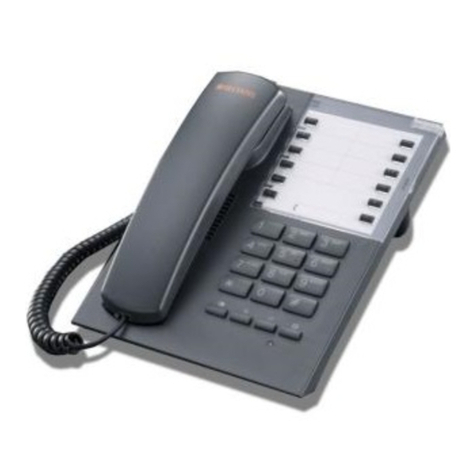
GETTING TO KNOW YOUR PHONE
** Some features may already be pre-programmed **

FEATURE KEYS & FUNCTIONS
1. Handset - Answer or place an internal or external call.
2. Speaker - Hear the other party during a call without using the handset or headset (Speaker
Mode).
3. Display - View information about the options and status of your phone.
4. Message Waiting Light - Indicate when you have a new voicemail message.
5. Pre-programmed (PGM) Buttons (8, with red LEDs only) - Perform special phone functions (pre-
programmed by the System Administrator).
6. TRANS (Transfer) - Put a call on hold while you dial the destination extension number when
transferring calls.
7. Volume Up/Down (-/+) Buttons - Decrease/increase the loudness of the speaker or handset
while on a call, or the ringer when not on a call.
8. TAP Button - Reconnect (or toggle between) calls on hold, during call transfer, and when
creating conference calls. Also, while dialing, pressing this button once will erase the last dialed
digit and pressing it twice will clear all the dialed digits.
9. Microphone - Speak to a caller when using the speaker instead of holding the handset.
10. HOLD Button - Place a call on hold and keep the party connected while you hang up or use other
phone features.
Note: If more than one call is on hold, and you are not currently connected to a call, you can
press this button to scroll through a list of calls on hold; press Tap to connect to the displayed
call.
11. SPEAKER button - Switch to Speaker mode to hear a caller instead of holding the handset.
12. Headset (2.5mm) Jack - Speak to a caller when using a headset instead of holding the handset.


FEATURE KEYS & FUNCTIONS
1. Headset (auxiliary) Jack - Speak to a caller when using a headset instead of holding the handset.
2. Handset - Answer or place an internal or external call.
3. Speaker - Hear other party during a call without using the handset/headset (Speaker Mode)
4. Display - View information about the options and status of your phone.
5. Softkeys (3) - Make selections from the display.
6. Pre-programmed (PGM) Buttons - Perform special phone functions, pre-programmed by the
System Administrator.
7. MESSAGE Button - Access user voicemail. Note: Typically, a phone has only one programmed
Message or Message Waiting button for that extension. However, some phones may have
additional Message Waiting buttons. One reason for having these additional buttons would be if
an assistant is responsible for listening to his/her boss’s voicemail, or a supervisor is responsible
for retrieving voicemail messages for a department, and so forth.
8. SHIFT Button - Access a second level of AutoDial buttons.
9. TAP Button - Reconnect (or toggle between) calls on hold, during call transfer, and when
creating conference calls. Also, while dialing, pressing this button once will erase the last dialed
digit and pressing it twice will clear all the dialed digits.
10. TRANS/CONF Button - Place a call on hold while you dial the destination extension number
when transferring calls or creating conference calls.
11. SPEAKER button - Switch to Speaker mode to hear a caller instead of holding the handset.
12. MUTE Button - Prevent the distant party from hearing any conversation at your end.
13. HOLD Button - Place a call on hold and keep the party connected while you hang up the handset
or use other phone features.
14. Microphone - Speak to a caller when using the speaker instead of holding the handset.
15. REDIAL Button - Place a call to the last phone number you dialed from your phone.
16. VOLUME (down) Button - Decrease the loudness of the speaker or handset while on a call.
17. VOLUME (up) Button - Increase the loudness of the speaker or handset while on a call.

PHONE USER GUIDE
FLASH BUTTON
The Flash button is utilized in many of the features of this phone (such as when making calls,
transferring calls, or placing calls on hold). It is often used in conjunction with “star codes” (see
Feature Code Reference listing on the bottom of this guide). The location of the Flash button
may vary from model to model.
PHONE SETTINGS
1. Handset and Speaker Volume - During a call, while the other party is speaking: Use the volume
buttons to adjust volume. The most recent setting will be saved.
2. Volume Reset Override (if programmed on your phone) - If your phone has this button, use it
to prevent the phone from automatically resetting to the default level. Press VolResetOverride to
toggle on and off.
3. Display Contrast (For all models except Edge 700)
Press MENU, then NEXT until DISP appears then press DISP.
Use the Light and Dark softkeys to adjust the display contrast level.
Press Done or SPEAKER to save the setting.
4. Ring Volume - Press the volume buttons to adjust the ring volume.
5. Ring Tone - Change the sound of the tone (not the volume) of your phone.
Press MENU, then RING.
Use the Up and Down softkeys to select a ring
Press Done or SPEAKER to save the setting.
ADDITIONAL FEATURES
1. Do Not Disturb (DND) - Block all incoming calls and pages (except in the case of a Camp-on
callback) and send them to a another destination.
Press Do Not Disturb, or *41.
Cancel - Press Do Not Disturb, or *42.

2. Centrex Access - If your Wave system uses Centrex service, follow these steps to access the
associated Centrex features. Listen for dial tone.
Press *80, then enter the Centrex feature code.
3. Log Incident - When using a remote phone, pressing ** logs a time stamp in the Wave system
trace logs that may be useful when troubleshooting a problem.
4. Message Waiting
Press MESSAGE.
Follow the voicemail prompts to retrieve voicemail messages and use voicemail
features.
5. Mute - Prevent the party at the other end from hearing anything from your phone.
Press MUTE to toggle this feature on and off.
7. Query (models with displays only) - Review what features are programmed on which buttons.
Press MENU, then a feature button to find out if and how that button is programmed.
8. Phone Relocation - Keep your previous phone number and configuration settings when you
move to another location.
Press *98 and dial your current extension number.
9. Program - Program buttons on your phone to perform various features (such as Auto-Dial or
Forward).
Press PROGRAM, or MENU, then NEXT, then press PROG.
Follow the prompts.
10. Release - Disconnect an active call, clear the display, mute the speaker during a page, and/or
cancel transfers, conferences, or the Program feature.
Press RELEASE to perform one of the above functions.
11. Shift (Edge and Impact Phone Models Only)- Each feature button can be programmed with an
AutoDial key accessed via the Shift button.
Press SHIFT, then the AutoDial feature key.
12. Speaker - Use the speaker and microphone instead of the handset or headset.
Press SPEAKER to switch between speaker and headset/handset.

TRANSFERRING CALLS
1. Transfer (Blind) - Place a call on hold while you dial the destination extension, then transfer the
call without announcing the call to the recipient.
With a party on the line:
Press TRNS/CONF, OR Flash.
Dial the destination extension, then hang up to complete the transfer.
2. Transfer (Consultation) - Place a call on hold while you dial the destination extension, then
announce the call to the recipient before transferring.
With a party on the line:
Press TRNS/CONF, or Flash.
Dial the destination extension.
Wait for the destination extension to answer.
Announce the call.
Hang up to complete the transfer.
If voicemail answers:
Hang up to transfer the call to Voicemail.
- OR –
Press Flash, then *72 to reconnect to the caller.
3. Transfer to Voicemail - Transfer a party directly into a voice mailbox (without ringing the
destination extension). (this is a pre-programmed button that may not be available)
With a party on the line:
Press Transfer
Dial the destination extension, then hang up to complete the transfer.
FORWARDING CALLS
1. Forward (External) - Forward calls to an external phone number when you are away from your
office.
Press *43.

Enter the external line access code. If prompted, enter the appropriate voicemail
password.
Dial the external destination phone number, then press #
2. Forward (Internal) - Forward calls to another extension when you are away from your phone.
Press *43.
Dial the destination extension.
Forward (Cancel - Internal/External) - Cancel any of the Forward settings.
Press *44.
3. Forward (Follow-Me) - From any phone in the system, specify an extension to which you want
your calls forwarded.
Press *78.
Enter the destination extension.
If prompted, enter the appropriate voicemail password, then #. .
Forward (Cancel - Follow Me)
Press *79.
Enter the destination extension
CONFERENCE CALLS
Set up a conference call with up to multiple participants (including yourself).
With a party on the line:
Press TRNS/CONF or TRANS to place the other party on hold.
Listen for the dial tone, then dial the number of the next party.
Repeat for each additional conference member. NOTE: If a party is not available, press
TAP, or press the button corresponding to the initial call.
Press TRNS/CONF
PAGING
1. Page (System) - Send a page over all digital phones and the overhead public address system.
Press SYSTEM PAGE, or *11.
Begin speaking, then hang up to end the page.

2. Page (Zone) - Send a page over all digital phones and the overhead public address system in a
specific group of digital phones.
Press PAGE (ZONE).
- OR –
Press *12, then enter the zone number (always 2 digits).
Begin speaking, then hang up to end the page.
DIGITAL P
FEATURE CODE REFERENCE
FEATURE CODE
Call Park
Directed Flash + *66 + ext
Retrieval *65 + ext
Self Flash + *64
Retrieval *65 + ext
System Flash + *62
Retrieval *63 + slot no
Call Pickup
Extension *75 + ext
Group *74
Call Return *69
Call Waiting Answer Flash
Disable *70
Caller ID Blocking *67
Camp-on (Callback) Flash + *76
Cancel *77 + ext
Centrex Flash + *80 + code
Conference Flash + phone no +
Flash + *71
Reconnect Flash + *72
Do Not Disturb *41
Cancel *42
Forward *43 + destination no. or ext
Cancel *44
This manual suits for next models
1
Table of contents
Other BCS Telephone manuals