
BandLuxe R529 User manual

Table of Contents
1
User
Manual
BandLuxe
R529
LTE/EVDO Rev. A
VOIP Router
P/N:64013100011 Rev.A

Table of Contents
1
Table of Contents
Table of Contents .....................................................................1
Package Contents ....................................................................3
Package Contents...............................................................................3
Features..............................................................................................3
Hardware Overview.............................................................................4
Installation.................................................................................6
Basic Functions...................................................................................8
Wizard Setup...........................................................................14
Internet Setup .........................................................................16
Basic Setting .....................................................................................16
DDNS................................................................................................19
Host...................................................................................................20
Time…………………………………………………………………………21
Router Setup...........................................................................22
Router password and Network setting...............................................22
Advanced Routing.............................................................................24
WiFi Setup...............................................................................26
Basic WiFi Network ...........................................................................26
WPS..................................................................................................32
4G LTE Setup ..........................................................................33
PIN Verification..................................................................................33
PIN Management...............................................................................34
SIM Management………………………………………………………….35
Preferred Network…………………………………………………………36
Security Setup ........................................................................37
Firewall..............................................................................................37
Internet Access Policy .......................................................................39
Single Port Forward...........................................................................42
Port Range Forward..........................................................................43
Port Range Trigger............................................................................44

Table of Contents
2
QoS...................................................................................................45
Status.......................................................................................48
4G LTE & Internet..............................................................................48
Router ...............................................................................................50
Telephony................................................................................52
VOIP..................................................................................................52
Appendix A: FAQ....................................................................53
Appendix B: Specification.....................................................59
Appendix C: Important Safety Information and Glossary ..62
Europe –EU Declaration of Conformity.............................................62
Federal Communication Commission Interference Statement...........63
Glossary............................................................................................65
Package Contents
3
Package Contents
Thank you for your purchase of this LTE/EVDO VOIP Router. This
product is designed to access the Internet via 4G technology and share
the bandwidth through a Wi-Fi network. It is easy to configure and
operate even for non-technical users. This manual contains instructions
for installing and configuring the product. Read the manual carefully
before you use the product, so that you can fully exploit the product
functions.
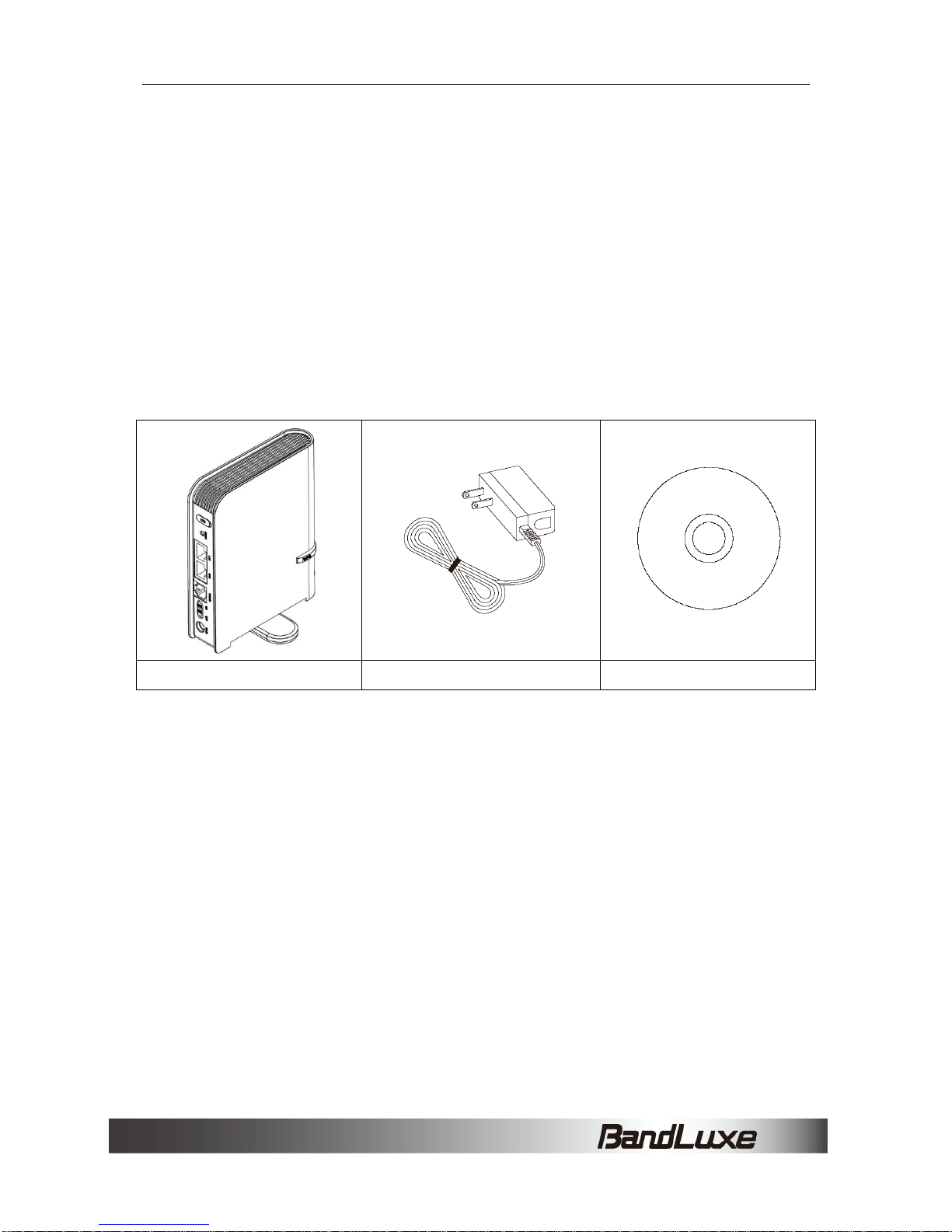
Package Contents
LTE/ EVDO VOIP Router
Power Adaptor
User Manual CD
Features
LTE/EVDO VOIP Router
Wi-Fi Protected Setup (WPS) Support
Supports VOIP over RJ11 (Analog Phone)
Uplink up to 50 Mbps , Downlink up to 100Mbps
Supports Wi-Fi 802.11 b/g/n

Package Contents
4
Operating Frequency Bands
oLTE: Band 2/4/12/17/25
oEVDO: BC 0/1/15
Supports WAN/LAN Ethernet Port
Dual embedded cellular antenna (for diversity)
Hardware Overview
1
4G External
Antenna Port
To connect the main 4G External Antenna if
needed.
2
Reset Button
To reset the Router, press the reset button
briefly.
To restore the Router's factory settings, press
the reset button for longer than 5 sec.
3
LAN Port
Connect Ethernet devices such as computers,
switches, and hubs.
4
WAN Port
Connect a DSL or Cable modem.
5
RJ11 Port
Connect an analog phone.
6
Power Switch
To switch on/off the router.
7
Power Receptor
Receptor for the Power Adaptor.
8
WPS Button
To enable WPS, press the WPS button for
longer than 5 sec.
To disable Screen Saver, press the WPS button
briefly.

Package Contents
5
9
SIM Slot
Insert SIM/USIM. Push-push type.
10
4G External
Antenna Port
To connect the secondary 4G External Antenna
if needed.
11
Power LED
Solid light indicates that the power supply is
connected properly.
12
WiFi External
Antenna Port
To connect to a WiFi External Antenna if
needed.
13
Liquid Crystal
Display
Indicates the status of router. Please reference
the details of main screen.
Installation
6
Installation
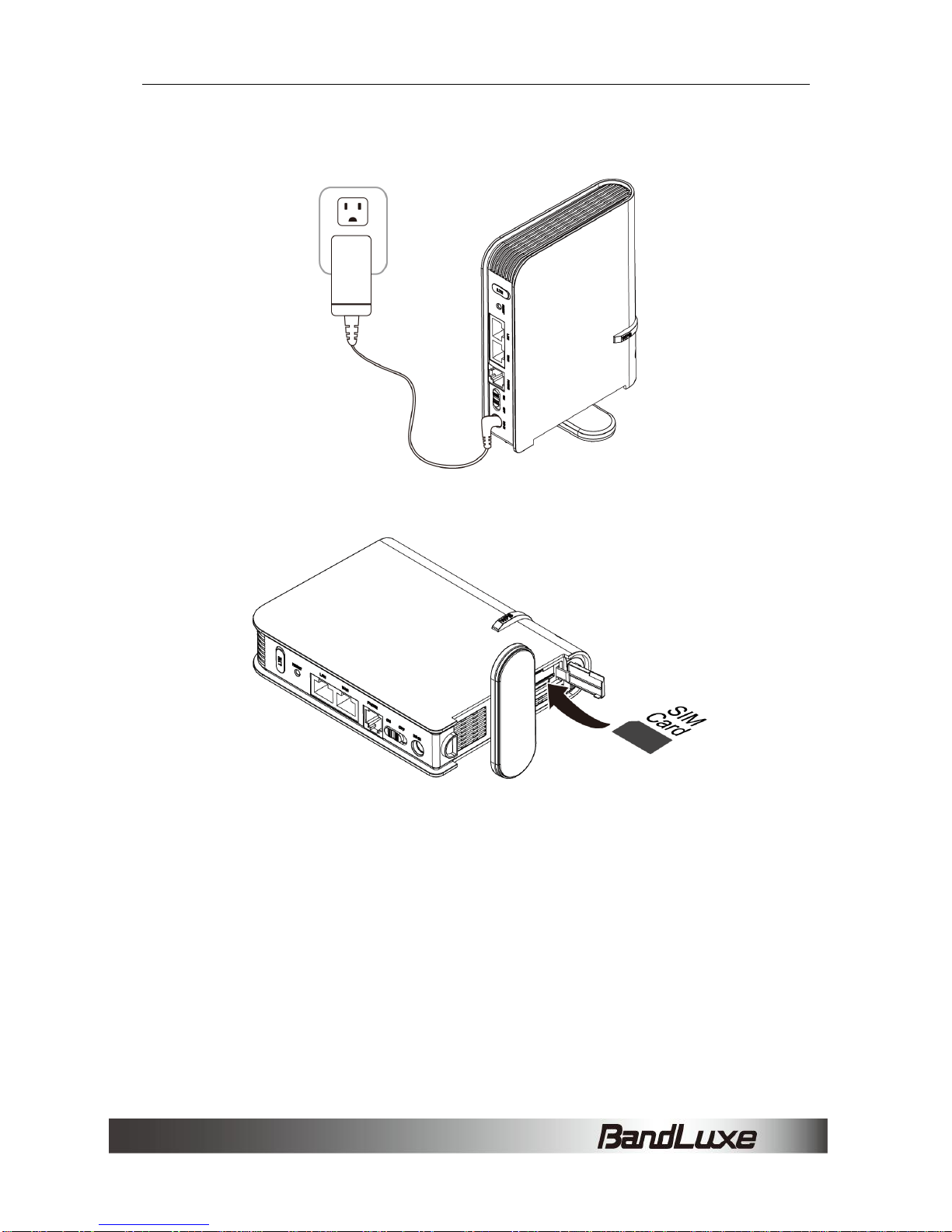
1. Connect the power adaptor to the Router and connect it to an outlet.
2. Insert your SIM card into the slot on the Router, making sure the SIM
card orientation matches the SIM card slot, as shown in the picture.
3. Slide the power switch to ON.
Installation
7
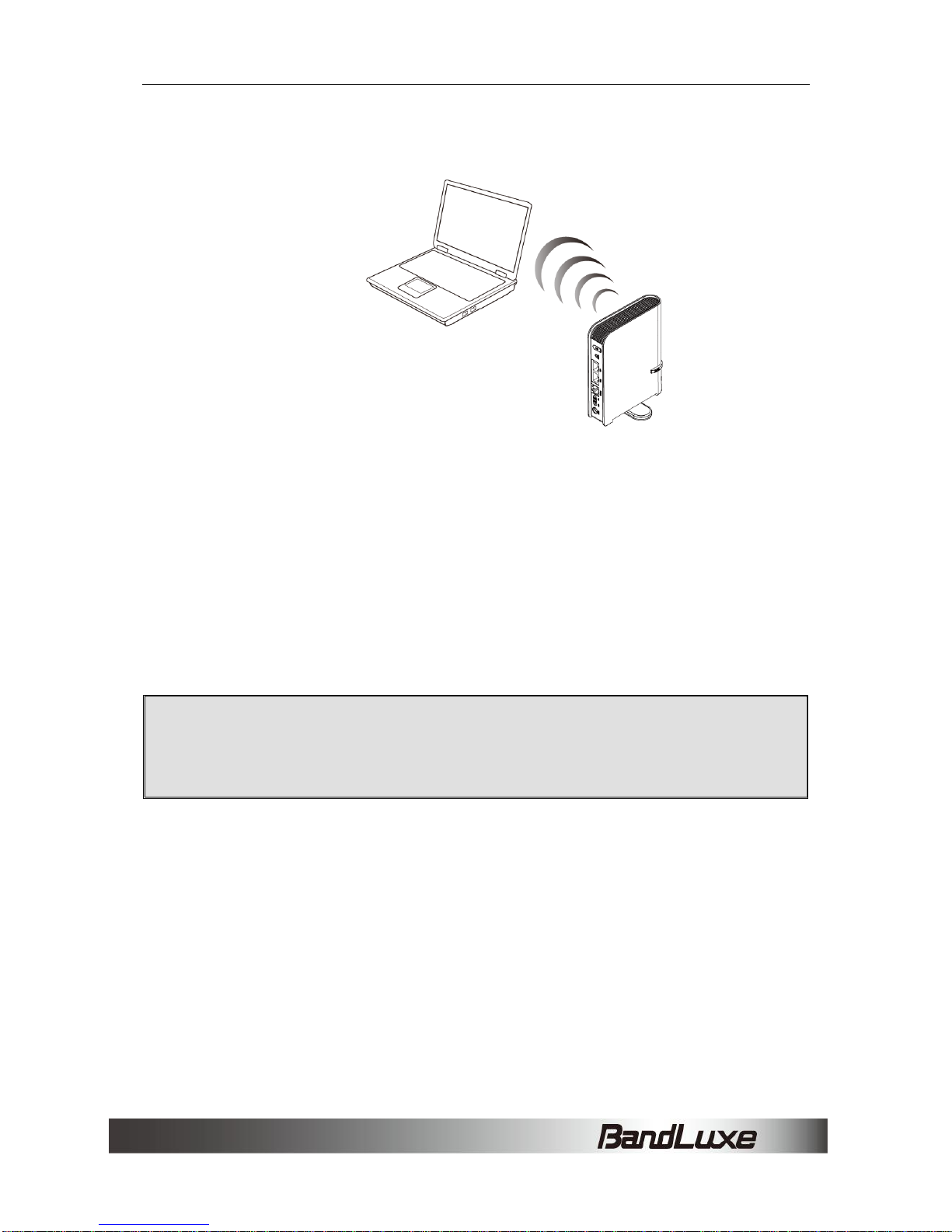
4. One of the following two methods can be chosen to link your Router
with a PC.
A. To link the Router with your PC via Wi-Fi, in Microsoft Windows, go
to Control Panel > Network Connections, right-click on Wireless
Network Connection, and choose View Available Wireless
Networks. Choose the SSID of the Router wireless network, input
the WiFi password if needed and click Connect.
B. To link the Router with your PC via Ethernet cable, connect one end
of the cable to the LAN port on the Router, and the other end of the
cable to the Ethernet port on your computer.
Note: If you choose to access the Internet via Ethernet,
connect one end of the cable to the WAN port of Router, and
the other end to your xDSL/Cable Modem.
Installation
8
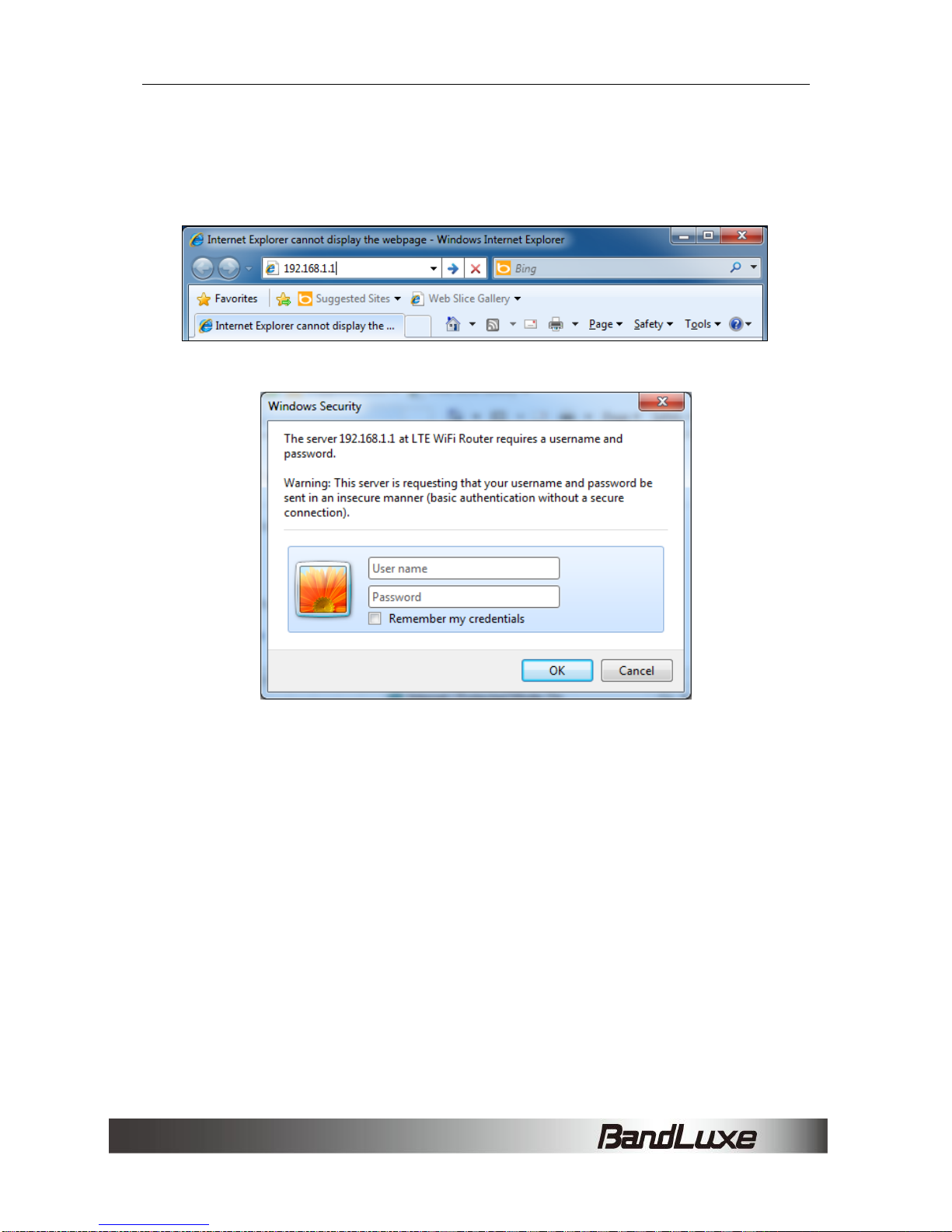
The Router uses a web-based configuration utility. To access the
configuration utility, open a browser (for example Internet Explorer) and
enter the IP address (http://192.168.1.1) or the URL
(http://R500.ROUTER)for the Router in your browser’s address bar.
Enter the Router User name and Password.
Basic Functions
Powering On and Off
To power the router on, slide the power switch located on the side of the
chassis to the ON position. When the router is powered on, the screen
displays a series of power-on animations for several seconds.
Main Screen
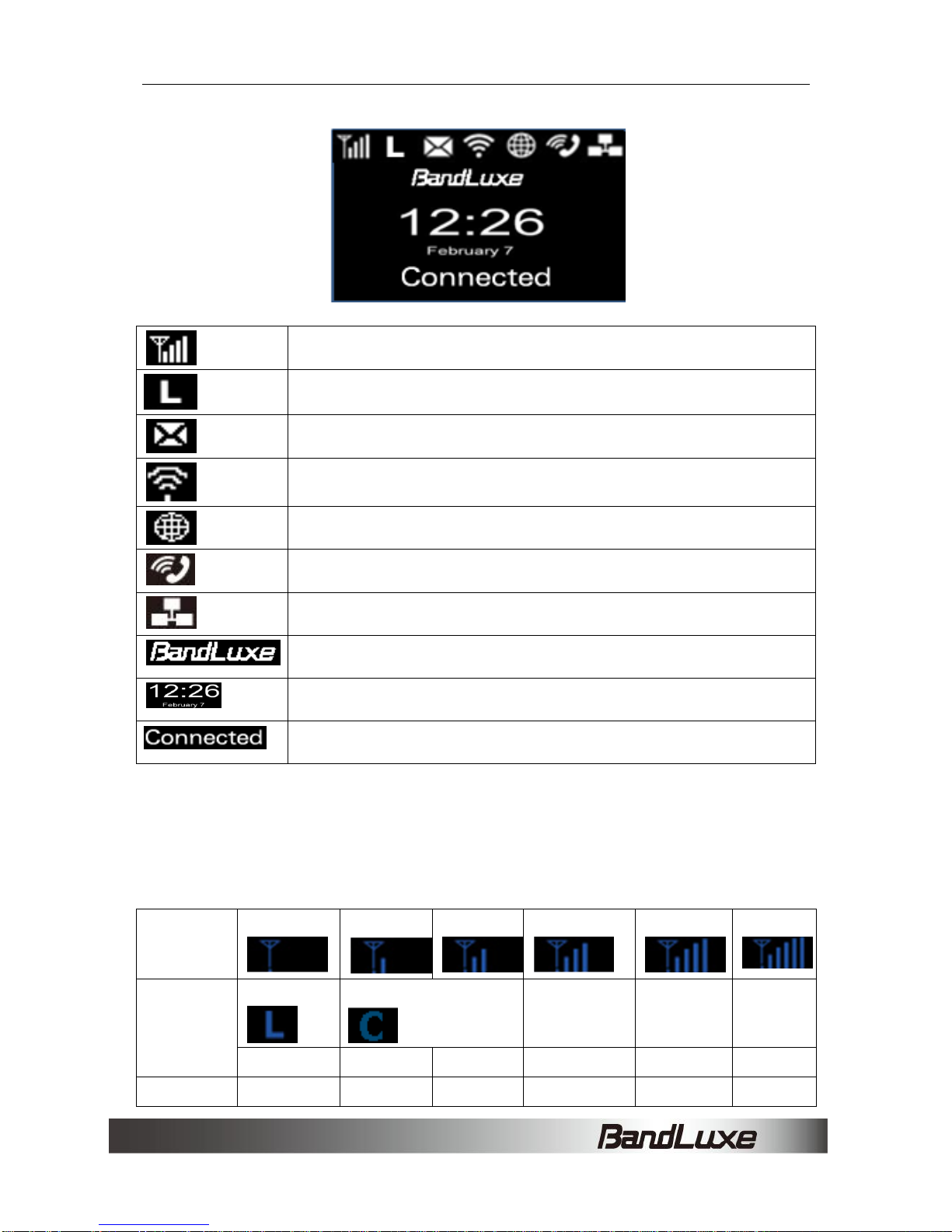
The Main Screen is the default display screen and provides a quick
glance at the status of the device. The screen enters screen saver mode
after 60 seconds of inactivity.
Installation
9
Signal Strength
Type of Radio Access Technology
Short Messaging Service (SMS)
WLAN On/Off
Radio Access Roaming On/Off
VoIP status
Ethernet status
Subscriber's Network Operator
Date & Clock
Connection Status
Status Indicators
The top of the screen may display the following icons, depending on the
status of the device.
Signal
Strength
Level 0
Level 1
Level 2
Level 3
Level 4
Level 5
Radio
Access
Network
LTE
CDMA/EVDO
SMS
New SMS
No SMS
Table of contents
Other BandLuxe Network Router manuals

BandLuxe
BandLuxe D535U User manual

BandLuxe
BandLuxe K530 Series User manual

BandLuxe
BandLuxe R500 Series User manual

BandLuxe
BandLuxe R550 Series User manual

BandLuxe
BandLuxe PR-30 Series User manual

BandLuxe
BandLuxe K535 Series User manual

BandLuxe
BandLuxe E500 Series User manual

BandLuxe
BandLuxe R501 User manual

BandLuxe
BandLuxe R560 Series User manual

BandLuxe
BandLuxe R300 Series User manual





