Bak USA Atlas User manual

Atlas User Guide
BAK USA Technologies Corp.
425 Michigan Ave.
Buffalo, New York 14203
For Windows 10

Atlas User Guide
Version: v3 // 2018
Thanks for embracing the evolution of mobile
technology with Bak USA. We hope you enjoy your
Atlas experience. To best use your Atlas 2-in-1 laptop,
please refer to this guide.
Hello there.

Attention
• Do not drop, crush, step on, or otherwise abuse the charger
• Periodically inspect your Atlas and charger for damage and replace either if necessary
• Report any damage or loose parts to the organization contact or seller immediately
• Do not leave the Atlas plugged in or ON when enclosed in a non-vented container, such as a backpack
• Users should take a 5 minute break every 30 minutes of use
• To prevent electrical shock, keep the charger away from young children
Safety Precautions
Please read and understand the following precautionary measures before using your Atlas.
We want you to stay safe and be happy. To use your Atlas properly, please be sure
to do the following:
CAUTION
RISK OF EXPLOSION IF BATTERY IS REPLACED BY AN INCORRECT TYPE. DISPOSE OF USED BATTERIES ACCORDING
TO THE INSTRUCTIONS.
IT IS RECOMMENDED TO USE THIS DEVICE IN AN ENVIRONMENT WHERE THE AMBIENT
TEMPERATURE IS NO MORE THAN 95°F.
TO PREVENT POSSIBLE HEARING DAMAGE, DO NOT LISTEN AT HIGH VOLUME LEVELS
FOR LONG PERIODS.
1. Do not place your Atlas near re or other sources of heat
2. Do not expose your Atlas to magnetic elds
3. Do not place heavy objects on your Atlas

Introduction................................................................................................................................
Package contents.....................................................................................................................
Layout..........................................................................................................................................
Views..........................................................................................................................
Front............................................................................................................................
Right............................................................................................................................
Left..............................................................................................................................
Function keys.............................................................................................................................
Folding the keyboard................................................................................................................
Power ON/OFF...........................................................................................................................
Powering your Atlas...............................................................................................
Powering ON for the rst time...............................................................................
Powering OFF your Atlas.......................................................................................
Putting your Atlas into sleep mode....................................................................
Waking up your Atlas.............................................................................................
Basic touchscreen options......................................................................................................
11
11
11
11
12
12
13
Section 1 Getting to Know Your Atlas
Section 2 Using Your Atlas
Section 3 Windows Interface
Desktop and virtual desktop experience.............................................................................
Taskbar........................................................................................................................................
Start menu.................................................................................................................................
Searchbox—Cortana................................................................................................
App shortcuts area..................................................................................................
Notication area........................................................................................................................
6
6
7
7
7
8
8
9
10
16
17
17
18
18
19
Content

Charging your battery..............................................................................................................
Inspecting your battery status...............................................................................................
Section 5 Battery
Section 6 Windows Help and Troubleshooting
Troubleshooting........................................................................................................................
Section 7 Specification
28
Settings screen.........................................................................................................................
Activating Windows.................................................................................................................
Setting up your Microsoft account.......................................................................................
Setting up the ngerprint reader...........................................................................................
Replacing desktop with start screen....................................................................................
Pinning and unpinning your app............................................................................................
Pinning an app to start menu or taskbar...........................................................
Removing an app......................................................................................................................
Wireless LAN.............................................................................................................................
Enabling wireless connection...............................................................................
Connecting to a wireless LAN..............................................................................
Micro SD card slot...................................................................................................................
Inserting your micro SD card................................................................................
Removing your memory card...............................................................................
Connecting an external device..............................................................................................
Connecting to the USB port...................................................................................
Section 4 Setup and Connection
20
21
21
22
23
24
24
24
24
24
24
25
25
25
25
25
26
27

6
Package Contents
Carefully unpack your box and identify the following contents.
If any items are missing or damaged, contact the seller immediately.*
*Depending on your purchase, optional add-ons might be included in a separate package
.
Atlas Laptop
Charger Stylus
1.
2. 3.
1. Getting to Know Your Atlas

7
The Hardware
Front View
Often for taking self-portraits as well
as for video conferencing.
Press here to open the Start menu.
Control your system using nger gestures.
Records sounds and speech.
1. Rotatable Camera
2. Microphone
3. Touchscreen
5. Windows Key
6. Touchpad
Turns your Atlas ON/OFF as well as
unlocks your Atlas.
4. Caps Lock
7. Power Button/Fingerprint Reader
The main display of your laptop. View it
and touch it with your ngers to control it.
Capitalizes letters.

8
Right Side
Store your stylus here.
Tie the stylus tether here.
Write on the screen or operate your Atlas.
1. Stylus Sleeve or Clip
2. Tether Anchor
3. Stylus
Left Side
Displays blue when fully charged
and amber when charging.
Insert your USB device here.
Plug in the type-C USB adapter to
charge the battery.
Plug up to 128GB Micro SD card here.
1. Charging Indicator
2. USB Type-C 3.0 Charger Port
3. Micro SD Card Slot
4. USB Type-A 3.0 Port
Plug your microphone/headphone here.
5. Combo Audio Jack for
Microphone/Headphone

9
Function Keys
Press a key to perform a function. For example, if you want to mute or unmute the system,
press the F1 key.
Mute or unmute the system.
Increase the volume.
Decrease the volume.
Toggle the display output between
the Atlas and external monitor.
Decrease the display brightness.
Increase the display brightness.
Open the Settings screen.
Play or pause music and video.
Speak to Cortana.
Fn
Fn
10
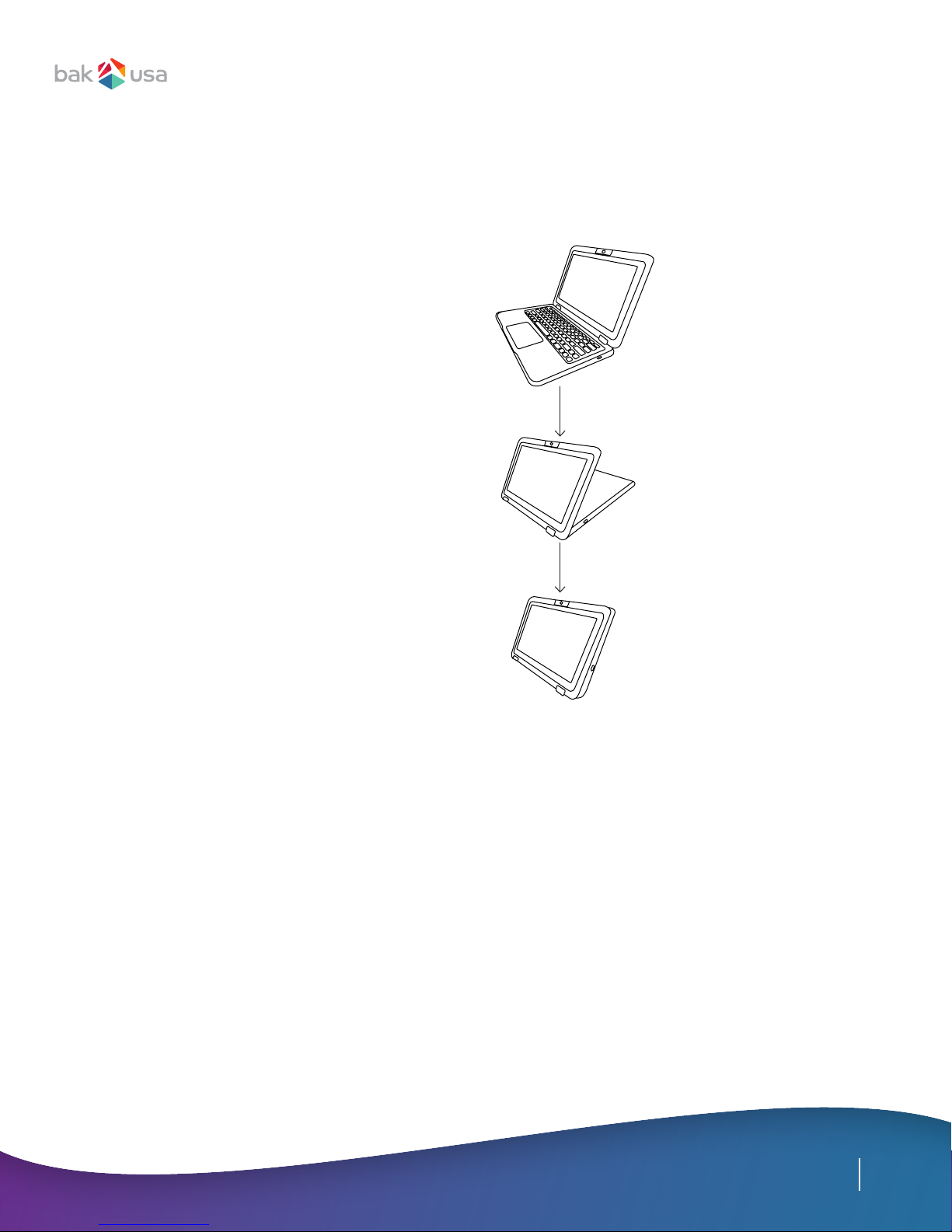
Folding the Keyboard
The Atlas supports a swiveling 11.6-inch
touchscreen that can be used in several
different ways. Opening the Atlas as a
standard laptop gives you access to the
keyboard and touchpad, while folding the
keyboard behind the screen turns it into a
tablet and disables the keyboard.
You can also convert the Atlas to tent
mode, which is ideal for viewing videos
and presentations.
Other manuals for Atlas
1
Table of contents
Other Bak USA Laptop manuals