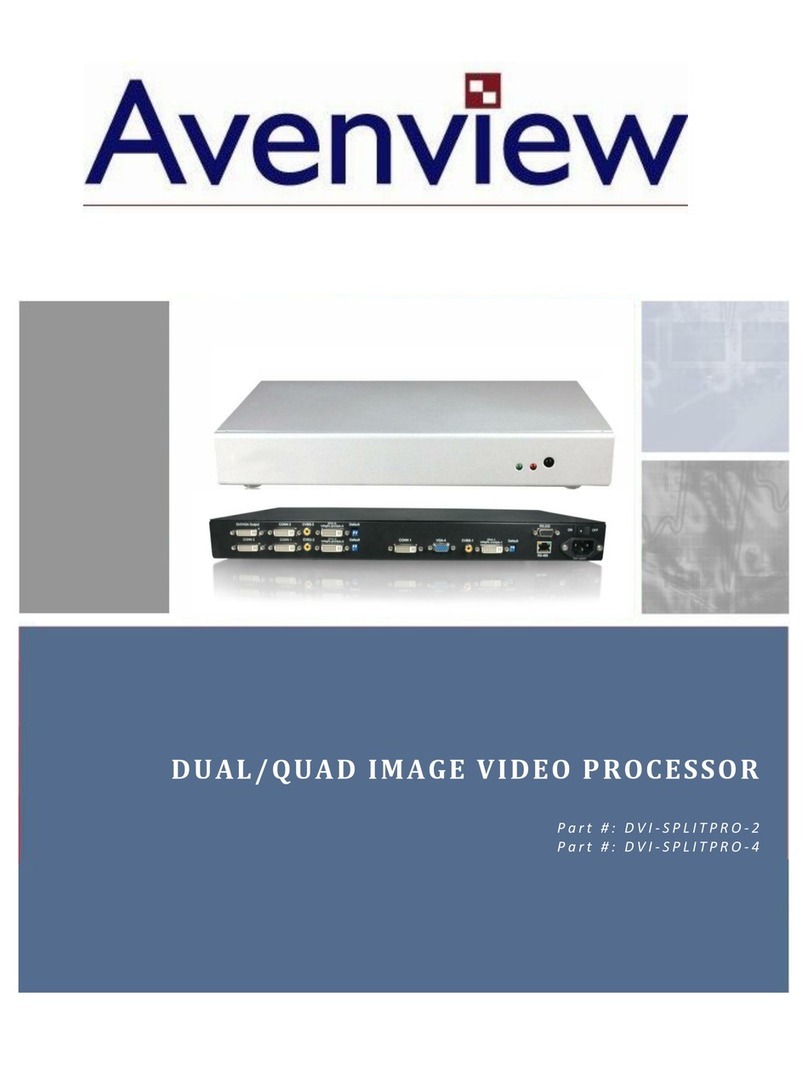
Avenview DVI-SPLITPRO-4 User manual

www.avenview.com
1
Quad Screen Video Processor
Model #: DVI-SPLITPRO-4
© 2010 Avenview Inc. All rights reserved.
The contents of this document are provided in connection with Avenview Inc. (“Avenview”) products. Avenview makes no representations or warranties with
respect to the accuracy or completeness of the contents of this publication and reserves the right to make changes to specifications and product descriptions at any
time without notice. No license, whether express, implied, or otherwise, to any intellectual property rights is granted by this publication. Except as set forth in
Avenview Standard Terms and Conditions of Sale, Avenview assumes no liability whatsoever, and disclaims any express or implied warranty, relating to its products
including, but not limited to, the implied warranty of merchantability, fitness for a particular purpose, or infringement of any intellectual property right.
Reproduction of this manual, or parts thereof, in any form, without the express written permission of Avenview Inc. is strictly prohibited.

www.avenview.com
2
Table of Contents
Section 1: Getting Started ...................................................................................................................... 3
1.1 Important Safeguards ............................................................................................................ 3
1.2 Safety Instructions ................................................................................................................. 3
1.3 Regulatory Notices Federal Communications Commission (FCC) ......................................... 4
1.4 Introduction ........................................................................................................................... 4
1.5 Package Contents................................................................................................................... 5
1.6 Before Installation.................................................................................................................. 6
1.7 Panel Description................................................................................................................... 7
1.7.1 DVI-SPLITPRO-4 Rear Panel................................................................................................... 7
1.7.2 DVI-SPLITPRO-4 I/O Connectors............................................................................................ 8
1.8 Installation ............................................................................................................................. 9
1.9 Software Installation and Setup .......................................................................................... 10
1.9.1 System Requirements .................................................................................................. 10
1.9.2 Software Connection.................................................................................................... 10
1.9.3 Software Operation...................................................................................................... 11
1.9.4 Software Display Setup ................................................................................................ 13
Section 2: Specifications....................................................................................................................... 14
2.1 Supported Resolutions......................................................................................................... 15
2.1.1 DVI / Component / VGA ............................................................................................... 15
2.1.2 VGA............................................................................................................................... 15
2.1.3 DVI-OUT........................................................................................................................ 16
2.2 General Troubleshooting ..................................................................................................... 16

www.avenview.com
3
Section 1: Getting Started
1.1 Important Safeguards
Please read all of these instructions carefully before you use the device. Save this manual for future
reference.
What the warranty does not cover
Any product, on which the serial number has been defaced, modified or removed.
Damage, deterioration or malfunction resulting from:
Accident, misuse, neglect, fire, water, lightning, or other acts of nature, unauthorized
product modification, or failure to follow instructions supplied with the product.
Repair or attempted repair by anyone not authorized by us.
Any damage of the product due to shipment.
Removal or installation of the product.
Causes external to the product, such as electric power fluctuation or failure.
Use of supplies or parts not meeting our specifications.
Normal wear and tear.
Any other causes which does not relate to a product defect.
Removal, installation, and set-up service charges.
1.2 Safety Instructions
The Avenview DVI-SPLITPRO-4 Quad Image Video Processor has been tested for conformance to safety
regulations and requirements, and has been certified for international use. However, like all electronic
equipment’s, the DVI-SPLITPRO-4 should be used with care. Read the following safety instructions to protect
yourself from possible injury and to minimize the risk of damage to the unit.
Do not dismantle the housing or modify the module.
Dismantling the housing or modifying the module may result in electrical shock or burn.
Refer all servicing to qualified service personnel.
Do not attempt to service this product yourself as opening or removing housing may expose you to
dangerous voltage or other hazards
Keep the module away from liquids.
Spillage into the housing may result in fire, electrical shock, or equipment damage. If an object or liquid
falls or spills on to the housing, unplug the module immediately.
Have the module checked by a qualified service engineer before using it again.
Do not use liquid or aerosol cleaners to clean this unit. Always unplug the power to the device before
cleaning.

www.avenview.com
4
1.3 Regulatory Notices Federal Communications Commission (FCC)
This equipment has been tested and found to comply with Part 15 of the FCC rules. These limits are designed
to provide reasonable protection against harmful interference in a residential installation.
Any changes or modifications made to this equipment may void the user’s authority to operate this
equipment.
1.4 Introduction
The DVI-SPLITPRO-4 Quad Screen Video Processor is an advanced video processor for multimedia
presentations. It is an ideal solution for applications where up to four video signals must be displayed on a
single display. It supports up to 10 video inputs, of which four can be outputted simultaneously with the
desired display layout through software control. The advanced video processor allows you to manipulate
output images, wherever positions and whatever sizes you want for viewing two computers or two video
signals or a combination.
The embedded scalar converts signals from input sources to match the native resolution of monitors, flat
panel displays, projectors as well as user-selectable output settings up to WUXGA (1920x1200). Dual outputs
are provided in both analog (VGA) and digital (DVI) format, one is connected to remote display and the other
is connected to on-site display for real time monitoring.
-Four VGA, three DVI, three component and three composite inputs, from 640x480 to 1920x1200,
interlaced or progressive.
-Dual outputs (DVI / VGA), 640x480 to 1920x1200.
-Adjustable size& position through software.
-Titles, borders and colored backgrounds.
-Resize, position, flip, zoom& pan and blend output video.
-Can be cascaded to obtain more images.
-Image parameters and layouts are automatically saved in flash memory and can be recalled for later use.
-Several Image parameters and layouts can be saved in computers and can be loaded for later use.
-Video parameters adjustable (brightness, contrast, color temperature, etc.).
-User-selectable output settings, up to 1920x1200.
-Perfectly as a video screen splitter, a video converter and a video switcher.
-Firmware upgradable for support of new features and technology enhancements.
-Software control through RS-232/RS-485 over Cat-5.
-1U size.

www.avenview.com
5
1.5 Package Contents
Before you start the installation of the converter, please check the package contents.
-DVI-SPLITPRO-4 x 1
-DVI –DVI & VGA breakout Cable x 4
-VGA to Component breakout Cable x 3
-DVI to VGA Adapter x 3
-DVI to DVI Cable x 2
-Rack Mounting Kit x 1
-RS232 to USB Adapter x 1
-Software CD x 1
-AC Power Supply x 1
User’s Manual x 1

www.avenview.com
6
1.6 Before Installation
Put the product in an even and stable location. If the product falls down or drops, it may cause an
injury or malfunction.
Don’t place the product in too high temperature (over 50°C), too low temperature (under 0°C) or high
humidity.
Use the DC power adapter with correct specifications. If inappropriate power supply is used then it
may cause a fire.
Do not twist or pull by force ends of the optical cable. It can cause malfunction.

www.avenview.com
7
1.7 Panel Description
The Avenview DVI-SPLITPRO-4 has 4 inputs and accepts both graphics and video signals, which come from
computers (DVI or VGA), composite, and component video sources respectively. You can pick up four of the
ten inputs and then display four of them simultaneously on the same screen. Following figure shows the rear
panel connectors of a DVI-SPLITPRO-.
1.7.1 DVI-SPLITPRO-4 Rear Panel
To reset the DVI-SPLITPRO-4 to factory default settings: Turn on the DVI-SPLITPRO-4 then switch both
DIP Switches simultaneously up and down to reset the unit to factory default settings

www.avenview.com
8
1.7.2 DVI-SPLITPRO-4 I/O Connectors
Connectors
Video Source
Input
Connectors
DVI, Component, VGA
DVI
VGA
(DVI to VGA Adapter)
Component (YPbPr)
(DVI to VGA Adapter and VGA to Component
Adapter)
1 x DVI
1 x VGA
(DVI to DVI/VGA Y Cable)
1 x DVI
1 x Component
(DVI to DVI/VGA Y Cable and VGA to Component
Adapter)
VGA
VGA
Composite
Composite with a RCA Cable
Loop Connectors
2 x DVI
Output
Connectors
Display
DVI-I OUT
DVI Display
VGA Display
(DVI to VGA Adapter)
1 x DVI Display
1 x VGA Display
(DVI to DVI/VGA Y Cable)

www.avenview.com
9
1.8 Installation
To setup Avenview DVI-SPLITPRO-4 follow these steps for connecting to a device:
1. Mount or fix the DVI-SPLITPRO-4 safely
2. While DVI-SPLITPRO-4 switched off, connect CONN1 & CONN1, CONN2 & CONN2 by DVI –DVI cables
3. Connect a monitor, projector, other displays that come with DVI / VGA inputs by using 1 male –male
DVI (VGA) cable to DVI-SPLITPRO-4 DVI output. (you can connect 2 displays equipped with DVI and
VGA respectively by DVI –DVI/VGA breakout cable)
4. Plug-in DVI to DVI/VGA breakout cable to DVI-Component-VGA and plug in VGA to Component
adapter to VGA connector of the breakout cable
5. Connect a device equipped with DVI output (such as PC) to the DVI connector of the breakout cable
6. Connect a device equipped with the component video output to 3-RCA jack of the Component video
adapter
7. Connect a device with VGA output (such as laptop) to VGA connector of DVI-SPLITPRO-4
8. Connected a device with Composite video output to composite input of DVI-SPLITPRO-4
9. Connect your computer to DVI-SPLITPRO-4 via RS232 cable and then install the software
10. Turn ON DVI-SPLITPRO-4
11. Run the Control Software and establish the connection between PC and DVI-SPLITPRO-4
12. Turn ON all connected devices and then control the display output thru RS232 and included software
It is critical to have the DVI male-male cable (provided) connected to DVI LOOP 1 –
DVI LOOP 1 and DVI-LOOP 2 –DVI-LOOP 2 connectors on the DVI-SPLITPRO-4.
It is imperative that you have these cables connected at all times for normal
operation.

www.avenview.com
10
1.9 Software Installation and Setup
1.9.1 System Requirements
1. The DVI-SPLITPRO-4 provides a software control program which runs under Microsoft Windows 98,
2000, XP through the interface of RS-232 serial control.
2. Before you click on the icon of the software, make sure you have secured the connection between
your computer COM port and the DVI-SPLITPRO-4.
3. The DVI-SPLITPRO-4 provides software control. To make sure all information shown in the software is
synchronized with those in the device, please click “Update”button to acquire the latest data from
the DVI-SPLITPRO-4 after you press any key on the remote control.
1.9.2 Software Connection
1. Power up the DVI-SPLITPRO-4 and you can see both Red and Green LEDs on the front panel blink.
Ensure that Serial RS232 connection is secure.
2. The first step after running the software is to automatically detect if the device responses correctly
through RS-232 port. The process takes 5-15 seconds. If the device is not connected, a warning
window will show up. First of all, choose the correct COM port from the Com Port selection list. Then,
click on the linkage button to open the COM port. If the specified COM port is not available, the
“Device is not ready. Do you want to try again?” error message will pop up. Please check the
availability of COM Port. After the COM port is accurately established, please click on status update
button.
3. If the serial connection is established, you will see a Windows as shown below:
If” device is not ready” error pops up then:
-Ensure that DVI-SPLITPRO-4 is powered on.
-Please ensure that serial cable (RS232) is connected properly and available serial
port is free to be used by DVI-SPLITPRO-4
Table of contents
Other Avenview DVD Player manuals