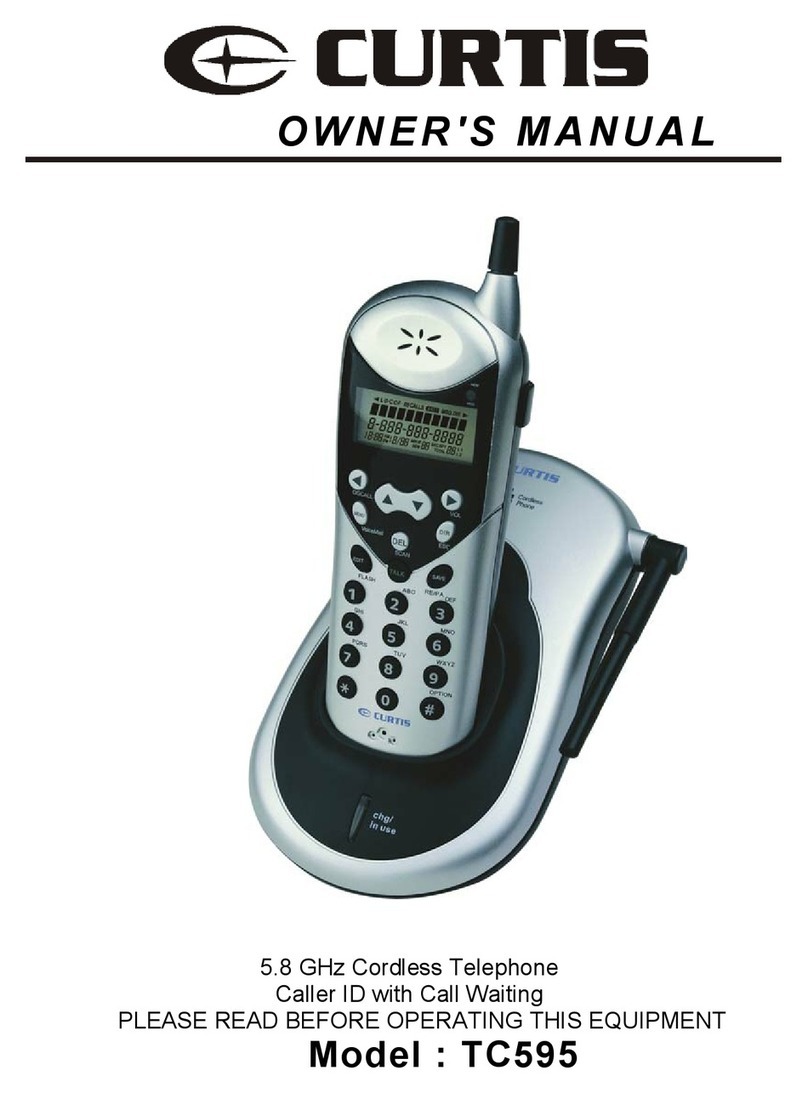
AT&T E5860 User manual

User Manual (Part 2)
5.8 GHz Cordless
Telephone/Answering
System E5860
with Caller ID & Call Waiting
ATT-5860CIB-d2.qxd 1/3/2004 11:06 AM Page 1

Copyright © 2004 Advanced American Telephones. All Rights Reserved.
AT&T and the Globe Design are trademarks of AT&T Corporation.,
licensed to Advanced American Telephones.
STOP! See page 7
for easy instructions
You must install and
charge the battery before
using the telephone
Add new handsets to make your phone more versatile (see page 41)
Your telephone can accommodate up to 8 cordless handsets. You can add new
handsets (sold separately) at any time. Up to 4 handsets at a time can be used.
The handset provided with your telephone is automatically registered as Handset 1.
Additional handsets will be assigned numbers in the order they are registered (2, 3, 4,
etc.) up to a maximum of 8 handsets.
Handset 1 Handset 2 Handset 3
For customer service or product
information, visit our web site at
www.telephones.att.com
or call 1-800-222-3111
Please also read
Important Product Information
Enclosed in product package
ATT-5860CIB-d2.qxd 1/3/2004 11:07 AM Page 2

1
Table of contents
User Manual (Part 2)
5.8 GHz Cordless
Telephone/Answering
System E5860
Getting Started
Quick reference guide ........................2
Parts checklist .......................................4
Before you begin ..................................5
Telephone base installation................6
Battery installation & charging ..........7
Wall mounting ......................................8
Belt clip & optional headset...............9
Telephone Operation
Basic handset operation ...................10
Basic base operation .........................11
Options during calls ..........................12
Intercom calls .....................................13
Handset screen images.....................14
Handset sounds & alerts ..................15
Handset settings.................................16
Base settings........................................17
Phonebook Directory
New phonebook entries..................19
Phonebook search.............................20
To dial, edit or delete entries.........21
Handset Calls Log
To review voice messages ...............23
To review Caller ID log ...................24
To dial a Caller ID entry..................25
To review redial log ..........................26
Base Calls Log
To review Caller ID log ...................28
To dial a Caller ID entry..................29
Answering System Operation
Answering system operation ..........30
Day and time announcements ........31
Outgoing announcements................32
Announce Only mode ......................33
Changing feature options.................34
Message playback ...............................35
Recording and playing memos ........36
Message window displays.................37
Remote access....................................38
Appendix
Display screen status icons..............39
Alert tones & indicator lights..........40
Adding new handsets ........................41
Charging spare batteries ..................42
In case of difficulty .............................43
Technical specifications ....................45
INDEX..................................................46
Remote access wallet card ..............49
ATT-5860CIB-d2.qxd 1/3/2004 11:07 AM Page 1

2
Getting Started
NavKey
Press center button to display menus.
Press NavKey buttons to navigate
through menus. Press center button to
select menu item highlighted.
Quick reference guide
Speaker
Press to activate handset speaker-
phone. Press again to switch call back
to earpiece.
Softkeys
Press a softkey to select a menu item
displayed just above the key.
Off/Cancel
During a call, press to hang up.
While using menus, press to cancel an
operation, back up to the previous menu,
or exit the menu display.
Phone/Flash
Press to begin a call, then dial a number.
During a call, press to receive an incoming
call, if Call Waiting is activated (see page 12).
Sound Select
Press to customize speaker sound for
clear speakerphone conversations.
Handset
Intercom
See page 13 See page 18 See page 22 See page 14 See page 15 See page 16
Vibrate Ringer Control Ringers
Low Batt Tone Keypad Tone Range Tone
Clock On/Off Set Time Contrast
Phone Setup Language Reset Settings
Directory Calls Log Pictures Sounds&Alerts Settings
Main menu
Sounds & Alerts menu Settings menu
Left Right
Select
Up
Down
ATT-5860CIB-d2.qxd 1/3/2004 11:08 AM Page 2

3
Getting Started
Quick reference guide
Answering system controls (see pages 35-43)
ON/OFF ..................Press to turn answering system on or off
DELETE ..................Press to delete message currently playing
TIME SET................Press to set the answering system clock
MENU......................Press to review or change answering system options
CHANGE ................Press to change a menu option
RECORD ................Press to record a memo or outgoing announcement
Telephone function keys (see pages 11-13)
SOFTKEYS ............Press to select menu item displayed just above the key
CLEAR ....................Press to cancel an operation, back up to the
previous menu, or exit the menu display
INTERCOM ............Press to transfer a call or initiate an intercom conversation
FLASH ....................During a call, press to receive an incoming call, if
Call Waiting is activated
VOLUME ................Press to adjust speakerphone listening volume
MUTE ......................Press to silence microphone; press again to resume
SPEAKERPHONE....Press to turn speakerphone on or off (answer or end a call)
Base/Speakerphone
Answering
system
controls
Telephone
function keys
Swivel antenna fully
upright for best results
REDIAL MENU MEM
Press to play or stop playing messages
Press to repeat message.
Press twice to hear
previous message.
Press to skip to next
message.
ATT-5860CIB-d2.qxd 1/3/2004 11:08 AM Page 3

4
Getting Started
Parts checklist
Remember to save your sales receipt and original packaging in case you ever need to
ship your telephone for warranty service. Check to make sure the telephone package
includes the following:
Telephone base
Telephone
handset
Power
adapter
Belt clip Battery compartment cover
Batteries
Long telephone line cord
Short telephone line cord
Wall mount bracket
ATT-5860CIB-d2.qxd 1/3/2004 11:08 AM Page 4

5
Getting Started
Before you begin
About Caller Identification
Caller ID with Call Waiting features in
this telephone let you see who’s calling
before you answer the phone, even
when you’re on another call. These
features require services provided by
your local telephone company.
Contact your telephone service
provider if:
• You have both Caller ID and Call
Waiting, but as separate services
(you may need combined service)
• You have only Caller ID service, or
only Call Waiting service
• You don’t subscribe to any Caller
ID or Call Waiting services.
You can use this phone with regular
Caller ID service, and you can use its
other features without subscribing to
either Caller ID or combined Caller ID
with Call Waiting service. There may
be fees for these services, and they
may not be available in all areas.
Caller ID features will work only if
both you and the caller are in areas
offering Caller ID service, and if both
telephone companies use compatible
equipment.
See Caller ID Operation, beginning on
page 22, for more details about how
these features work.
Telephone operating range
This cordless telephone operates with
the maximum power allowed by the
Federal Communications Commission
(FCC). Even so, this handset and base
can communicate over only a certain
distance — which can vary with the
locations of the base and handset, the
weather, and the construction of your
home or office. For best performance,
keep the base antenna fully upright.
If you receive a call while you are
out of range, the handset might not
ring — or if it does ring, the call might
not connect when you press PHONE.
Move closer to the base, then press
PHONE to answer the call.
If you move out of range during a
phone conversation, you might hear
noise or interference. To improve
reception, move closer to the base.
If you move out of range without
pressing OFF, your phone will be left
“off the hook.” To hang up properly,
walk back toward the telephone base,
periodically pressing OFF until the call
is disconnected.
ATT-5860CIB-d2.qxd 1/3/2004 11:08 AM Page 5

6
Getting Started
Telephone base installation
Install the speakerphone base as shown below. Choose a location away from electron-
ic equipment, such as personal computers, television sets or microwave ovens. Avoid
excessive heat, cold, dust or moisture.
Plug power cord
transformer into
electrical outlet
Plug long telephone
line cord into
telephone jack
NOTE:
Use only the power
cord supplied with this product.
If you need a replacement, call
1 800 222–3111.
Be sure to use an electrical outlet
not controlled by a wall switch.
Route cords through
slot in base
ATT-5860CIB-d2.qxd 1/3/2004 11:08 AM Page 6

DID YOU KNOW?
Optional spare batteries can be kept charged in
the base, for quick replacement when handset
batteries become depleted (see page47
7
Getting Started
Battery installation & charging
After installation, place the handset in the base and allow batteries to charge for 12
hours before use. You can keep batteries charged by returning the handset to the base
after each use. When battery power is fully depleted, a full recharge takes about 8 hours.
Place handset in base to charge
for 12 hours before first use.
Rotate antenna to fully upright
position
DID YOU KNOW?
Optional spare batteries can be kept charged in
the base, for quick replacement when handset
batteries become depleted (see page 42).
LOW BATTERY
REDIAL CID LOG
2:10 PM
1
Press coin into slot on
base of handset to
release latch, then
remove battery cover
Insert supplied
batteries
Low battery indicator
Return handset to base to recharge
when this symbol flashes. (Handset
will beep when battery is low.)
Caution: Use only AT&T 2AA
NiCad or NiMH rechargeable
batteries. Do not use AA
alkaline batteries.
Insert top
tab first
To replace battery cover
Press down to
click in place
ATT-5860CIB-d2.qxd 1/3/2004 11:09 AM Page 7

8
Getting Started
Wall mounting
The speakerphone base can be installed on any standard wall-phone outlet as shown
below. Choose a location away from electronic equipment, such as personal comput-
ers, television sets or microwave ovens. Avoid excessive heat, cold, dust or moisture.
Plug power cord transformer
into electrical outlet
Connect cords as shown, then press
and slide down firmly so base is held
securely on outlet mounting pegs
Plug short telephone line
cord into telephone jack
Clip wall-mount bracket
securely into notches on
underside of base
Place handset in base to charge
for 12 hours before first use.
Rotate antenna
to fully upright
position
ATT-5860CIB-d2.qxd 1/3/2004 11:09 AM Page 8
Other manuals for E5860
1
This manual suits for next models
1
Table of contents
Other AT&T Cordless Telephone manuals