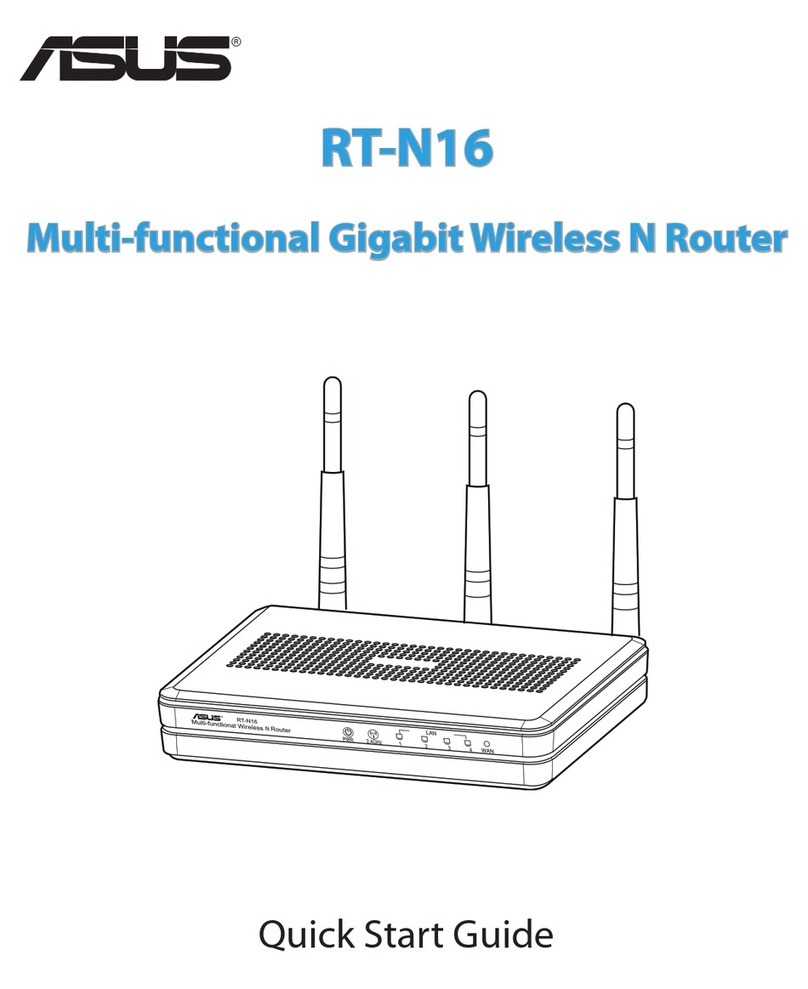
Asus RT-N16 User manual

RT-N16
Multi-functional Gigabit Wireless N Router
The elegant white and grey 2.4GHz RT-N16 features powerful CPU, providing a
high-performance throughput; supports up to 3000,000 sessions for extensive
P2P clients; most widespread application with USB 2.0 port - All-in-1 printer
server and FTP files sharing; ultra-fast and convenient downloads with the
Revolutionary Download Master.
User Guide

2
E7709
Third Edition
September 2012
Copyright © 2012 ASUSTeK Computer Inc. All Rights Reserved.
No part of this manual, including the products and software described
in it, may be reproduced, transmitted, transcribed, stored in a retrieval
system, or translated into any language in any form or by any means, except
documentation kept by the purchaser for backup purposes, without the express
written permission of ASUSTeK Computer Inc. (“ASUS”).
Product warranty or service will not be extended if: (1) the product is repaired,
modified or altered, unless such repair, modification of alteration is authorized
in writing by ASUS; or (2) the serial number of the product is defaced or missing.
ASUS PROVIDES THIS MANUAL“AS IS”WITHOUT WARRANTY OF ANY KIND,
EITHER EXPRESS OR IMPLIED, INCLUDING BUT NOT LIMITED TO THE IMPLIED
WARRANTIES OR CONDITIONS OF MERCHANTABILITY OR FITNESS FOR A
PARTICULAR PURPOSE. IN NO EVENT SHALL ASUS, ITS DIRECTORS, OFFICERS,
EMPLOYEES OR AGENTS BE LIABLE FOR ANY INDIRECT, SPECIAL, INCIDENTAL,
OR CONSEQUENTIAL DAMAGES (INCLUDING DAMAGES FOR LOSS OF PROFITS,
LOSS OF BUSINESS, LOSS OF USE OR DATA, INTERRUPTION OF BUSINESS
AND THE LIKE), EVEN IF ASUS HAS BEEN ADVISED OF THE POSSIBILITY OF
SUCH DAMAGES ARISING FROM ANY DEFECT OR ERROR IN THIS MANUAL OR
PRODUCT.
SPECIFICATIONS AND INFORMATION CONTAINED IN THIS MANUAL ARE
FURNISHED FOR INFORMATIONAL USE ONLY, AND ARE SUBJECT TO CHANGE
AT ANY TIME WITHOUT NOTICE, AND SHOULD NOT BE CONSTRUED AS A
COMMITMENT BY ASUS. ASUS ASSUMES NO RESPONSIBILITY OR LIABILITY
FOR ANY ERRORS OR INACCURACIES THAT MAY APPEAR IN THIS MANUAL,
INCLUDING THE PRODUCTS AND SOFTWARE DESCRIBED IN IT.
Products and corporate names appearing in this manual may or may not be
registered trademarks or copyrights of their respective companies, and are used
only for identification or explanation and to the owners’ benefit, without intent
to infringe.

3
Table of contents
1 A quick look
Package contents ........................................................................................ 5
Your wireless router .................................................................................... 5
Mounting Options....................................................................................... 7
2 Creating your network
Positioning your router.............................................................................. 8
What you need ............................................................................................. 9
Setting up your wireless router ............................................................10
Wired connection...............................................................................10
Wireless connection ..........................................................................11
Before you proceed...................................................................................12
A. Disable the proxy server, if enabled...................................12
B. Set the TCP/IP settings to automatically obtain an IP
address. ........................................................................................14
C. Disable the dial-up connection, if enabled.....................15
3 ConguringviathewebGUI
Logging into the web GUI ......................................................................16
Setting up the Internet connection ....................................................17
Quick Internet Setup (QIS) with auto-detection .....................17
Setting up the wireless security settings ..........................................21
Managing your network clients ...........................................................22
Monitoring your USB device..................................................................23
Creating your Guest Network ...............................................................25
Using the Trac Manager.......................................................................26
Managing QoS (Quality of Service) Bandwidth.......................26
Monitoring Trac ..............................................................................27
Using the USB Extension ........................................................................27
Using AiDisk for Files Sharing ........................................................28
Using the Servers Center service..................................................31

4
Table of contents
Using the Network Place (Samba) Share service ....................32
Using the FTP Share service............................................................33
Using the Miscellaneous setting...................................................35
Conguring the Advanced settings....................................................36
Setting up the DHCP Server ...........................................................36
Upgrading the rmware ..................................................................38
Restoring/Saving/Uploading settings ........................................39
Setting up your network printer ..........................................................40
4 Usingtheutilities
Device Discovery .......................................................................................44
Firmware Restoration...............................................................................45
5 Troubleshooting
Troubleshooting ........................................................................................47
ASUS DDNS Service ..................................................................................50
Frequently Asked Questions (FAQs) ............................................50
Appendices
Notices...........................................................................................................52
ASUS Contact information .....................................................................65
Networks Global Hotline Information................................................66
Networks Global Hotline Information................................. 67

5
1 A quick look
Your wireless router
Package contents
NOTES:
• If any of the items is damaged or missing, contact ASUS for
technical inquiries and support, Refer to the ASUS Support
Hotline list at the back of this user manual.
• Keep the original packaging material in case you would need
future warranty services such as repair or replacement.
RT-N16 Wireless Router Network cable (RJ-45)
Power adapter Quick Start Guide
Support CD (Manual, utility software) Warranty card
PWR 2.4GHz 1234
N
123 4
5678910

6
1Power LED
Off: No power.
On: Device is ready.
Flashing slow: Rescue mode
Flashing quick:WPS is processing.
22.4GHz LED
Off: No 2.4GHz signal.
On:Wireless system is ready.
Flashing:Transmitting or receiving data via wireless connection.
3LAN LED
Off: No power or no physical connection.
On: Has physical connection to a local area network (LAN).
Flashing:Transmitting or receiving data via Ethernet cable.
4WAN LED
Off: No power or no physical connection.
On: Has physical connection to a wide area network (WAN).
Flashing:Transmitting or receiving data via Ethernet cable.
5Power (DC-In) port
Insert the bundled AC adapter into this port and connect your router to a power source.
6WPS button
This button launches the WPS Wizard.
7USB 2.0 ports
Insert USB 2.0 devices such as USB hard disks or USB flash drives into these ports.
8Reset button
This button resets or restores the system to its factory default settings.
9WAN (Internet) port
Connect a network cable into this port to establish WAN connection.
Flashing:Transmitting or receiving data via wired connection.
10 LAN 1 ~ 4 ports
Connect network cables into these ports to establish LAN connection.

7
Item Description
1Mounting hooks
Use the mounting hooks to mount your router on concrete or wooden
surfaces using two round head screws.
2Air vents
These vents provide ventilation to your router.
1
2
Note: For details on mounting your router on a wall or
ceiling, refer to the section Mounting options on the next page
of this user manual.
To avoid signal interference among the three antennas, we
recommend that you orient them as the following illustration
shows:

8
Mounting Options
NOTES:
• Re-adjust the screws if you cannot latch the ASUS Wireless
Router onto the screws or if it is too loose.
• Use only the adapter that came with your package. Using
other adapters may damage the device.
• Specifications:
DC Power adapter DC Output: +12V with max 1.25A current
Operating
Temperature 0~40oC Storage 0~70oC
Operating Humidity 50~90% Storage 20~90%
Out of the box, the ASUS Wireless Router is designed to sit on a
raised flat surface like a file cabinet or book shelf.The unit may
also be converted for mounting to a wall or ceiling:
To mount the ASUS Wireless Router:
1. Look on the underside for the two
mounting hooks.
2. Mark two upper holes in a flat surface.
3. Tighten two screws until only 1/4'' is
showing.
4. Latch the hooks of the ASUS Wireless
Router onto the screws.

9
2 Creating your network
Positioning your router
For the best wireless signal transmission between the wireless
router and the network devices connected to it, ensure that you:
• Place the wireless router in a centralized area for a maximum
wireless coverage for the network devices.
• Keep the device away from metal obstructions and away from
direct sunlight.
• Keep the device away from 802.11g or 20MHz only Wi-Fi
devices, 2.4GHz computer peripherals, Bluetooth devices,
cordless phones, transformers, heavy-duty motors, fluorescent
lights, microwave ovens, refrigerators, and other industrial
equipment to prevent signal interference or loss.
• For the best front-to-rear coverage, place the wireless router in
an upright position.
• For the best up-and-down coverage, place the wireless router
in an inclined position.
• Always update to the latest firmware.Visit the ASUS website at
http://www.asus.com to get the latest firmware updates.

10
What you need
To set up your network, you need one or two computers that meet
the following system requirements:
• Ethernet RJ-45 (LAN) port (10Base-T/100Base-TX/
1000BaseTX)
• IEEE 802.11b/g/n wireless capability
• An installed TCP/IP service
• Web browser such as Internet Explorer, Firefox, Safari, or
Google Chrome
NOTES:
• If your computer does not have built-in wireless capabilities,
you may install an IEEE 802.11b/g/n WLAN adapter to your
computer to connect to the network.
• The Ethernet RJ-45 cables that will be used to connect the
network devices should not exceed 100 meters.
Other manuals for RT-N16
6
Table of contents
Other Asus Wireless Router manuals

Asus
Asus RT-N53 User manual

Asus
Asus RT-N10E EZ N User manual

Asus
Asus ROG Rapture GT-AXE16000 User manual

Asus
Asus DSL-N55U User manual

Asus
Asus RT-N300 B1 User manual

Asus
Asus RT-AC52U User manual

Asus
Asus RT-AC53U User manual

Asus
Asus ROG Rapture GT-AC2900 User manual

Asus
Asus Asus S15253 User manual

Asus
Asus RT-AC51U User manual