Asus RT-AC3200 User manual

User Guide
RT-AC3200
Wireless-AC 3200 Tri-Band Gigabit Router
LED WiFi
USB 3.0

2
Copyright © 2014 ASUSTeK Computer Inc. All Rights Reserved.
No part of this manual, including the products and software described
in it, may be reproduced, transmitted, transcribed, stored in a retrieval
system, or translated into any language in any form or by any means, except
documentation kept by the purchaser for backup purposes, without the
express written permission of ASUSTeK Computer Inc. (“ASUS”).
Product warranty or service will not be extended if: (1) the product is repaired,
modified or altered, unless such repair, modification of alteration is authorized
in writing by ASUS; or (2) the serial number of the product is defaced or
missing.
ASUS PROVIDES THIS MANUAL “AS IS”WITHOUT WARRANTY OF ANY KIND,
EITHER EXPRESS OR IMPLIED, INCLUDING BUT NOT LIMITED TO THE IMPLIED
WARRANTIES OR CONDITIONS OF MERCHANTABILITY OR FITNESS FOR A
PARTICULAR PURPOSE. IN NO EVENT SHALL ASUS, ITS DIRECTORS, OFFICERS,
EMPLOYEES OR AGENTS BE LIABLE FOR ANY INDIRECT, SPECIAL, INCIDENTAL,
OR CONSEQUENTIAL DAMAGES (INCLUDING DAMAGES FOR LOSS OF PROFITS,
LOSS OF BUSINESS, LOSS OF USE OR DATA, INTERRUPTION OF BUSINESS
AND THE LIKE), EVEN IF ASUS HAS BEEN ADVISED OF THE POSSIBILITY OF
SUCH DAMAGES ARISING FROM ANY DEFECT OR ERROR IN THIS MANUAL OR
PRODUCT.
SPECIFICATIONS AND INFORMATION CONTAINED IN THIS MANUAL ARE
FURNISHED FOR INFORMATIONAL USE ONLY, AND ARE SUBJECT TO CHANGE
AT ANY TIME WITHOUT NOTICE, AND SHOULD NOT BE CONSTRUED AS A
COMMITMENT BY ASUS. ASUS ASSUMES NO RESPONSIBILITY OR LIABILITY
FOR ANY ERRORS OR INACCURACIES THAT MAY APPEAR IN THIS MANUAL,
INCLUDING THE PRODUCTS AND SOFTWARE DESCRIBED IN IT.
Products and corporate names appearing in this manual may or may not be
registered trademarks or copyrights of their respective companies, and are used
only for identification or explanation and to the owners’benefit, without intent
to infringe.
E9670
First Edition
December 2014

3
Table of contents
1 Getting to know your wireless router
1.1 Welcome! ........................................................................................7
1.2 Package contents.........................................................................7
1.3 Your wireless router.....................................................................8
1.4 Positioning your router........................................................... 10
1.5 Setup Requirements ................................................................ 11
1.6 Router Setup............................................................................... 12
1.6.1 Wired connection..................................................................12
1.6.2 Wireless connection.............................................................13
2 Getting started
2.1 Logging into the Web GUI ..................................................... 15
2.2 Setting up your router using the
Quick Internet Setup - Smart Connect Wizard ............... 16
2.3 Connecting to your wireless network................................ 18
3 Configuring the General settings
3.1 Using the Network Map ......................................................... 19
3.1.1 Setting up the wireless security settings......................20
3.1.2 Managing your network clients.......................................22
3.1.3 Monitoring your USB device.............................................23
3.2 Creating a Guest Network...................................................... 26
3.3 AiProtection ................................................................................ 28
3.3.1 Network Protection ..............................................................29
3.3.2 Setting up Parental Controls.............................................33
3.4 Adaptive QoS.............................................................................. 37
3.4.1 Bandwidth Monitor..............................................................37
3.4.2 QoS.............................................................................................38
3.4.3 Web History.............................................................................39
3.4.4 Traffic Monitor........................................................................40

4
Table of contents
3.5 Using the USB Application..................................................... 41
3.5.1 Using AiDisk...............................................................................41
3.5.2 Using Servers Center............................................................43
3.5.3 3G/4G ........................................................................................48
3.6 Using AiCloud 2.0...................................................................... 49
3.6.1 Cloud Disk................................................................................50
3.6.2 Smart Access...........................................................................52
3.6.3 Smart Sync...............................................................................53
4 Configuring the Advanced Settings
4.1 Wireless......................................................................................... 54
4.1.1 General......................................................................................54
4.1.2 WPS ............................................................................................57
4.1.3 Bridge ........................................................................................59
4.1.4 Wireless MAC Filter...............................................................61
4.1.5 RADIUS Setting ......................................................................62
4.1.6 Professional.............................................................................63
4.2 LAN................................................................................................. 65
4.2.1 LAN IP ........................................................................................65
4.2.2 DHCP Server............................................................................66
4.2.3 Route .........................................................................................68
4.2.4 IPTV...............................................................................................69
4.3 WAN ............................................................................................... 70
4.3.1 Internet Connection.............................................................70
4.3.2 Dual WAN .................................................................................73
4.3.3 Port Trigger..............................................................................74
4.3.4 Virtual Server/Port Forwarding........................................76
4.3.4 DMZ............................................................................................79
4.3.5 DDNS .........................................................................................80
4.3.6 NAT Passthrough...................................................................81

5
Table of contents
4.4 IPv6................................................................................................. 82
4.5 VPN Server................................................................................... 83
4.6 Firewall.......................................................................................... 84
4.6.1 General......................................................................................84
4.6.2 URL Filter ..................................................................................84
4.6.3 Keyword filter .........................................................................85
4.6.4 Network Services Filter .......................................................86
4.6.5 IPv6 Firewall ............................................................................87
4.7 Administration ........................................................................... 88
4.7.1 Operation Mode ....................................................................88
4.7.2 System.......................................................................................89
4.7.3 Firmware Upgrade................................................................90
4.7.4 Restore/Save/Upload Setting ...........................................91
4.8 System Log .................................................................................. 92
5 Utilities
5.1 Device Discovery....................................................................... 93
5.2 Firmware Restoration .............................................................. 94
5.3 Setting up your printer server .............................................. 95
5.3.1 ASUS EZ Printer Sharing .....................................................95
5.3.2 Using LPR to Share Printer .................................................99
5.4 Download Master....................................................................104
5.4.1 Configuring Bit Torrent download settings .............. 105
5.4.2 NZB settings......................................................................... 106
6 Troubleshooting 107
6.1 Basic Troubleshooting...........................................................107
6.2 Frequently Asked Questions (FAQs) ................................110

6
Appendices
Notices120
ASUS Contact information..................................................................135
Networks Global Hotline Information.............................................136

7
1 Getting to know your wireless
router
1.1 Welcome!
Thank you for purchasing an ASUS RT-AC3200 Wireless Router!
The ultra-thin and stylish RT-AC3200 features 2.4GHz, 5GHz-1,
and 5GHz-2 triple bands for an unmatched concurrent wireless
HD streaming; SMB server, UPnP AV server, and FTP server for 24/7
file sharing; a capability to handle 300,000 sessions; and the ASUS
Green Network Technology, which provides up to 70% power-
saving solution.
1.2 Package contents
NOTES:
• Ifanyoftheitemsaredamagedormissing,contactASUSfor
technical inquiries and support, Refer to the ASUS Support Hotline
list at the back of this user manual.
• Keeptheoriginalpackagingmaterialincaseyouwouldneedfuture
warranty services such as repair or replacement.
RT-AC3200 Wireless Router AC adapter
Network cable (RJ-45) Quick Start Guide
Support CD (Manual)

8
1.3 Your wireless router
LED On/Off button
Press this button to turn on/off the backlight LED on the panel.
Wi-Fi On/Off button
Press this button to turn on /off the Wi-Fi connection.
Power LED
Off: No power.
On: Device is ready.
Flashing slow: Rescue mode
2.4GHz LED / 5GHz LED
Off: No 2.4GHz or 5GHz signal.
On:Wireless system is ready.
Flashing:Transmitting or receiving data via wireless connection.
LAN 1~4 LED
Off: No power or no physical connection.
On: Has physical connection to a local area network (LAN).
WAN (Internet) LED
Red: No IP or no physical connection.
On: Has physical connection to a wide area network (WAN).
WPS LED
Off: WPS verification process is off or completed.
Flashing:WPS verification process is activated.
USB 3.0 port
Insert USB 3.0 devices such as USB hard disks or USB flash drives into this port.
LED WiFi
USB 3.0

9
NOTES:
• Useonlytheadapterthatcamewithyourpackage.Usingother
adapters may damage the device.
• Specifications:
DC Power adapter DC Output: +19V with max 2.37A current
Operating
Temperature 0~40oCStorage 0~70oC
Operating Humidity 50~90% Storage 20~90%
USB 2.0 port
Insert USB 2.0 devices such as USB hard disks or USB flash drives into this port.
WPS button
This button launches the WPS Wizard.
Reset button
This button resets or restores the system to its factory default settings.
WAN (Internet) port
Connect a network cable into this port to establish WAN connection.
LAN 1 ~ 4 ports
Connect network cables into these ports to establish LAN connection.
Power button
Press this button to power on or off the stystem.
Power (DC-IN) port
Insert the bundled AC adapter into this port and connect your router to a power source.

10
1.4 Positioning your router
For the best wireless signal transmission between the wireless
router and the network devices connected to it, ensure that you:
• Placethewirelessrouterinacentralizedareaforamaximum
wireless coverage for the network devices.
• Keepthedeviceawayfrommetalobstructionsandawayfrom
direct sunlight.
• Keepthedeviceawayfrom802.11gor20MHzonlyWi-Fi
devices, 2.4GHz computer peripherals, Bluetooth devices,
cordless phones, transformers, heavy-duty motors, fluorescent
lights, microwave ovens, refrigerators, and other industrial
equipment to prevent signal interference or loss.
• Alwaysupdatetothelatestfirmware.VisittheASUSwebsiteat
http://www.asus.com to get the latest firmware updates.
• Toensurethebestwirelesssignal,orientthesixdetachable
antennas as shown in the drawing below.
45°
60°
45°
60°
90°90°
LED WiFi
USB 3.0
Other manuals for RT-AC3200
1
Table of contents
Other Asus Wireless Router manuals

Asus
Asus RT-N56U User manual

Asus
Asus RT-N56U User manual

Asus
Asus RT-N10P User manual

Asus
Asus RT-N10U User manual

Asus
Asus ZenWiFi AX Mini User manual

Asus
Asus ROG Rapture GT-AC2900 User manual

Asus
Asus RT-N300 B1 User manual

Asus
Asus RT-N10 B1 (RT-N10+ B1) User manual

Asus
Asus ZenWiFi XD6 User manual

Asus
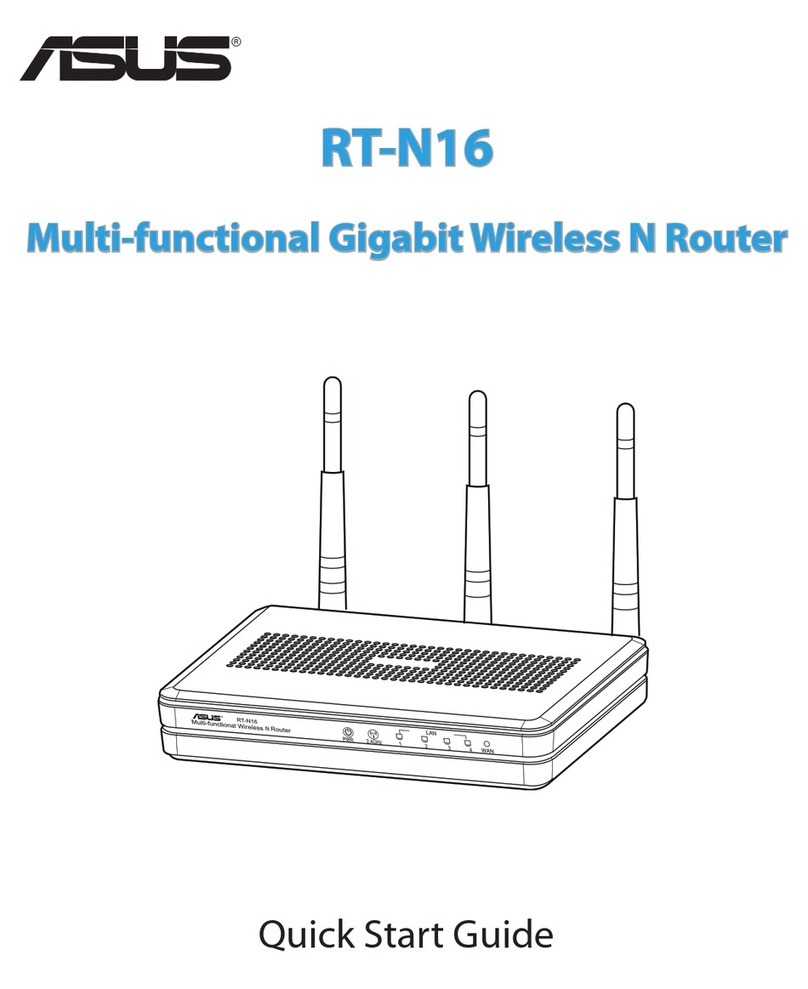
Asus RT-N16 User manual