
Asus VG236H User manual

ASUS VG236 Series
LCD Monitor
User Guide
April 2010

ii
Copyright © 2010 ASUSTeK COMPUTER INC. All Rights Reserved.
No part of this manual, including the products and software described in it, may be reproduced,
transmitted, transcribed, stored in a retrieval system, or translated into any language in any form or by any
means, except documentation kept by the purchaser for backup purposes, without the express written
permission of ASUSTeK COMPUTER INC. (“ASUS”).
Product warranty or service will not be extended if: (1) the product is repaired, modied or altered, unless
such repair, modication of alteration is authorized in writing by ASUS; or (2) the serial number of the
product is defaced or missing.
ASUS PROVIDES THIS MANUAL “AS IS” WITHOUT WARRANTY OF ANY KIND, EITHER EXPRESS
OR IMPLIED, INCLUDING BUT NOT LIMITED TO THE IMPLIED WARRANTIES OR CONDITIONS OF
MERCHANTABILITY OR FITNESS FOR A PARTICULAR PURPOSE. IN NO EVENT SHALL ASUS, ITS
DIRECTORS, OFFICERS, EMPLOYEES OR AGENTS BE LIABLE FOR ANY INDIRECT, SPECIAL,
INCIDENTAL, OR CONSEQUENTIAL DAMAGES (INCLUDING DAMAGES FOR LOSS OF PROFITS,
LOSS OF BUSINESS, LOSS OF USE OR DATA, INTERRUPTION OF BUSINESS AND THE LIKE),
EVEN IF ASUS HAS BEEN ADVISED OF THE POSSIBILITY OF SUCH DAMAGES ARISING FROM ANY
DEFECT OR ERROR IN THIS MANUAL OR PRODUCT.
SPECIFICATIONS AND INFORMATION CONTAINED IN THIS MANUAL ARE FURNISHED FOR
INFORMATIONAL USE ONLY, AND ARE SUBJECT TO CHANGE AT ANY TIME WITHOUT NOTICE,
AND SHOULD NOT BE CONSTRUED AS A COMMITMENT BY ASUS. ASUS ASSUMES NO
RESPONSIBILITY OR LIABILITY FOR ANY ERRORS OR INACCURACIES THAT MAY APPEAR IN THIS
MANUAL, INCLUDING THE PRODUCTS AND SOFTWARE DESCRIBED IN IT.
Products and corporate names appearing in this manual may or may not be registered trademarks or
copyrights of their respective companies, and are used only for identication or explanation and to the
owners’ benet, without intent to infringe.
Table of contents
Notices......................................................................................................... iii
Safety information ...................................................................................... iv
Care & Cleaning........................................................................................... v
1.1 Welcome! ...................................................................................... 1-1
1.2 Package contents......................................................................... 1-1
1.3 Adjusting the monitor.................................................................. 1-2
1.4 Connect cables............................................................................. 1-3
1.5 Monitor introduction .................................................................... 1-4
2.1 Detaching the arm/stand
(for VESA wall mount) ..............................................................2-1
2.2 Assembling the monitor base..................................................... 2-1
3.1 OSD (On-Screen Display) menu ................................................ 3-1
3.2 Specicationssummary.............................................................. 3-4
3.3 Troubleshooting (FAQ)................................................................ 3-5
3.4
Supported timing list ..........................................................................3-6

iii
Notices
Federal Communications Commission Statement
This device complies with Part 15 of the FCC Rules. Operation is subject
to the following two conditions:
• Thisdevicemaynotcauseharmfulinterference,and
• Thisdevicemustacceptanyinterferencereceivedincluding
interferencethatmaycauseundesiredoperation.
Thisequipmenthasbeentestedandfoundtocomplywiththelimitsfora
ClassBdigitaldevice,pursuanttoPart15oftheFCCRules.Theselimits
are designed to provide reasonable protection against harmful interference
inaresidentialinstallation.Thisequipmentgenerates,usesandcan
radiateradiofrequencyenergyand,ifnotinstalledandusedinaccordance
withmanufacturer’sinstructions,maycauseharmfulinterferencetoradio
communications.However,thereisnoguaranteethatinterferencewill
not occur in a particular installation. If this equipment does cause harmful
interferencetoradioortelevisionreception,whichcanbedeterminedby
turningtheequipmentoffandon,theuserisencouragedtotrytocorrect
theinterferencebyoneormoreofthefollowingmeasures:
• Reorientorrelocatethereceivingantenna.
• Increasetheseparationbetweentheequipmentandreceiver.
• Connecttheequipmenttoanoutletonacircuitdifferentfromthatto
which the receiver is connected.
• Consultthedealeroranexperiencedradio/TVtechnicianforhelp.
AsanEnergyStar® Partner,ourcompanyhasdetermined
thatthisproductmeetstheEnergyStar® guidelines for
energyefciency.
Canadian Department of Communications Statement
ThisdigitalapparatusdoesnotexceedtheClassBlimitsforradio
noise emissions from digital apparatus set out in the Radio Interference
Regulations of the Canadian Department of Communications.
ThisclassBdigitalapparatuscomplieswithCanadianICES-003.

iv
Safety information
• Beforesettingupthemonitor,carefullyreadallthedocumentationthat
came with the package.
• Topreventreorshockhazard,neverexposethemonitortorainor
moisture.
• Nevertrytoopenthemonitorcabinet.Thedangeroushighvoltages
insidethemonitormayresultinseriousphysicalinjury.
• Ifthepowersupplyisbroken,donottrytoxitbyyourself.Contacta
qualiedservicetechnicianoryourretailer.
• Beforeusingtheproduct,makesureallcablesarecorrectlyconnected
andthepowercablesarenotdamaged.Ifyoudetectanydamage,
contactyourdealerimmediately.
• Slotsandopeningsonthebackortopofthecabinetareprovidedfor
ventilation.Donotblocktheseslots.Neverplacethisproductnearor
over a radiator or heat source unless proper ventilation is provided.
• Themonitorshouldbeoperatedonlyfromthetypeofpowersource
indicatedonthelabel.Ifyouarenotsureofthetypeofpowersupplyto
yourhome,consultyourdealerorlocalpowercompany.
• Usetheappropriatepowerplugwhichcomplieswithyourlocalpower
standard.
• Donotoverloadpowerstripsandextentioncords.Overloadingcan
resultinreorelectricshock.
• Avoiddust,humidity,andtemperatureextremes.Donotplacethe
monitorinanyareawhereitmaybecomewet.Placethemonitorona
stable surface.
• Unplugtheunitduringalightningstormorifitwillnotbeusedfora
long period of time. This will protect the monitor from damage due to
power surges.
• Neverpushobjectsorspillliquidofanykindintotheslotsonthe
monitor cabinet.
• Toensuresatisfactoryoperation,usethemonitoronlywithULlisted
computerswhichhaveappropriateconguredreceptaclesmarked
between100-240VAC.
• Ifyouencountertechnicalproblemswiththemonitor,contacta
qualiedservicetechnicianoryourretailer.

v
Care & Cleaning
• Beforeyouliftorrepositionyourmonitor,itisbettertodisconnectthecables
and power cord. Follow the correct lifting techniques when positioning the
monitor.Whenliftingorcarryingthemonitor,grasptheedgesofthemonitor.
Donotliftthedisplaybythestandorthecord.
• Cleaning.Turnyourmonitoroffandunplugthepowercord.Cleanthemonitor
surfacewithalint-free,non-abrasivecloth.Stubbornstainsmayberemoved
with a cloth dampened with mild cleaner.
• Avoidusingacleanercontainingalcoholoracetone.Useacleanerintended
forusewiththeLCD.Neverspraycleanerdirectlyonthescreen,asitmaydrip
inside the monitor and cause an electric shock.
The following symptoms are normal with the monitor:
• Thescreenmayickerduringtheinitialuseduetothenatureoftheuorescent
light.TurnoffthePowerSwitchandturnitonagaintomakesurethatthe
ickerdisappears.
• Youmayndslightlyunevenbrightnessonthescreendependingonthe
desktoppatternyouuse.
• Whenthesameimageisdisplayedforhours,anafterimageoftheprevious
screenmayremainafterswitchingtheimage.Thescreenwillrecoverslowlyor
youcanturnoffthePowerSwitchforhours.
• Whenthescreenbecomesblackorashes,orcannotworkanymore,contact
yourdealerorservicecentertoxit.Donotrepairthescreenbyyourself!
Conventions used in this guide
WARNING:Informationtopreventinjurytoyourselfwhentryingto
complete a task.
CAUTION:Informationtopreventdamagetothecomponentswhentrying
to complete a task.
IMPORTANT:InformationthatyouMUSTfollowtocompleteatask.
NOTE:Tipsandadditionalinformationtoaidincompletingatask.

vi
Wheretondmoreinformation
Refer to the following sources for additional information and for product and
software updates.
1. ASUS websites
TheASUSwebsitesworldwideprovideupdatedinformationonASUS
hardware and software products. Refer to http://www.asus.com
2. Optional documentation
Yourproductpackagemayincludeoptionaldocumentationthatmayhave
beenaddedbyyourdealer.Thesedocumentsarenotpartofthestandard
package.

1-1ASUSVG236SeriesLCDMonitor
1.1 Welcome!
ThankyouforpurchasingtheASUS®VG236SeriesLCDmonitor!
ThelatestwidescreenLCDmonitorfromASUSprovidesacrisper,broader,and
brighterdisplay,plusahostoffeaturesthatenhanceyourviewingexperience.
Withthesefeatures,youcanenjoytheconvenienceanddelightfulvisual
experiencethattheVG236Seriesbringsyou!
1.2 Package contents
CheckyourVG236SeriesLCDpackageforthefollowingitems:
LCDmonitor
Monitor base
SupportCD
Quick start guide
Power cord
Dual-linkDVIcable
NVIDIA®3DVision™kit(ForVG236Honly)
Ifanyoftheaboveitemsisdamagedormissing,contactyourretailer
immediately.
1-2 Chapter 1: Product introduction
1.3 Adjusting the monitor
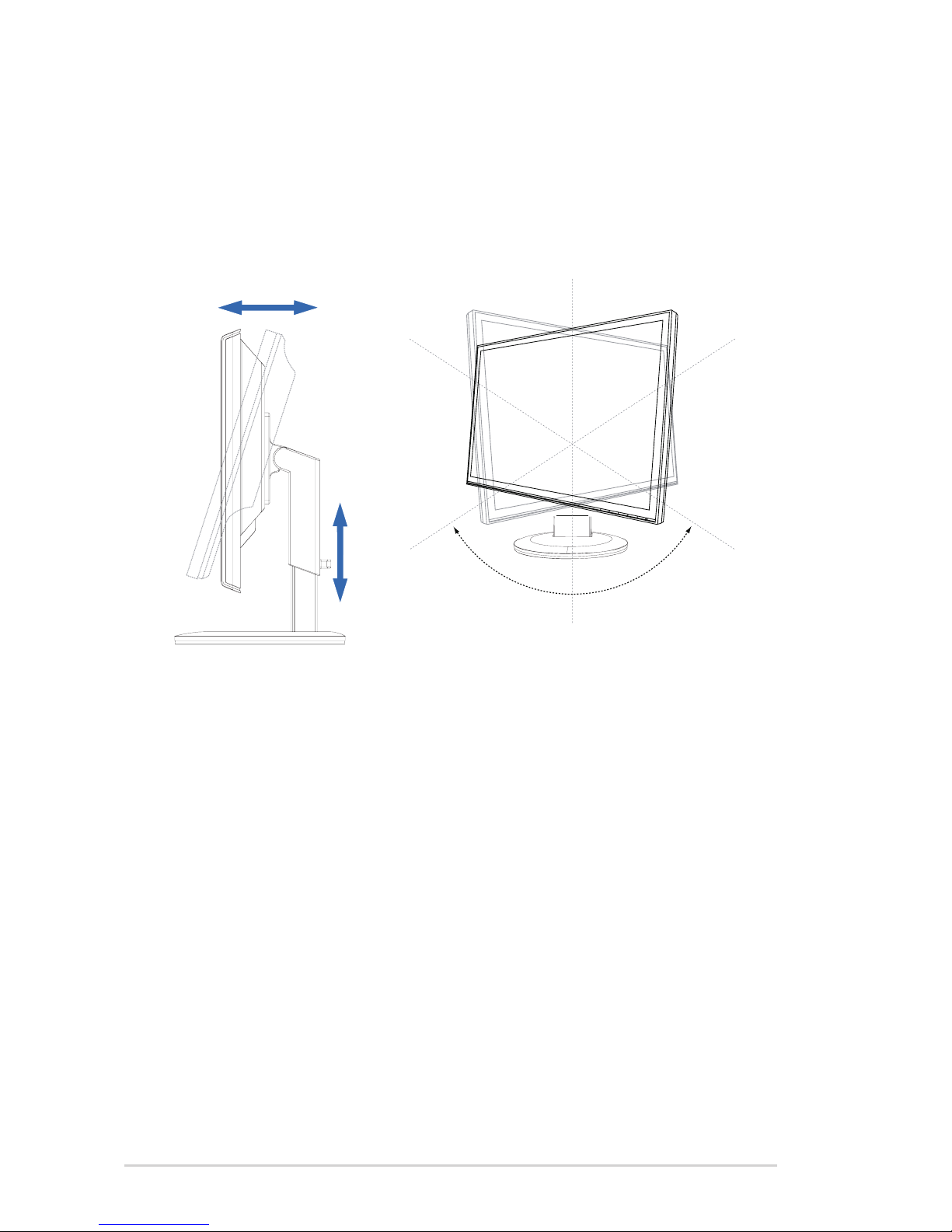
• Foroptimalviewing,werecommendthatyoulookatthefullfaceofthe
monitor,thenadjustthemonitortotheanglethatismostcomfortableforyou.
• Holdthestandtopreventthemonitorfromfallingwhenyouchangeitsangle.
• Youcantiltthemonitor’sfrom-5°to 15°,swivelfromleft-to-rightfor150°,and
lift the monitor’s height for about 100mm.
•
-5°~15°
100mm
150° 150°
0°
1-3ASUSVG236SeriesLCDMonitor
1.4 Connect cables
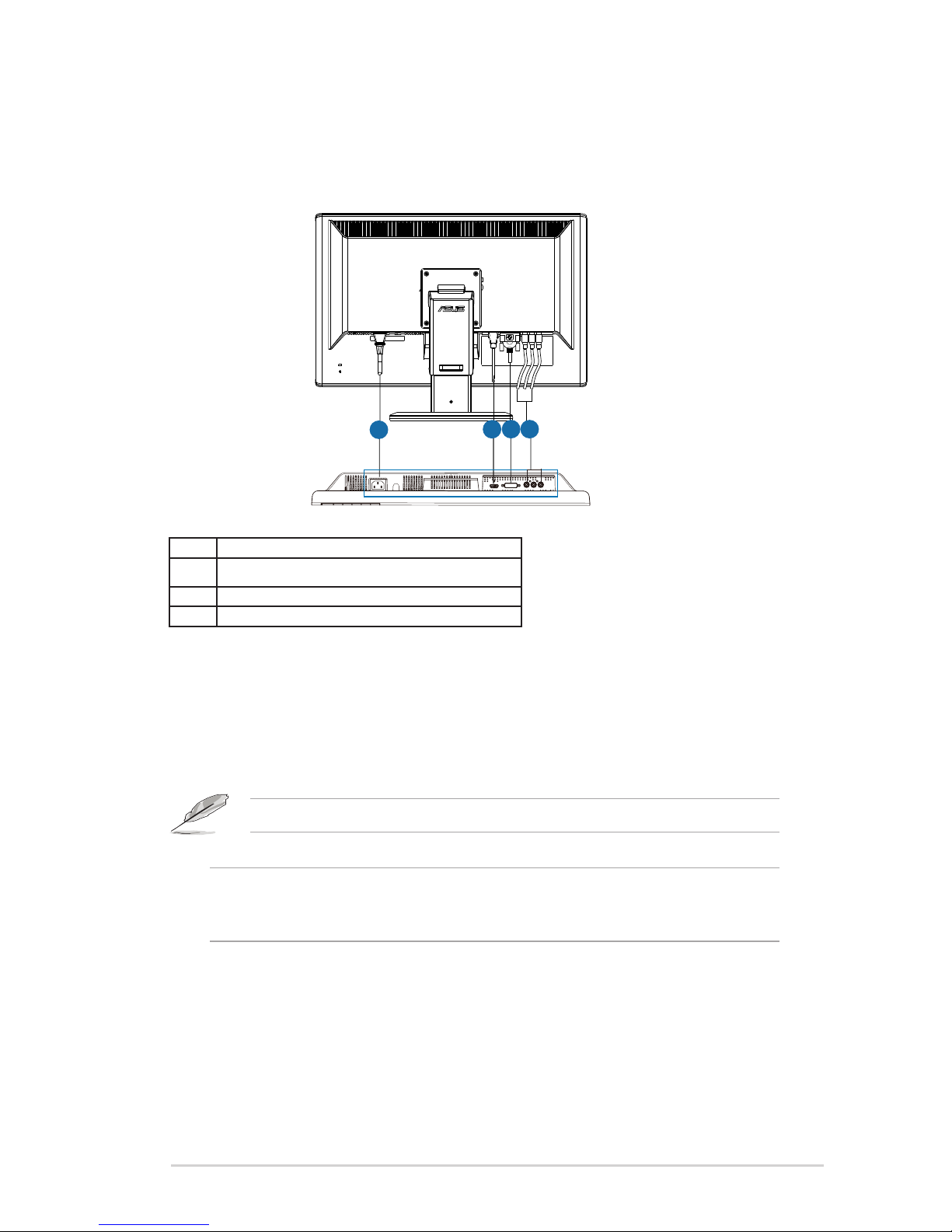
Connectcableswhichyouneed
1.4.1 Rear of the LCD monitor
1
11
21
31
4
1AC-INport
2HDMI-INport
3 DVIport(supportNVIDIA®3DVision™)
4YPbPrport
1.4.2 To connect the Dual-link DVI cable
ConnectoneendoftheDual-linkDVIcabletotheDVIportofthemonitor
andtheotherendtotheDVIportofacomputer.Youcanusethiscableonly
ifyourcomputerhasaDual-linkDVIcompliancegraphicscardthatiseither
integrated or installed.
The3Dfeatureisonlysupportedwiththemonitor’sDVIport.
Notice:Tosupport3DVision,pleasemakesurethebundledDual-linkDVIcableis
properlyconnectedthemonitoranda3DVisioncompatiblegraphicscard.The3D
featureisnotsupportedwithHDMIorYPbPrconnection.

1-4 Chapter 1: Product introduction
1.5 Monitor introduction
1.5.1 Front of the LCD monitor
1234567
1. Button:
• UsethisSplendid™hotkeytoswitchfromvevideopresetmodes
(GameMode,NightViewMode,SceneryMode,StandardMode,
TheaterMode)withSPLENDID™VideoIntelligenceTechnology.
• ExittheOSDmenuorgobacktothepreviousmenuastheOSDmenu
is active.
2.
Button:
• Press this button to decrease the value of the function selected or move
tothenextfunction.
• ThisisalsoahotkeyforContrastadjustment.
3. MENUButton:
• Pressthisbuttontoenter/selecttheicon(function)highlightedwhilethe
OSDmenuisactivated.
4. Button:
• Press this button to increase the value of the function selected or move
to the previous function.
• ThisisalsoahotkeyforBrightnessadjustment.
5. InputSelectButton
• UsethishotkeytoswitchfromDVI,HDMIandYPbPrinputsignals.
6. Power button
• Pressthisbuttontoturnthemonitoron/off.
This manual suits for next models
2
Table of contents
Other Asus Monitor manuals

Asus
Asus VA279HAL User manual

Asus
Asus BE24W User manual

Asus
Asus PA148CTV Series User manual

Asus
Asus VH222 User manual

Asus
Asus ROG STRIX XG16AHP User manual

Asus
Asus VA321H User manual

Asus
Asus MB16AHT User manual

Asus
Asus VS247H-P User manual

Asus
Asus VA246 Series User manual

Asus
Asus VG279QL3A Series User manual

Asus
Asus VZ249HEG1R User manual

Asus
Asus VG27AQM1A Series User manual

Asus
Asus VA24DQSB User manual

Asus
Asus MG248 series User manual

Asus
Asus VA229NR User manual

Asus
Asus VK192S User manual

Asus
Asus VS24AH User manual

Asus
Asus SP1920 series User manual

Asus
Asus VX229 Series User manual

Asus
Asus LS221H User manual







