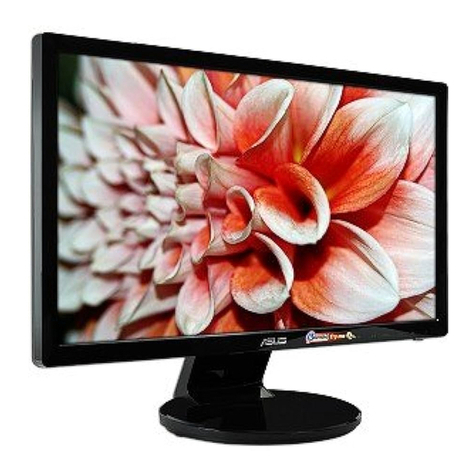
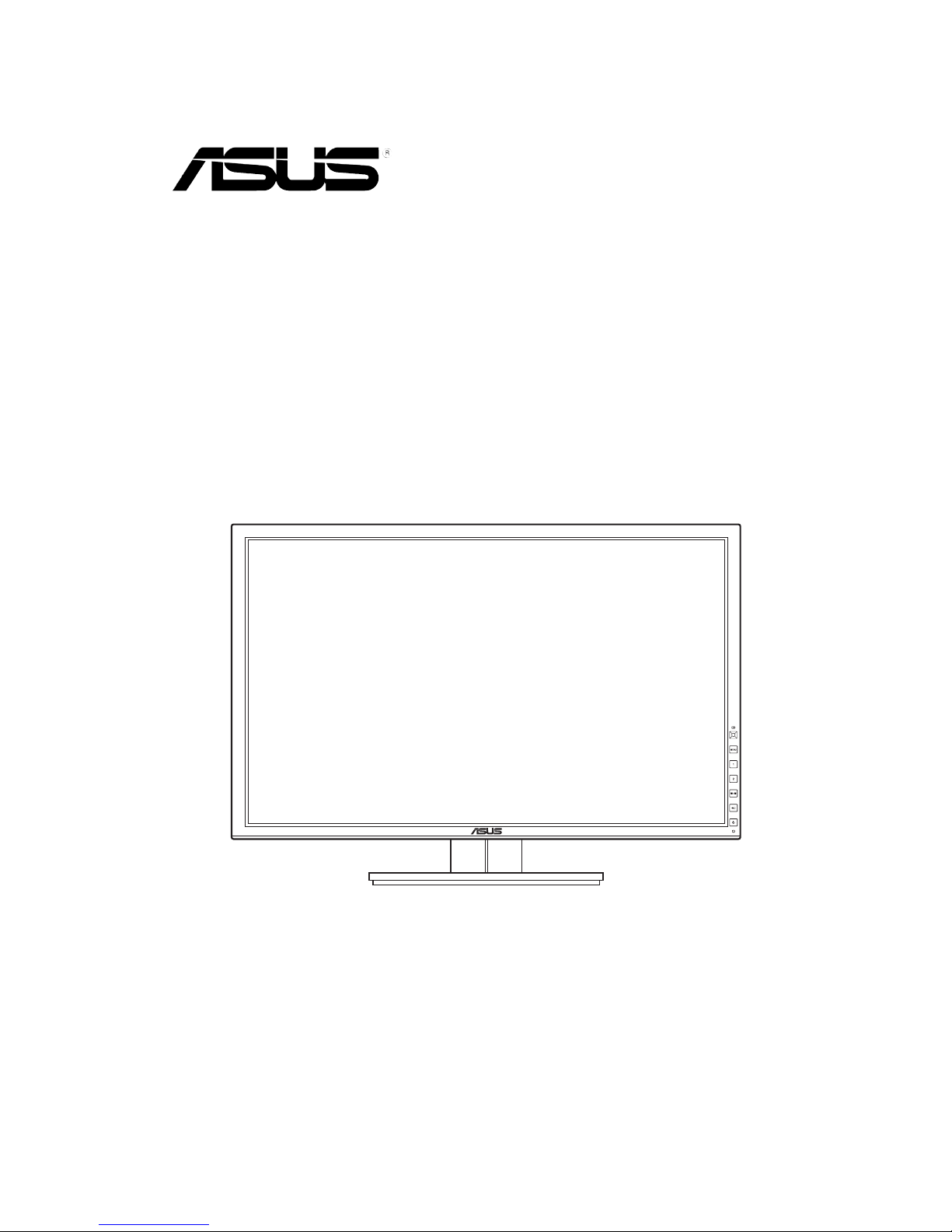
Asus PA248Q User manual

PA248 Series
LCD Monitor
User Guide

ii
Contents
Contents ....................................................................................................... ii
Notices......................................................................................................... iii
Safety information ...................................................................................... iv
Care & Cleaning........................................................................................... v
Chapter 1: Product introduction
1.1 Welcome! .................................................................................... 1-1
1.2 Package contents......................................................................... 1-1
1.3 Monitor introduction .................................................................... 1-2
1.3.1 Front view ....................................................................... 1-2
1.3.2 Back view........................................................................ 1-3
1.3.3 QuickFit Function ............................................................ 1-4
Chapter 2: Setup
2.1 Detaching the arm/base (for VESA wall mount)........................ 2-1
2.2 Adjusting the monitor.................................................................. 2-2
2.3 Connecting the cables................................................................. 2-3
2.4 Turning on the monitor................................................................ 2-3
Chapter 3: General instructions
3.1 OSD (On-Screen Display) menu ................................................ 3-1
3.1.1 Howtorecongure.......................................................... 3-1
3.1.2 OSD function introduction ............................................... 3-1
3.2 Specicationssummary(PA248Q)............................................. 3-7
3.4 Supported operating modes ....................................................... 3-9

iii
Notices
Federal Communications Commission Statement
This device complies with Part 15 of the FCC Rules. Operation is subject
tothefollowingtwoconditions:
• Thisdevicemaynotcauseharmfulinterference,and
• Thisdevicemustacceptanyinterference received including interference that
maycauseundesiredoperation.
Thisequipmenthasbeentestedandfoundtocomplywiththelimitsfora
ClassBdigitaldevice,pursuanttoPart15oftheFCCRules.Theselimits
aredesignedtoprovidereasonableprotectionagainstharmfulinterference
inaresidentialinstallation.Thisequipmentgenerates,usesandcan
radiateradiofrequencyenergyand,ifnotinstalledandusedinaccordance
withmanufacturer’sinstructions,maycauseharmfulinterferencetoradio
communications.However,thereisnoguaranteethatinterferencewill
not occur in a particular installation. If this equipment does cause harmful
interferencetoradioortelevisionreception,whichcanbedeterminedby
turningtheequipmentoffandon,theuserisencouragedtotrytocorrect
theinterferencebyoneormoreofthefollowingmeasures:
• Reorientorrelocatethereceivingantenna.
• Increasetheseparationbetweentheequipmentandreceiver.
• Connecttheequipmenttoanoutletonacircuitdifferentfromthattowhichthe
receiver is connected.
• Consultthedealeroranexperiencedradio/TVtechnicianforhelp.
Theuseofshieldedcablesforconnectionofthemonitortothegraphicscardis
requiredtoassurecompliancewithFCCregulations.Changesormodications
tothisunitnotexpresslyapprovedbythepartyresponsibleforcompliancecould
voidtheuser’sauthoritytooperatethisequipment.
As an Energy Star® Partner, our company has determined that this
productmeetstheEnergyStar® guidelinesforenergyefciency.
Canadian Department of Communications Statement
ThisdigitalapparatusdoesnotexceedtheClassBlimitsforradio
noiseemissionsfromdigitalapparatussetoutintheRadioInterference
RegulationsoftheCanadianDepartmentofCommunications.
ThisclassBdigitalapparatuscomplieswithCanadianICES-003.
ThisClassBdigitalapparatusmeetsallrequirementsoftheCanadian
Interference-CausingEquipmentRegulations.
CetappareilnumériquedelaclasseBrespectetouteslesexigencesdu
RéglementsurlematérielbrouillerduCanada.

iv
Safety information
• Beforesettingupthe monitor,carefullyreadallthedocumentationthat came
withthepackage.
• Topreventreorshockhazard,neverexposethemonitortorainormoisture.
• Nevertrytoopenthemonitorcabinet.Thedangeroushighvoltagesinsidethe
monitormayresultinseriousphysicalinjury.
• Ifthepowersupplyisbroken,donottrytoxitbyyourself.Contactaqualied
servicetechnicianoryourretailer.
• Beforeusingtheproduct,makesureallcablesarecorrectlyconnectedandthe
powercablesarenotdamaged.Ifyoudetectanydamage,contactyourdealer
immediately.
• Slotsandopeningsonthebackortopofthecabinetareprovidedfor
ventilation.Donotblockthese slots. Never place thisproductnearorovera
radiator or heat source unless proper ventilation is provided.
• Themonitorshouldbeoperatedonlyfromthetypeofpowersourceindicated
on the label. If you are not sure of the type of power supply to your home,
consultyourdealerorlocalpowercompany.
• Usetheappropriatepowerplugwhichcomplieswithyourlocalpowerstandard.
• Donotoverloadpowerstripsandextentioncords.Overloadingcanresultinre
or electric shock.
• Avoiddust,humidity,andtemperature extremes. Do not place the monitor in
anyareawhereitmaybecomewet.Placethemonitoronastablesurface.
• Unplugtheunitduringalightningstormorifitwillnotbeusedforalongperiod
oftime.Thiswillprotectthemonitorfromdamageduetopowersurges.
• Neverpushobjectsor spillliquidofany kindintotheslots onthemonitor
cabinet.
• To ensure satisfactory operation, use the monitor only with UL listed
computers which have appropriate configured receptacles marked between
100-240VAC.
• Ifyouencountertechnicalproblemswiththemonitor,contactaqualified
servicetechnicianoryourretailer.
Thissymbolofthecrossedoutwheeledbinindicatesthattheproduct(electrical,
electronic equipment, and mercury-containing button cell battery) should not
be placed in municipal waste. Please check local regulationsfor disposal of
electronic products.

v
Care & Cleaning
• Beforeyou liftorrepositionyourmonitor, itisbettertodisconnectthecables
and powercord.Followthecorrectliftingtechniqueswhenpositioningthe
monitor.Whenliftingorcarryingthemonitor,grasptheedgesofthemonitor.
Donotliftthedisplaybythestandorthecord.
• Cleaning.Turnyourmonitoroffandunplugthepowercord.Cleanthemonitor
surface with a lint-free, non-abrasive cloth. Stubborn stains may be removed
with a cloth dampened with mild cleaner.
• Avoidusinga cleaner containing alcohol or acetone. Use a cleanerintended
forusewiththemonitor.Neverspraycleanerdirectlyonthescreen,asitmay
drip inside the monitor and cause an electric shock.
The following symptoms are normal with the monitor:
• Thescreenmayickerduringtheinitialuseduetothenatureoftheuorescent
light. Turn off the Power Switch and turn it on again to make sure that the
ickerdisappears.
• Youmayfindslightlyunevenbrightnessonthescreendependingonthe
desktoppatternyouuse.
• When the same image is displayed for hours, an afterimage of the previous
screenmayremainafterswitchingtheimage.Thescreenwillrecoverslowlyor
youcanturnoffthePowerSwitchforhours.
• Whenthescreenbecomesblackorashes,orcannotworkanymore,contact
yourdealerorservicecentertoxit.Donotrepairthescreenbyyourself!
Conventions used in this guide
WARNING:Informationtopreventinjurytoyourselfwhentryingto
complete a task.
CAUTION:Informationtopreventdamagetothecomponentswhentrying
to complete a task.
IMPORTANT:InformationthatyouMUSTfollowtocompleteatask.
NOTE:Tipsandadditionalinformationtoaidincompletingatask.

vi
Wheretondmoreinformation
Refertothefollowingsourcesforadditionalinformationandforproductand
software updates.
1. ASUS websites
The ASUS websites worldwide provide updated information on ASUS
hardwareandsoftwareproducts.Refertohttp://www.asus.com
2. Optional documentation
Your product package may include optional documentation that may have
been added by your dealer. These documents are not part of the standard
package.

1-1ASUSPA248SeriesLCDMonitor
1.1 Welcome!
ThankyouforpurchasingtheASUS®LCDmonitor!
The latest widescreen LCD monitor from ASUS provides a crisper, broader, and
brighterdisplay,plusahostoffeaturesthatenhanceyourviewingexperience.
With these features, you can enjoy the convenience and delightful visual
experiencethatthemonitorbringstoyou!
1.2 Package contents
Checkyourpackageforthefollowingitems:
LCDmonitor
Quickstartguide
Warrantycard
Power cord
VGAcable
DVIcable
DisplayPortcable
USB3.0cable
Support CD
Cable tie
ColorCalibrationTestingReport
Ifanyoftheaboveitemsisdamagedormissing,contactyourretailer
immediately.

1-2 Chapter1:Productintroduction
1.3 Monitor introduction
1.3.1 Front view
6
2
7
1
4
5
3
1. QuickFitbutton:
• ActivatestheQuickFitfunctiondesignedforalignment.
• TheQuickFitfunctioncontains7pagesofcommongridpatternsandpaper
andphotosizes.(Pleasereferto1.3.3QuickFitFunction).
• Enacts the selected OSD menu item.
• Increases/Decreasesvaluesormovesyourselectionup/down/left/right.
2. MENUbutton:
• Turns on the OSD menu.
• ExitstheOSDmenuorgoesbacktothepreviousmenuwhentheOSD
menu is active.
• ExitstheQuickFitpatterns.
The OSD menu is not available when the QuickFit function is in use.
3. Shortcut
• Default:Brightnesshotkey

1-3ASUSPA248SeriesLCDMonitor
• Tochangethehotkeyfunction,gototheShortcut>Shortcut1menu.
4. Shortcut
• Default:Contrasthotkey
• Tochangethehotkeyfunction,gototheShortcut>Shortcut2menu.
5. button:
• Selects a desired preset mode.
• Automaticallyadjuststheimagetoitsoptimizedposition,clock,andphase
bypressingthisbuttonfor2-4seconds(forVGAmodeonly).
6. button:
• Selects an available input source.
Press button(InputSelectbutton)todisplayHDMI/DisplayPort
signalsafteryouconnectHDMI/DisplayPortcablewiththemonitor.
7. Powerbutton/powerindicator
• Turnsthemonitoron/off.
• Thecolordenitionofthepowerindicatorisasthebelowtable.
Status Description
White On
Orange Standbymode
Off Off
1.3.2 Back view
123 4 5 6 7 8 9
10
Rear connectors
1. Power switch.Presstheswitchtoturnon/offpower.

1-4 Chapter1:Productintroduction
2. AC-IN port. This port connects the power cord.
3. DisplayPort.ThisportisforconnectionforaDisplayPortcompatibledevice.
4. HDMI port. This port is for connection with an HDMI compatible device.
5. DVI port.This24-pinportisforPC(PersonalComputer)DVI-Ddigitalsignal
connection.
6. VGA port.This15-pinportisforPCVGAconnection.
7. Earphone jack.
8. USB 3.0 upstream port.ThisportisforconnectionwithaUSBupstreamcable.
TheconnectionenablestheUSBportsonthemonitor.
9. Kensington lock slot.
10. USB 3.0 downstream ports.TheseportsareforconnectionwithUSBdevices,
suchasUSBkeyboard/mouse,USBashdrive,etc.
1.3.3 QuickFitFunction
TheQuickFitfunctioncontainsthreekindsofpatterns:(1)Gridpatterns(2)Paper
size(3)Photosize.Toactivatethepatterns,presstheQuickFitbutton.Pressthe
buttonagainuntiladesiredpatternisselected.Youcanmovethebuttonup/down/
left/righttochangethepattern’spositionifneeded.Notethatallthepatternscan
bemovedleft/rightaccrodingtoyourneed,butmayhavelimitedrangeformoving
up/down.
1. Gridpatterns
Thegridpatternsfacilitatedesignersanduserstoorganizecontentandlayoutona
pageandachieveaconsistentlookandfeel.
Centimeters Inches
Other manuals for PA248Q
1
This manual suits for next models
2
Table of contents
Other Asus Monitor manuals

Asus
Asus ROG STRIX XG16AHP User manual

Asus
Asus VC239H User manual

Asus
Asus VG279QM1A Series User manual

Asus
Asus VG249Q1A User manual

Asus
Asus VA27E Series User manual

Asus
Asus VS208 Series User manual

Asus
Asus PA247CV Series User manual

Asus
Asus SP1920 series User manual

Asus
Asus VS197D-P User manual

Asus
Asus PG221H User manual

Asus
Asus ROG STRIX XG43VQ User manual

Asus
Asus ML249 Series User manual

Asus
Asus VG255 Series User manual

Asus
Asus MB16ACM User manual

Asus
Asus PT201 series User guide

Asus
Asus PA169CDV User manual

Asus
Asus VE247H User manual

Asus
Asus BE279QSKY Series User manual

Asus
Asus VE228TL Series User manual

Asus
Asus MM17D User manual