Asus Eee PC 1005HR User manual

Notebook PC User Manual
December 2009
E5094

2
Notebook PC User Manual
Table of Contents
Safety Precautions ............................................................................................. 3
Preparing your Notebook PC......................................................................... 5
Using the Touchpad .......................................................................................... 7
Knowing the Parts.............................................................................................. 8
Right Side ............................................................................................................ 8
Left Side .............................................................................................................10
Rear Side ............................................................................................................12
Front Side ..........................................................................................................13
Recovering Your Notebook PC ....................................................................14
Using Recovery Partition ............................................................................14
Using Recovery DVD (on selected models)...........................................15
Declarations and Safety Statements .........................................................17
Federal Communications Commission Statement.............................17
FCC Radio Frequency (RF) Exposure Caution Statement.................18
Declaration of Conformity(R&TTE directive 1999/5/EC)...................18
CE Marking........................................................................................................19
IC Radiation Exposure Statement for Canada ......................................19
Wireless Operation Channel for Different Domains...........................20
France Restricted Wireless Frequency Bands .......................................20
UL Safety Notices............................................................................................22
Power Safety Requirement .........................................................................23
TV Tuner Notices.............................................................................................23
REACH .............................................................................................................23
Nordic Lithium Cautions (for lithium-ion batteries)...........................24

Notebook PC User Manual
3
Safety Precautions
The following safety precautions will increase the life of the
Notebook PC. Follow all precautions and instructions. Except as
described in this manual, refer all servicing to qualified personnel.
Battery safety warning:
DO NOT throw the
battery in fire. DO NOT
short circuit the contacts.
DO NOT disassemble the
battery.
DO NOT leave the
Notebook PC on your lap
or any part of the body
to prevent discomfort
or injury from heat
exposure.
DO NOT expose to dirty
or dusty environments.
DO NOT operate during a
gas leak.
DO NOT expose to
strong magnetic or
electrical fields.
DO NOT expose to or
use near liquids, rain,
or moisture. DO NOT
use the modem during
electrical storms.
DO NOT press or touch
the display panel. Do not
place together with small
items that may scratch or
enter the Notebook PC.
DO NOT place on
uneven or unstable work
surfaces. Seek servicing
if the casing has been
damaged.
DO NOT place or drop
objects on top and
do not shove any
foreign objects into the
Notebook PC.
Disconnect the AC power and remove the battery pack(s) before
cleaning.Wipe the Notebook PC using a clean cellulose sponge
or chamois cloth dampened with a solution of nonabrasive
detergent and a few drops of warm water and remove any extra
moisture with a dry cloth.

4
Notebook PC User Manual
SAFE TEMP:This
Notebook PC should
only be used in
environments with
ambient temperatures
between 10°C (50°F) and
35°C (95°F).
DO NOT carry or cover
a Notebook PC that
is powered ON with
any materials that will
reduce air circulation
such as a carrying bag.
DO NOT throw the Notebook PC in municipal waste.This
product has been designed to enable proper reuse of parts
and recycling.The symbol of the crossed out wheeled bin
indicates that the product (electrical, electronic equipment
and mercury-containing button cell battery) should not
be placed in municipal waste. Check local regulations for
disposal of electronic products.
DO NOT throw the battery in municipal waste.The symbol
of the crossed out wheeled bin indicates that the battery
should not be placed in municipal waste.
INPUT RATING: Refer to
the rating label on the
bottom of the Notebook
PC and be sure that your
power adapter complies
with the rating.
Incorrect installation
of battery may cause
explosion and damage
the Notebook PC.
DO NOT use damaged
power cords, accessories,
or other peripherals.
DO NOT use strong
solvents such as
thinners, benzene, or
other chemicals on or
near the surface.

Notebook PC User Manual
5
Preparing your Notebook PC
These are quick instructions for using your Notebook PC.
Installing the Battery Pack
Connecting the Power Adapter
3
2
1
HDMI
1
2
3
110V-220V

6
Notebook PC User Manual
Opening the LCD display panel
1. Carefully lift up the display panel with your thumb.
2. Slowly tilt the display panel forward or backward to a
comfortable viewing angle.
Turning on the Power
1. Push and release the power button located beneath the LCD
display panel.
2. Use [Fn]+[F5] or [Fn]+[F6] to adjust the LCD brightness.

Notebook PC User Manual
7
C
A
A. Slide your finger across the touchpad to move the pointer.You
can also hold the left button and slide your finger to drag the
selected item.
B. Use the left and right buttons like a standard mouse.
C. Slide your finger up or down on the right side to scroll up or
down a window.
Using the Touchpad
Left button
Right button
B
Left button
Right button

8
Notebook PC User Manual
Knowing the Parts
Right Side
1
2
HDMI
1 3 4 52
Flash Memory Slot
Normally an external memory card reader must be
purchased separately in order to use memory cards from
devices such as digital cameras, MP3 players, mobile
phones, and PDAs.This Notebook PC has a built-in high-
speed memory card reader that can conveniently read from
and write to many flash memory cards.
USB Port (2.0)
The USB (Universal Serial Bus) port is compatible with USB
2.0 or USB 1.1 devices such as keyboards, pointing devices,
cameras, hard disk drives, printers, and scanners connected
in a series up to 12Mbits/sec (USB 1.1) and 480Mbits/sec
(USB 2.0). USB allows many devices to run simultaneously
on a single computer, with some peripherals acting as
additional plug-in sites or hubs.USB supports hot-swapping
of devices so that most peripherals can be connected or
disconnected without restarting the computer.
Notebook PC User Manual
9
3
4
5
HDMI
HDMI Port (on selected models)
HDMI (High-Definition Multimedia Interface) is an
uncompressed all-digital audio/video interface between
any audio/video source, such as a set-top box, DVD player,
and A/V receiver and an audio and/or video monitor, such
as a digital television (DTV). Supports standard, enhanced,
or high-definition video, plus multi-channel digital audio
on a single cable. It transmits all ATSC HDTV standards and
supports 8-channel digital audio, with bandwidth to spare
to accommodate future enhancements or requirements.
Display (Monitor) Output
The 15-pin D-sub monitor port supports a standard VGA-
compatible device such as a monitor or projector to allow
viewing on a larger external display.
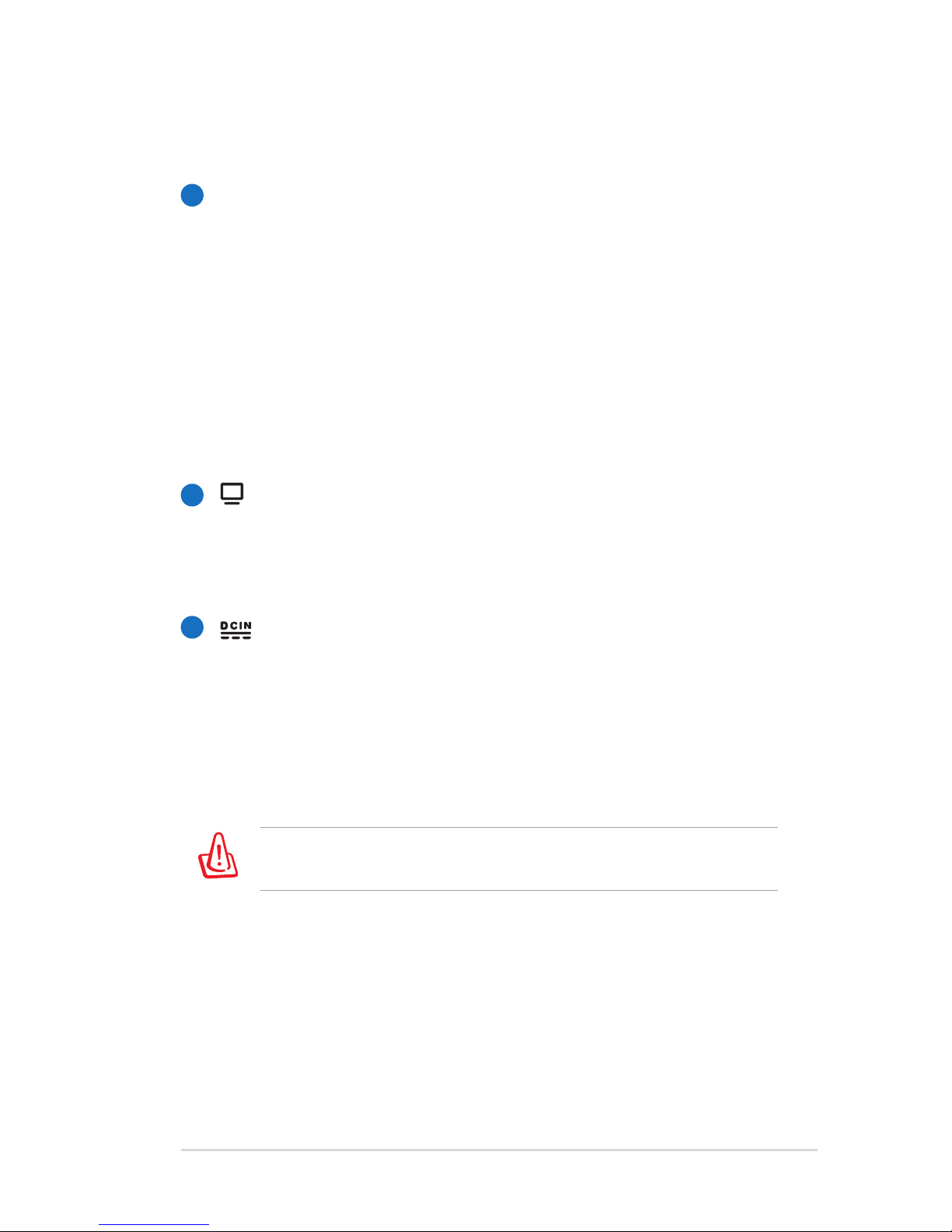
Power (DC) Input
The supplied power adapter converts AC power to DC
power for use with this jack. Power supplied through this
jack supplies power to the Notebook PC and charges the
internal battery pack.To prevent damage to the Notebook
PC and battery pack, always use the supplied power
adapter.
The adapter may become warm to hot when in use. Ensure not
to cover the adapter and keep it away from your body.

10
Notebook PC User Manual
Left Side
1
2
3
LAN Port
The RJ-45 LAN port with eight pins is larger than the RJ-11
modem port and supports a standard Ethernet cable for
connection to a local network.The built-in connector allows
convenient use without additional adapters.
USB Port (2.0)
The USB (Universal Serial Bus) port is compatible with USB
2.0 or USB 1.1 devices such as keyboards, pointing devices,
cameras, hard disk drives, printers, and scanners connected
in a series up to 12Mbits/sec (USB 1.1) and 480Mbits/sec
(USB 2.0). USB allows many devices to run simultaneously
on a single computer, with some peripherals acting as
additional plug-in sites or hubs.USB supports hot-swapping
of devices so that most peripherals can be connected or
disconnected without restarting the computer.
Optical Drive
The Notebook PC comes in various models with different
optical drives.The Notebook PC’s optical drive may support
compact discs (CD) and/or digital video discs (DVD) and
may have recordable (R) or re-writable (RW) capabilities.
See the marketing specifications for details on each model.
1 2 3 4 52 6 7
This manual suits for next models
26
Table of contents
Other Asus Laptop manuals

Asus
Asus Eee PC 1000HAE User manual

Asus
Asus N82JG User manual

Asus
Asus R403C User manual

Asus
Asus REPUBLIC OF GAMERS G Series Guide

Asus
Asus W90V Instructions for use

Asus
Asus F415JA-EK398T Guide

Asus
Asus ZENBOOK UX32VD User manual

Asus
Asus P55VA User manual

Asus
Asus E3179 User manual

Asus
Asus Z62F User manual