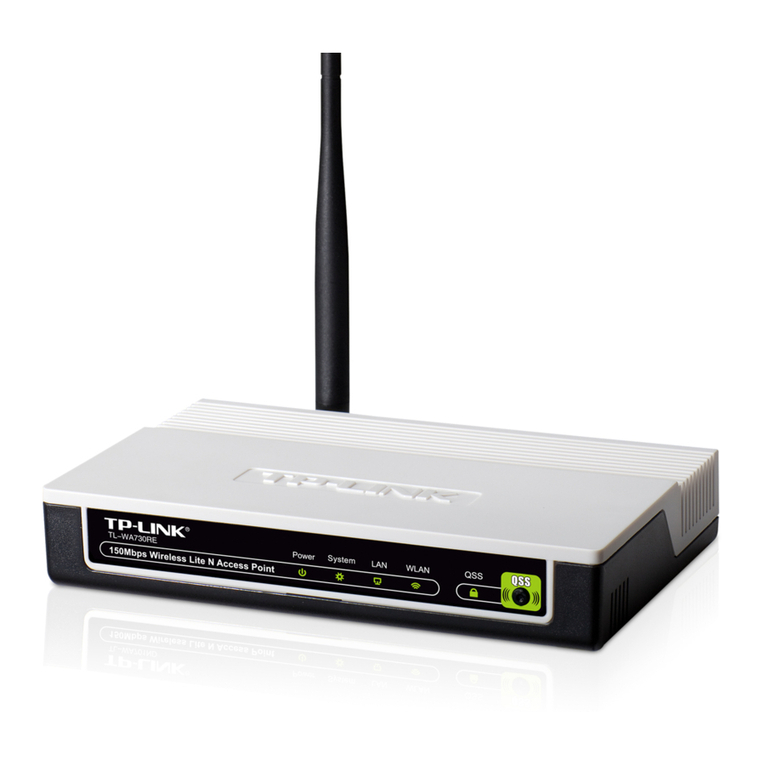
Asus rp-n14 User manual

Quick Start Guide
RP-N14
Wireless-N300 Range Extender
®
NA8662_RP-N14_QSG.indb 1 26/09/13 14:18:52

WEU8662 / First Edition / Sept. 2013
English................................................................................................................................ 3
French................................................................................................................................. 11
Italian .................................................................................................................................. 20
Germany............................................................................................................................ 29
Danish................................................................................................................................. 39
Dutch .................................................................................................................................. 48
Finish................................................................................................................................... 57
Greek................................................................................................................................... 66
Norwegian ........................................................................................................................ 75
Portuguese ....................................................................................................................... 84
Spanish............................................................................................................................... 93
Swedish.............................................................................................................................. 102
NA8662_RP-N14_QSG.indb 2 26/09/13 14:18:53

English
3
Package contents
Range Extender Quick Start Guide
NOTE: If any of the items is damaged or missing, please contact your retailer.
A quick look
1) Ethernet port
2) Audio port
3) Reset button
4) Power On/O button
5) WPS button
6) Night light
NA8662_RP-N14_QSG.indb 3 26/09/13 14:18:54

English
4
7) Touch controller
Touch the marked area to turn on/o the night light by
default. You can log into the Range Extender’s Web GUI
to change the settings.
8) LED indicators
• System Indicator: The System Indicator lights up when
the Range Extender is powered on and ashes when
the Ethernet cable or audio cable is conected.
• Signal indicators: The lights indicate the connection
signal strength from the Range Extender to the router.
Indicators Performance
Excellent
Good
Poor
No connection
Signal
indicators Signal
indicators
System Indicator
NA8662_RP-N14_QSG.indb 4 26/09/13 14:18:55

English
5
Turning the Range Extender on
1. Place the Range Extender near your Router.
2. Plug the Range Extender into a power outlet, wait one
minute for the system indicator to ash twice and turn into solid blue.
Connecting to a network
Select one of the following ways to connect the Range Extender to a network.
Option A: Connecting through GUI
1. Use a computer/notebook/tablet PC to nd and connect to ASUS_RPN14 wireless network.
2. Launch a web browser and enter http://repeater.asus.com or 192.168.1.1 in the address bar to access
the Range Extende0r.
3. Enter the default login name and password, which are admin/admin.
4. Follow the Quick Install Setup steps below to set up the Range Extender:
• Select the Wi-Fi network that you want to extend and enter its security password.
Setting up the Range Extender
NA8662_RP-N14_QSG.indb 5 26/09/13 14:18:56

English
6
• Connect your wireless devices to the new Extender
network.
• Enter a name for the new Extender
network.
Option B: Using WPS (Wi-Fi Protected Setup)
1. Press the WPS button on the side of the Range Extender for more than two seconds, until the system
indicator ashes.
2. Press the WPS button on the router within two minutes.
NOTE: Refer to the router’s manual for the location of the WPS button.
3. Check if the Range Extender’s system indicator turns
into solid blue, which indicates that the Range Extender
has connected to the wireless network successfully. The
Range Extender’s wireless network name (SSID) changes
to your existing Wi-Fi network name, ending with _RPT.
For example:
Existing network name: existing NetworkName
New network name: existing NetworkName_RPT
NA8662_RP-N14_QSG.indb 6 26/09/13 14:18:57

English
7
Signal Indicators
• To get the best performance, place the Range Extender between your router and wireless device.
• The signal indicators indicate the connection performance from the Range Extender to the Router.
Refer to the LED indicators in section A Quick Look.
• If no signal indicator lights up, search the network again in Option A or make sure that your router
supports WPS in Option B.
To connect an additional Wi-Fi device to your Extender network, use the same network password as that
of your existing wireless router.
Move the Range Extender
When the connection is complete, locate the Range Extender be-
tween the router and the wireless device to get better performance.
NOTE: To get the best connection performance, ensure that at least two signal indicators light up.
Wireless Media Playback
The Range Extender supports wireless media playback, which allows you to
stream and play your network music through its audio port. You can use ASUS
AiPlayer app to control the music streaming over the Range Extender from your
mobile device. Search for “RP-N14”or “ASUS AiPlayer” from Google Play or App
Store and download the app to your mobile device.
NOTES:
• AiPlayer supports mp3, wav., ac, and acc les.
• You can insert an earphone, powered speaker, or stereo system to the 3.5mm stereo audio port.
NA8662_RP-N14_QSG.indb 7 26/09/13 14:18:58

English
8
Frequently Asked Questions
Q1: I cannot access the web GUI to congure the RP-N14
settings.
• Close all running web browsers and launch again.
• Follow the steps below to congure your computer settings based on its
operating system.
Windows 7
A. Disable the proxy server, if enabled.
1. Click Start > Internet Explorer to launch the web browser.
2. Click Tools > Internet options > Connections tab > LAN settings.
3. From the Local Area Network (LAN) Settings screen, untick Use a proxy
server for your LAN.
4. Click OK when done.
B. Set the TCP/IP settings to automatically obtain an IP address.
1. Click Start > Control Panel > Network and Internet > Network and
Sharing Center > Manage network connections.
2. Select Internet Protocol Version 4 (TCP/IPv4), then click Properties.
3. Tick Obtain an IP address automatically.
4. Click OK when done.
NA8662_RP-N14_QSG.indb 8 26/09/13 14:18:58

English
9
Mac 10.5.8
A. Disable the proxy server, if enabled.
1. From the menu bar, click Safari >
Preferences... > Advanced tab.
2. Click Change Settings... in the Proxies eld.
3. From the list of protocols, deselect FTP Proxy and Web Proxy
(HTTP).
4. Click OK when done.
B. Set the TCP/IP settings to automatically obtain an IP address.
1. Click the Apple icon > System Preferences > Network.
2. Select Ethernet and select Using DHCP in the Congure eld.
3. Click Apply when done.
Q2: Why doesn’t the touch controller work?
• Ensure that you touch the area correctly. Refer to A Quick Look for the location of the touch area.
NA8662_RP-N14_QSG.indb 9 26/09/13 14:18:59

English
10
Q3: My router security is WEP, and I entered a wrong passphrase or security key on
the extender. Now I cannot access the Extender any more. What can I do?
• The Range Extender cannot check whether the WEP passphrase is correct or not. When entered a
wrong passphrase, your wireless device cannot get the correct IP address from the Range Extender.
Please reset the Range Extender to its factory defaults to get the IP address back.
Q4: When I connect a speaker or stereo system to RP-N14, there is no sound coming
out when I play audio les.
• Make sure that you have not turned o the audio output via the touch controller. The touch control-
ler is set to turn on/o the night light and mute/unmute the audio by default. You can log into the
Range Extender’s Web GUI to change the settings.
Manufacturer ASUSTeK Computer Inc.
Tel: +886-2-2894-3447
Address: No. 150, LI-TE RD., PEITOU, TAIPEI 112, TAIWAN
Authorised
representative in
Europe
ASUS Computer GmbH
Address: HARKORT STR. 21-23, 40880 RATINGEN, GERMANY
Authorised
distributors in
Turkey
BOGAZICI BIL GISAYAR
SAN. VE TIC. A.S.
Tel: +90 212 3311000
Address: AYAZAGA MAH.
KEMERBURGAZ CAD.
NO.10 AYAZAGA/ISTANBUL
CIZGI Elektronik San. Tic. Ltd.
Sti.
Tel: +90 212 3567070
Address: CEMAL SURURI CD.
HALIM MERIC IS MERKEZI
No: 15/C D:5-6 34394
MECIDIYEKOY/ ISTANBUL
KOYUNCU ELEKTRONiK
BiLGi iSLEM SiST. SAN. VE
DIS TIC. A.S.
Tel: +90 216 5288888
Address: EMEK MAH.ORDU
CAD. NO:18, SARIGAZi,
SANCAKTEPE ISTANBUL
EEE Yönetmeliğine Uygundur.
NA8662_RP-N14_QSG.indb 10 26/09/13 14:19:00
Other manuals for rp-n14
2
Table of contents
Languages:
Other Asus Extender manuals