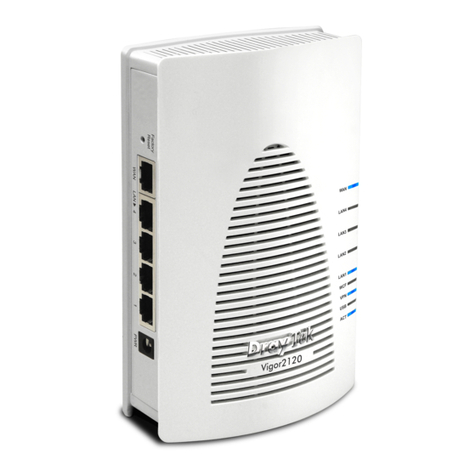
Askey SAX1V1K User manual

802.11ax Wave 2 Router
User Guide
-2020/5/21

1
Table of Contents
1 Hardware etup......................................................................................................2
1.1 Getting To Know Your WiFi Router ..............................................................2
1.2 Unpacking the WiFi Router’s Box .................................................................3
1.3 Hardware Features .........................................................................................4
1.3.1 Front Panel.....................................................................................................4
1.3.2 Rear Panel......................................................................................................5
1.4 Positioning Your WiFi Router ........................................................................ 6
2 ign-In Your WiFi Router Web GUI...................................................................... 8
2.1 ign-In ................................................................................................................8
2.2 Wizard etup .................................................................................................. 13
2.3 Basic etup...................................................................................................... 16
2.3.1 Router ..........................................................................................................16
2.3.3 LAN Setup...................................................................................................18
2.3.4 WAN Setup ................................................................................................. 20
2.3.5 Parental Control...........................................................................................21
2.3.6 System .........................................................................................................24
2.4 Advanced etup .............................................................................................26
2.4.1 Network .......................................................................................................26
2.4.2 Security........................................................................................................64
2.4.3 QoS ..............................................................................................................71
2.4.4 Admin .......................................................................................................... 78
2.4.5 Tools ............................................................................................................ 82
2.4.6 Status ........................................................................................................... 85
3 FCC tatement....................................................................................................... 93

2
1 Hardware etup
1.1 Getting To Know Your WiFi Router
This product is designed for the In-Home and Business WiFi services for pectrum
customers. With a custom industrial design, this WiFi Router can be placed in a central
location to deliver superior WiFi network coverage.
The WiFi Router provides:
1. High performance:
Qual-Core A53 up to 2.2G/2GB DDR RAM.
Dual-Band wireless up to AX3500 (2.4G 287M * 4 + 5G 600M * 4).
Three 1Gigabit LAN Port + One 2.5Gigabit WAN Port.
2. High security: Firewall/VPN supported.
3. Ease of setting up: Friendly wizard, visual setup & maintenance (Basic Mode),
complete functions (Advanced Mode).
The WiFi Router is an ideal choice for residential and MB ( mall Business) users who
can enjoy a variety of wireless applications and services.
This chapter contains the following contents:
Unpacking the WiFi Router’s Box
Hardware Features
Positioning Your WiFi Router

3
1.2 Unpacking the WiFi Router’s Box
Open the box and remove the WiFi Router, power adapter, Quick tart Guide, WiFi
Network Name and Password sticker, and Ethernet cable.
WiFi Router Power Adapter
Figure 1. Check the box contents
The box contains the following items:
WiFi Router
AC power adapter
Quick tart Guide
WiFi Network Name and Password ticker
Ethernet cable
If any items are missing or damaged, please contact Charter Communications. Please
keep the original packaging materials in case you need to return the product for
repairing.

4
1.3 Hardware Features
Before you cable your router, take a moment to become familiar with the front and
rear panels. Pay particular attention to the LEDs on the front panel.
1.3.1 Front Panel
The WiFi Router front and back panels feature the status LED and buttons as shown in
the following figures.
Figure 2. WiFi Router front view
Front panel LED status
Off Device off.
Blue Blinking with 600ms interval Booting up
Blue Breathing with 5s interval Connecting to the Internet

5
Blue Solid Connected to the Internet.
Red Breathing with 5s interval Connectivity issues (no Internet
connection).
Red and Blue cycle Updating firmware (or any
breathing with 2.5s interval scenario where device must not be
restarted).
Red Solid Critical issues (hardware or
otherwise).
1.3.2 Rear Panel
The Ethernet and buttons are shown in the following figure.
Figure 3. WiFi Router rear view
Factory Reset (Reset): Press and hold the Reset button for over 5 seconds, the

6
WiFi Router will reset to factory setting.
Ethernet (LAN) Port: Connect network cables into these ports to establish LAN
connection.
Internet (WAN) Port: Connect a network cable into this port to establish WAN
connection.
Power: Use the bundled AC adapter to connect your WiFi Router to a power
source.
1.4 Positioning Your WiFi Router
The WiFi Router lets you access your network from virtually anywhere within the
operating range of your wireless network. However, the wireless communicating
distance varies significantly due to placement of the WiFi Router. For example, the
thickness and number of walls the wireless signal passes through can affect and limit
the range. For best results, WiFi Router is likely to be placed as follow:
Near the center of the area where your computers and other devices operate, and
preferably within line of sight to your wireless devices.
Accessible to an AC power outlet and near Ethernet cables for wired computers.
In an elevated location such as a shelf, keeping the number of walls and ceilings
between the WiFi Router and your other devices to a minimum.
Away from electrical devices that are potential sources of interference. Equipment
that might cause interference includes ceiling fans, home security systems,
microwaves, computers, the base of a cordless phone, or a 2.4 GHz cordless

7
phone.
Away from any large metal surfaces, such as a solid metal door or aluminum studs.
Large expanses of other materials such as glass, insulated walls, fish tanks, mirrors,
brick and concrete can also affect your wireless signal.

8
2 ign-In Your WiFi Router Web GUI
The WiFi Router contains an intuitive graphical user interface (GUI) based on web,
which lets administrator easily configure its features through a web browser.
2.1 ign-In
1. Open a web browser, then key in the WiFi Router’s default IP address:

9
https: 192.168.1.1, and click Enter key in the keyboard;
2. On the sign in webpage, type in its Username and password: admin (admin), then
click Login button.
After administrator has logged in the WiFi Router, some quick setting information will
be displayed by the browser. You can quickly set up Wifi information.
Table of contents
Other Askey Wireless Router manuals