Arista C-130 User manual

Quick Sta Guide
C-1
3
0 Access Point
Arista Networks
DOC-03483-01

Headquarters Sales
Support

Contents
Chapter 1. About this Guide..................................................................................................................................................... 3
Chapter 2. Package Content......................................................................................................................................................4
Chapter 3. C-130 Overview.........................................................................................................................................................5
Front Panel of C-130............................................................................................................................................................5
Rear Panel of C-130............................................................................................................................................................. 5
Top Side Ports on C-130......................................................................................................................................................6
Chapter 4. Install the C-130......................................................................................................................................................8
Mount the C-130.................................................................................................................................................................... 8
Mounting Instructions using the Standard Package Contents....................................................................................... 8
Mounting Instructions using the Silhouette/Interlude Bracket Mount.......................................................................... 9
Mounting Instructions using the Wall Mount Bracket...............................................................................................10
Power on the C-130............................................................................................................................................................10
Using C-130 with Power Adapter.............................................................................................................................. 11
Connect C-130 to the Network...........................................................................................................................................11
Chapter 5. C-130 Troubleshooting...........................................................................................................................................12
Chapter 6. Appendix A: AP-Server Mutual Authentication................................................................................................13

Chapter 1. About this Guide
This installation guide explains how to deploy the C-130 access point (AP).
Important: Please read the EULA before installing C-130. You can download and read the EULA from https://
www.arista.com/en/support/product-documentation. Installing the AP constitutes your acceptance of the terms and
conditions of the EULA mentioned above in this document.
Installing the AP constitutes your acceptance of the terms and conditions of the EULA mentioned above in this document.
Intended Audience
This guide can be referred by anyone who wants to install and configure the C-130 access point.
Document Overview
This guide contains the following chapters:
•Package Content (page 4)
•C-130 Overview (page 5)
•Install the C-130 (page 8)
•C-130 Troubleshooting (page 12)
Note: All instances of the term 'server' in this document refer to the Wireless Manager, unless the server name or
type is explicitly stated.
Product and Documentation Updates
To receive important news on product updates, please visit our website at https://www.arista.com/en/support/product-
documentation . We continuously enhance our product documentation based on customer feedback.

Chapter 2. Package Content
The C-130 package must contain the following components:
Important: The MAC address of the device is printed on a label at the bottom of the product and the packaging
box. Note down the MAC address, before mounting the device on the ceiling or at a location that is difficult to access.
If the package is not complete, please contact Arista Networks Technical Support Team at [email protected], or return
the package to the vendor or dealer where you purchased the product.
Chapter 3. C-130 Overview
C-130 is a 4x4 802.11a/b/g/n/ac access point with three radios.
This chapter provides an overview of the C-130 and describes:
•Front Panel of C-130 (page 5)
•Rear Panel Ports on C-130 (page 5)
•Top Side Ports on C-130 (page 6)
Front Panel of C-130
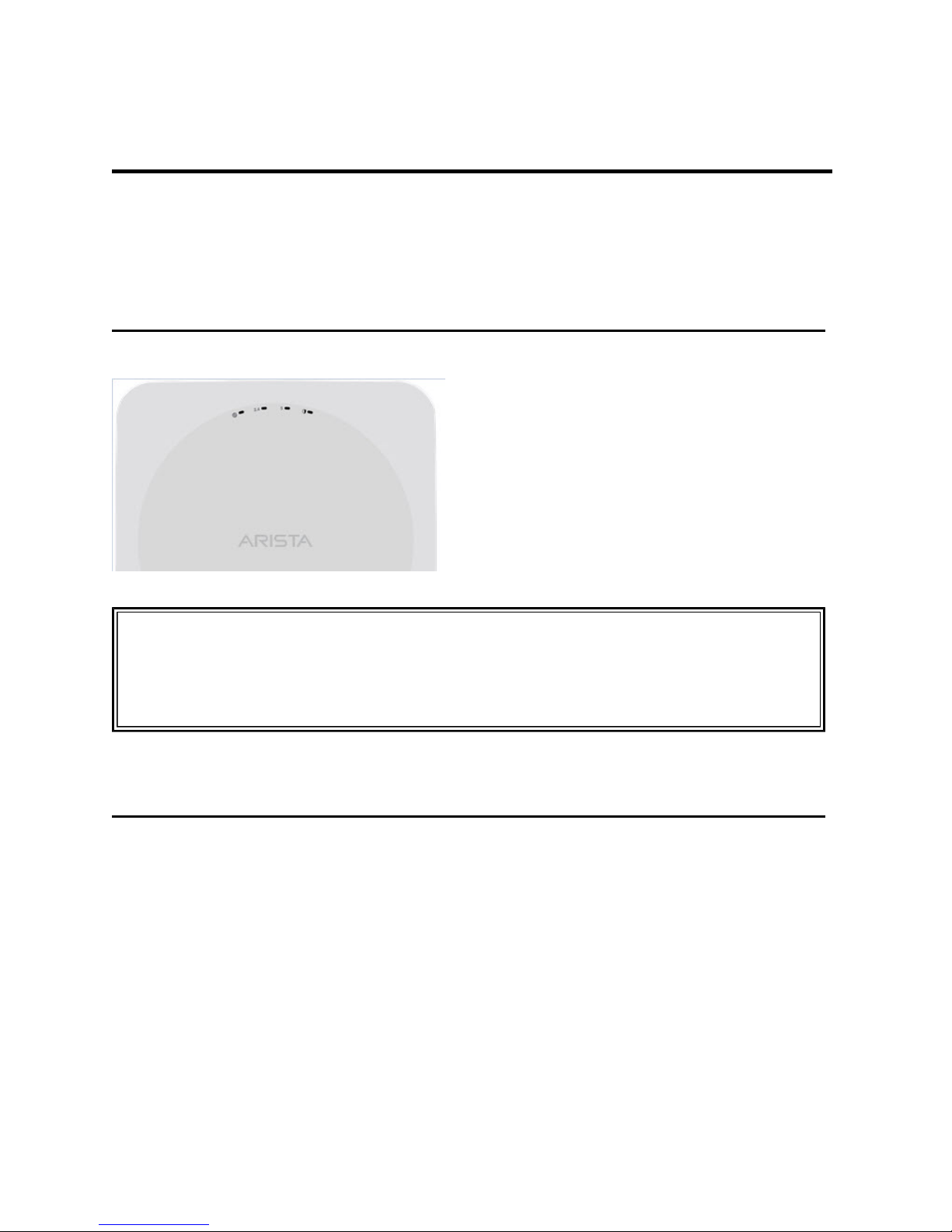
The front panel of the C-130 has 4 functional LEDs that indicate the working of the device.
The following table indicates the device states based on the LEDs.
LED Status
Power/ Ethernet WiFi 2.4GHz WiFi 5GHz What does it mean?
Solid Orange Any Any The AP does not have an active
Ethernet link.
Fast Blink Green Any Any The AP did not receive a valid IP
address via DHCP.
Slow Blink Green Any Any The AP is unable to connect to the
Wireless Manager.
Slow Blink Orange Any Any The AP is being upgraded.
For basic troubleshooting of the issues based on the LED status, refer to the C-130 Troubleshooting (page 12) section.
Rear Panel of C-130
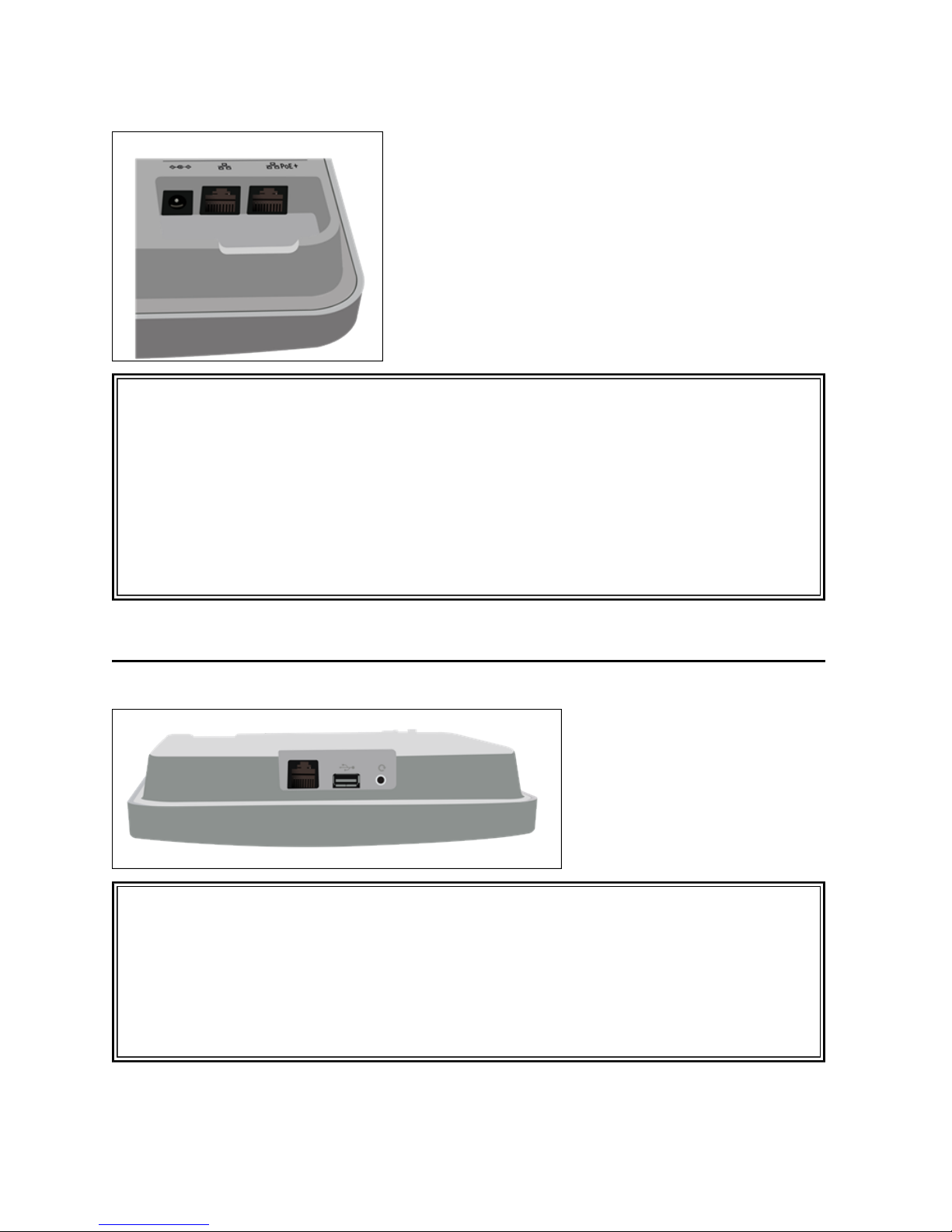
The rear panel of the C-130 provides an PoE+ Ethernet port that enables you to connect the device to a wired LAN through a
switch or a hub and power the device by using the 802.3af/802.3at standard.
C-130 | 3 - C-130 Overview | 6
Port Description Connector Type Speed/Protocol
DC IN Enables you to connect to and power
on device using 12V DC power with
2.0 ampere.
6.3 mm barrel --
Ethernet (LAN2) Gigabit Ethernet port that can be
used for wired extension for an SSID.
RJ45 10/100/1000 Mbps Gigabit Ethernet
Ethernet (LAN1/PoE+) Gigabit Ethernet port used to connect
to the wired LAN and communicate
with the Mojo Cloud or Server. This
port can also be used to power the
device using the 802.3af Power over
Ethernet (PoE+) standard.
RJ45 •10/100/1000 Mbps Gigabit
Ethernet
•802.3af/80 Class 0 PoE/PoE+
•PoE input voltage: 48V
If using PoE (802.3af) some features
will be disabled
Top Side Ports on C-130
Describes the supported AC power supplies and lists the power cables you can use to connect the supply to a power source.
Port Description Connector Type Speed/Protocol
Ethernet To establish 'Config Shell' terminal
session via serial connection. RJ45 •RS 232 Serial Bits per second:
115200
•Data Bits: 8, Stop Bits: 1
•Parity: None
•Flow Control: None
USB USB 2.0 port Not in use Not in use
Reset Pinhole Reset to factory default settings Pin hole push button Hold down and power cycle the
device to reset
The Reset Pin Hole and the USB port are on the top side of the device as shown in the figure above. The Reset Pinhole resets
the C-130 device to factory defaults. To reset the device, press and hold the Reset Pin Hole for 10 sec until all LEDs go off

C-130 | 3 - C-130 Overview | 7
which indicates that the device has rebooted. Pressing the Reset Pin Hole while the device is booting up will not have any
effect. You should perform this operation only when the device is running.
When you reset the device, the following settings are reset:
•Config shell password is reset to config .
•Server discovery value is erased and changed to the default, wifi-security-server .
•All the VLAN configurations are lost.
•If static IP is configured on the device, the IP address is erased and DHCP mode is set. If DHCP fails the factory default
IP address of the device is set to 169.254.11.74.
The USB port on the C-130 is currently not in use.

Chapter 4. Install the C-130
This chapter contains the step wise procedure to install the C-130 device.
Zero-Configuration of C-130 as Access Point
Zero-configuration is supported only if you meet the following prerequisites:
•Ethernet network with Internet connection.
•AC power outlet or network port with Power over Ethernet (IEEE 802.3af/802.3at).
•AP with valid IP address from DHCP server or a valid static IP address to communicate with Wireless Manager.
•DNS should be able to resolve the server discovery (primary: redirector.online.spectraguard.net, secondary: wifi-security-
server).
•Firewall rules should allow UDP 3851 and TCP port 443 (proxy connection) from AP to Arista Cloud for AP server
connectivity and TCP port 80 and 443 from AP to Arista Cloud for AP firmware upgrade.
Important: If the device is placed on a network segment that is separated from the server by a firewall, you must
first open port 3851 for User Datagram Protocol (UDP) and Transport Control Protocol (TCP) bidirectional traffic on
that firewall. This port number is assigned to Arista Networks. If multiple devices are set up to connect to multiple
servers, zero-configuration is not possible. In this case, you must manually configure the APs. See the Access Point
Configuration Guide on our website at https://www.arista.com/en/support/product-documentation .
Take a configured C-130, that is, ensure that a static IP is assigned to the device or the settings have been changed for DHCP.
Note down the MAC address and the IP address of the device in a safe place before it is installed in a hard-to-reach location.
The MAC address of the device is printed on a label at the bottom of the product.
The steps to install the device are as follows:
•Mount the C-130 (page 8)
•Power on the C-130. (page 10)
•Connect C-130 to the network. (page 11)
Mount the C-130
The steps to mount the C-130 involve:
•Mounting Instructions using the Standard Package Contents.
•Mounting Instructions using the Silhouette/Interlude Bracket Mount.
•Mounting Instructions using the Wall Mount Bracket.
Important: To prevent disconnection or tampering by unauthorized personnel, it is extremely important to install
the device such that it is difficult to unplug the device from the network or from the power outlet.
Note: You should label the devices using MAC addresses or at least your own convention. For example, use serial
numbers, so that you can easily identify the devices.
Mounting Instructions using the Standard Package Contents
The mounting procedure can be divided into two parts:
1. Affixing the bracket to the T -grid: Use the mounting bracket to install the C-130 on the ceiling. Fix the bracket to the
T-grid and rotate the bracket so that it snaps on the T-grid.
The bracket is now parallel to an arm of the T-grid. Ensure that the bracket is properly snapped to the T-grid. Refer
to the images given below.

C-130 | 4 - Install the C-130 | 9
2. Mounting C-130 on the bracket: Place the first mounting post on the rear-side of the device on to the lower notch of
the bracket. Rotate the device such that the center mounting post fits in to the center notch on the bracket. Ensure that all
the mounting posts on the rear-side of the device are snapped in to the respective notches on the bracket.
The mounting posts on the rear-side of the device are now properly fit in the respective notches of the bracket and
device is mounted properly.
Mounting Instructions using the Silhouette/Interlude Bracket Mount
The Silhouette/Interlude mounting bracket is not a part of the standard package and must be procured separately. The
mounting instructions for the Silhouette/Interlude Bracket Mount are very similar to the Standard Package Content's
mounting instructions. Refer to the instructions mentioned in Mounting Instructions using the Standard Package Contents
(page ) .
Other manuals for C-130
1
Table of contents
Other Arista Wireless Access Point manuals

Arista
Arista C-360 User manual

Arista
Arista C-130E User manual

Arista
Arista C-130 User manual

Arista
Arista O-235E User manual

Arista
Arista C-250 User manual

Arista
Arista AP-O235E User manual

Arista
Arista OEM-AP-O105 User manual

Arista
Arista C-200 User manual

Arista
Arista O-105 User manual

Arista
Arista C-120 User manual

Arista
Arista AP-C230 User manual

Arista
Arista W-118 User manual

Arista
Arista C-230E User manual

Arista
Arista O-235 User manual

Arista
Arista W-318 User manual

Arista
Arista OEM-AP-O105E User manual

Arista
Arista O-105E User manual

Arista
Arista C-100 User manual

Arista
Arista C-250 User manual

Arista
Arista AP-C250 User manual