Antelope Discrete 8 User manual
!
!
User Manual
Discrete 8
Synergy Core
THUNDERBOLT™ 2 & USB 2.0 AUDIO INTERFACE
with 8 discrete preamps and Synergy Core FX
!
!
!
!
!!
Discrete 8 Synergy Core User Manual
Page 2
!
CONTENTS
!
1. BEFORE YOU BEGIN!.............................................................................................................................!4
2. SETTING UP!..............................................................................................................................................!6
2.1. Configuring for Windows 10....................................... Error! Bookmark not defined.
2.2. Configuring for macOS (10.14 or later) ..................... Error! Bookmark not defined.
3. FRONT PANEL EXPLAINED!..............................................................................................................!6
3.1 System Menu.............................................................................................................14
3.2 Control Menu ............................................................................................................16
4. REAR PANEL EXPLAINED!...............................................................................................................!19
5. SOFTWARE CONTROL PANEL!....................................................................................................!23
5.1. Quick Start ...............................................................................................................24
5.2. Mouse & Keyboard Shortcuts.................................... Error! Bookmark not defined.
5.3. Main View .................................................................................................................28
5.3.1. Function Strip 1 ............................................................................................................ 28
5.3.2. Function Strip 2 .............................................................. Error! Bookmark not defined.
5.3.2.1. Settings Button ............................................................ Error! Bookmark not defined.
5.3.3. PREAMPS Strip ........................................................................................................... 32
5.3.4. Input Selectors ............................................................................................................ 33
5.3.5. AFX Strip ...................................................................................................................... 34
5.3.6. Output Tabs ................................................................................................................. 35
5.3.6.1 AuraVerb ........................................................................ Error! Bookmark not defined.
6. Guitar Amps & Cabs!..............................................................!Error!%Bookmark%not%defined.
6.1. Software Re-amping................................................ Error! Bookmark not defined.
7. Edge & Verge mic emulations!...........................................!Error!%Bookmark%not%defined.

!
!
!
!
!!
Discrete 8 Synergy Core User Manual
Page 3
7.1 Getting Started ........................................................... Error! Bookmark not defined.
7.2. Gain Calibration.......................................................... Error! Bookmark not defined.
7.3. Edge Solo................................................................... Error! Bookmark not defined.
7.4. Edge Duo ................................................................... Error! Bookmark not defined.
7.5. Edge Quadro.............................................................. Error! Bookmark not defined.
7.6. Verge.......................................................................... Error! Bookmark not defined.
8. AFX2DAW!....................................................................................!Error!%Bookmark%not%defined.
9. ADVANCED USER TIPS!.....................................................................................................................!36
10. CUSTOMER SUPPORT INFORMATION!...................................................................................!61
11. MY ANTELOPE AUDIO PRODUCT ISN'T WORKING!.........................................................!62
12. LIMITED WARRANTY POLICY!......................................................................................................!64
13. SAFETY NOTES!..................................................................................................................................!72
14. TECHNICAL SPECIFICATIONS!....................................................................................................!73
!
!
!
!
!
!
!!
Discrete 8 Synergy Core User Manual
Page 4
1. BEFORE YOU BEGIN
!
Congratulations on your purchase! We’d like to turn your attention to the following:
As with all Antelope Audio interfaces, the software Control Panel is the “mediator”
between the Discrete 8 Synergy Core and your preferred DAW. To take complete
advantage of the unit’s capabilities, you are meant to handle tasks like gain adjustments,
signal routing, effects processing, 'rough' mixing and metering from the Control Panel.
The resulting audio is routed into your DAW for recording in formats of your choice, such
as multi-track, stem, and two-channel stereo.
Depending on your experience, you might find this approach different from what you are
used to. Perhaps the most familiar workflow for the modern recordist involves treating
the audio interface like a box which brings audio in and out of your computer, with the
rest of the session taking place in your DAW. To an extent, it is possible to use the
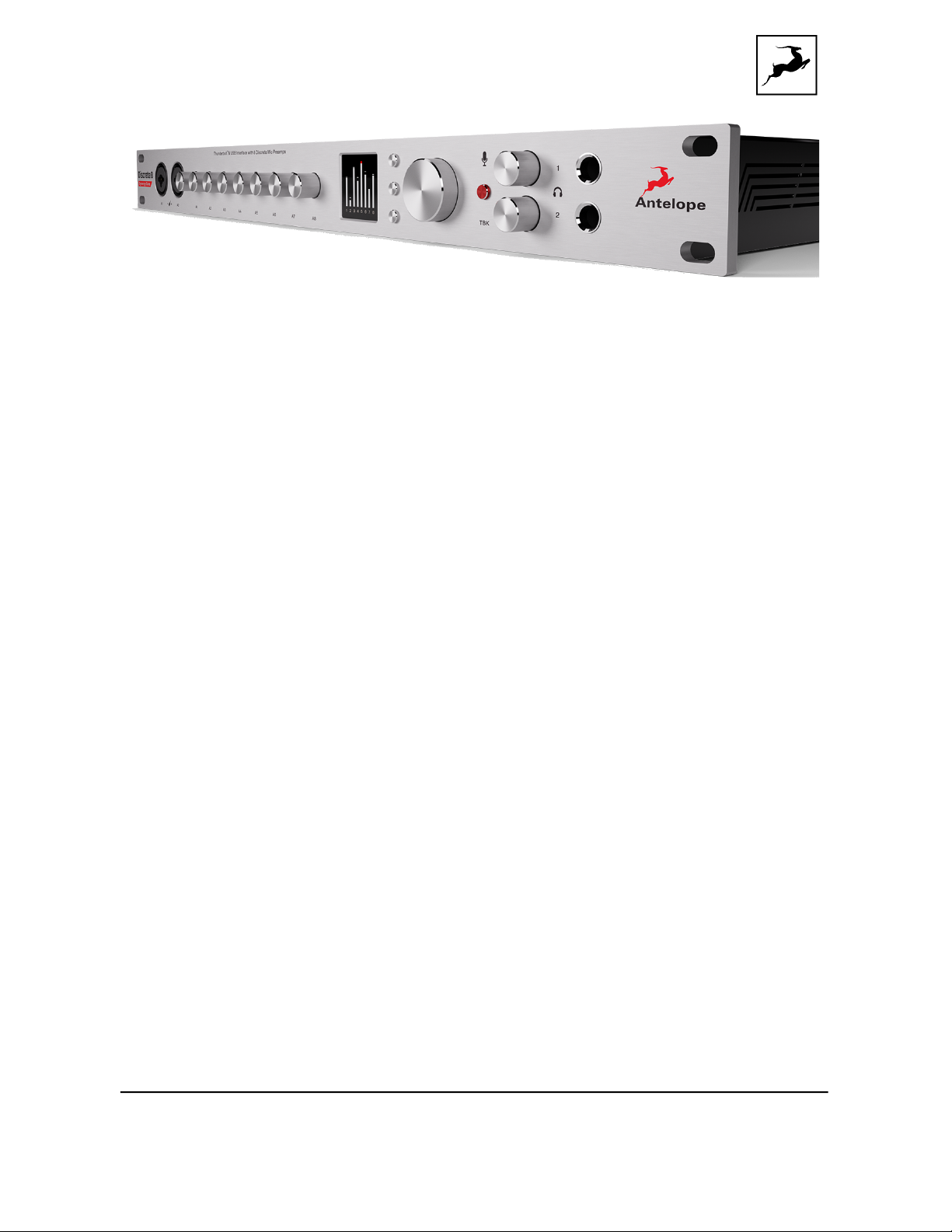
Discrete 8 Synergy Core in this manner by relying on the front panel display and controls
for monitoring, gain control and setup. The DAW is used for recording, mixing and
mastering.
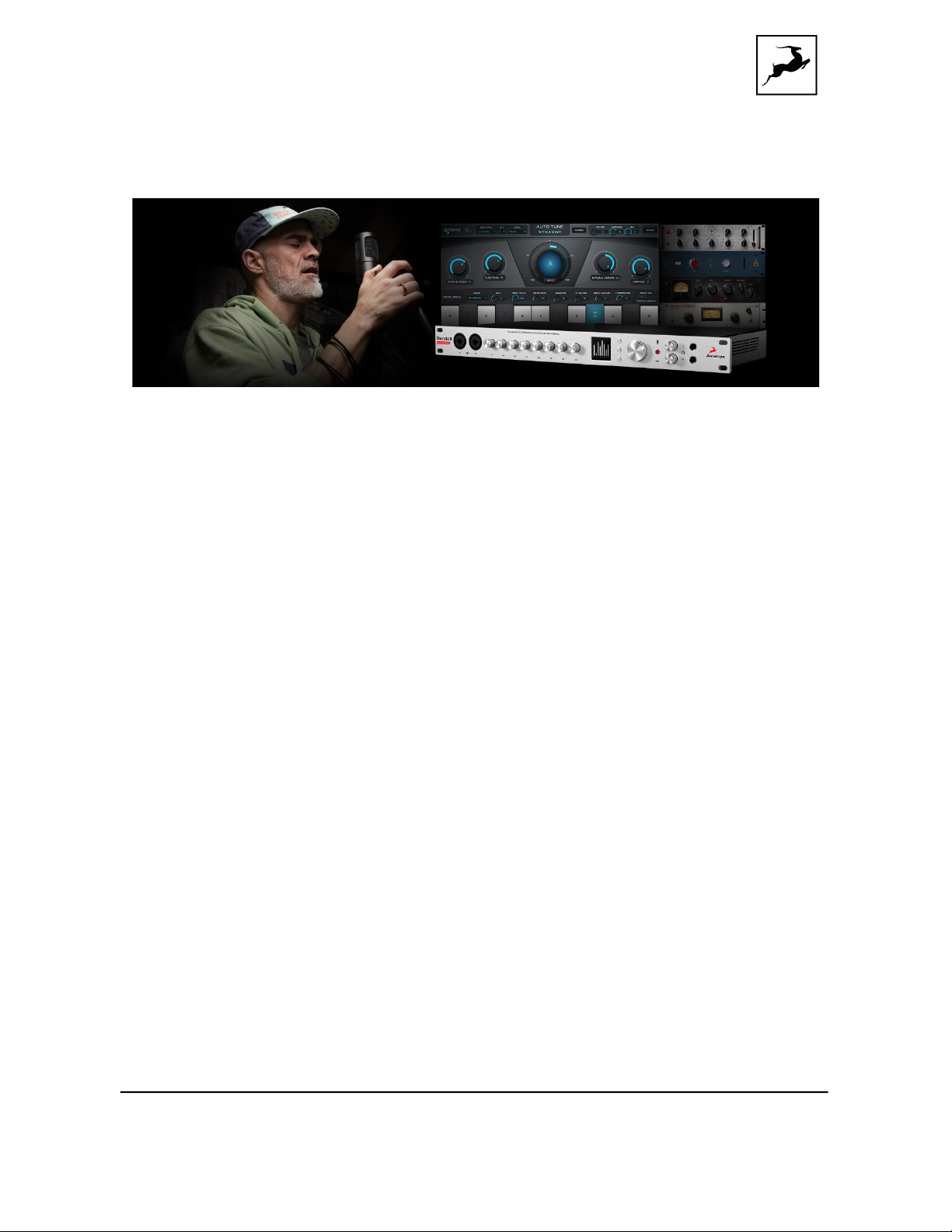
However, the only way to use Synergy Core effects as inserts (plug-ins) in your DAW is
by purchasing the Antelope Audio AFX2DAW plug-in. Think of it as a hardware-to-
software “bridge” that turns our hardware-processed, low-latency effects into typical
software plug-ins applied to your audio tracks. At the time of writing, AFX2DAW is only

!
!
!
!
!!
Discrete 8 Synergy Core User Manual
Page 5
available for Mac users over Thunderbolt™. AFX2DAW for Windows is currently in
development. Click here to learn more.
After the initial setup, it is also possible to use Discrete 8 Synergy Core without a
computer connection. In this case, the unit functions as a digital mixer operated from
the front panel controls. The last known signal routing configuration from the software
Control Panel is applied.
Regardless of your preference, we encourage you to familiarize yourself with the Control
Panel application. This way, you can overcome potential stumbling blocks for users new
to Antelope Audio products. For example, almost any issue concerning recording and
playing back audio (on the interface’s side) can be resolved with the correct signal
routing.
Should you ever find yourself struggling, do not hesitate to contact our Customer
Support team over phone, live chat and our ticket system. You can also visit Antelope
Audio on YouTube and explore our video tutorials or join the Antelope Audio
Users Facebook group and ask for advice. The Knowledge Base is also a good source of
information.
Best wishes,
Team Antelope

!
!
!
!
!!
Discrete 8 Synergy Core User Manual
Page 6
2. SETTING UP
デバイスに AC 電源に接続し、コンピューターの電源を⼊れます。
1. USB 2.0 Type-B(付属)または Thunderbolt™ケーブルを Discrete 8 Synergy Core およびコ
ンピューターに対応するポートに接続します。
メモ:
• ユニットは、最初の起動時に接続タイプを⾃動的に検出しますが、その後の起動では検出しませ
ん。Thunderbolt™接続と USB 接続を切り替えるたびに、システムメニューの [Change
Interface] から接続タイプを⼿動で設定します。
• 初期設定後、Thunderbolt™とUSB の両⽅をコンピューターに接続し、システムメニューの
[Change Interface] から切り替えることができます。
2. www.antelopeaudio.com にアクセスしてアカウントにログインするか、新たにアカウントを作成します。
(アカウントがない場合)
3. Discrete 8 Synergy Core Web サイトの 「ダウンロード」セクションから、オペレーティングシステム
(Windows 10 / macOS 10.11 以降)⽤の最新の Antelope Launcher とドライバーをダウンロードし
てインストールします。
注意: Windows での Thunderbolt™接続の場合、最新のものをダウンロードしてインストールしま
す。 Antelope Audio Windows Thunderbolt™ driver.
4. Antelope Launcher を起動し、Discrete 8 Synergy Core が最新のファームウェアとコントロールパ
ネルバージョンを実⾏していることを確認します。セットアップの詳しい解説は こちら
メモ: デバイスが Antelope Launcher またはオペレーティングシステムに認識されない場合は こちら

!
!
!
!
!!
Discrete 8 Synergy Core User Manual
Page 7
5. Antelope Launcher から Discrete 8 Synergy Core Control Panel を起動し、デバイスのアクティ
ベーションを⾏います。
注意: オペレーティングシステムからセキュリティプロンプトをバイパスします。 Windows Defender ファイアウ
ォールおよび macOS アラート。
6. お好みのアナログおよびデジタル機器を Discrete 8 Synergy Core に接続します。
7. お好みの DAW を起動:
• Discrete 8 Synergy Core をDAW の⼊出⼒デバイスとして選択します。
• DAW およびオペレーティングシステムのサンプルレートがデバイスのサンプルレートと⼀致していること
を確認します。
ヘルプが必要な場合
Antelope Audio Customer Support サポートが必要な場合はこちらにアクセスしてください。
⽇本語でのサポートを希望する場合は⽇本語サポートへアクセスしてください。
!
!
!
!
!!
Discrete 8 Synergy Core User Manual
Page 8
2.1. Windows 10
の設定
Windows 10 では、すべてを稼働させるためにいくつかの調整が必要です。
1. コントロールパネルから [サウンド] オプションウィンドウに⼊るか、システムトレイのスピーカーアイコンを右ク
リックして [サウンド] を選択します。
2. [再⽣] タブに⼊り、デバイスがデフォルトの再⽣デバイスとして設定されていることを確認します。デバイ
スを選択し、[プロパティ] をクリックします。
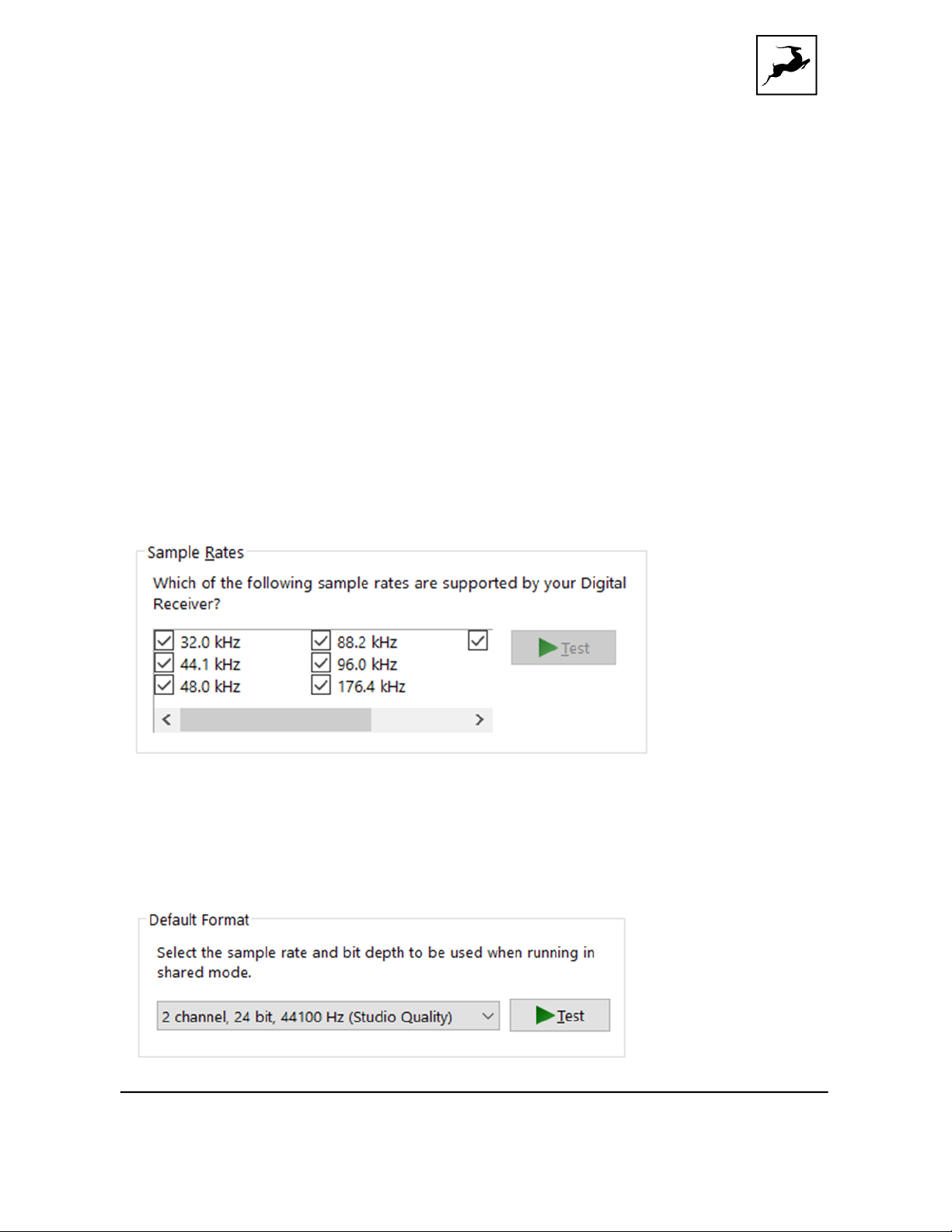
3. [サポートされている形式] タブに⼊り、使⽤可能なすべてのサンプルレートの横にチェックマークを付けま
す。
4. [拡張機能] タブに⼊り、すべての拡張機能が無効 になっていることを確認します。
5. [詳細設定] タブを開き、利⽤可能な[2チャンネル、24ビット] モードのいずれかを選択 し、[OK]をクリ
ックしてウィンドウを閉じます。

!
!
!
!
!!
Discrete 8 Synergy Core User Manual
Page 9
[録⾳] タブに⼊り、デバイスがデフォルトの録⾳デバイスとして設定されていることを確認し、[OK] をクリッ
クしてウィンドウを閉じます。
Tips
• 使⽤中に中断または障害が発⽣し、同時にOS からオーディオを再⽣しようとする場合は、デバ
イスのサンプルレートがDAW セッションと⼀致することを確認してください。
• デバイスを無効にし、[再⽣] タブから再度有効にして、ドライバーを更新できます。これは、デバイ
スの切断と再接続に似ており、Windows が使⽤中のアプリケーションの再⽣設定をリセットしま
す。
• 場合によっては、[再⽣] プロパティの[詳細] タブで[排他モード] 機能を無効にすることで、複数
の再⽣アプリケーションを同時に実⾏するのに役⽴つ場合があります。
• 32kHz のサンプルレートを無効にすることは必須ではありませんが、⼀般に役⽴つ場合がありま
す。
以下を軽くお読みください。
Antelope Audio Knowledge Base -
Windows 10 Optimization
!
!
!
!
!!
Discrete 8 Synergy Core User Manual
Page 10
2.2. macOS
の設定
(10.14 or later)
macOS Mojave 10.14 で導⼊された新しいセキュリティ設定により、すべてが正しくセットアップされていて
も、DAW に⼊⼒信号が届かない場合があります。
これらの⼿順は、DAW でDiscrete 8 Synergy Core を初めて使⽤する場合に適⽤されます。
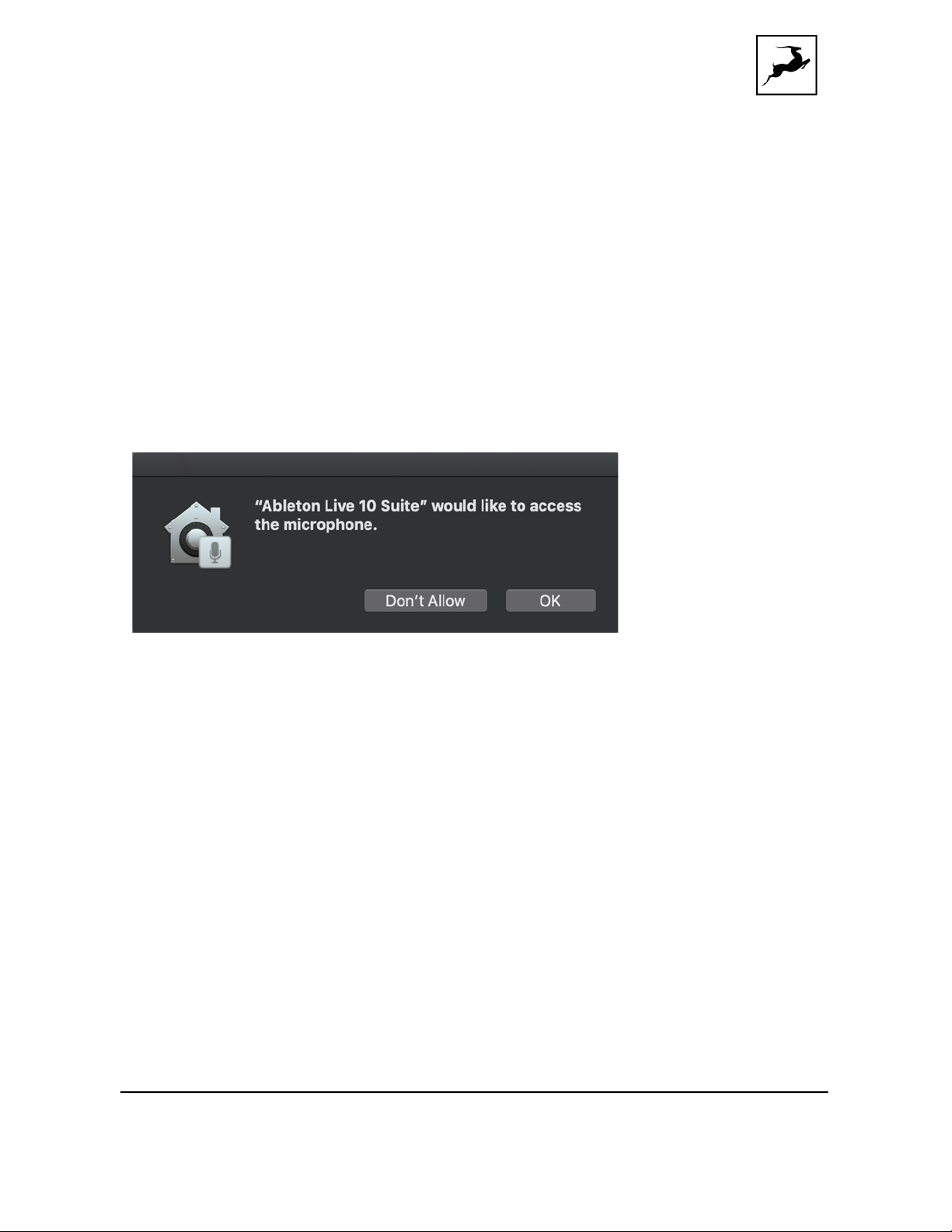
1. DAW を起動し、⼊⼒デバイスとして Antelope 製品を選択します。次のダイアログボックスが表⽰され
ます。(例えば、Ableton Live 10 Suite を使⽤している場合)
2. [OK] をクリックすると、DAW が正常に機能します。
ただし、何らかの理由で上記のイベントが発⽣しなかった場合、または複数の DAW を使⽤している場合
は、[セキュリティとプライバシー] 設定でそれぞれを⼿動で調整する必要があります。
1. メニューバー 左上 [Apple] 記号をクリックして、[システム環境設定] を選択します。 [セキュリティとプラ
イバシー] 設定メニューに移動します。
2. [プライバシー] タブをクリックします。左側の列で、[マイク] を選択します。使⽤する DAW の横にチェッ
クマークがあることを確認してください。
Table of contents
Languages:
Other Antelope Recording Equipment manuals

Antelope
Antelope Galaxy 64 Synergy Core User manual

Antelope
Antelope R4S User manual

Antelope
Antelope zenstudio+ User manual

Antelope
Antelope Orion 32+ User manual

Antelope
Antelope DISCRETE 8 PRO User manual

Antelope
Antelope ORION 32+ GEN4 User manual

Antelope
Antelope ORION STUDIO Synergy Core User manual

Antelope
Antelope Isochrone Trinity User manual

Antelope
Antelope Goliath HD Gen. 3 User manual

Antelope
Antelope Orion Studio HD User manual