Amcrest AMDV960H4 User manual

AMDV960H4 User Manual
www.amcrest.com 1
AMDV960H4 User Manual
Version 1.2.1

AMDV960H4 User Manual
www.amcrest.com 2
TABLE OF CONTENTS
1PRODUCTION 4
1.1. Product Key Features 4
1.2. Front Panel Controls 5
1.3. USB Mouse 6
1.4. Soft Keyboard 7
1.5. Rear Panel Diagram 7
2GETTING STARTED 9
3LIVE VIEW 10
3.1. Understanding Live Preview Icons 10
3.2. Understanding Live Preview Toolbar 10
3.3. Understanding Home Menu 11
3.4. Using Digital Zoom 11
3.5. PTZ Control 12
3.5.1 PTZ Presets, Patrols & Patterns 12
3.5.2 PTZ Context Menu 12
4IP CHANNEL 14
5DISPLAY SETTINGS 15
5.1. Camera Settings 15
5.2. Displays Output Settings 16
6RECORD SETTINGS 17
6.1. Initializing Record Settings 17
6.2. Scheduling a Recording 18
7PLAYBACK AND BACKUP 20
7.1. Playback files from a video search 20
7.2. Understanding the Playback Interface 21
7.3. Backup the recorded file 22
8NETWORK SETTINGS 24
8.1 Configuring General Settings 24
8.2 Configuring Advanced Settings 25
8.2.1 DDNS 26
8.2.2 NTP 26
8.2.3 E-mail Settings 26

AMDV960H4 User Manual
www.amcrest.com 3
8.2.4 FTP Settings 27
8.2.4 IP Filter 28
9ALARM SETTINGS 29
9.1 Motion Detection 29
9.2 Detecting Video Loss 30
9.3 Detecting Exception 31
10 DEVICE MANAGEMENT 32
10.1 Managing HDDs 32
10.2 Configuring PTZ Settings 33
11 SYSTEM SETTINGS 34
11.1 General 34
11.2 User 35
11.2.1 Adding a New User 35
11.3 System Information 37
11.4 Maintenance 38
12 APP FOR PHONE AND TABLET 40
12.1 Configure the Amcrest Link 40
12.2 Live view in Amcrest Link 41
12.3 Playback in Amcrest Link 42
13 SMARTCLIENT/WEB FOR PC 44
13.1 Login Your Device 44
13.2 Live View 45
13.3 Playback 46
13.3.1 Remote playback and download 46
13.3.2 Playback Control 47
13.3 Local Settings 47
13.4 Device Settings 48

AMDV960H4 User Manual
www.amcrest.com 4
1 PRODUCTION
Thank you for your purchase of our Amcrest DVR. To get the most out of your device(s), please
read through this User Manual thoroughly. This user manual covers all the models of our DVR.
1.1.Product Key Features
Compression
Analog channels support PAL/NTSC video input, and the recording resolution supports up
to 960H
Digital channels support 1M, 1.3M, 2M pixels IP camera. Some models support up to 3M
pixel IP camera.
Video encoding parameters of each channel can be set separately, including frame rate and
bit rate.
Supports both composite stream and video only stream. Audio and video streams are strictly
simultaneous.
Monitoring
Supports VGA and HDMI video output. The display resolution supports up to 1080P.
Supports 1/4/8/9/16 screen live view.
Supports digital zoom on live view.
Supports privacy mask.
Supports PTZ preset and patrol.
HDD Management
Supports 1~8 internal SATA HDD(s) up to 3TB capacity.
Supports 1~2 external eSATA HDD(s) up to 3TB capacity.
Supports S.M.A.R.T. technology.
Use pre-allocating hard disk management technology and no disk fragments.
Recording and Playback
Supports cycle and non-cycle recording modes.
Supports manual, continuous, and motion recording.
Supports 8 recording time periods with separate recording types.

AMDV960H4 User Manual
www.amcrest.com 5
Supports Pre-record and Post-record.
Supports video data search and playback by channel number, recording type, time, and
event,
Supports pause, rewind, play fast, play slow, skip forward, and skip backward when in
playback, located in the progress bar.
Backup
Supports USB device and network remote backup.
Alarm and Exception
Supports various alarm inputs such as hard disk full, network break, IP conflict, and hard
disk error.
Supports various alarm responses such as camera recording, on screen warning, audible
warning, send email, etc.
Network
Supports 10/100 adaptive network interface.
Supports TCP/IP protocols, PPPoE, DHCP, DNS, DDNS, NTP, UPnP, ONVIF, RTSP etc.
Supports remote search, playback, and download video files.
Supports remote configuration.
Supports remote image capturing.
Supports remote PTZ control.
Others
Supports front panel, mouse, IR control operation.
Supports multi-level user management; each user can have individual DVR access rights.
Powerful DVR log, including operation, alarm, information, and exception log.
1.2.Front Panel Controls

AMDV960H4 User Manual
www.amcrest.com 6
The controls on the front panel include:
1. USB Ports: Universal Serial Bus (USB) ports for additional devices such as a USB mouse
and USB Hard Disk Drive (HDD).
2. POWER: POWER indicator lights on when DVR is powered on.
3. HDD: HDD indicator lights up when the hard drive is active and, flashes rapidly when
recording.
4. IR Receiver: Receiver for IR remote.
5. Function button:
a) Play / pause button is used for playback control
b) ALL button is used to live-view all the channels
c) Menu button is used to pop-up the main menu
d) Select button is used to confirm selection in any of the menu modes
6. Direction button: DIRECTION buttons are used to navigate between different fields and
items in menus. In Preview mode, these buttons can be used to cycle through channels.
1.3.USB Mouse
A regular 3-button (Left/Right/Scroll-wheel) USB mouse can also be used with this DVR. The
buttons on the mouse correspond to:
1. Left Button:
Single-Click: Select a component of a menu, such as a button or an input field.
Double-Click: Switch between single screen and multi-screen mode in Preview/
Playback mode.
Click and Drag: Clicking and dragging the Left mouse button can be used to control the
digital zoom area. It can also be used to change the live view channel sequence or
setup the alarm areas.
2. Right Button:
Single-Click: Shows pop-up menu or exit current UI page.
3. Scroll-wheel:
This is used to change the selected item for list control.

AMDV960H4 User Manual
www.amcrest.com 7
1.4.Soft Keyboard
When a mouse is used to perform task on the DVR, clicking on a text input field will bring up the
Soft Keyboard.
The buttons on the soft keyboard represents:
Lowercase: Designates lowercase input is being used.
Uppercase: Designates uppercase input is being used.
Backspace: Delete the character in front of the cursor.
Space: Input spaces between letters.
Enter: Confirm selection.
ESC: Exit out of Soft Keyboard.
1.5.Rear Panel Diagram
No
Item
Description
1
AUDIO IN
RCA connectors for analog audio input.
2
VIDEO IN
BNC connector for analog video input.
3
AUDIO OUT
RCA connectors for analog audio output.
4
VGA
DB9 connector for VGA output. Display local video output and menu.
5
eSATA
eSATA port, connect eSATA HDD for recording or backup
6
HDMI
HDMI output, Display local video/Audio output and menu.
7
LAN
Connector for LAN (Local Area Network).
8
USB
Connector for USB device.
9
PTZ
PTZ control port (Some models don’t support this feature)- RS485.

AMDV960H4 User Manual
www.amcrest.com 8
10
DC POWER IN
12V DC power input.

AMDV960H4 User Manual
www.amcrest.com 9
2 GETTING STARTED
2.1 Starting and Shutting Down Your DVR
Proper startup and shutdown procedures are crucial to extending the life of your DVR. To startup
your DVR, please plug the power supply into an electrical outlet. It is HIGHLY recommended that
an Uninterruptible Power Supply (UPS) be used in conjunction with the unit. The Power indicator
LED on the front panel should turn on, indicating the unit is receiving power.
To shutdown the DVR:
1. Enter the Shutdown menu, click on Menu > Shutdown.
2. Select the Shutdown button.
3. Click the OK button.
4. Unplug the power supply on the rear panel to safely shutting down the system.
2.2 Rebooting and Locking Your DVR
In the Shutdown menu, you may also reboot or lock your DVR. Locking your DVR will return you
to the Live Preview mode. The username and password must be re-entered to access the menus
again. The Reboot button will reboot your DVR. To reboot or lock your DVR:
1. Enter the Shutdown menu by clicking Menu > Shutdown.
2. Select the Lock button to lock the DVR or the Reboot button to reboot the DVR.

AMDV960H4 User Manual
www.amcrest.com 10
3 LIVE VIEW
The Live Preview mode is automatically started after the DVR boots up. It is also at the very top
of the menu hierarchy, thus hitting the ESC multiple times (depending on which menu you’re on)
will bring you to the Live Preview mode.
3.1.Understanding Live Preview Icons
There are multiple icons on each display in Live Preview mode to indicate different camera
status. These icons include:
Motion Detection Icon: Indicates motion detection.
IP Channel Icon: Indicates this is an IP channel. It could be 720P, 960P, 1080P.
Record Icon: Indicates the current channel is recording.
Audio Icon: Indicates the current channel is outputting audio.
Video Disable Icon: Indicate the preview of this channel is disabled.
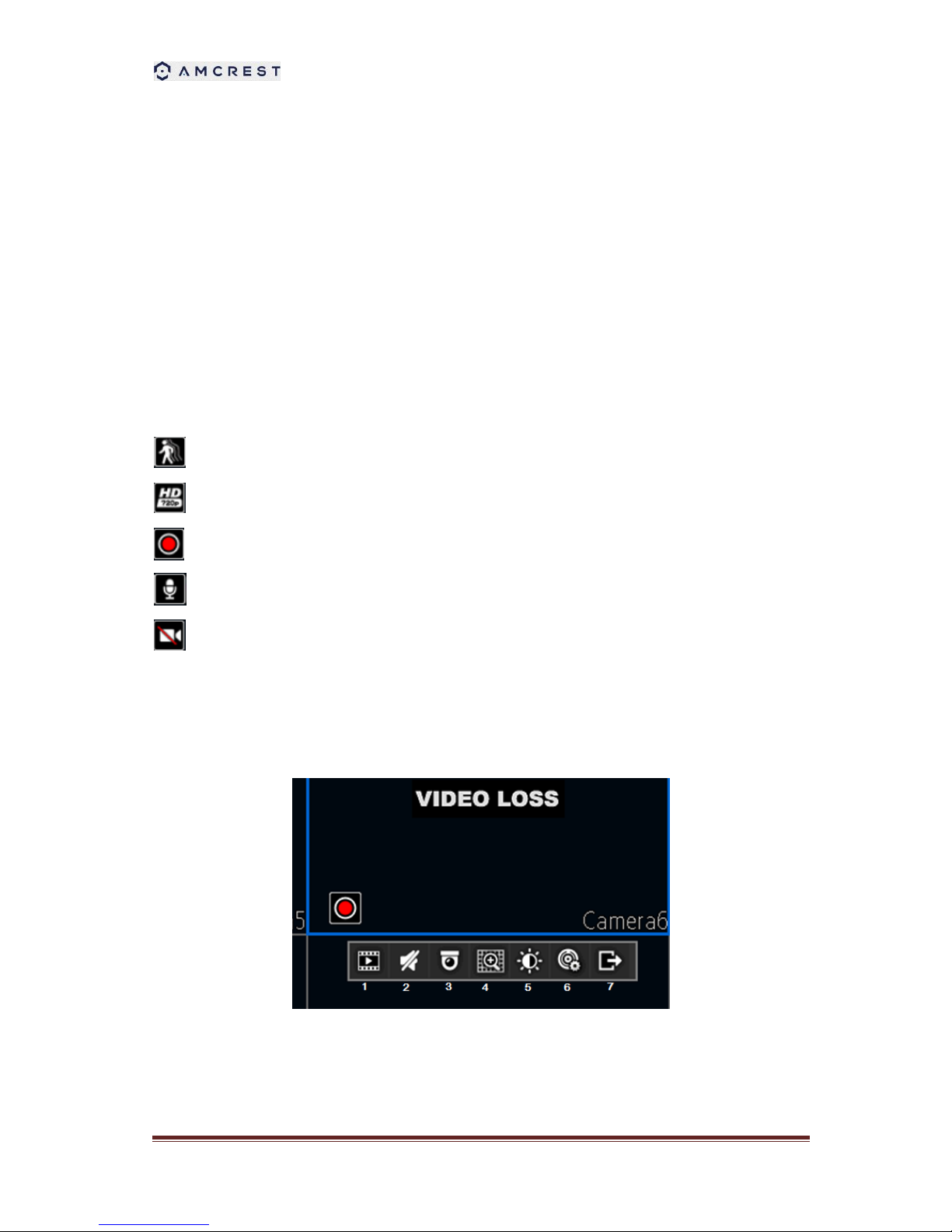
3.2.Understanding Live Preview Toolbar
Click any channel in live view mode and a toolbar will be pop up:
1. Playback: click this icon to enter the playback menu;
2. Audio: mute/unmute this channel;
3. PTZ: control the PTZ of this channel
Table of contents
Other Amcrest DVR manuals

Amcrest
Amcrest General 720P(V2) Mini 1U Series User manual

Amcrest
Amcrest 960H User manual

Amcrest
Amcrest AMDVTENL8 User manual

Amcrest
Amcrest AMDV5M8 User manual

Amcrest
Amcrest NV42 EI Series User manual

Amcrest
Amcrest 960H User manual

Amcrest
Amcrest H5 Series User manual

Amcrest
Amcrest NVR11H Series User manual

Amcrest
Amcrest HDCVI User manual

Amcrest
Amcrest AMDV7204-2B2D User manual