
ALZA ID205G User manual
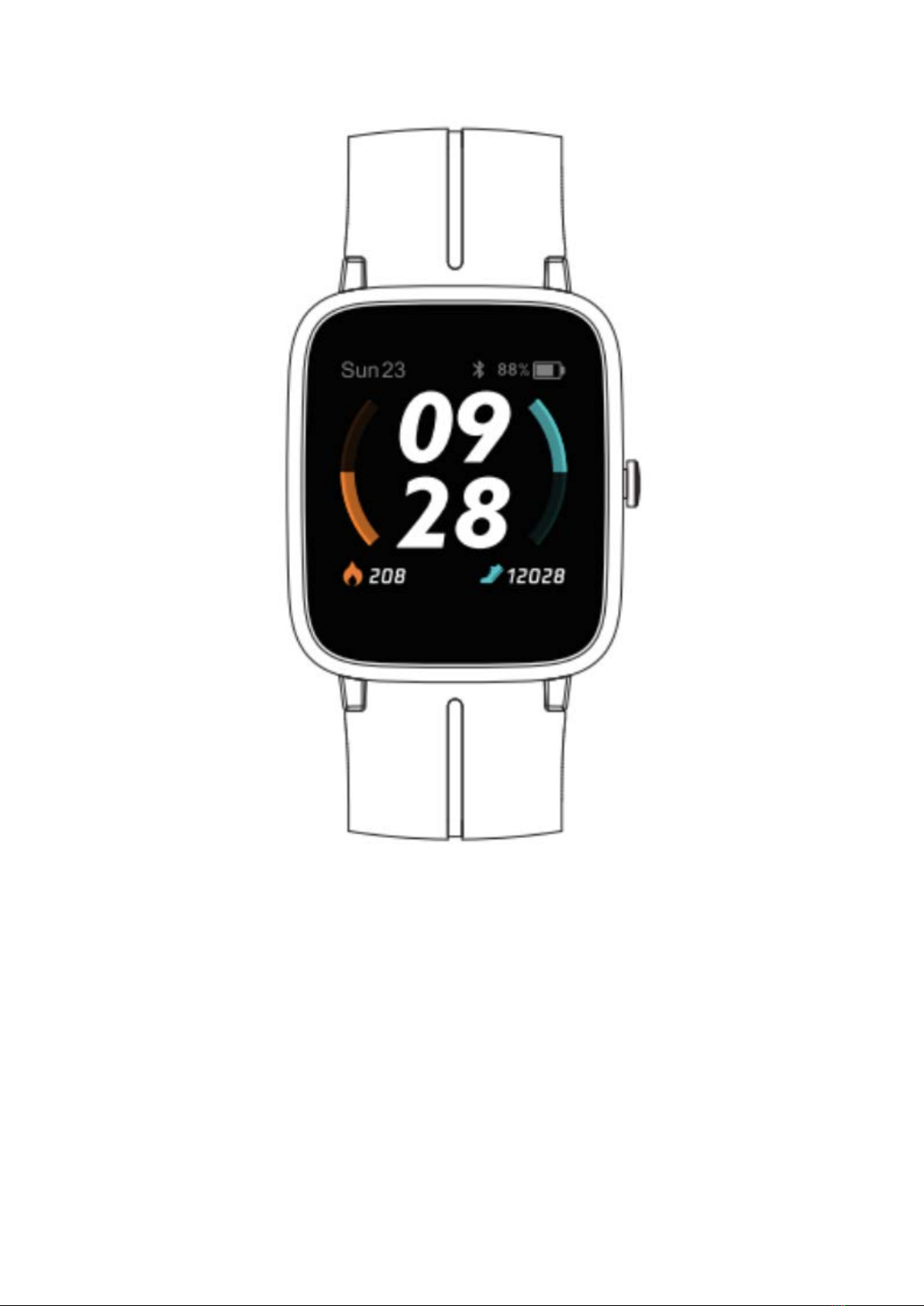
ID205G
User Manual • Uživatelský manuál •
Užívateľský manuál • Használati utasítás •
Benutzerhandbuch

2
Dear customer,
Thank you for purchasing our product. Please read the following instructions carefully
before first use and keep this user manual for future reference. Pay particular attention
to the safety instructions. If you have any questions or comments about the device,
please contact the customer line.
✉www.alza.co.uk/kontakt
✆+44 (0)203 514 4411
Importer Alza.cz a.s., Jankovcova 1522/53, Holešovice, 170 00 Praha 7, www.alza.cz
3
Bind watch
1. download and install app
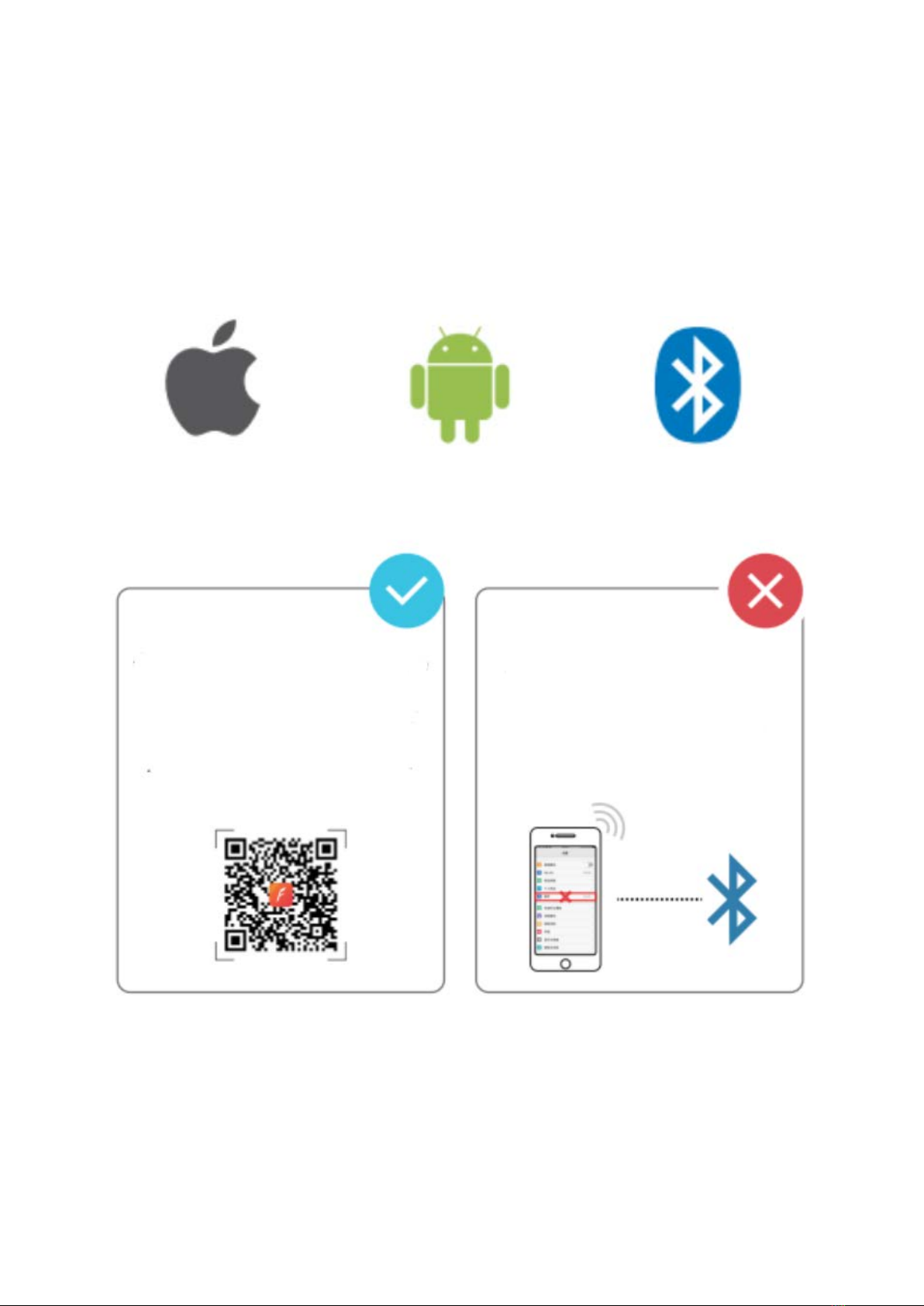
You can set up the watch through the VeryFitPro app for iOS or Android devices. The
steps are shown as follow:
Notes: The hardware platform f the equipment system shall meet requirements.
iOS 8.0 version or
above
Android 4.4 system or
above
Support Bluetooth 4.2
Correct operation: Scan
the QR code below or
download VeryFitPro APP
trough the mobile APP
store to pair with the
watch.
Wrong operation: Pair the
watch directly with the
Bluetooth in your mobile
phone’s settings.
4
2. Bind process
Notes:
•During binding process, VeryFitPro will prompt you to enable GPS and Bluetooth,
and authorize VeryFitPro to get access to the GPS on your mobile phone.
•iPhones will not prompt you with any information unless you complete Bluetooth
pairing on your ID205G watch in the built-in Bluetooth in your mobile phone after
binding.
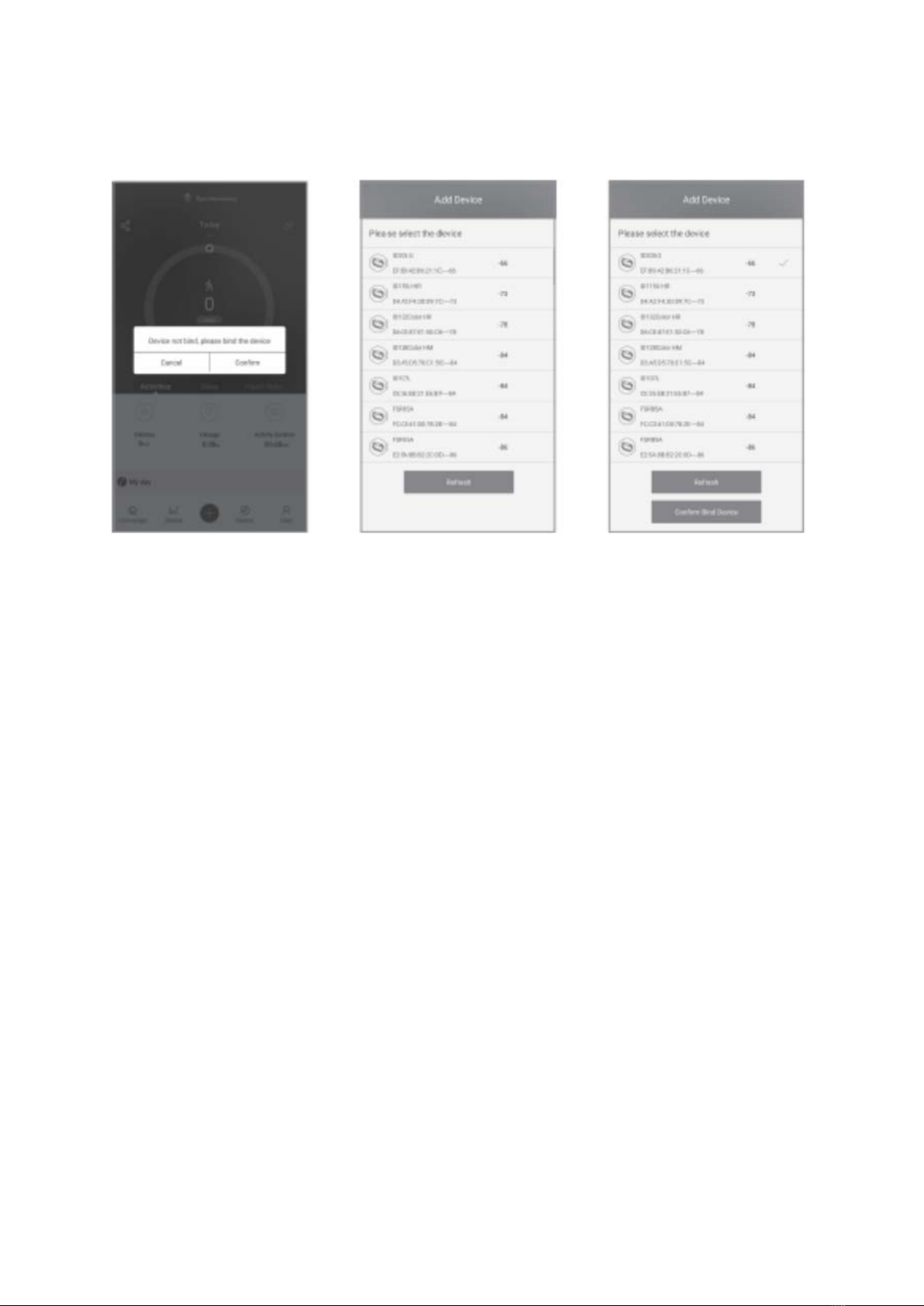
1. Turn on the
Bluetooth and GPS on
your mobile phone
2. Find binding request
on the pull-down list on
the home page of the
APP
Select product model:
ID205G
Click “Ok“ to complete
binding.

2
Synchronous Data
In daily wear, the watch can detect all kinds of
product data. The user needs to connect the watch
with Bluetooth on the APP before synchronous
operation. The detailed operations are shown as
follows:
Open the mobile APP> swipe down the page> sync
prompt appears
Notes!
Please synchronize the data at least once within 7
days to avoid data loss at the watch end.
3
Instruction for Use
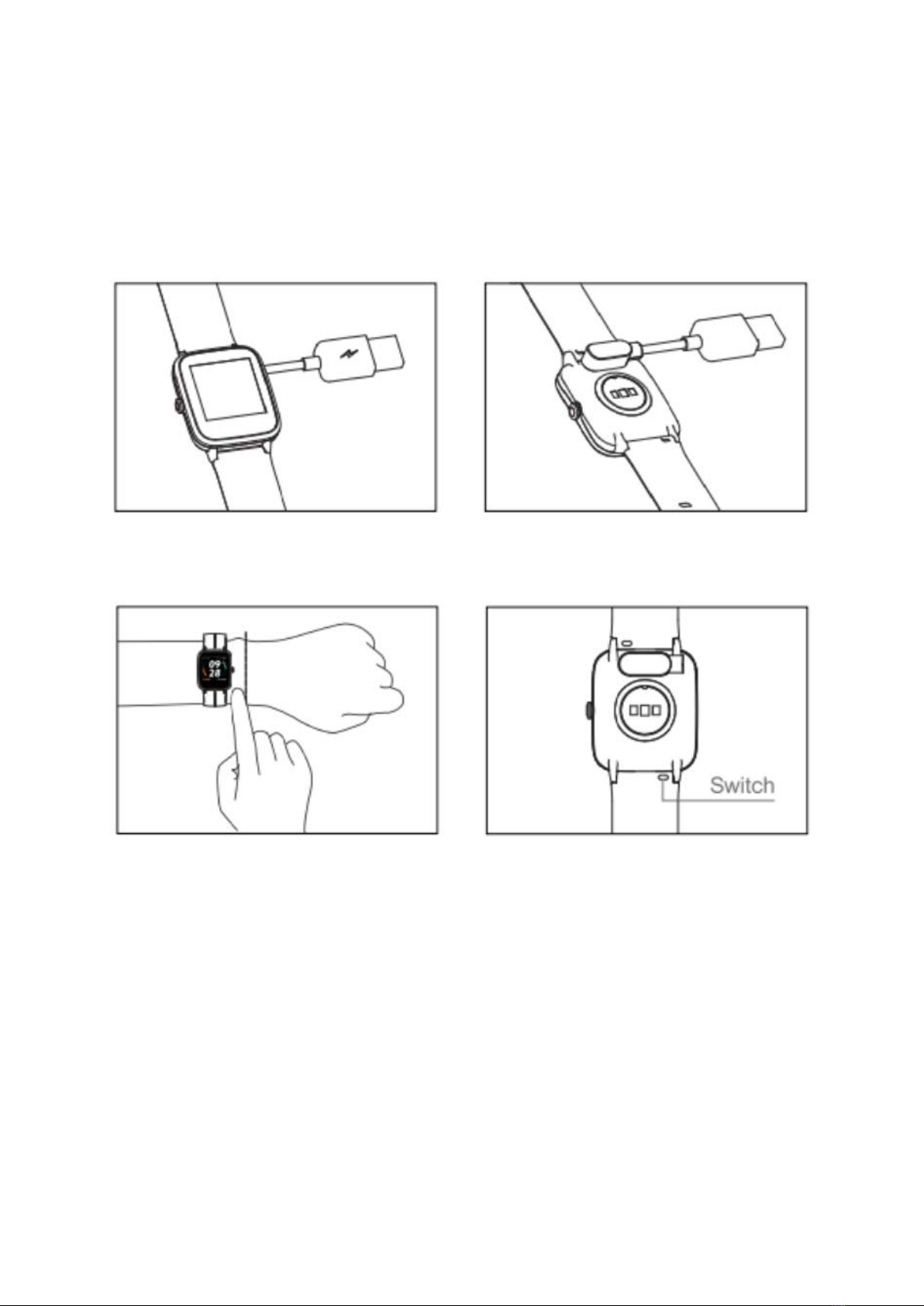
1. Charging schematic
Connect and charge the watch according to the picture. It needs to be charged to
activate the watch when it is started for the first time.
2. Wear/install
Wear Replace the strap
Tip: Wearing too loosely may affect the accuracy of heart rate data.
Wear the device a finger´s distance
Flip the switch and take out the
wristband Tightness of the wristband
to a comfortable position.
Flip the switch and take out the
wristband

4
Operating Instructions
1. Definition of key function
Short press the right key: Return to previous interface
2. Watch dial switch
replacing the dial interface will appear after long pressing
the dial.

5
3. Main interface operation
Swipe the screen to enter different
interfaces (interactive interface tile
diagram)
Function Introduction
1. Icon function introduction
Status bar
Function list
interface
Notice bar
Data bar
Perform a heart rate test
to check your heart rate
data for the day.
Help you regulate your
breathing and Relax your
mood.
View, turn off or turn on
the alarm clock. You need
to add an alarm clock on
the mobile APP.
Control music play on
your mobile phone
(watch cannot store
music)
Have the timing and
countdown function.
Record recent sports.

6
Notes: For more functions (sleeping) and operation, please check the VeryFitPro
software of the mobile phone.
2. Start sports
Enter sports
Click the sports icon > select the sports type > enter the sports countdown
automatically
During sports
Pause sports: short press the right key
Resume sports: short press the right key
End sports
End sports: long press the right key > select the end button on the screen
Sport activity with GPS
Outdoor run, walk and cycling activities support GPS tracking. After selecting activity
device will start searching GPS signal. It is possible to skip searching GPS signal by
pressing arrow but activity will be using only accelerometer data which is not that
accurate as GPS positioning.
Special feature for Outdoor run with GPS - competitor
When you select GPS run, device will automatically start searching GPS signal. After
search is complete, you can press arrow and you will get to screen "Select a competitor".
You can choose pace which will be compared to your effort during activity. You will see
distance to your virtual competitor and comparison of your paces. Activity will
automatically start after pressing green sign when you select your pace or you can start
activity without this feature by clicking on red cross.
Automatic detection of activity
You can select automatic detection of activity in VeryFitPRo app.
Weather function allows you keep track of the weather in your city.
Because weather data is obtained through mobile phone network, it is
required to maintain the connection between the Watch and the phone
to timely update weather data.
7
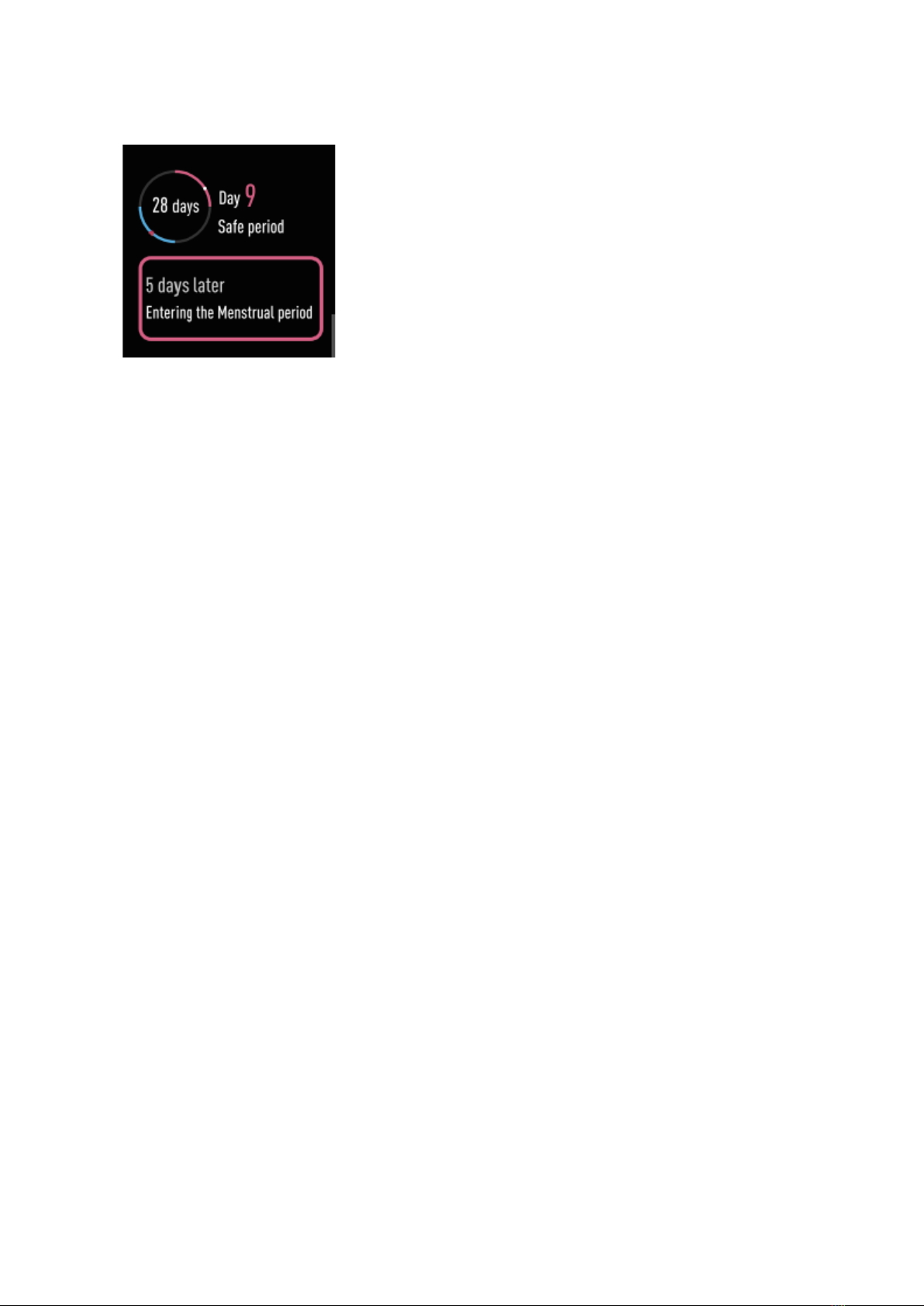
3. Women’s health tracking
Display location: in the data bar Women’s health tracking
function, which is used for recording menstrual changes,
tracks individual menstrual cycle and predicts ovulation (it
needs to be enabled on the APP).
Table of contents
Languages:
Other ALZA Watch manuals







