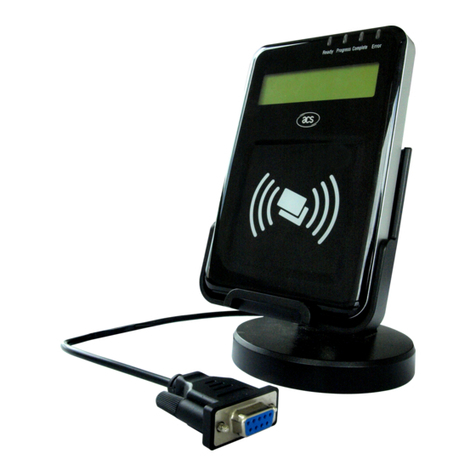
Allegion Schlage MT20W User manual

MT20W
Enrollment
Reader
User Guide


Schlage • MT20W Enrollment Reader User Guide • 3
Table of Contents
Overview.................................................................................... 4
MT20W Information ................................................................... 4
Adding the MT20W to Your ENGAGE Account .................. 4
User Interface Table ........................................................... 6
Credential Information ............................................................... 6
Conguration Card Details ................................................. 6
Supported Credentials........................................................ 7
125 kHz Technologies (read only) ...................................... 7
13.56 MHz Technologies .................................................... 7
No-Tour Instructions ........................................................... 7
Software Alliance Member Managed Systems................... 7
ENGAGE Managed Systems ............................................. 7
Factory Default Reset................................................................ 9
Troubleshooting ......................................................................... 9
Notes ....................................................................................... 10
FCC Information .......................................................................11
Customer Service Contact Information.....................................11

4 • Schlage • MT20W Enrollment Reader User Guide
Overview
Overview
The Schlage™ MT20W multi-technology enrollment reader is
designed to simplify the enrollment of proximity and smart credentials.
The MT20W is powered by a USB cable (via a computer’s USB
port or a powered USB plug) and utilizes a Wi-Fi connection for
certain scenarios (e.g., enrolling no-tour credentials). The MT20W
is compatible with Schlage smart credentials (MIFARE Classic and
MIFARE DESFire EV1), Schlage/aptiQ mobile credentials, and most
proximity credentials up to 37-bits.
The MT20W supports no-tour (with supported locks) via Schlage
MIFARE Classic or MIFARE DESFire EV1 credentials.
The MT20W will only connect via Wi-Fi to 2.4 GHz routers. It is
not compatible with 5.0 GHz routers. The router must also have a
minimum data rate speed of 24Mbps.
MT20W Information
Adding the MT20W to Your ENGAGE Account
In order to use your MT20W enrollment reader with no-tour
functionality, you must rst add it to your ENGAGE account. The
following steps will take you through this process.
1 Open up the ENGAGE application and log into your account.
2 Click “Connect” at the bottom of the screen, then click
the “+” sign at the top. This will add a new device to your
account
3 The ENGAGE app will give instructions and guide you
through the set-up process.
4 The ENGAGE mobile app will now scan for your MT20W
device. Once found, it will list the device along with the
device serial number. Double-check the serial number listed
with the serial number on the label located on the back of

Schlage • MT20W Enrollment Reader User Guide • 5
MT20W Information
the MT20W to make sure you are commissioning the right
device.
5 Follow the commissioning instructions within the ENGAGE
mobile app to complete the process.
L
IMPORTANT: The information concerning the SSID (Wi-Fi
network) and password must be entered exactly. Any
typos will result in the MT20W not making a successful
connection.

6 • Schlage • MT20W Enrollment Reader User Guide
Credential Information
User Interface Table
The table below provides an overview of the MT20W user interface
scenarios.
Feature Actions Lights Beeps
Idle State No Wi-Fi connectivity Red solid ON None
Wi-Fi connected Blue solid ON None
Bluetooth
communication with
ENGAGE mobile app
Blue slow ash None
Attempting to
connect to Wi-Fi Blue fast ash None
System initialization 1 short red 3 short
Enroll credential
(no-tour) Place credential 1 short green 1 short
Card stays on reader Green solid ON
Data written to card 3 short green 3 short
Enroll credential
(USB) Credential read 1 short green 1 short
Keys Updates via
Conguration Card Load keys 4 short red 4 short
Credential Information
Supported Credentials
The following credentials are supported by the MT20W Enrollment
reader:
125 kHz Technologies (read only)
GE®/CASI®Proximity
HID®Proximity (up to 37-bits)

Schlage • MT20W Enrollment Reader User Guide • 7
Credential Information
13.56 MHz Technologies
ISO14443 Schlage MIFARE DESFire EV1
ISO14443 Schlage MIFARE Classic
No-Tour Instructions
Soware Alliance Member Managed Systems
For a software alliance member managed electronic access system,
please reference their documentation to add no-tour credentials.
ENGAGE Managed Systems
One of the key features of a supported lock is the no-tour function.
By using the MT20W Enrollment Reader, smart credentials can be
assigned/registered to a user without visiting or gaining immediate
access to the lock. The next time the new smart credential is presented
to the supported lock, user access to the lock is updated.
1 Place the credential that needs to be assigned or changed
on top of the MT20W.
2 You will hear a short beep conrming that the credential has
been scanned.
3 You can leave the credential on the device. The LED will
stay ON green. Alternatively, you can remove the credential
and present it later to have the access data written.
4 Open the ENGAGE application and log into your account.
5 You will see the credential you just scanned is now available
in the stock list. The credential may now be assigned
access. The badge ID listed on the credential (after the
dash) is displayed in the stock list.
6 Make access changes as needed within the ENGAGE web
application.
7 Place the credential to be programmed with the access
change on the MT20W. Once a valid access change (add,
replace, etc.) occurs, the MT20W will ash green 3 times

8 • Schlage • MT20W Enrollment Reader User Guide
Credential Information
accompanied by 3 beeps to indicate the update completion.
The credential is now programmed with up-to-date access
information, and can be removed from your MT20W.
8 The user may now present the credential to the supported
lock to complete the update.

Schlage • MT20W Enrollment Reader User Guide • 9
Factory Default Reset
Factory Default Reset
To complete a factory default reset for the MT20W reader, disconnect
and reconnect the USB cable. Within one minute, present a “MT20X
Factory Default Reset” card (CE-000-040).
Troubleshooting
Problem Possible Cause Solution
No beeps or
blinks when
presenting a
card.
Cable not connected
to powered USB port. Verify the USB cable is connected
to a powered USB adapter or a
computer’s USB port.
Fast blue ash
followed by solid
red inidcator.
Wi-Fi not connected. Verify Wi-Fi settings with ENGAGE
mobile app.
Wi-Fi access point
issues. Verify you can connect to the
access point from another device
with the same settings and present
the card again. Try moving MT20W
closer to the access point.
Cannot connect
with ENGAGE
mobile app.
Device deleted from
account. Complete a Factory Default Reset.
See “Factory Default Reset” on
page 9.
Three beeps
not heard when
writing card
data.
Card removed before
data was written. Leave card on reader until three
beeps are heard.
Wi-Fi not connected. Ensure the indicator is blue. If not,
check for Wi-Fi connection issue
troubleshooting steps.
2 red ashes to
solid red with
two short beeps.
Failed connection to
host server. Check host address within MT20W
settings in the ENGAGE™ Mobile
application.
1 red ash to
solid red with
one short beep.
Failed connection to
Wi-Fi. Check Wi-Fi network settings within
the ENGAGE™ Mobile application.

10 • Schlage • MT20W Enrollment Reader User Guide
Notes
Notes
Table of contents
Languages:
Other Allegion Card Reader manuals