AFINIA LABEL Afinia L501 User manual

Afinia L501
Label Printer
User Manual
Version 1.0.0

Afinia Label
Copyright © 2017 Afinia Label. All rights reserved.
No part of this document may be photocopied, reproduced, or translated to another language without the prior written
permission of Afinia.
Trademarks
Firefox is a trademark of the Mozilla Foundation.
Intel and Intel Core are trademarks of Intel Corporation in the U.S. and/or other countries.
Java and Oracle are registered trademarks of Oracle and/or its affiliates.
Microsoft, Windows, Windows Vista, and Windows Server are registered trademarks of Microsoft Corporation in the U.S.A.
and/or other countries.
Edition
L501 Printer User Guide Edition 1.0.0. December 2017.
FCC
This device complies with Part 15 of the FCC rules. Operation is subject to the following two conditions: (1) this device may not
cause harmful interference, and (2) this device must accept any interference received, including interference that may cause
undesired operation.

L501 Label Printer
3
Table of Contents
Setting up the Printer.................................................................................................................................... 5
In the Box .................................................................................................................................................. 5
Parts of the Printer.................................................................................................................................... 6
The Control Panel...................................................................................................................................... 7
Unpacking, Setup, and Installation ........................................................................................................... 8
Remove Tape and Foam ....................................................................................................................... 8
Connect Power...................................................................................................................................... 8
Set Date, Time, and Language .............................................................................................................. 8
Install Printer Driver.............................................................................................................................. 9
USB Connection ..................................................................................................................................10
Network Connection........................................................................................................................... 10
Install Ink Cartridges ........................................................................................................................... 11
Align the Printheads............................................................................................................................13
Using the Printer ......................................................................................................................................... 14
Choosing Label Media............................................................................................................................. 14
Loading the Printer ................................................................................................................................. 16
Unloading Media.................................................................................................................................16
Using the Control Panel .......................................................................................................................... 17
Help Screen......................................................................................................................................... 17
Home Screen....................................................................................................................................... 17
Setup ................................................................................................................................................... 17
Cartridge Information ......................................................................................................................... 18
Network ..............................................................................................................................................19
Printing Labels......................................................................................................................................... 21
Printer Preferences............................................................................................................................. 21
Adjusting Alignment for Printing ........................................................................................................ 23
Selecting Media Size ........................................................................................................................... 24
Creating Custom Media Sizes ............................................................................................................. 25
Selecting Media Type.......................................................................................................................... 25
Change Default Settings in Printer Driver...........................................................................................25
Canceling a Print .....................................................................................................................................26
Out of Paper............................................................................................................................................ 26
Wrong Media .......................................................................................................................................... 27
End of Roll ............................................................................................................................................... 27
Shutting Down the Printer ......................................................................................................................27
Software Tools ........................................................................................................................................ 28
Afinia L501 Toolbox ............................................................................................................................ 28
Afinia L501 Ink Cost Calculator ........................................................................................................... 30
Add Afinia L501 Network Printer Utility ............................................................................................. 32
Printer Maintenance................................................................................................................................... 33
Replacing an Ink Cartridge ......................................................................................................................33
Dye or Pigment Ink Cartridges ............................................................................................................33
Changing Printheads ............................................................................................................................... 34
Purchasing Printheads.............................................................................................................................34
Guidelines for Preventative Maintenance ..............................................................................................35

4| Setting up the Printer
General dust and debris removal ....................................................................................................... 35
Cutter Maintenance............................................................................................................................ 35
Print Path Maintenance...................................................................................................................... 36
Print Carriage Sensor Maintenance.................................................................................................... 36
Pinch Roller Maintenance................................................................................................................... 37
Unwinder Maintenance ......................................................................................................................37
Ink Tray Maintenance ......................................................................................................................... 38
Troubleshooting.......................................................................................................................................... 39
Control Panel LED.................................................................................................................................... 39
Poor Print Quality or Incorrect Printout ................................................................................................. 40
Clearing a Media Jam .............................................................................................................................. 42
L501 Label Printer Control Panel Menu.................................................................................................. 43
Technical Support ...................................................................................................................................45

Afinia Label
5
Chapter 1
Setting up the Printer
In the Box
Tri-Color and Black
Ink Cartridges
Power Supply and Cord
USB Cable
Afinia L501 Label Printer
4 Ink Cartridges
(1 each)
Will be either Dye-based
or Pigment-based,
depending on which type
was purchased
Quick Setup Guide
See the full L501 Label Printer instructional video library at
http://afinialabel.com/l501info
When you see this
icon, click for
available video links!
4 aerosol
absorbing pads

Afinia Label
6| Setting up the Printer
Parts of the Printer
Ink Cartridge
Access Door
Control Panel
Label
Output
Front view
Unwinder
Label Guide
USB Connection
Rear view
Label Input
Power Connection
Network
Connection

L501 Label Printer
Setting up the Printer | 7
The Control Panel
The control panel includes nine buttons to help you navigate through the menu to the
various controls and functions. For example:
Press Help on the Control Panel.
Press the OK button with Printer Information selected to view the printer
name, model, serial number, and firmware version.
Press to go back
one level, or
Press to return to the
Home screen.
Full list of control panel
functions on page 17
Up Button
OK/Accept Right
Option Button
Down Button
Home Button
Back Button
Accept Left
Option Button
Power Button
Unload Media
Help Button

Afinia Label
8| Setting up the Printer
Unpacking, Setup, and Installation
Remove Tape and Foam
Lift top foam from the box
Remove the Accessory box from the box
Lift printer from box
Remove the packaging tape from
the printer cover (x2) and Ink
waste tray (right)
Connect Power
Set Date, Time, and Language
Us e the Up/Down buttons to set the Date, Time, and Language. Press the OK button
when the element shown is correct. Press Done when complete.
This will only needs to be done the first time the printer is turned on.
Press Power button on Control Panel
Connect the Power Supply to
the Printer
Rear of Printer,
right side

L501 Label Printer
Setting up the Printer | 9
Install Printer Driver
Before connecting the printer to a PC, download and run the installer from
http://afinialabel.com/l501info.
If an installation for Microsoft .NET
Framework 4.6.1 Web launches,
click Install. This is necessary for
the additional software that comes
with the L501 Printer. Depending
on your Operating System version,
you may need to re-run the L501
Installer once the .NET installation
is complete.
Follow the instructions in each window
of the installer as they appear.
During installation, three windows may
appear asking for confirmation before
installing drivers. Click Install on each.
You can avoid the last two windows by
checking the option to Always trust
software from Microboards
Technology LLC in the first window.
The Afinia Label L501 Label Printer can
be connected directly to a PC by USB or
can be set up as a network printer.
If connecting directly to the PC, click the
USB button.
If connecting to an L501 already
connected to your network, click the
Network button.
Follow the connection instructions on
the next page that match the connection
type.
Afinia Label
10 | Setting up the Printer
USB Connection
Click Finish to close the installer.
Network Connection
The L501 Label Printer must already be connected to the network and have an IP
Address before you can connect your computer to it.
When the L501 is idle, the top line of the display will alternate between showing the
date and time and the IP address. For more information on network settings, please see
page 19.
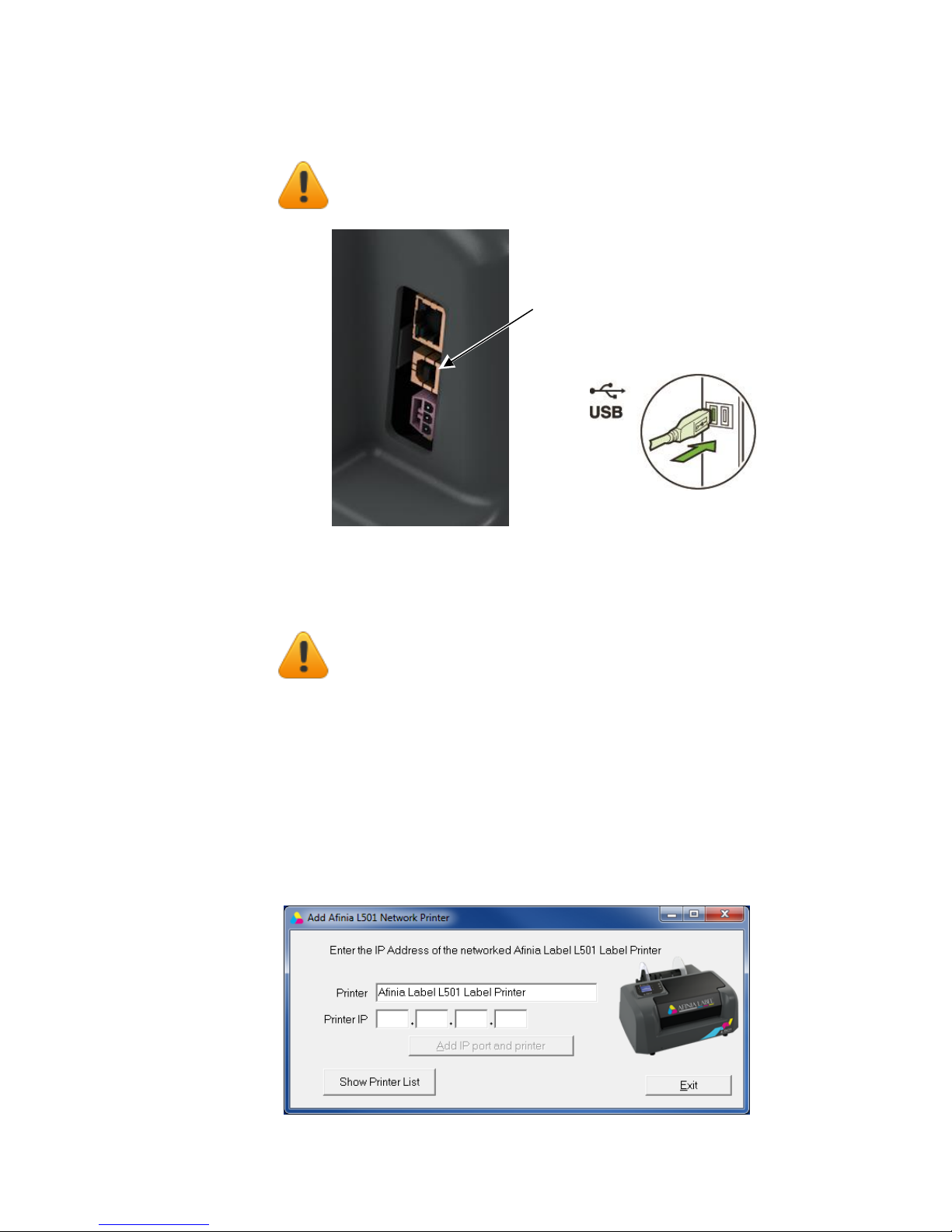
At the end of the installation, click the Network button to launch the Add Afinia L501
Network Printer utility.
Connect the USB to the Printer
and computer
Rear of Printer
(right side)
Install the Print Drivers and Toolbox BEFORE
connecting to the computer
Install the Print Drivers and Toolbox on your computer
BEFORE connecting to the network printer
Other manuals for Afinia L501
1
Table of contents
Other AFINIA LABEL Label Maker manuals

AFINIA LABEL
AFINIA LABEL Mini DLF Series User manual

AFINIA LABEL
AFINIA LABEL DLF L Series User manual

AFINIA LABEL
AFINIA LABEL L301 Specification sheet

AFINIA LABEL
AFINIA LABEL L901 User manual

AFINIA LABEL
AFINIA LABEL A200 User manual

AFINIA LABEL
AFINIA LABEL Afinia L501 Specification sheet

AFINIA LABEL
AFINIA LABEL Afinia 502 User manual

AFINIA LABEL
AFINIA LABEL L801 Reference manual

AFINIA LABEL
AFINIA LABEL Afinia 502 Specification sheet

AFINIA LABEL
AFINIA LABEL LT5C User manual