ADS Technologies USBX-2020 User manual

USB Turbo 2.0 WebCam
User’s Guide
www.adstech.com
USB
USB
USB
USB
USB
USB
USB
USB
USB
USB
12627 Hidden Creek Way
Cerritos CA, 90703
phone 562.926.1928
fax 562.926.0518
support 562.926.4338

Table of Contents
© 2002 ADS Technologies. All Rights Reserved
First Edition: Revision 2.0 October, 2002
Microsoft, MS-DOS, Windows, Windows 95, Windows 98, Windows 2000 and Windows XP
are registered trademarks of Microsoft Corporation.
IBM is a registered trademark of the International Business Machines, Inc.
ADS is a registered trademark of ADS Technologies Inc.
ADS Technologies (ADS) makes no warranty of any kind with regard to this material, including but
not limited to, the implied warranties of merchantability and fitness for a particular purpose.
The information furnished within this written document is for information purposes only and is
subject to change without notice. ADS Technologies assumes no responsibility or liability for any
errors or inaccuracies that may appear herein. ADS makes no commitment to update or to keep
current information contained within this document. (rtt)
2
A letter from the President of ADS . . . . . . . . . 3
Package Contents/System Requirements . . . . . . . 4
USB Turbo 2.0 WebCam Installation Guide . . . . . 5
iSPQ software installation . . . . . . . . . . 8
Help Resources . . . . . . . . . . . . . . . . . . 11
Service and Warranty . . . . . . . . . . . . . . 12
FCC Information. . . . . . . . . . . . . . . . . 14

A Letter from the President of ADS Technologies
“Connect, Create, and Store”
At ADS Technologies, Inc. we bring the best and latest multimedia technology to your PC. Our
products allow you to “Connect, Create and Store”.
CONNECT with our line of USB and 1394 Host and Hub devices. Today, external bus
technologies such as USB and FireWire/1394 let you connect hundreds of devices to your PC or
MAC. We have the connectivity solutions that allow you to get the most out of USB and 1394
technologies.
CREATE audio and video productions with our line of video capture and editing solutions.
We have video editing solutions to fit everyone’s needs, ranging from the novice level to the
professional level.
STORE that multimedia masterpiece with one of our 1394 storage solutions. Today’s multimedia
files are getting larger and larger. You need solutions that help you easily and cost effectively store
your work; we’ve got those solutions.
More than ever, my goal has been to bring new technologies to the consumer market at affordable
prices and with significant value to you, our customer.
ADS products are easy to use. Most of our products are Plug-and-Play, easy to install and offer
software to help get the best value out of the hardware product. And if you do need help, we will do
our best to support you. We want every customer to be a happy ADS
customer.
The combination of technology innovation, affordability, quality, value and support has made our
products award-winners in the press and at conventions. More over they are winners with our
customers.
I wish to thank you for choosing ADS Technologies and I hope you enjoy your new multimedia
experience.
Sincerely,
Michael McCoy
President
3

Introduction
Package Contents:
1. USB Turbo 2.0 WebCam
2. iSPQ Video Chat software
3. Yahoo Messenger
4. iVisit
5. Microsoft® Netmeeting
6. TeVeo Live Web Cam
7. User’s Guide
8. Extendable Tripod (see Fig. A)
System Requirements:
• Intel Pentium III / Pentium 4 / AMD Athlon /
Duron CPU’s 1 GHz and above
• 128 MB RAM
• CD-ROM Drive for Loading Application Software
• 100 MB of Hard Drive Space for Application Software
• One Available High Speed USB 2.0 Port
• Internet Connection for Video Conferecing
Applications:
• iSPQ VideoChat
• Yahoo Messenger
• Microsoft NetMeeting
• iVisit
• TeVeo Live 2.1
4
Fig. A:
Pull the legs out as
shown by the arrow to
extend and push back in
to retract.
Installation Instructions:
Windows XP / 2000
Hardware Installation
Do not connect the device to the USB port at this time.
INSTALL Device Drivers FIRST !
STEP 1. (Installing Drivers for the USB 2.0 WebCam)
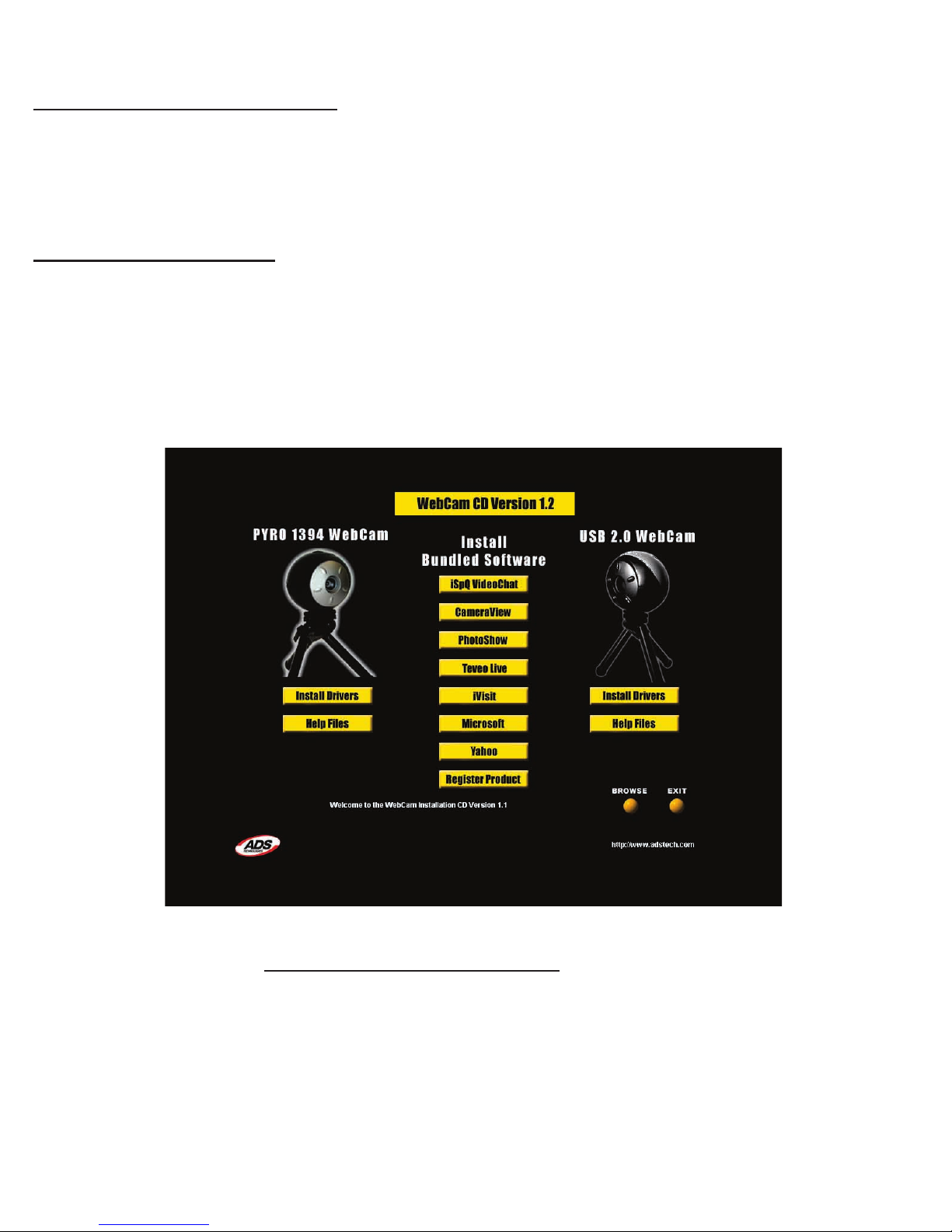
A. Insert the USB 2.0 WebCam CD. You will then see this screen:
B. From the Auto-Run Install screen Click “INSTALL DRIVERS” first.
C. Make sure you are connected to the INTERNET at this time.
D. INSTALL “iSPQ VideoChat” and other applications
E. RESTART your computer
5

6
STEP 2. (Connecting the USB 2.0 WebCam)
Make sure the USB 2.0 WebCam CD is in your CD ROM drive.
Connect the USB 2.0 WebCam Device directly to your USB 2.0 port on the
motherboard or USB 2.0 add-in card.
The following windows will appear as you connect the USB 2.0 WebCam. It may take
a minute or two to configure each component. Please follow these steps accordingly
:
Note: When you click “Finish”,
Audio Drivers necessary for
Video Conferencing will also
be installed.
• Click Finish.
Note: Windows 2000 prompts
will look slightly different for all
the pictures depicted here.
• Click next. Your USB 2.0
WebCam Hardware is being
installed.

7
To verify proper hardware installation, check the System Device Manager:
1.) Click Start
2.) Select Settings, Control Panel. This will open the Windows Control
Panel.
3.) Double Click “System”
When the System Properties appears, click on the Device Manager tab.
NOTE:
For testing purposes, we have included “amcap.exe”, a Microsoft application that can
access video devices. You can find amcap.exe in the “CD:/SOFWARE/MICROSOFT”
directory on the CD.
Extra Feature: Located on top of your WebCam, there is a button that you can press
to take snapshots.

8
Installing iSPQ (Eye-Speak) Software:
Windows
Note: Windows 2000 prompts will
look slightly different for all the
pictures depicted here.
• When you begin installing your
iSPQ software, a wizard like this
one will open. Click “Next”.
• Click “Yes”.

9
• Click “Next”.
• Click “Next”.

10
• Click “Next”.
Note: The program will now begin
installing into your system.
• After the program is installed,
click “Finish” and reboot your
system. You are now ready to
use iSPQ.
CameraView:
Easy capture and preview from your WebCam. Take snapshots or capture live
video from your webcam. Preview video up to 640x480 resolution on your
computer screen.
To install, click the “CameraView” button on the Autorun screen then follow the
installation instructions.
Other manuals for USBX-2020
2
This manual suits for next models
1
Table of contents
Other ADS Technologies Webcam manuals

ADS Technologies
ADS Technologies PYRO 1394 User manual

ADS Technologies
ADS Technologies PYR01394 User manual

ADS Technologies
ADS Technologies USBX-2020 User manual

ADS Technologies
ADS Technologies PYRO API-200 User manual

ADS Technologies
ADS Technologies PYRO 1394 User manual

ADS Technologies
ADS Technologies USBX-2020 User manual