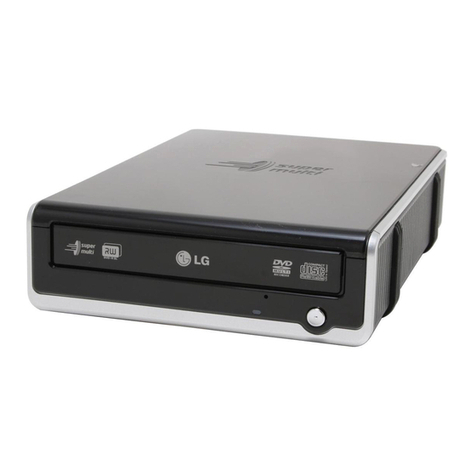
Addonics Technologies Mobile DVDR/RW User manual

Addonics
TECHNOLOGIES
Mobile DVD±R/RW
USB
FIREWIRE
Serial ATA
CardBus/PCMCIA
Users Guide
Revision 1.0

FCC Warning Statement
This equipment has been tested and found to comply with the limits for a class
B digital device pursuant to Part 15 of the FCC rules. These limits are designed
to provide reasonable protection against harmful interference in a residential
installation. This equipment generates, uses and can radiate radio frequency
energy. If not installed and used in accordance with the instructions, it may
cause harmful interference to radio communications. However, there is no
guarantee that interference will not occur in a particular installation. If the
equipment does cause harmful interference to radio or television reception,
which can be determined by turning the equipment on and off, the user is
encouraged to try and correct the interference by one or more of the following
suggestions.
• Reorient or relocate the receiving antenna
• Increase the distance between the equipment and the receiver
• Connect the equipment to a different power outlet other than the
one where receiver is connected
• Consult a certified television or radio technician
Addonics Technologies – Mobile DVD±R/RW Users Guide v 1.0 1

Contents
FCC Warning.......................................................................................1
Contents................................................................................................2
Chapter 1 Preface.................................................................................3
General Information
Features .............................................................................. 3
Physical Characteristics.......................................................3
Chapter 2 Getting started......................................................................4
Chapter 3 Hardware Installation ..........................................................5
Firewire Cable Installation...................................................5
Windows 98SE, Me, 2000 and XP Installation ...................6
CardBus/PCMCIA Cable Installation..................................7
CardBus/PCMCIA Driver Installation for Win9x, Me........8
CardBus/PCMCIA Driver Installation for NT, 2K, XP..9-10
Alternate CardBus/PCMCIA Install................................................11
USB Cable Installation .......................................................12
USB Driver Installation for Win98, SE, Me, 2K and XP...12
Serial ATA Driver installation ...........................................13
Chapter 4 Playing Audio CDs............................................................14
Chapter 5 Software Installation..........................................................14
Technical Support & Contact Information .....................................…15
Addonics Technologies – Mobile DVD±R/RW Users Guide v 1.0 2

Chapter 1
Preface
This is a Preliminary version of the manual intended to provide advance
information on the Addonics Technologies’ external Mobile DVD±R/RW drive.
The information is as complete and as accurate as possible as of the publication
date, but will be superseded and updated periodically by revised manuals. The
contents are subject to change without notice.
General Information
The Addonics Technologies’ Mobile DVD±R/RW drive is a drive that is
designed for both PC and Laptop with Firewire, PCMCIA, Serial ATA and USB
Port.
This drive combines the functions of a DVD recorder, DVD player and CDRW
all into one unit. The media supported are DVD±R, DVD±RW, CD-R and
CDRW.
Features
• External AC/DC universal power adapter.
• Connects to any PC via Firewire, USB, Serial ATA and PCMCIA
Port.
• Up to 400Mbits/s transfer rate with Firewire cable
• Up to 480Mbits/s transfer rate with USB cable
Physical Characteristics
• Height: 22.70 mm
• Length: 163.26 mm
• Weigh: 137.20 mm
• Weight: 14.3 oz
Addonics Technologies – Mobile DVD±R/RW Users Guide v 1.0 3

Chapter 2 Getting Started
This chapter will walk you through the installation of your external Mobile
DVD±R/RW. Make sure that you have the following items:
For DVD±R/RW with Firewire Cable
! Mobile DVD±R/RW Drive
! Firewire cable with 36 pin connector
! Sonic MyDVD Software
! DVD±R/RW Mastering Software
! MPEG II Software
! AC/DC adapter
! This User Guide
For DVD±R/RW with CardBus/PCMCIA Cable
! Mobile DVD±R/RW Drive
! CardBus/PCMCIA cable with 36 pin connector
! Sonic MyDVD Software
! DVD±R/RW Mastering Software
! MPEG II Software
! AC/DC adapter
! CardBus/PCMCIA driver diskette
! This User Guide
For DVD±R/RW with USB Cable
! Mobile DVD±R/RW Drive
! USB cable with 36 pin connector
! Sonic MyDVD Software
! DVD±R/RW Mastering software
! MPEG II Software
! AC/DC adapter
! USB driver diskette
! This User Guide
For DVD±R/RW with Serial ATA Cable
! Mobile DVD±R/RW Drive
! Serial ATA cable with 36 pin connector
! Sonic MyDVD Software
! DVD±R/RW Mastering software
! MPEG II Software
! AC/DC adapter
! This User Guide
Addonics Technologies – Mobile DVD±R/RW Users Guide v 1.0 4

Chapter 3 Hardware Installation
Fire wire Cable Installation
Attach the FIREWIRE-IDE cable’s “MC 36 Connector” (Picture 1) to your
Addonics Mobile Drive firm and securely – you should not be able to
disconnect the cable without pressing the release notch.
Picture 1
Diagram 2
Power
Switch
MC-36
Connector
AC/DC Adapter
Input Jack
Addonics Technologies – Mobile DVD±R/RW Users Guide v 1.0 5

Firewire DVD±R/RW Installation
For Win98SE, Me, Win2000 and XP
(Note for Win98SE only: After plugging in the cable some system might
prompt you for Win98SE CD, in case you don’t have The Win98SE CD and the
wizard prompt you for
a. NTMAP.SYS please type C:\WINDOWS\SYSTEM32\DRIVERS
b. NTMAPHLP.PDR please type C:\WINDOWS\SYSTEM\IOSUBSYS
IF the system did not prompt you for anything just follow the steps below)
1. Make sure the Firewire cable is securely attach from the back of the drive.
2. Make sure that power is attached and turned on.
3. Power on the system, on the Window Desktop, double click on the
MY COMPUTER icon.
4. Plug the Addonics 6 Pin FIREWIRE-IDE cable into your computer’s
FIREWIRE port cable shown on Diagram 1.
5. Wait for a few seconds, your computer may blink for a moment.
6. Double Click on the “My Computer” icon if not open yet. Your Mobile
DVD±R/RW will appear as a CD drive icon. You are now ready to use the
DVD±R/RW Drive.
Note: for computer that has a 4-pin firewire port, you will need to get a 6 to 4
pin Firewire adapter.
Addonics Technologies – Mobile DVD±R/RW Users Guide v 1.0 6

CardBus / PCMCIA setting
The Addonics CardBus PCMCIA card has an option switch can allow you
to choose using either PCMCIA mode or CardBus mode. The switch
position is as follows:
PCMCIA
CardBus
Side View
Front view
Cardbus and PCMCIA
selection switch.
CardBus mode – move the
switch to the side with the
DOT indicato
r
Factory default setting
is CardBus mode
CardBus mode supports WIN 95/98/ME/2000 and XP only.
For DOS, WIN 3.1x and WIN NT, the switch must be set in
PCMCIA mode.
For Power Installation please
refer to Diagram 2 from page5
Addonics Technologies – Mobile DVD±R/RW Users Guide v 1.0 7

CardBus/PCMCIA driver Installation
For Windows 95, 98, 98SE and Me
(Do not run the SETUP program from the driver disk, SETUP
Is for DOS or WIN 3.1 using PCMCIA mode only)
1. Power on your system and wait for the Desktop screen.
2. Connect the CardBus/PCMCIA cable and external AC/DC adapter into
the back of your Mobile DVD/CDRW.
3. Plug the CardBus / PCMCIA card end of the cable into the PCMCIA
slot on the side of your computer.
4. The system will automatically identify the new card and ask to load the
driver.
5. Insert the driver diskette in “A” drive and follow the instruction on the
screen to load “Addonics CardBus IDE Controller”. Be sure to
select the A:/win9xMe folder when the system prompts
for the location of driver disk.
6. When installation is finished, a PCMCIA card icon will appear in the
lower right-hand of the Window’s system tray.
7. Double Click on the “My Computer” icon. Your Mobile DVD±R/RW
will appear as a CD drive icon. You are now ready to use the Mobile
DVD±R/RW drive.
Addonics Technologies – Mobile DVD±R/RW Users Guide v 1.0 8

PCMCIA Installation for Windows NT
1. Go to Start\Settings\Control Panel
2. Double Click SCSI adapter icon
3. Click on the Driver Tab
4. Click Add to add new driver
5. Follow wizard and browse to A:\NT folder for the Driver.
6. Windows will prompt you for driver location again, to continue
Type in A:\NT then click continue.
7. Click YES to restart your computer.
8. Double Click on the “My Computer” icon. Your Mobile DVD±R/RW
will appear as a CD drive icon. You are now ready to use the
DVD±R/RW drive.
Note: You must use the PCMCIA mode for Windows NT.
CardBus/PCMCIA Installation for Windows 2000
1. Make sure your computer is up and running
2. Verify that all cables are connected and there is power to the drive.
3. Insert the PCMCIA cable to the PCMCIA socket.
4. A "New Hardware Found" message shall pops up.
5. Select "Next" to continue installation.
6. Select "Search for a suitable driver...." button and select "Next".
7. In "select a Device Driver page", select "Have Disk" to specify
location. Enter path like A:\win2kXp" Select "Addonics CardBus...."
click YES for the Windows warning message and let Win2000 to
finish the Installation and that's it.
8. Double Click on the “My Computer” icon. Your Mobile DVD±R/RW
Will appear as a CD drive icon. You are now ready to use the
DVD±R/RW drive.
Addonics Technologies – Mobile DVD±R/RW Users Guide v 1.0 9
Table of contents
Other Addonics Technologies DVD Drive manuals

Addonics Technologies
Addonics Technologies DVD R/RW User manual

Addonics Technologies
Addonics Technologies ZDVRRWESU User manual

Addonics Technologies
Addonics Technologies ZDVRRWESU User manual

Addonics Technologies
Addonics Technologies AEMDVRBY User manual

Addonics Technologies
Addonics Technologies Mobile DVD/CDRW User manual

Addonics Technologies
Addonics Technologies Pocket DVD User manual