3M X90 Parts list manual
1
This manual is only intended to explain Network Functions.
For safety, operations or any other issues, refer to the all user's manual for this
projector.
• Before using the network functions, read the all user's manual
for this projector carefully to ensure your projector is set up correctly.
• After reading, keep the manuals in a safe place for future reference.
WARNING
• The information in this manual is subject to change without notice.
• The manufacturer assumes no responsibility for any errors that may appear in
this manual.
• The reproduction, transfer or copy of all or any part of this document is not
permitted without express written consent.
NOTE
Contents
Network Functions .................................................................. 2
Settings ................................................................................... 6
Projector Control ................................................................... 22
Failure & Warning Alerts via E-mail ...................................... 26
Projector Management via SNMP.......................................... 28
Controlling the Projector via Scheduling .............................. 29
e-SHOT(Still Image Transfer) Display ................................... 32
Command Control via the Network....................................... 34
Trademark acknowledgment
• Windows is a registered trademark of Microsoft Corporation.
• Netscape is a registered trademark of Netscape Communications Corporation.
• JavaScript is a registered trademark of Sun Microsystems, Inc.
All other trademarks are the properties of their respective owners.
X90w
Multimedia Projector
Network Functions
© 3M 2007. All Rights Reserved.

2
Network Functions
Network Functions
Conguring and Controlling the Projector via a Web Browser
You can change the settings of or control the projector via a network by using a
web browser from a PC that is connected to the same network.
(4)
Failure & Warning Alerts via E-mail
The projector can automatically send an alert to specied e-mail addresses when
the projector requires maintenance or has encountered an error.
(26)
Projector Management via SNMP
This projector is SNMP (Simple Network Management Protocol) compliant,
allowing you to monitor it from a remote location using SNMP software. In
addition, the projector is able to send failure & warning alerts to a specied PC.
(28)
Controlling the Projector via Scheduling
You can schedule the projector to perform various functions according to the
DATE and TIME.
(29)
Still Image Transfer
The projector can display still images that are transferred via the network.
(32)
Projector Control via RS-232C via the Network
The projector can be controlled using RS-232C commands over a network.
(34)
This projector is equipped with the following network functions.
3M™ Digital Projector X90
© 3M 2007. All Rights Reserved.

3
Network Functions
Before using the network functions…
To use the network functions of this projector, the projector must be congured to
suit your network. Consult with your network administrator before connecting the
projector to your network. Incorrect network conguration of this projector may
cause problems on your network.
Connect to the Gateway (The router/PC that forwards trafc to a destination
outside of the subnet of the transmitting device) from the network terminal on the
projector using a CAT-5 (or greater) cable and congure the following settings.
If using a network with DHCP enabled:
The projector’s network settings can be congured automatically. when [DHCP] on
the network menu is set to [TURN ON]. Please refer to DHCP in network menu. (
Operator's Guide : NETWORK Menu) If a xed / static IP address is required, please
congure your projector according to the steps in the following section.
If using a network system that does not have DHCP enabled or if
using a xed IP address on a network system equipped with DHCP
enabled:
Congure the following settings on the network menu.
(Operator's Guide : NETWORK Menu)
1. [DHCP]: Disable DHCP (Set [DHCP] to [TURN OFF]).
2. [IP ADDRESS]: Enter an appropriate IP address for the projector to connect
to your network.
3. [SUBNET MASK]: Enter an appropriate SUBNETMASK for the projector to
connect to your network.
4. [DEFAULT GATEWAY]: Enter an appropriate Gateway (the router/PC that
forwards trafc to a destination outside of the subnet of the transmitting
device) address for the projector to connect to your network.
3M™ Digital Projector X90
© 3M 2007. All Rights Reserved.

4
Network Functions
Conguring and controlling the projector via a web browser
You can adjust or control the projector via a network from a web browser on a PC
that is connected to the same network.
• Internet Explorer 5.5 or higher or Netscape 6.2 or higher are required.
• If JavaScript is disabled in your web browser conguration, you must enable
JavaScript in order to use the projector web pages properly. See the Help les
for your web browser for details on how to enable JavaScript.
• This projector is SSL (Secure Socket Layer) compliant. Please specify “https://”
when the entering the projector address.
• If projector is disconnected from network approx. 50 seconds, system will
automatically log off. Please Re-log on to continue operations via a web
browser.
• After you logon, a small, blank window will appear behind the main operation
window. Please do not close this small, blank window. If this window is closed,
the system will automatically log off after certain period of time even if an
operation is being performed.
The small, blank window will close when the main operation window is closed.
• The small, blank window may be considered a pop-up and be blocked if you
are using Windows XP Service Pack 2, or using other security software.
If Service Pack 2 blocks the window the following message will appear:
"Pop-up blocked. To see this pop-up or additional options click here..."
Please select "Temporarily Allow Pop-ups" or "Always Allow Pop-ups From This
Site..." to allow the window to open.
• It is recommended that all web browser updates be installed. It is especially
recommended that all users running Internet Explorer on a Microsoft Windows
version prior to Windows XP Service Pack 2 install security update Q832894
(MS04-004) or the web browser interface may not be displayed correctly.
And when using an older version of Internet Explorer, during operations the
browser will log out after 50 seconds.
NOTE
3M™ Digital Projector X90
© 3M 2007. All Rights Reserved.

5
Network Functions
When conguring or controlling the projector via a web browser, an ID and
password are required. There are two types of IDs, Administrator IDs and User
IDs. The following chart describes the differences between user and administrator
IDs.
Below are the factory default settings for administrator IDs, user IDs and
passwords.
Item Description
Administrator ID
User ID
Network Information Displays the projector’s current
network conguration settings. √ √
Network Settings Displays and congures network
settings. √N/A
Port Settings Displays and congures
communication port settings. √N/A
Mail Settings Displays and congures e-mail
addressing settings. √N/A
Alert Settings Displays and congures failure &
warning alerts. √N/A
Schedule Settings Displays and congures schedule
settings. √N/A
Date/Time Settings Displays and congures the date and
time settings. √N/A
Security Settings Displays and congures passwords
and other security settings. √N/A
Projector Control Controls the projector. √ √
Projector Status Displays and congures the current
projector status. √ √
Network Restart Restarts the projector’s network
connection. √N/A
Item ID Password
Administrator ID Administrator <blank>
User ID User <blank>
Conguring and controlling the projector via a web browser (Continued)
3M™ Digital Projector X90
© 3M 2007. All Rights Reserved.
6
Settings
Settings
Refer to the following for conguring or controlling the projector via a web browser.
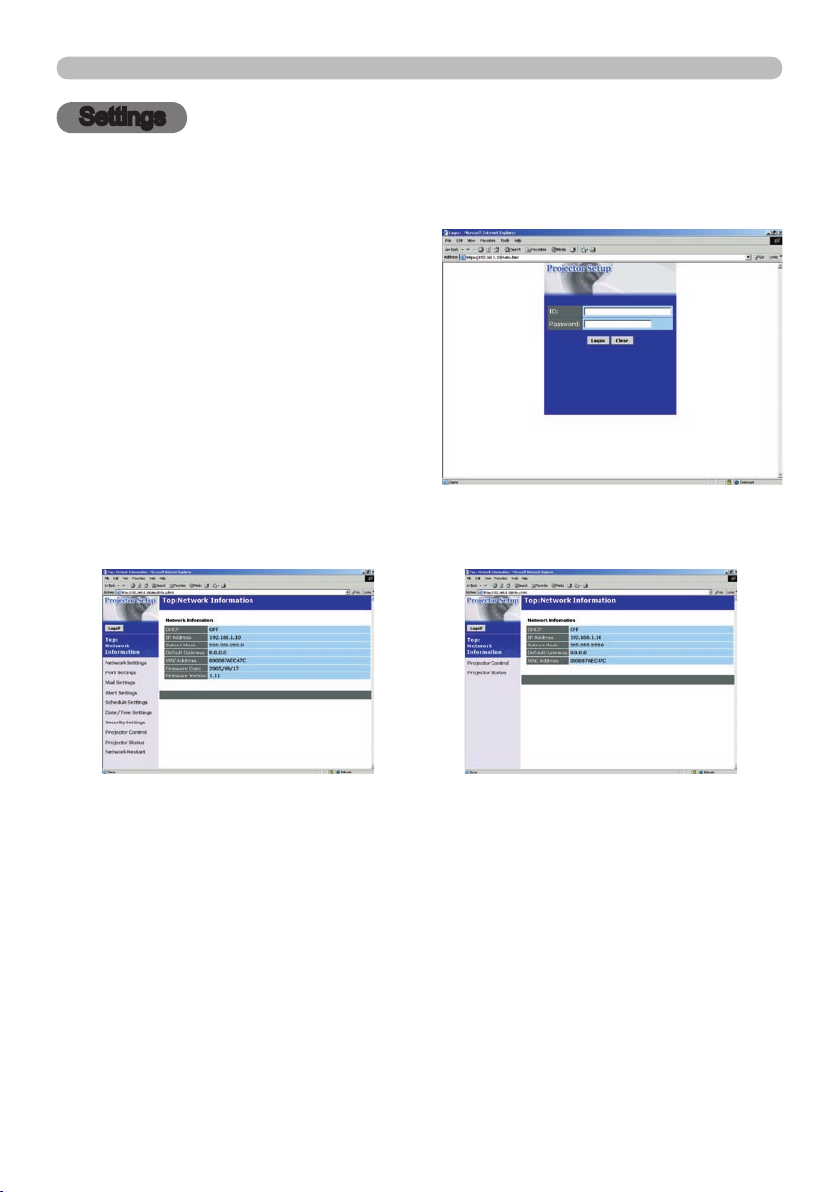
Example: If the IP address of the projector is set to 192.168.1.10:
1) Enter
[https://192.168.1.10] into the
address bar of the web browser and
the screen in Fig. 1 will be displayed.
2) Enter your ID and password and click
[Logon].
If the logon is successful either the Fig.2 or Fig.3 screen will be displayed.
3) Click the desired operation or conguration item on the main menu located on
the left-hand side of the screen (Fig. 2 or Fig. 3).
Fig. 2 (Logon with administrator ID) Fig. 3 (Logon with user ID)
Fig. 1
3M™ Digital Projector X90
© 3M 2007. All Rights Reserved.
7
Settings
Network Information
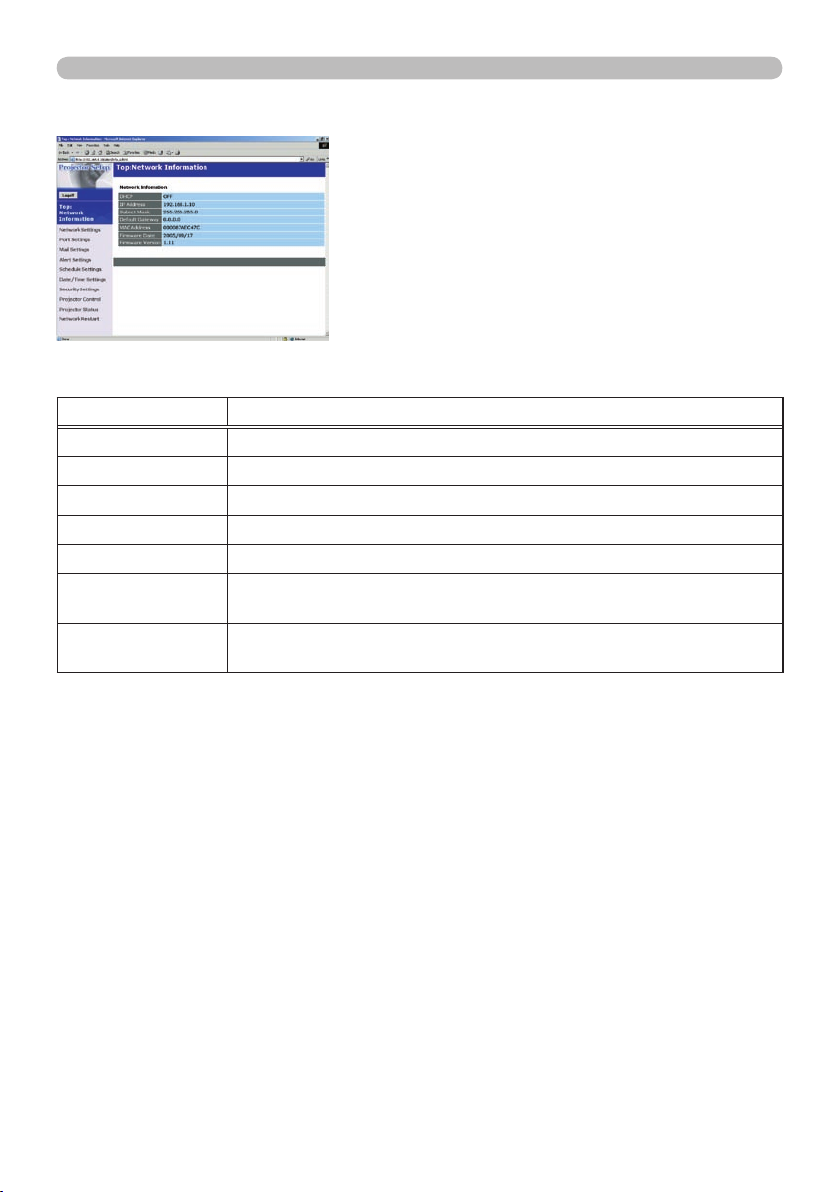
All screen images displayed in this manual are
screens of a logon using an administrator ID.
Any administrator only functions will not be
displayed when using a user ID. Refer to the
descriptions in each table.
Displays the projector’s current network conguration settings.
Item Description
DHCP Displays the DHCP conguration settings.
IP Address Displays the current IP address.
Subnet Mask Displays the Subnet Mask.
Default Gateway Displays the Default Gateway.
MAC Address Displays the MAC address.
Firmware Date Displays the network rmware time stamp. This information is only
displayed when logged on using an administrator ID.
Firmware Version Displays the network rmware version number. This information is
only displayed when logged on using an administrator ID.
3M™ Digital Projector X90
© 3M 2007. All Rights Reserved.
8
Settings
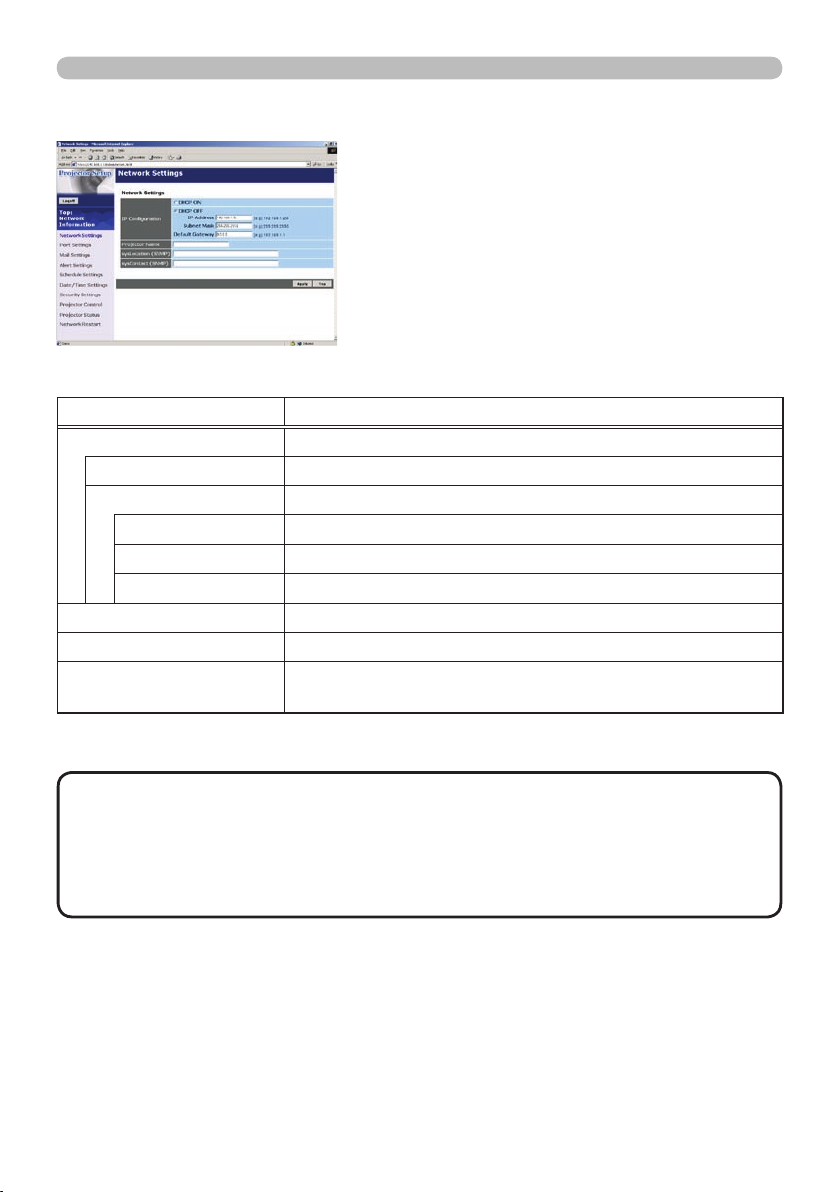
Network Settings
Displays and congures network settings.
Click the [Apply] button to save the settings.
• The new conguration settings are activated after restarting the
network connection. When the conguration settings are changed, you must
restart the network connection. You can restart the network connection by
clicking [Network Restart] on the main menu.
• If you connect the projector to an existing network, consult a network
administrator before setting server addresses.
NOTE
Item Description
IP Conguration Congures network settings.
DHCP ON Enables DHCP.
DHCP OFF Disables DHCP.
IP Address Congures the IP address when DHCP is disabled.
Subnet Mask Congures the Subnet Mask when DHCP is disabled.
Default Gateway Congures the Default Gateway when DHCP is disabled.
Projector Name Congures the Projector name.
SysLocation Congures the location to be referred to when using SNMP.
SysContact Congures the contact information to be referred to when
using SNMP.
3M™ Digital Projector X90
© 3M 2007. All Rights Reserved.
9
Settings
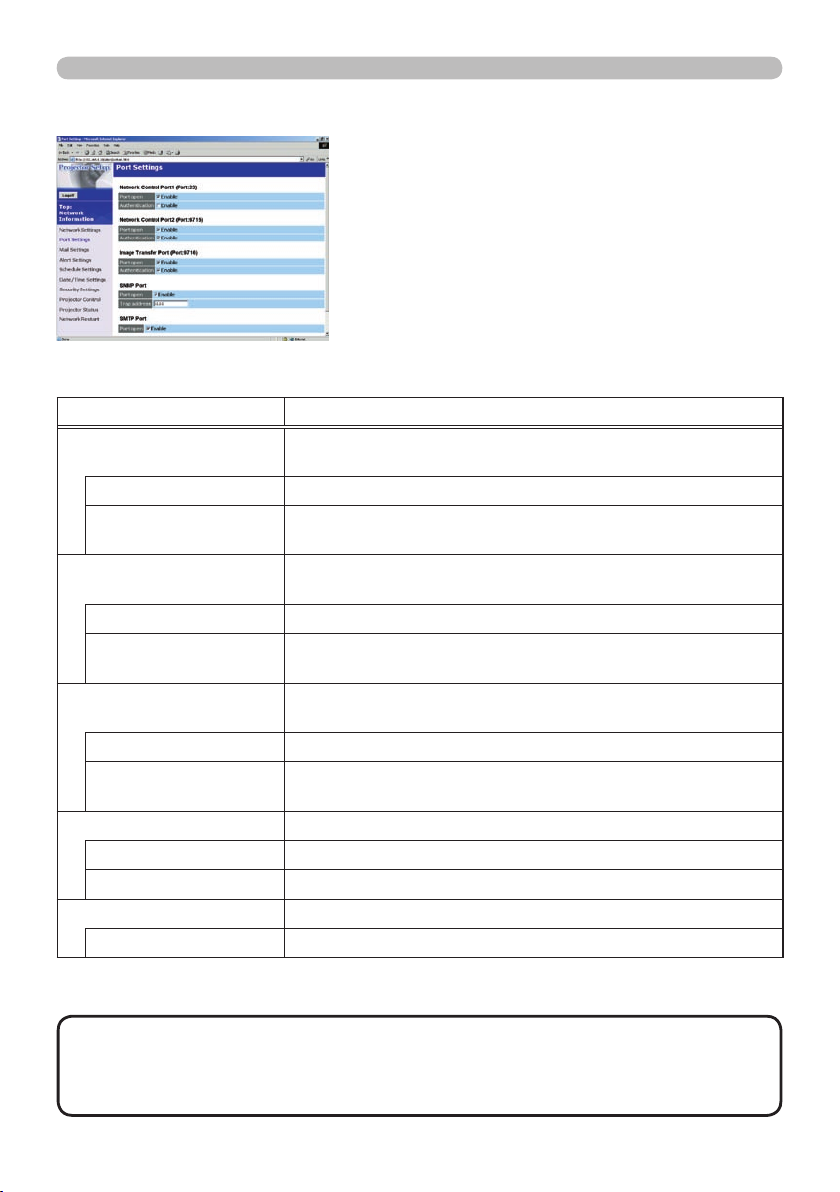
Port Settings
Displays and congures communication port settings.
Click the [Apply] button to save the settings.
• The new conguration settings are activated after restarting the
network connection. The network connection must be restarted when the
conguration settings are changed. The network connection can be restarted
using [Network Restart] on the main menu.dresses.
NOTE
Item Description
Network Control Port1
(Port:23) Congures command control port 1 (Port:23).
Port open Click the [Enable] check box to use port 23.
Authentication Click the [Enable] check box when authentication is required
for this port.
Network Control Port2
(Port:9715) Congures command control port 2 (Port:9715).
Port open Click the [Enable] check box to use port 9715.
Authentication Click the [Enable] check box when authentication is required
for this port.
Image Transfer Port
(Port:9716) Congures the image transfer port (Port:9716).
Port open Click the [Enable] check box to use port 9716.
Authentication Click the [Enable] check box when authentication is required
for this port.
SNMP Port Congures the SNMP port.
Port open Click the [Enable] check box to use SNMP.
Trap address Congures the destination of the SNMP Trap in IP format.
SMTP Port Congures the SMTP port.
Port open Click the [Enable] check box to use the e-mail function.
3M™ Digital Projector X90
© 3M 2007. All Rights Reserved.
10
Settings
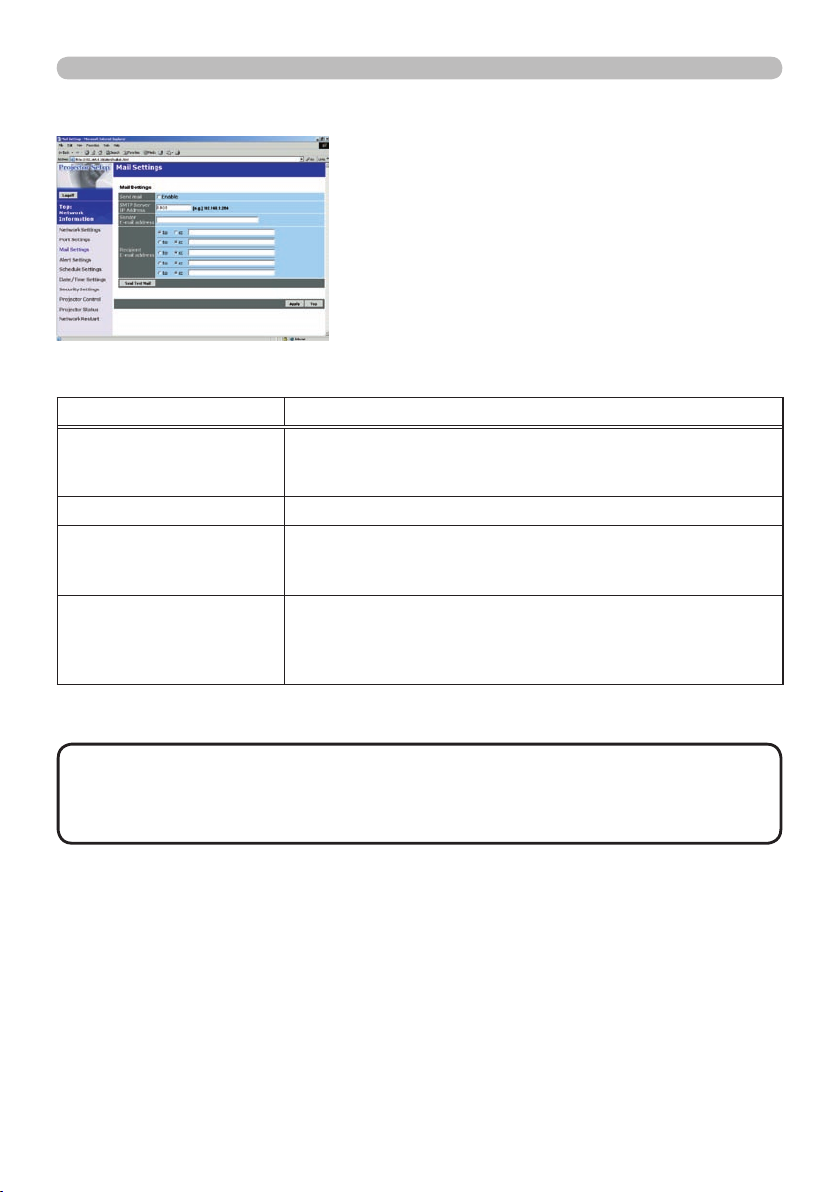
Mail Settings
Displays and congures e-mail addressing settings.
Click the [Apply] button to save the settings.
• You can conrm whether the mail settings work correctly using the
[Send Test Mail] button.
• If you connect the projector to an existing network, consult a network
administrator before setting server addresses.
NOTE
Item Description
Send Mail
Click the [Enable] check box to use the e-mail function.
Congure the conditions for sending email under [Alert
Settings].
SMTP Server IP Address Congures the address of the mail server in IP format.
Sender E-mail address
Congures the sender e-mail address.
The length of the sender e-mail address can be up to 255
alphanumeric characters.
Recipient E-mail address
Congures the e-mail address of up to ve recipients. You
can also specify [TO] or [CC] for each address. The length of
the recipient e-mail address can be up to 255 alphanumeric
characters.
3M™ Digital Projector X90
© 3M 2007. All Rights Reserved.
Other manuals for X90
2
Table of contents
Other 3M Projector manuals

3M
3M WX36 User guide

3M
3M Multimedia Projector X65 Installation and operating manual

3M
3M Multimedia Projector H10 User manual

3M
3M WX20 - Digital Projector WXGA LCD Manual

3M
3M X95I - Digital Projector XGA LCD Manual

3M
3M Multimedia Projector MP8625 Manual

3M
3M X95I - Digital Projector XGA LCD User manual

3M
3M Overhead Projector 1700 User manual

3M
3M Digital Projector X64 Operating manual

3M
3M 2000 User manual