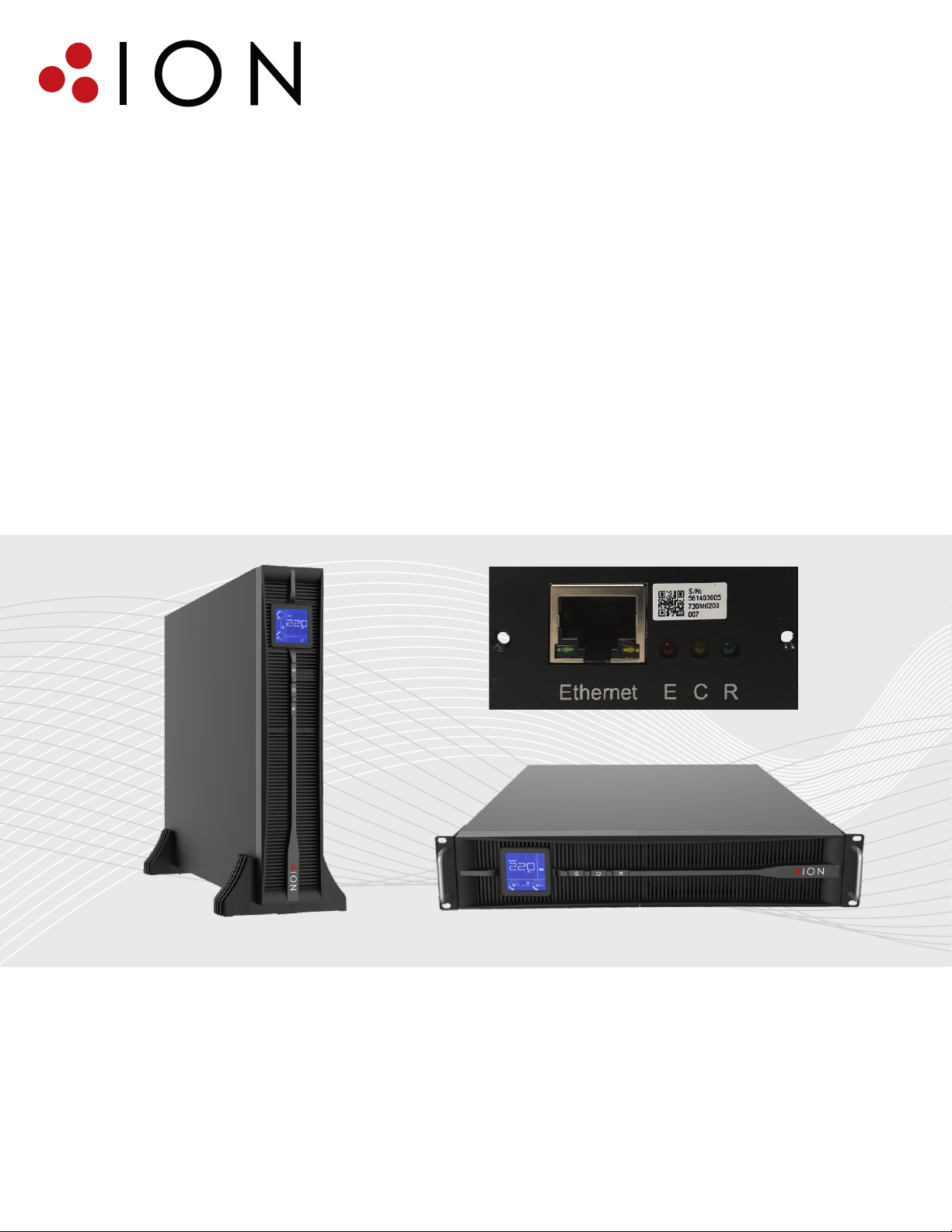
ION ION-F18L-Series User manual
WiseFind, WiseWay GUI
& WiseInsight
UPS Software User Manual
for ION-F18L-Series UPS
(with generation 1 SNMP cards)
© 2022 - ION UPS Pty Ltd.
INTRODUCTION
WARNING
Thank you for choosing ION UPS for your Uninterruptible Power Supply needs! We
hope our Lithium-Ion UPS products serve you well. If they don’t, remember that we have a 5-year
limited lifetime warranty on electronic components and a 5-year battery warranty.
For service or warranty replacement needs, please contact us at 1300 700 805.
Please save this manual for future reference.
ION Software described in this manual is license-free and can be installed on as many
computers/servers as you would like.
2
This software is compatible with the following OS: Microsoft Windows
XP, Microsoft Windows 7, Microsoft Windows 8, Window 10, Microsoft
Windows Server 2003, Microsoft Windows Server 2008 R2, Microsoft
Windows Server 2012. Use with other operating systems may cause the
software to be come unstable. See addendum for installation information
on Windows 10.
WARNING
This software does not run as a service item in Windows. It runs as an EXE
file and should be left open for full operation and optimization. Programs
can be set to launch at system startup.
ADVISORY
All ION Software is “on premises” and runs on your own local network. No
program data is cloud based and it does not connect to any ION servers in
any form. All monitoring and alerts are done through users own network
and internet systems (SNMP monitoring, SMTP email alerts, traps, etc.)
CONTENTS
Quick start guide ........................................................................ 5
WiseFind (UPS ID) ................................................................................5
WiseWay (UPS GUI) .............................................................................5
WiseInsight (UPS Monitoring) ............................................................5
WiseClose (Safe Shutdown) ...............................................................5
Software Components .......................................................................6
Instructions - WiseFind ............................................................... 7
Install ....................................................................................................7
Launching Program ............................................................................7
Main Interface .....................................................................................7
Search ...................................................................................................7
Change IP of Connected UPS .............................................................8
WiseWay (UPS GUI) .............................................................................8
Instructions - WiseWay ............................................................... 9
WiseWay GUI monitoring/control .....................................................9
WiseWay Login ....................................................................................9
WiseWay Browser Compatibility .......................................................9
WiseWay Home Screen ......................................................................9
WiseWay - UPS Status Info Menu ......................................................10
System Status Info ..............................................................................10
Basic Info ..............................................................................................10
Real-Time Data ....................................................................................10
Real-Time Status .................................................................................10
Module Real-Time Status ...................................................................10
WiseWay - UPS Status Info Menu ......................................................11
WiseWay - Settings and Control Menu .............................................11
Charts ...................................................................................................11
Settings and Control ...........................................................................11
Remote Control ...................................................................................12
UPS Setting ..........................................................................................12
UPS Plan Task ......................................................................................13
Wake On LAN .......................................................................................14
Network Setting ..................................................................................14
Instructions - WiseWay .......................................................................15
SNMP Setting .......................................................................................15
Email Setting ........................................................................................15
SMS Setting ..........................................................................................16
System Setting .....................................................................................16
Log Query Menu .................................................................................17
Event Log ..............................................................................................17
SMS Log ................................................................................................17
UPS Data Log .......................................................................................17
Assistant Function Menu ....................................................................18
Firmware Update ................................................................................18
Port Debug ...........................................................................................18
About ....................................................................................................18
Instructions - WiseInsight .......................................................... 19
WiseInsight - Getting Started .............................................................19
Install ....................................................................................................19
Launching Program ............................................................................19
Login Screen ........................................................................................19
Main Screen .........................................................................................19
WiseInsight - System Menu ...............................................................20
System Setting - System Tab .............................................................20
System Setting - Protocol Tab ...........................................................20
System Setting - Device Tab ...............................................................20
Email Setting ........................................................................................21
SMS Setting ..........................................................................................21
Export Setting ......................................................................................22
Import Setting .....................................................................................22
Quit .......................................................................................................22
WiseInsight - Device Menu .................................................................23
Launch Device .....................................................................................23
Search Device ......................................................................................23
Add Device ...........................................................................................23
Update Device .....................................................................................23
WiseInsight - Event Menu ..................................................................24
Delete Device .......................................................................................24
Export Device.......................................................................................24
Import Device ......................................................................................24
Voice Confirm ......................................................................................24
Event Confirm ......................................................................................24
WiseInsight - User Menu ....................................................................25
Change Password ...............................................................................25
User Manager ......................................................................................25
WiseInsight - Log Menu ......................................................................26
SMS Log ................................................................................................26
Data Log ...............................................................................................26
WiseInsight - View Menu ....................................................................27
Event Log ..............................................................................................27
Icon .......................................................................................................27
Table .....................................................................................................27
Map .......................................................................................................28
WiseInsight - Main Dashboard Tabs .................................................29
Real Data ..............................................................................................29
Real Chart ............................................................................................29
Real State .............................................................................................29
Device Info ...........................................................................................29
Environment ........................................................................................30
Control..................................................................................................30
WiseInsight - Main Program Icon Menu ...........................................31
Instructions - WiseClose ..................................................................32
Install ....................................................................................................32
Launching Program ............................................................................32
Quick Setup Wizard ............................................................................32
Quick Setup - IP Address ....................................................................32
Quick Setup - Shutdown Timers ........................................................33
Quick Setup - Boot at Startup ............................................................33
Quick Setup - Setup Complete ..........................................................33
WiseClose - Operation ........................................................................34
Settings .................................................................................................34
Settings - General Set .........................................................................34
Settings - Network Set ........................................................................34
Close Log ..............................................................................................34
Event Log ..............................................................................................35
Alarm Prompt Dialog ..........................................................................35
ADDENDUM - WINDOWS 10 Installation ................................... 35
Win10Pcap Setup Wizard ...................................................................35
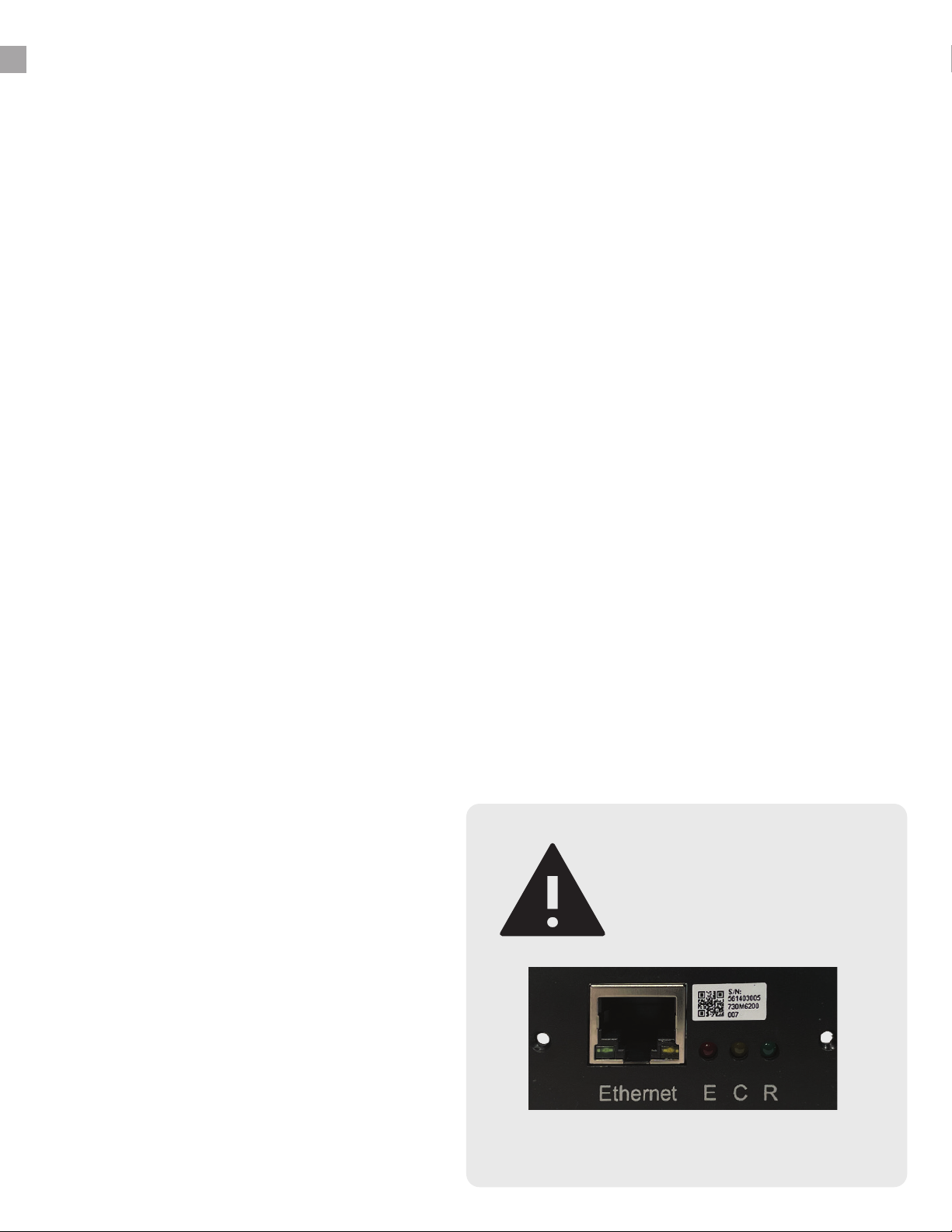
ADVISORY
This manual is
designed for use with
ION Generation 1
SNMP cards.
Gen 1 cards have a single ethernet port
and three round lights (red, amber, green).

Abbreviation Description
SNMP Simple Network Management Protocol
HTTP HyperText Transfer Protocol
DHCP Dynamic Host Configuration Protocol
DNS Domain Name System
MAC Address Media Access Control Address
Terminology Note
For Your Records
It is recommended you keep a record of your serial numbers, IP addresses and the location
description of your UPS devices. For your convenience we’ve included a table to keep your notes:
Unit Description Model # UPS Serial # SNMP Serial # SNMP MAC #
Physical Location:
Unit Description Model # UPS Serial # SNMP Serial # SNMP MAC #
Physical Location:
Unit Description Model # UPS Serial # SNMP Serial # SNMP MAC #
Physical Location:
Unit Description Model # UPS Serial # SNMP Serial # SNMP MAC #
Physical Location:
Unit Description Model # UPS Serial # SNMP Serial # SNMP MAC #
Physical Location:
Unit Description Model # UPS Serial # SNMP Serial # SNMP MAC #
Physical Location:
Unit Description Model # UPS Serial # SNMP Serial # SNMP MAC #
Physical Location:
Unit Description Model # UPS Serial # SNMP Serial # SNMP MAC #
Physical Location:
4
QUICK START GUIDE
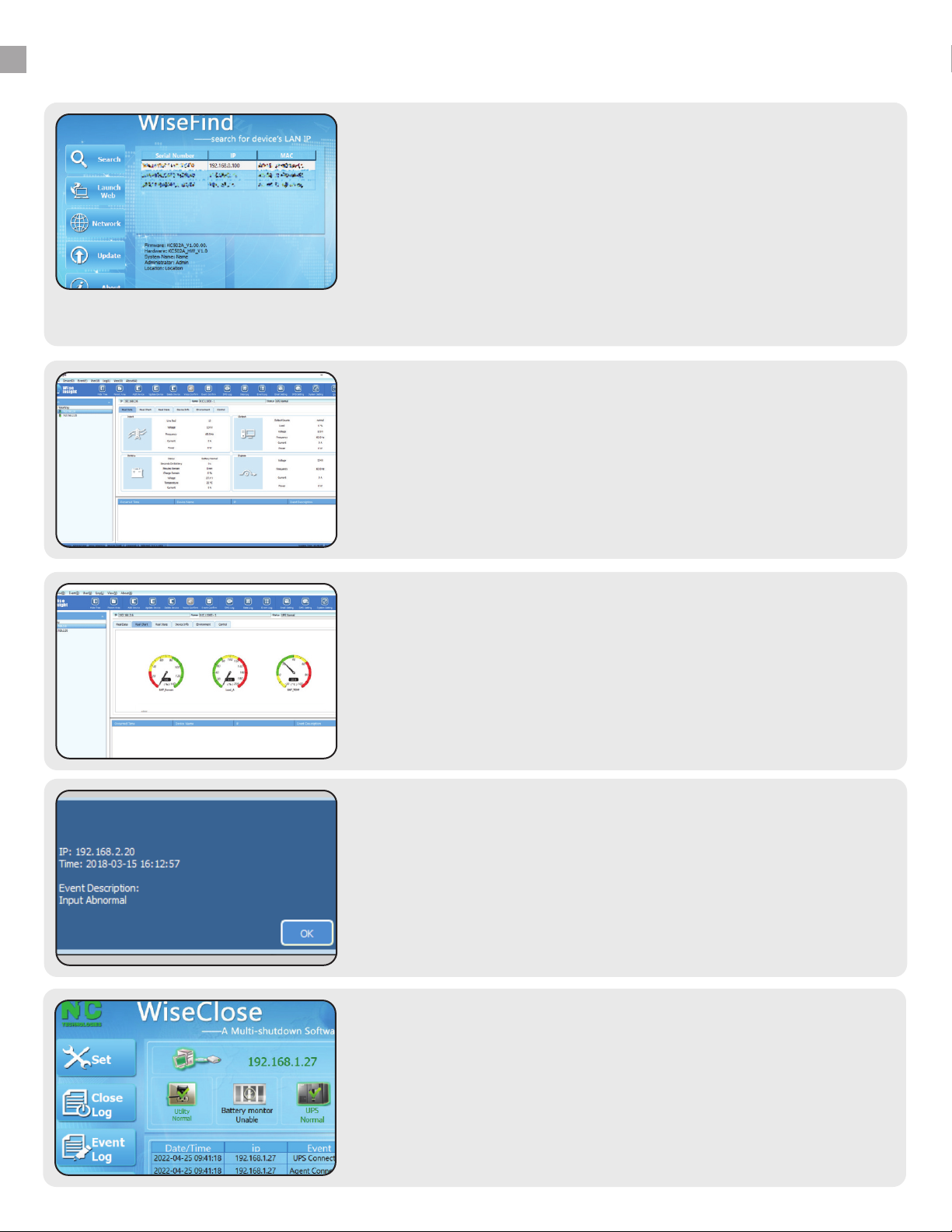
WiseFind (UPS ID)
5
WiseFind is used to identify ION UPS products on your
network. UPS devices must be connected to the network
with Ethernet cable via the included SNMP card. Start with
WiseFind to change the IP/Subnet/Gateway info of the
card with WiseFind. The default IP is 192.168.0.100. This
must be changed to use your UPS SNMP Card.
1.
WiseWay (UPS GUI)
Log in to the UPS GUI (called WiseWay) to monitor and
remotely control functions of your UPS. View real-time
data, export event logs, remote shutdown and restart,
program alerts, set planned tasks, add users, and more.
(*There is no program installer for WiseWay.)
2.
WiseInsight (UPS Map & Alerts)
Set alerts in WiseInsight to receive emails, screen pop-
ups and audible alarms when there is a power event that
affects your UPS system. Use WiseInsight “map” your UPS
network, find problems, and launch the UPS WiseWay GUI
to control problem units, including shutdown and restart.
4.
WiseClose (Safe Shutdown)
Use WiseClose to safely shutdown your Windows-based
PC or server before the UPS battery is exhausted during a
long-duration power outage or a UPS alarm event.
5.
WiseInsight (UPS Monitoring)
Add multiple UPS devices to WiseInsight by IP address
(including some other brands). Here, you can monitor
statistical data about each network-connected UPS, such
as input and output voltage, load, temperature, power
interruptions, and more.
3.

SNMP Serial & MAC Add.
COMPONENTS
There are four critical pieces of software used to monitor and control aspects of your ION UPS systems,
including:
WiseFind WiseWay
WiseInsight WiseClose
WiseFind
WiseFind is designed for finding and modifying the network connectivity of the ION F18L-Series UPS systems
attached to your network SNMP cards. Use it first to find the ION UPS systems you have on your network
and change the default IP Address (192.168.0.100) to a unique, static IP, Subnet and Gateway that are
usable on your network, or choose to have the IP assigned by DHCP.
WiseFind will also let you view the Serial Number and MAC Address of
your SNMP Card. If more than one UPS is installed, these are important
in identifying the device and its physical location on your network. Use
the “For Your Records” table on the previous page to make a note of
this information, which is useful later when setting up the WiseInsight
monitoring software. SNMP card serial numbers and MAC addresses are
found on stickers located on the card, next to the network port.
WiseWay
WiseWay is the HTML/Browser-Based monitoring of individual SNMP cards. Only web-browsing software is
needed to use WiseWay GUI on your computer. Navigate to the UPS’s IP address (or double click it within
WiseFind) to open the GUI on your browser. Once logged in, you can do many monitoring and control
functions of that single UPS. To get to the GUI of a different UPS, navigate back to the WiseFind application
and double-click the new device, or enter the other device’s IP address in your browser.
WiseInsight
WiseInsight is a multi UPS monitoring software for use with one or more network-connected ION UPS
devices. If you only have one or a few UPS systems, you may not need to use WiseInsight. If you have more
than one it is a very useful program. The software:
• Shows, collects and saves real-time and historical data, which can be exported to a database.
• Sends alerts by email, audible tones and pop-up dialog when there are system alarms.
• Manages the devices by area so you know where devices are located if problems occur.
• Supports up to 1,000 connected UPS devices on the network.
WiseClose
6
WiseClose is a “safe shutdown” software for your Windows PC or server. It monitors an individual UPS by
its IP address. If that UPS goes into battery mode or an alarm state, WiseClose will begin a user-defined
countdown timer. If power is not restored or the alarm is not cleared before the timer reaches 00:00,
WiseClose will issue a shutdown command to the PC/Server in attempt to have it shut down safely before
the battery is exhausted.
INSTRUCTIONS - WISEFIND
Install
7
Main Interface
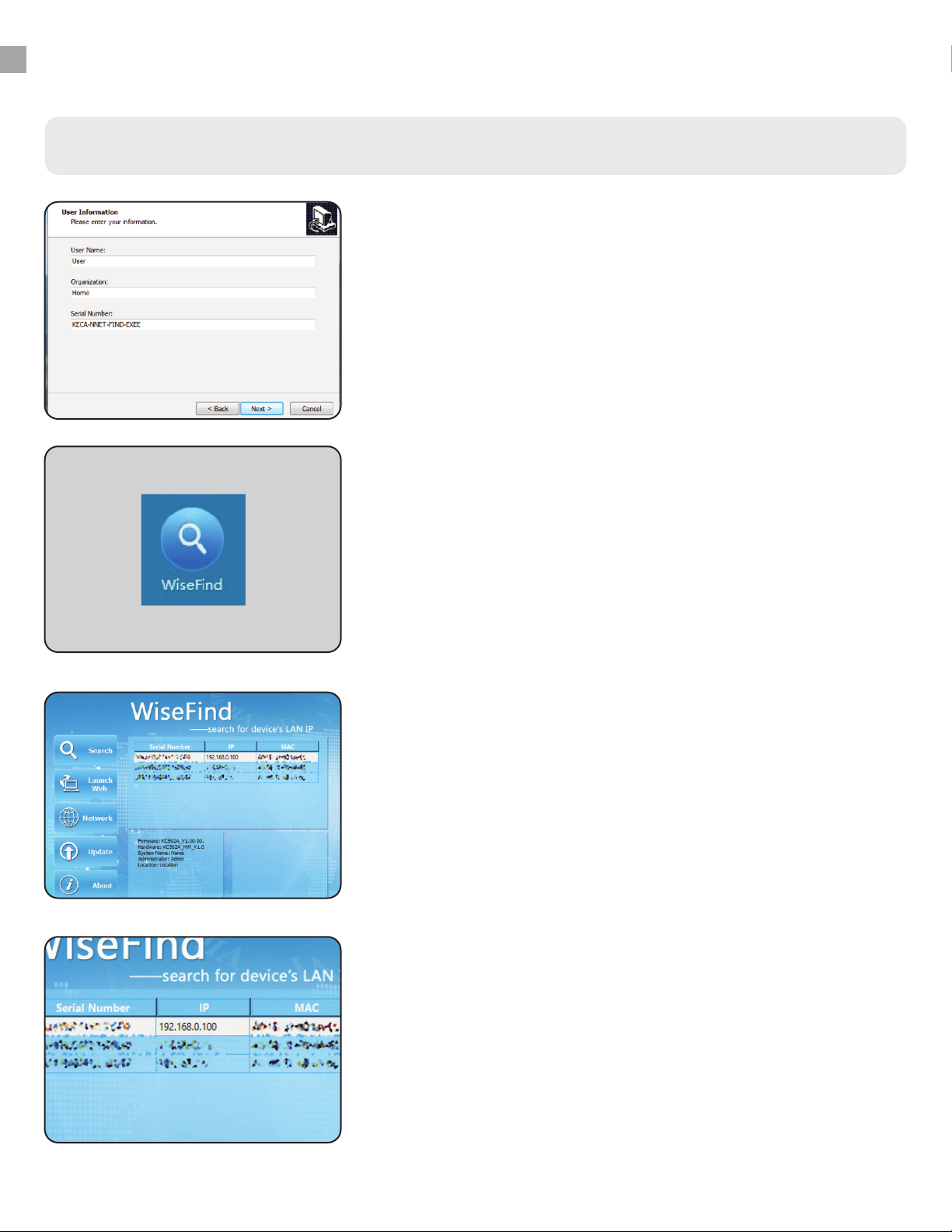
Open the WiseFind_Setup.exe program to install the software.
(See addendum, Page 35, for information on Windows 10
installation.) Follow the on-screen instructions provided by the
setup wizard. On the User Information Screen, you may change
the name of the user and organization. DO NOT CHANGE the
default software serial number: KECA-NNET-FIND-EXEE
The main WiseFind screen includes capabilities to search
for UPS devices, launch the WiseWay GUI interface on your
browser, assign and change network information for connected
UPS devices (including IP addresses for connected devices).
1.
3.
WiseFind
Launching Program
Search
After installation, WiseFind can be opened by double-clicking
the program icon.
After ION UPS devices are attached to your network and
switched on, perform a search by clicking the search button.
The initial IP of the device(s) should read 192.168.0.100. You
will also see the SNMP card serial number and MAC address
for each ION device on your network. The software will search
every 20 seconds automatically.
2.
4.
INSTRUCTIONS - WISEFIND
Change IP of Connected UPS
8
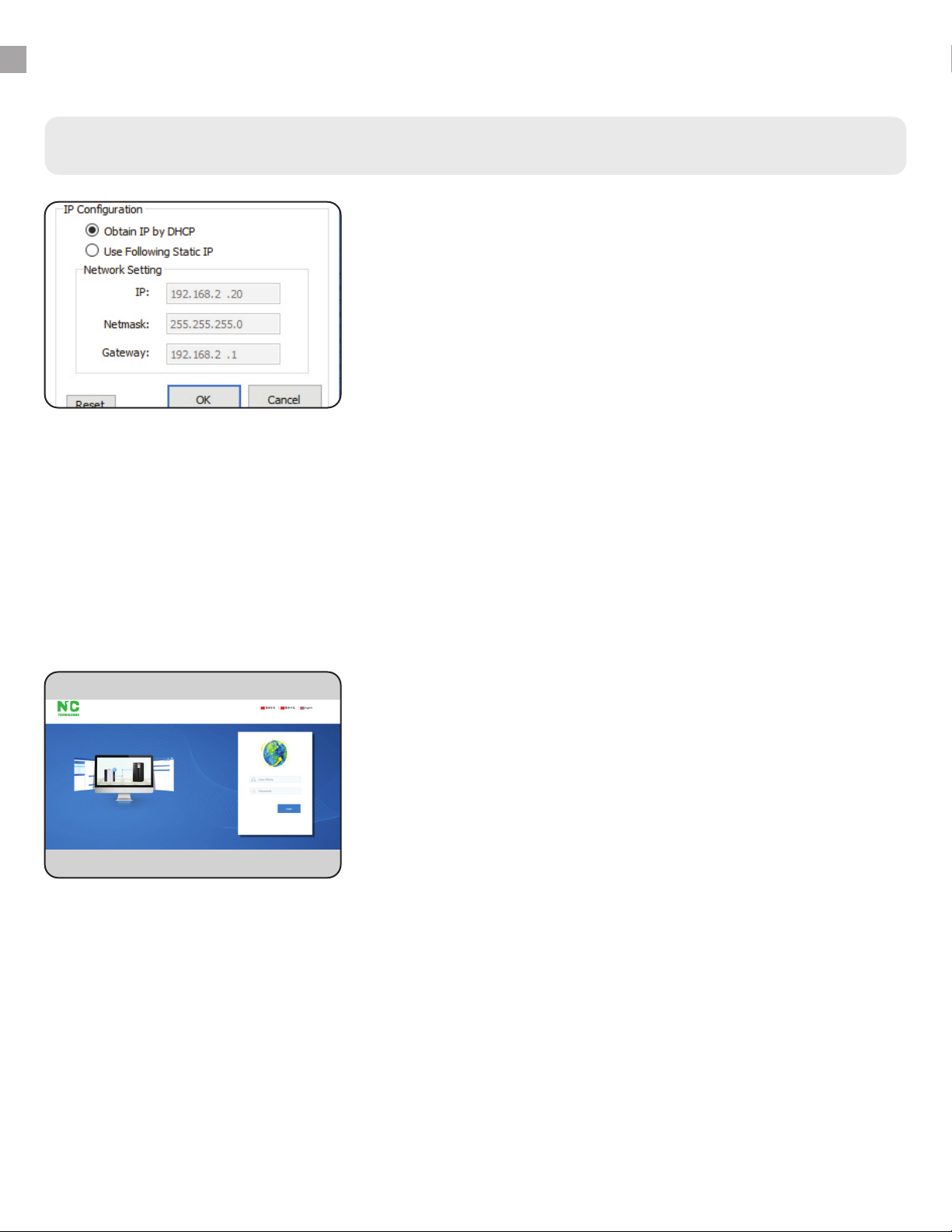
WiseWay and WiseInsight software will not work with the
default IP address. Highlight a UPS from the list, then click
the Network button to re-assign its IP address to a static IP
or obtain one by DHCP. You may also change the Subnet and
Gateway settings of static IP addresses, if necessary. If the
network environment cannot assign IP by DHCP, please use a
unique static IP.
It is important to make note of the IP address for UPS systems
(identified by the SNMP Serial Number and MAC Address) and
their physical location in your facility. This will help when using
the WiseInsight UPS monitoring software, which allows you
to “map” locations of devices and rename them to something
more memorable.
5.
WiseFind
WiseWay (UPS GUI)
To launch WiseWay, the graphical user interface of the ION
UPS SNMP Card, double click a device from the list in WiseFind,
or highlight a device and click “Launch Web.” The GUI will open
in your default Web browser. Use the default information to
login:
Username: admin
Password: admin
See additional instructions for WiseWay GUI starting on next
page.
6.
INSTRUCTIONS - WISEWAY
WiseWay GUI monitoring/control
WiseWay Home Screen
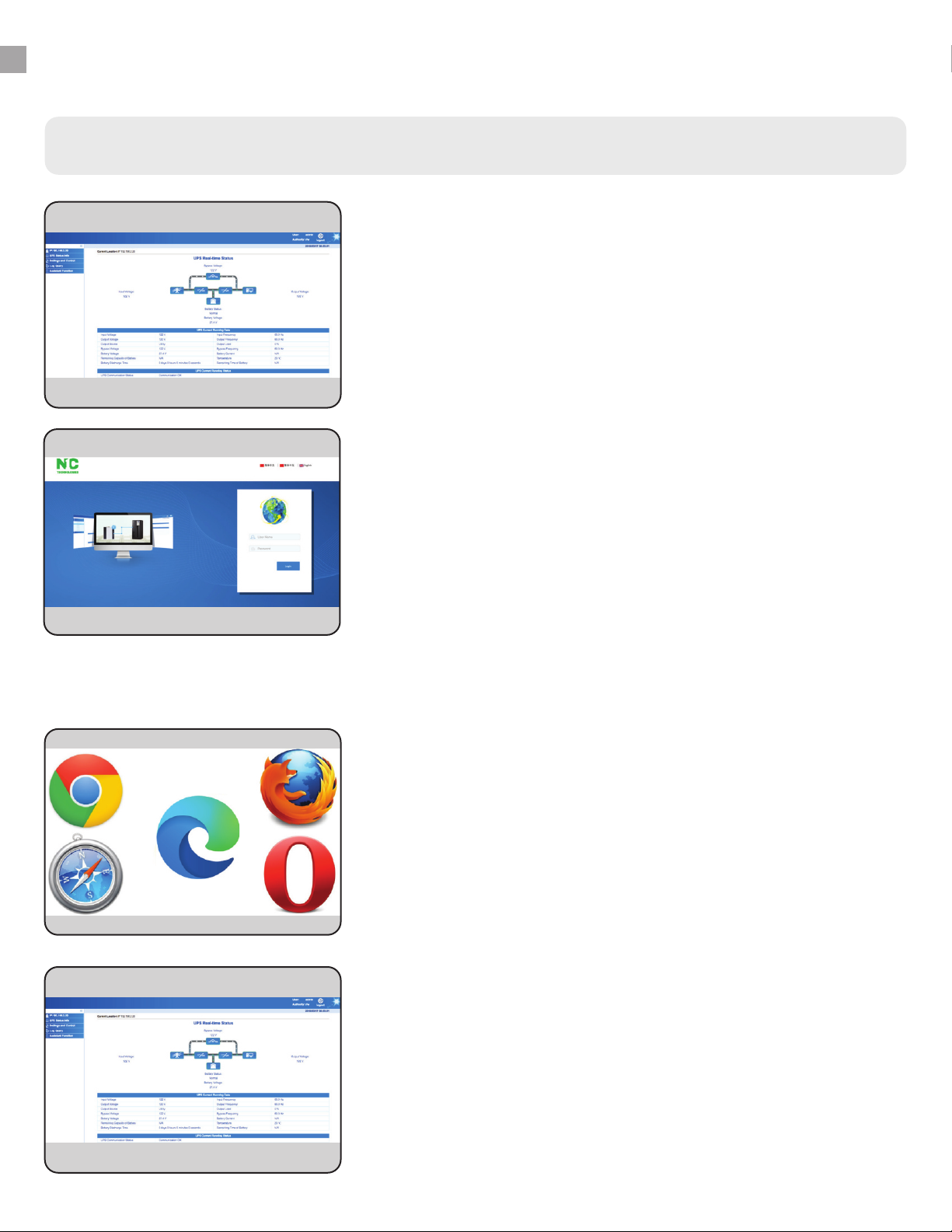
WiseWay has many useful features and lets you monitor and
control one UPS at a time. See real-time data from your unit
(monitoring), and send remote commands (control) to it, such
as running a 10-second selftest, switch to bypass, restart,
etc. Some of the monitoring features are also available in
WiseInsight.
Click the IP address on the top left menu to see the WiseWay
home screen, which shows live real-time data for the connected
UPS. The next pages of this manual will go through other left-
side menu options available in WiseWay.
1.
4.
WiseWay
Browser Compatibility
WiseWay is suitable any web browser, including:
• Chrome
• Safari
• Edge
• Firefox
• Opera
WiseWay GUI is also accessible on MAC computers.
3.
WiseWay Login
To launch WiseWay double click a device from the list in
WiseFind, or highlight a device and click “Launch Web.” The
GUI will open in your default Web browser. If you know the IP
address, you can enter it manually into your browser’s address
bar.
Use the default information to login:
Username: admin Password: admin
You can change the admin password after first login. Look
under “Settings and Control” then click “Network Setting.”
2.
9
INSTRUCTIONS - WISEWAY
System Status Info
10
Real-Time Data
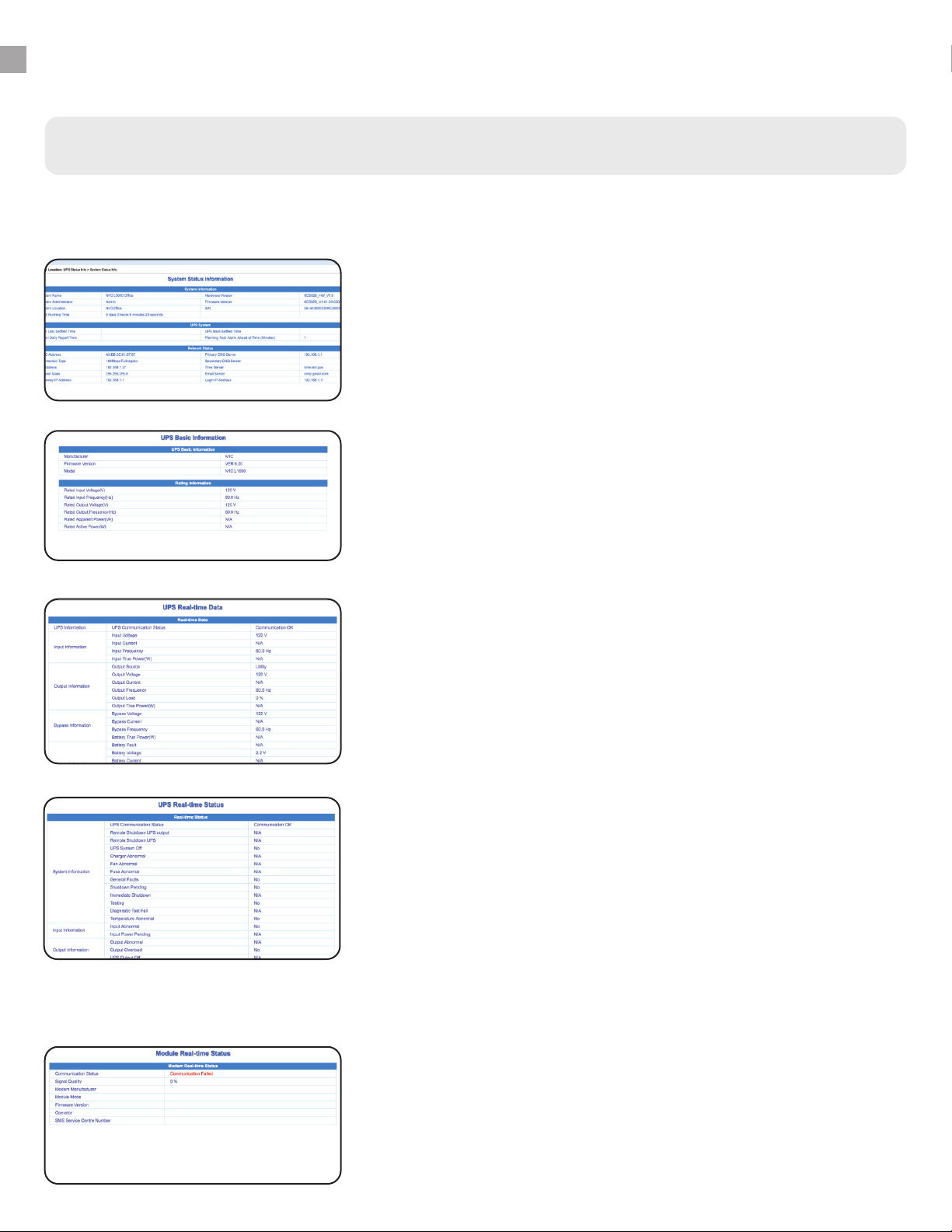
This menu provides the an overview of system information,
UPS system information and network status information.
This menu shows the real-time data of the UPS, including
communications status, input and output information, bypass
information and battery information. Use it to see if your UPS
is functioning normally.
1.
3.
WiseWay - UPS Status Info Menu
Basic Info
This menu provides basic information about your UPS device,
including manufacturer, model number, firmware number,
and input/output voltage information.
2.
Real-Time Status
This menu shows the real-time status of the UPS, including
system information, input information, output information,
bypass information and battery information. Items in the table
are things that often will trigger an alarm (input overload,
system on bypass mode, system on battery mode, battery
low voltage, fan abnormal, etc.) Use it to see if your UPS is
functioning normally.
4.
Module Real-Time Status
This menu shows real-time data from SMS Relay modules.
*SMS modules are not available for ION UPS systems.
5.
The UPS Status Info menu shows “read only” real-time data for your UPS system. There are no settings
to be changed in these menus.
Table of contents
Other ION UPS manuals