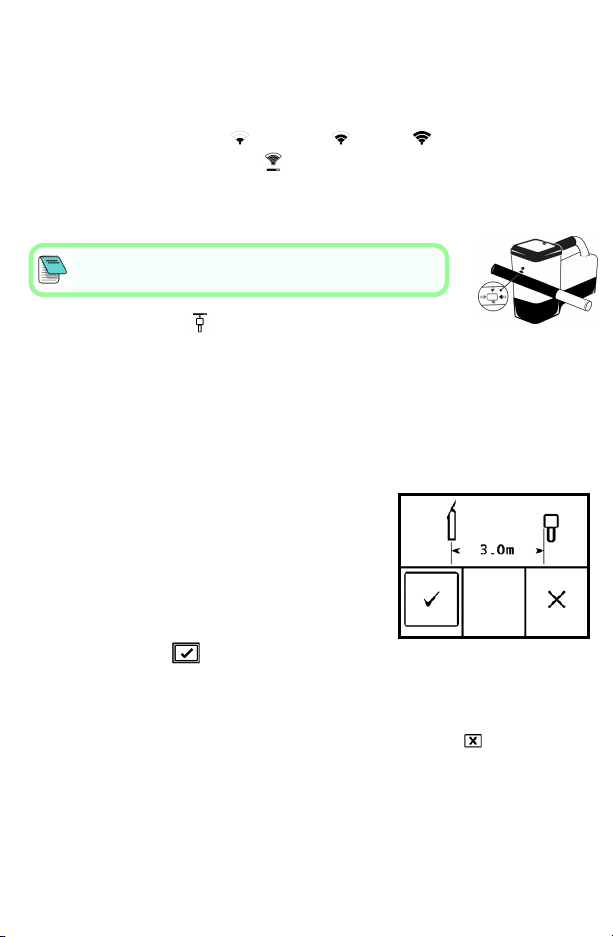
The screen displays the preset bands and power modes and is ready to
pair. The presets may not be the best choice for many situations. You can
use the Advanced:Scan, Pick, and Pair instead.
To learn more about changing the preset bands and power modes, see the
DCI DigiGuide App.
Advanced Method:Scan, Pick, and Pair
At jobsites with challenging interference, use Frequency Optimization
(FO) to show the active interference (noise) The FO will show noise levels
for nine optimized bands.
a. With the Tx off, select Tx/FO from the Main menu, click FO , and
then click Scan .
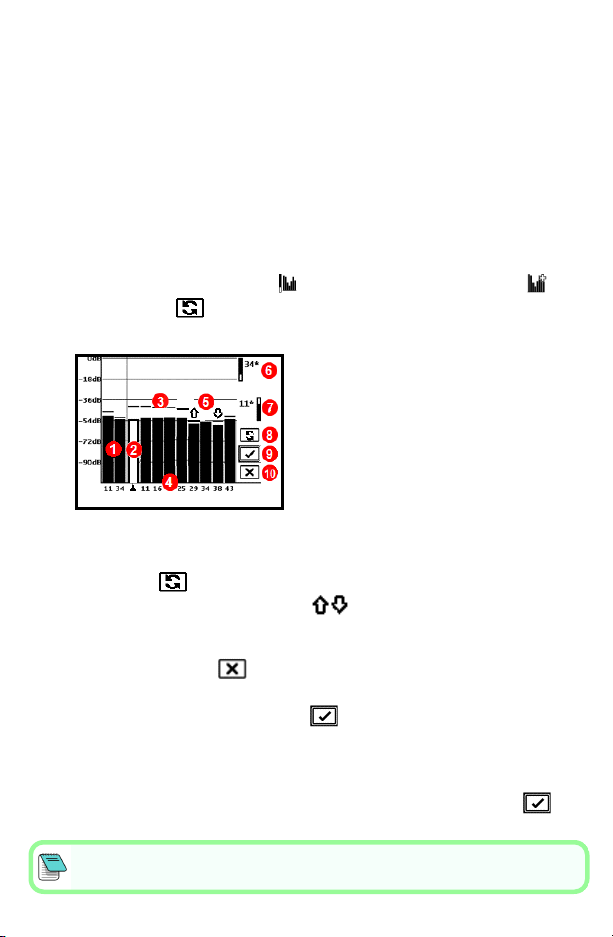
b. Walk and scan the drill path to find areas with the highest noise levels.
1. Currently paired Up and Down bands
2. Selected band
3. Maximum noise reading line
4. Band numbers
5. Quick Select Up and Down bands
6. Up band (*Quick Select option)
7. Down band (*Quick Select option)
8. Rescan
9. Pair
10. Exit
FO Results
c. It is important to return to the point on the drill path with the highest
noise. Rescan to optimize the bands. The lowest noise bands are
marked with up and down arrows .
d. You can do one of the following:
• To continue using the currently selected bands (the two on the far
left), click Cancel .
• To use both of the Quick Select bands with the lowest noise
(marked by arrows), click Pair . Up and Down bands are
assigned to those bands with one click.
• To manually select one or both bands, toggle to the band, click to
select, and then select the Up or Down Band icon to assign the
band. If needed, repeat to select the other band. Click Pair to
assign your selected band(s).
For passive interference, such as rebar, select band 7 or 11. To learn more about
passive interference, search the DCIDigiGuide App.
- 2 -